
Regular Booking Service (Book by time slot)
AI Overview
Regular Booking, or Book by time slot, is for services that run in fixed time slots of minutes or hours, such as haircuts, consultations, tutoring, or classes. Customers pick a date and an available slot, and may pay depending on your payment settings. You control duration, capacity, payment type, and availability.
View moreView less
- Know your service duration, capacity, and whether customers pay to book before you start.
- Open Services, click New service, and choose Book by time slot.
- Create the product with a Title and Status, then set Capacity and Duration.
- Choose a payment type, then assign team members and set their available days.
- Click Save; customers then see a Book button and booking popup, with checkout for paid services.
Summary generated by AI. It can make mistakes, so check the full guide below.
Regular Booking is the best option for services that happen in fixed time slots (minutes or hours), like haircuts, consultations, tutoring, or classes.
✅ What this service type does
Section titled “✅ What this service type does”With Regular Booking, customers can:
- Pick a date
- Choose an available time slot (example: 09:00–09:30)
- Book and (optionally) pay, depending on your payment settings
You can control:
- Service duration (30 min, 60 min, custom…)
- Capacity (how many people per slot)
- Payment type (free booking or pay-to-book)
- Availability (team members / schedules, if your app supports it)
🎯 When should I use Regular Booking?
Section titled “🎯 When should I use Regular Booking?”Use this when your service:
- Takes less than a day
- Has clear start/end times
- Needs a time-slot schedule
Examples
- Haircut (30–60 min)
- 1:1 consultation (60 min)
- Language lesson (45 min)
- Massage (90 min)
🧩 Before you start (recommended)
Section titled “🧩 Before you start (recommended)”Make sure you know:
- Your service duration (ex: 30 min)
- Your service capacity (ex: 1 customer per slot)
- Whether customers must pay to book (Pay now / Pay later / customer chooses)
🛠️ Step-by-step: Create a Regular Booking service
Section titled “🛠️ Step-by-step: Create a Regular Booking service”1) Open services
Section titled “1) Open services”- Open the app > click Services
- Click New service button
2) Choose service type
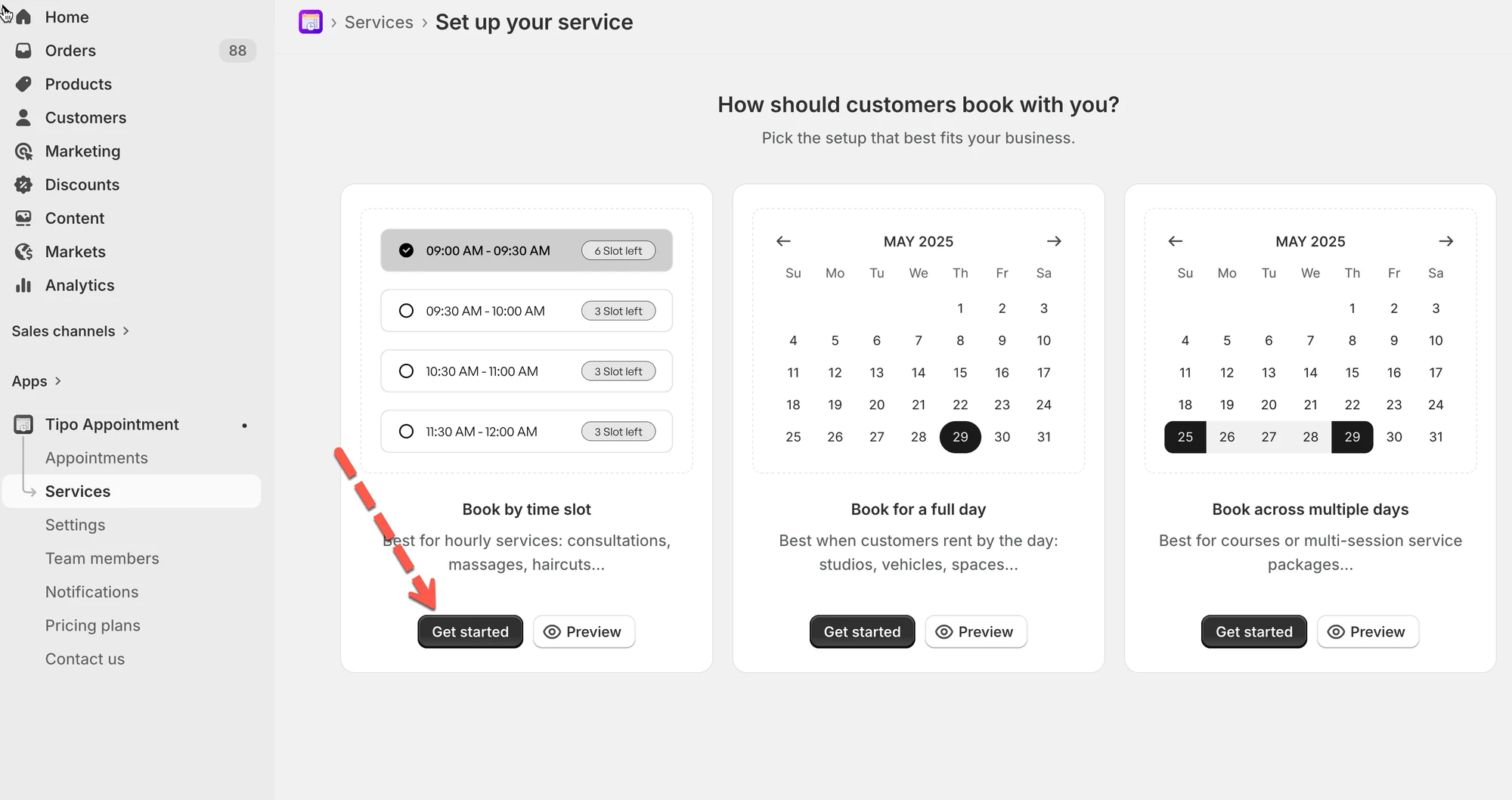
Section titled “2) Choose service type”Select Book by time slot (time-slot service).
3) Create product
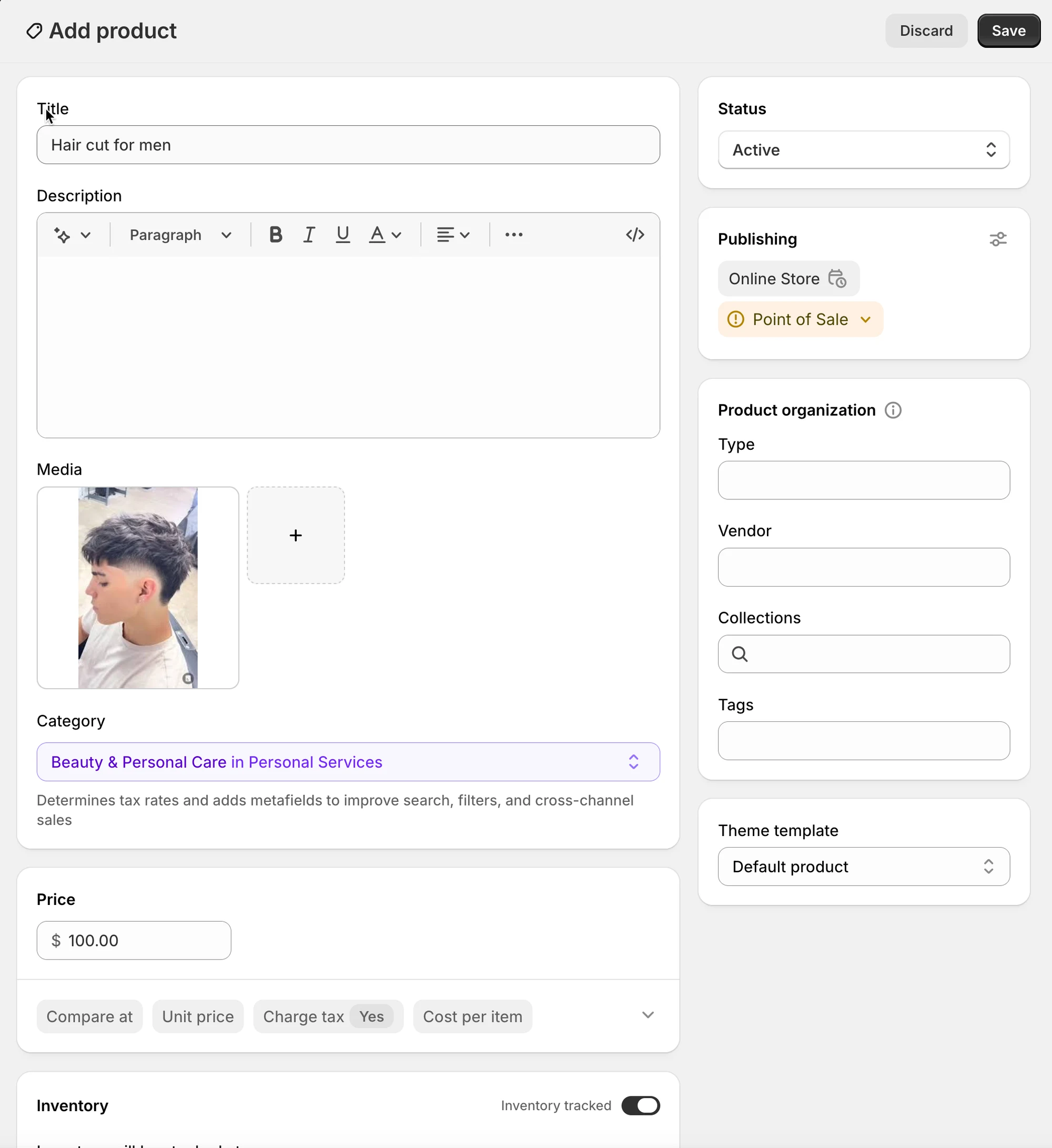
Section titled “3) Create product ”- Title (example: Haircut for men)
- Description (optional, but helpful for customers)
- Status: Active (or Draft while testing)
- Optional: Media, Vendor, Tags, etc. (Shopify product fields)
4) Configure service settings
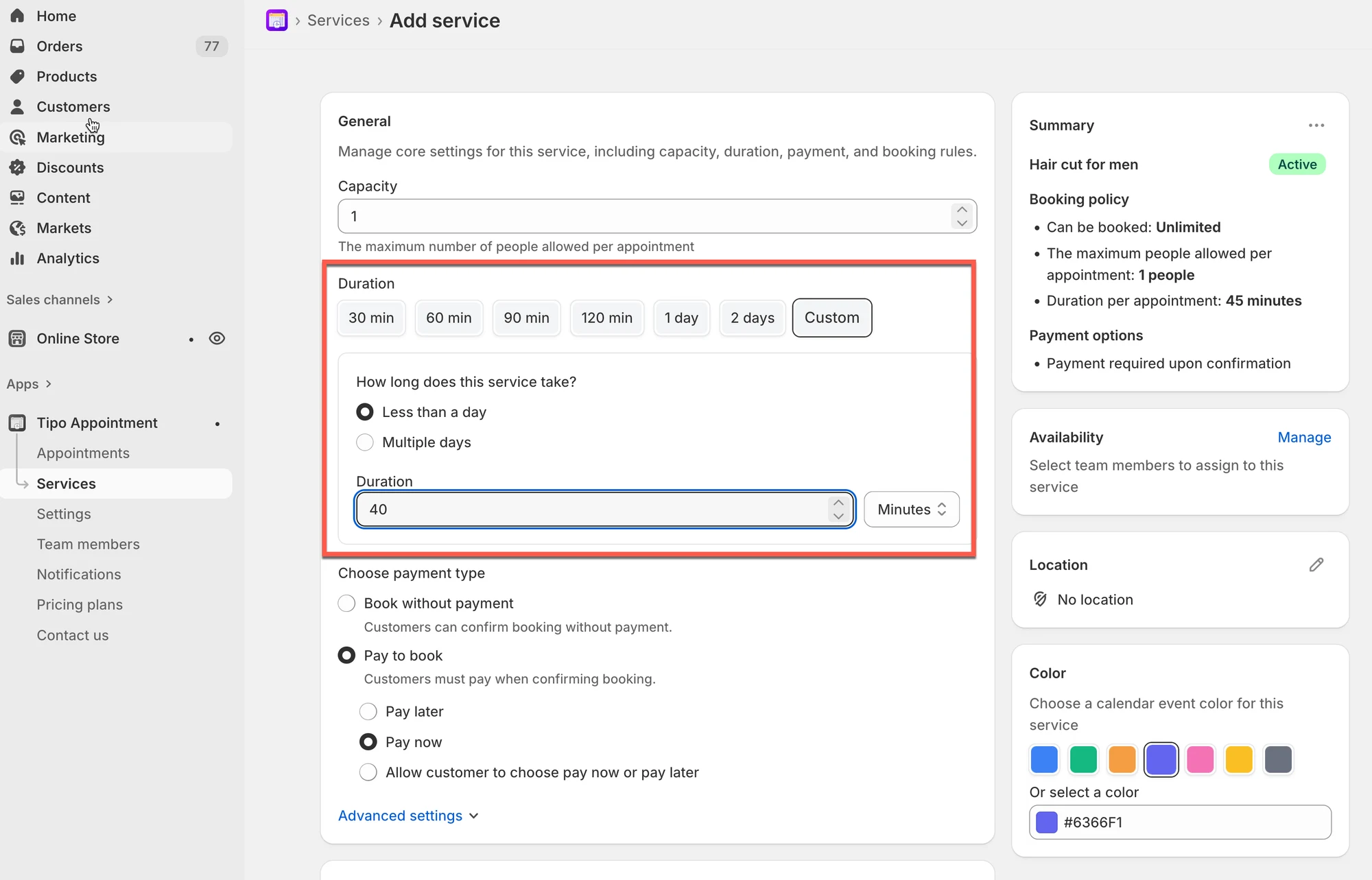
Section titled “4) Configure service settings”- Set Capacity: choose how many customers can book each time slot.
Examples
1 = one customer per slot (most common)
5 = group class with 5 seats per slot
- Set duration (minutes/hours): Under Duration, choose a preset or Custom.
Examples
Haircut: 40 min
5) Choose payment type
Section titled “5) Choose payment type”Pick one option under Choose payment type:
| Option | What it means | Best for |
|---|---|---|
| No payment required | Customers book without paying online | Free consultations, pay-in-person services |
| Pay to book | Customers must pay (or commit to payment) to confirm | Deposits, paid appointments |
| Pay now (inside Pay to book) | Charge immediately | High-demand services |
| Pay later (inside Pay to book) | Book first, pay later | Invoices, manual payment |
| Customer chooses | Customer selects Pay now or Pay later | Flexible businesses |
Example
- Salon appointment → Pay to book → Pay now
- Free consultation → Book without payment
6) Configure availability
Section titled “6) Configure availability”- Assign team members
- Set available days of the team member
Set these to match when you can actually accept bookings.
7) Customize more settings (Optional)
Section titled “7) Customize more settings (Optional)”- In Location field, enter the location of the service
- Color: helps identify bookings in the calendar
- Questions & Add-ons: collect info (name, preferences) or sell add-ons
- Advanced settings: booking rules, lead time, buffer time, etc. (if available)
8) Save
Section titled “8) Save”Click Save to finish creating the service.
🧪 Example setup (simple)
Section titled “🧪 Example setup (simple)”Service: Haircut
- Duration: 0 min
- Capacity: 1
- Payment: Pay to book → Pay now
Result: Customers will see 30-minute slots and must pay to confirm.
🌐 How it works on your storefront
Section titled “🌐 How it works on your storefront”After you create the service:
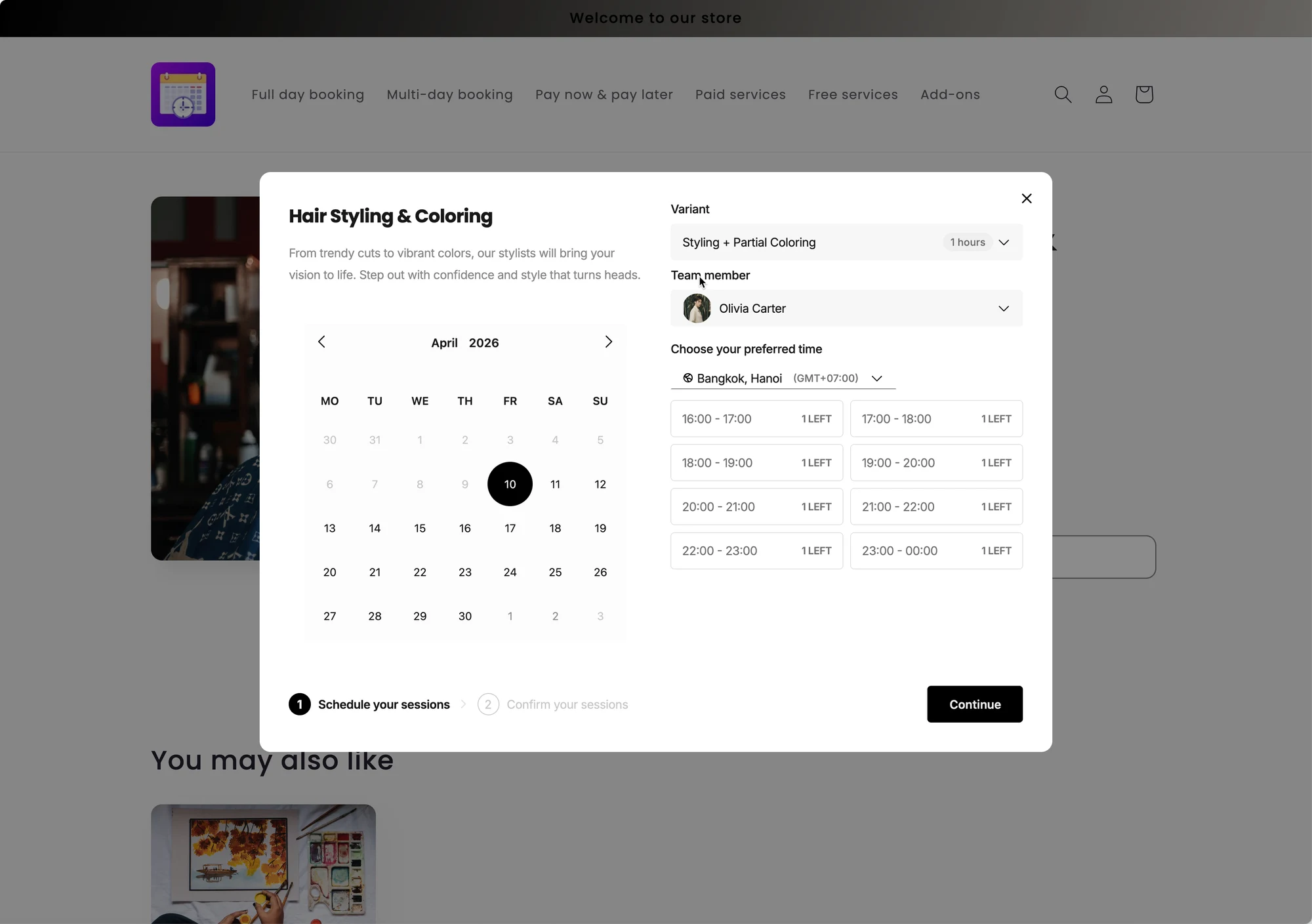
- The app adds a Book button on the product/service page
- Customer clicks Book
- A booking popup opens where they select:
- date
- time slot
- (and location/team member if applicable)
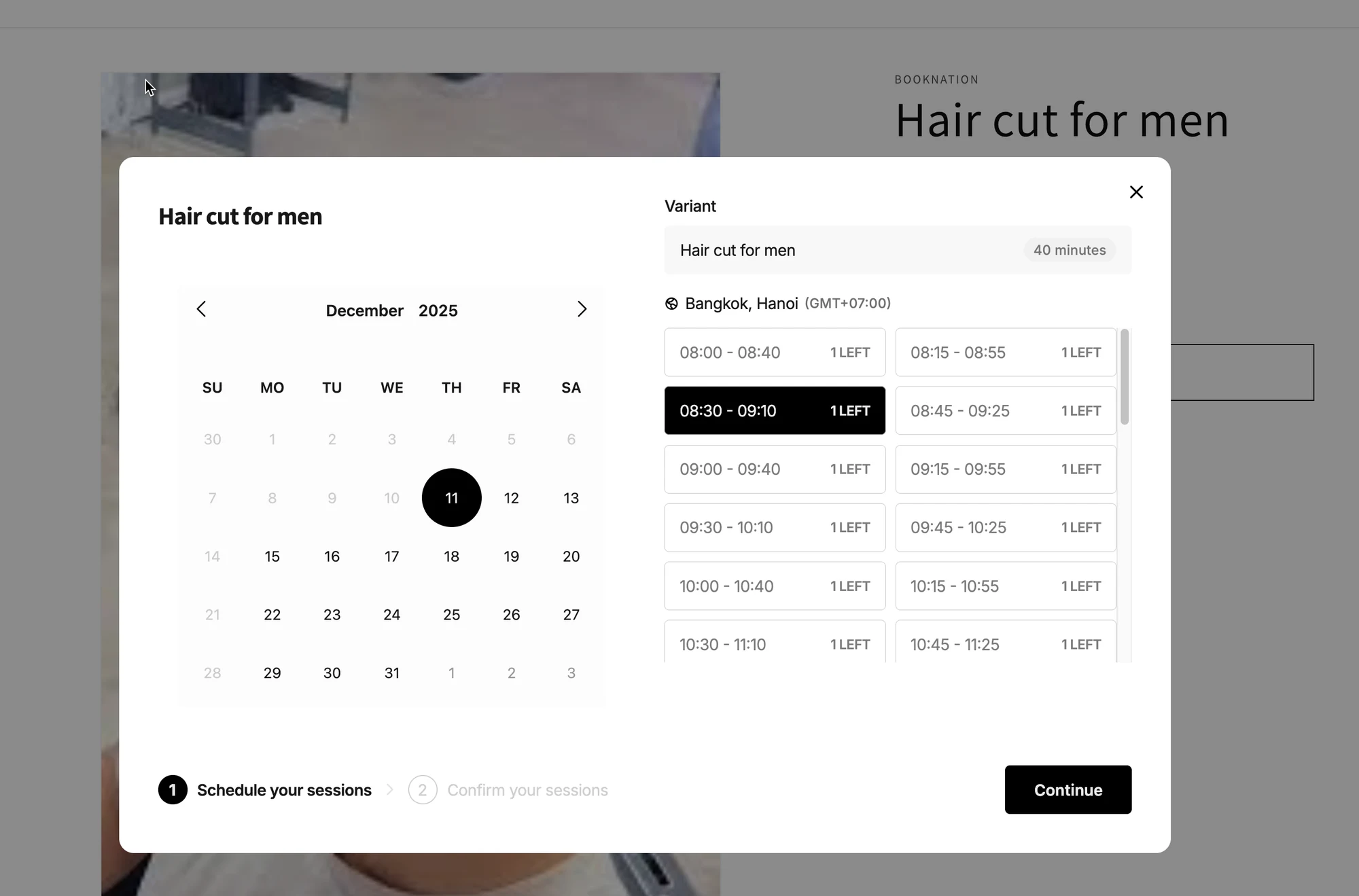
- If it’s a paid service, the customer continues to checkout to complete payment
🙋 Still need support?
If you still need help, please feel free to contact us at hi@tipo.io. We’ll be happy to assist you further.