
Book Multiple Sessions
AI Overview
Set up a Book multiple sessions service in Tipo Appointment Booking so customers pay once and schedule several sessions on different dates and times, such as course packages or training bundles. The price covers the whole package, not each session, and every session appears as its own entry under Appointments.
View moreView less
- Go to Services > New service and select Book multiple sessions.
- Create the product; the price is paid once for the whole package.
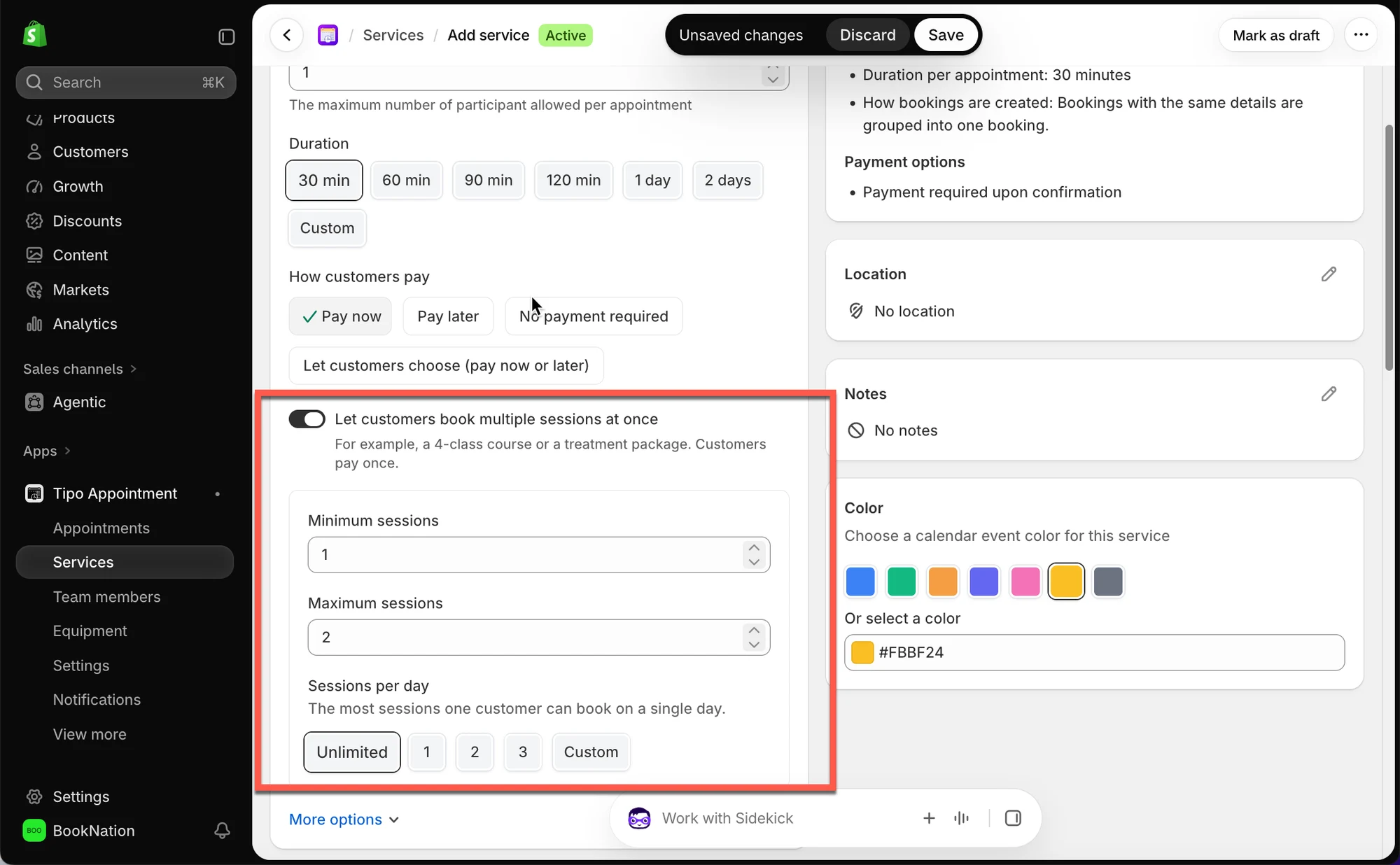
- Set Minimum sessions, Maximum sessions and Sessions per day.
- Turn on Let customers book multiple sessions at once under General, set duration, payment and availability, then save.
- Customers cannot check out until they schedule at least the minimum number of sessions.
Summary generated by AI. It can make mistakes, so check the full guide below.
Let customers pay once and book several sessions at different dates and times — perfect for course packages, therapy plans, or personal training bundles.
🛠️ How to set
Section titled “🛠️ How to set”Choose This Service Type
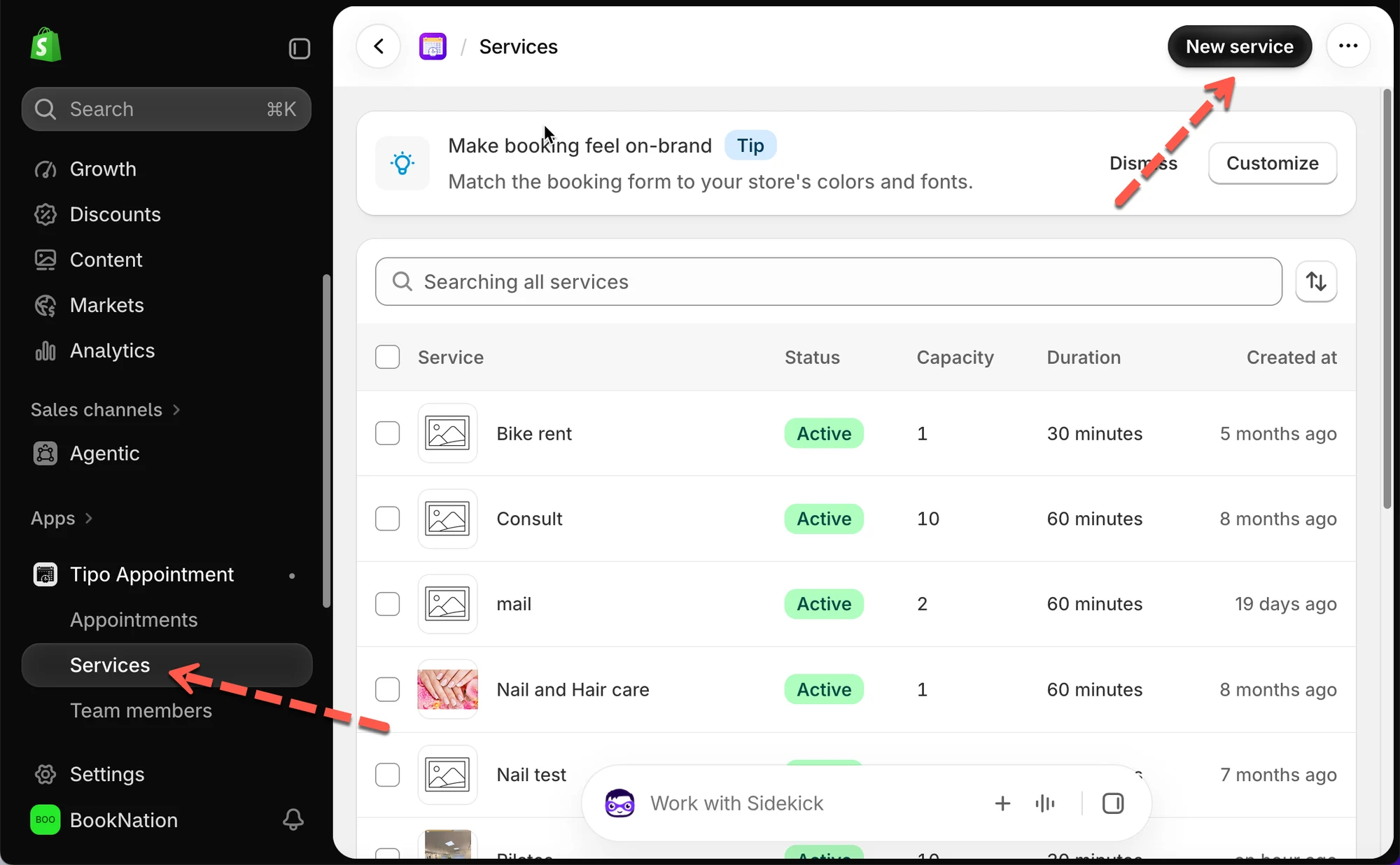
Section titled “Choose This Service Type”- Open the app > Services > New service
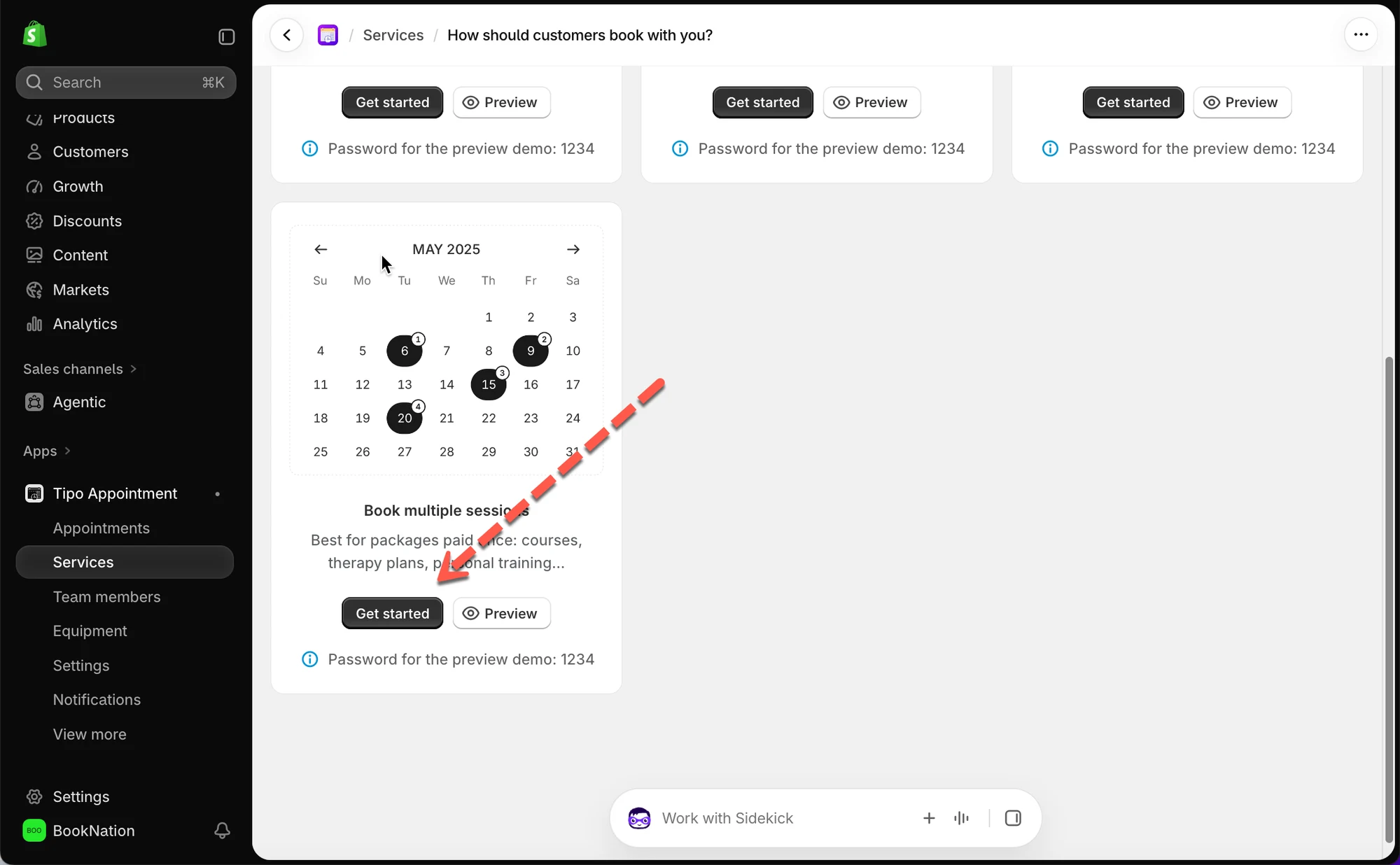
- On How should customers book with you? , select Book multiple sessions
Create the Service Product
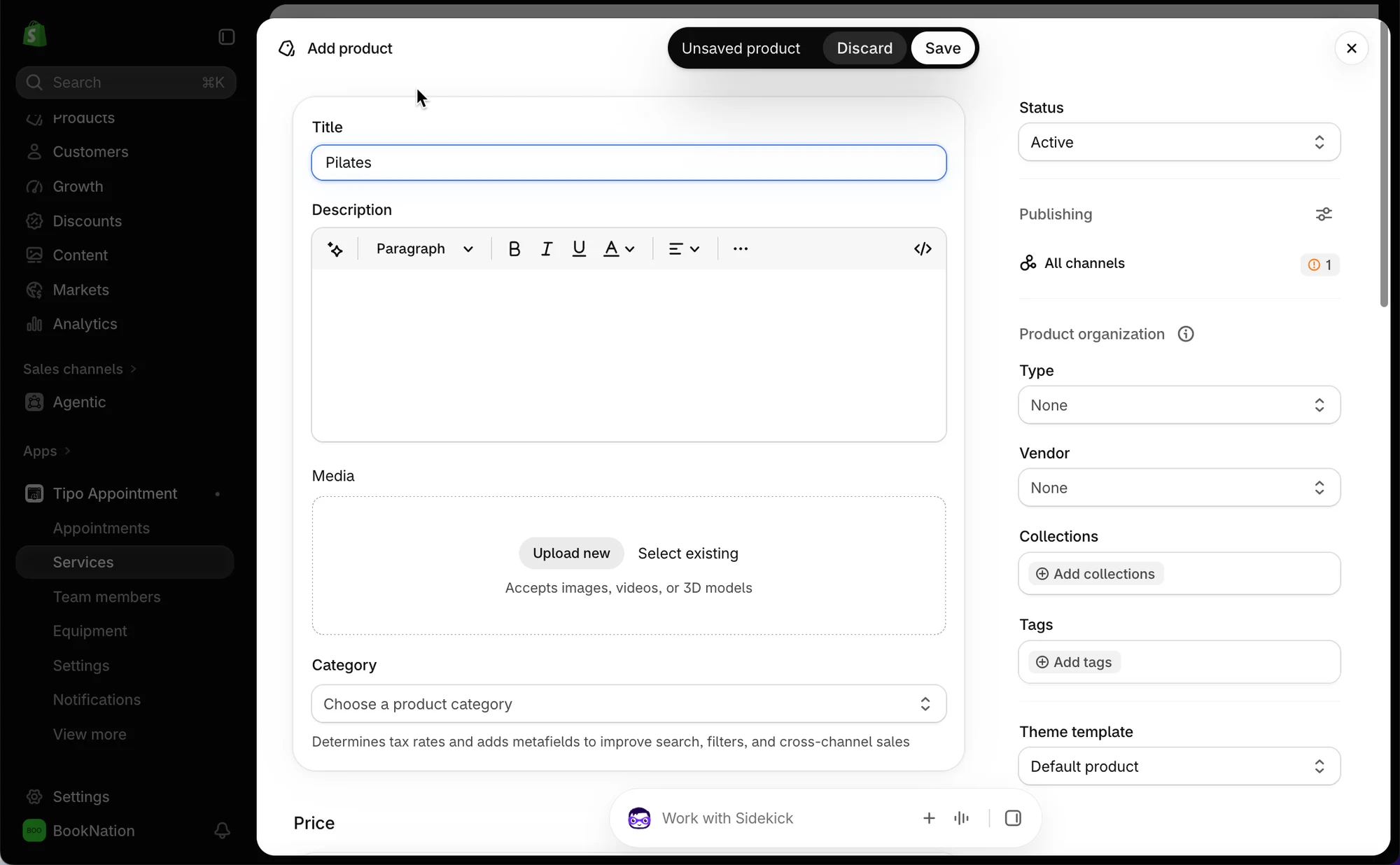
Section titled “Create the Service Product”Same as any other service — set a Title , Status , Category , and Price . The price is what the customer pays once for the whole package, not per session.
| Setting | What It Does |
| Minimum sessions | Fewest sessions a customer must schedule to complete the booking |
| Maximum sessions | Most sessions a customer can schedule in one booking |
| Sessions per day | Caps how many of those sessions one customer can book on the same day — Unlimited , a fixed number, or Custom |
Example: A 3-class Pilates course sets Minimum sessions = 1, Maximum sessions = 3, so the customer schedules all 3 classes as part of one purchase — and Sessions per day stays Unlimited , so they could book two classes on the same day if they want.
Turn On Multiple Sessions
Section titled “Turn On Multiple Sessions”Under General , find Let customers book multiple sessions at once and turn it on.
Set Duration, Payment, and Availability
Section titled “Set Duration, Payment, and Availability”These work the same as any other service:
- Duration — how long each individual session lasts (eg
30 min) - How customers pay — Pay now, Pay later, No payment required, or let the customer choose
- Availability — assign team members or set service hours under How availability works
🌐 How It Works on Your Storefront
Section titled “🌐 How It Works on Your Storefront”1. Customer opens the service and sees Choose your sessions , telling them how many to pick (eg “Pick 1 to 3 sessions” ).
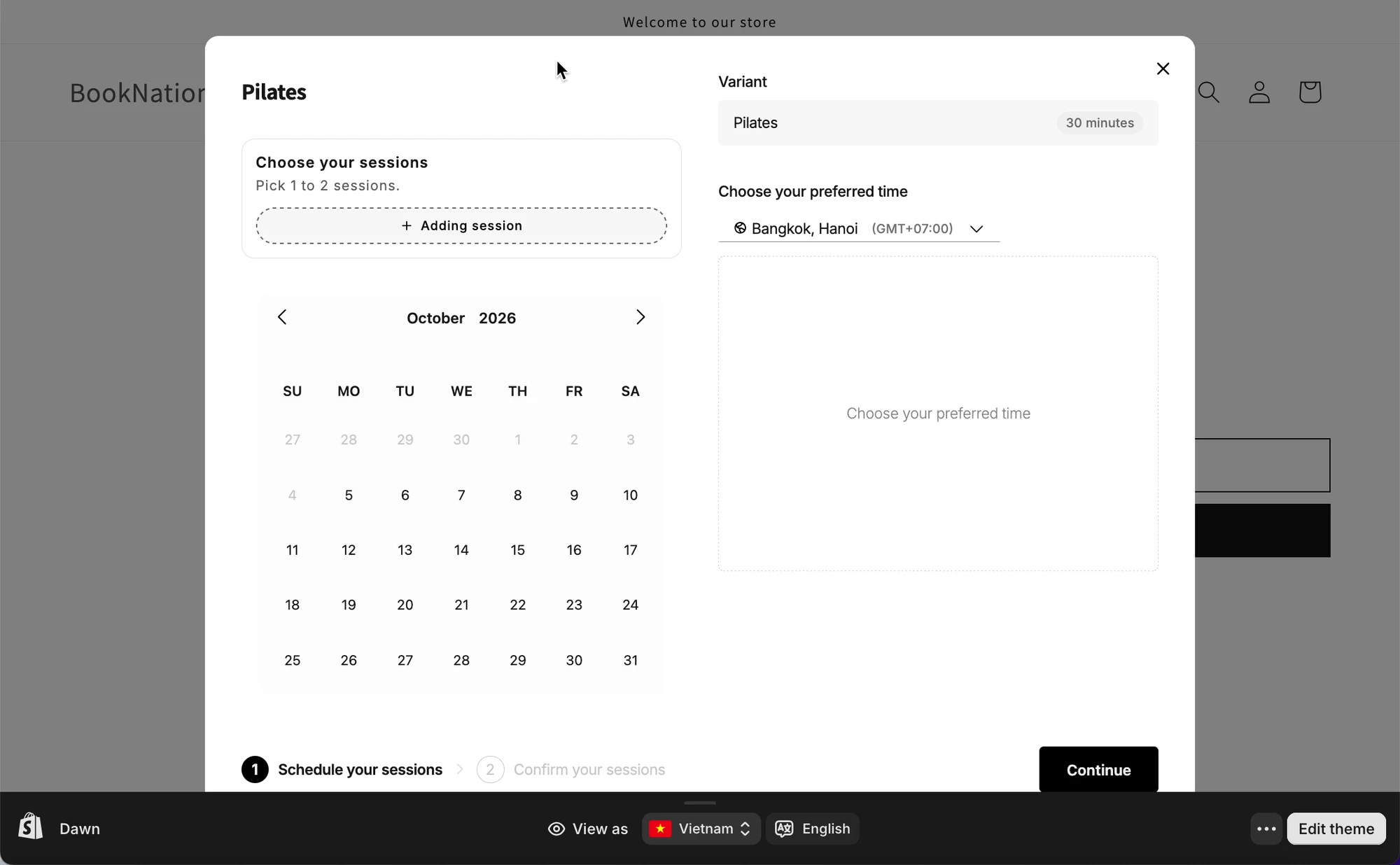
2. Customer clicks “+ Adding session” repeatedly, picking a date and time slot for each one. Each session gets numbered ( 1 , 2 , 3 …) as they’re added.
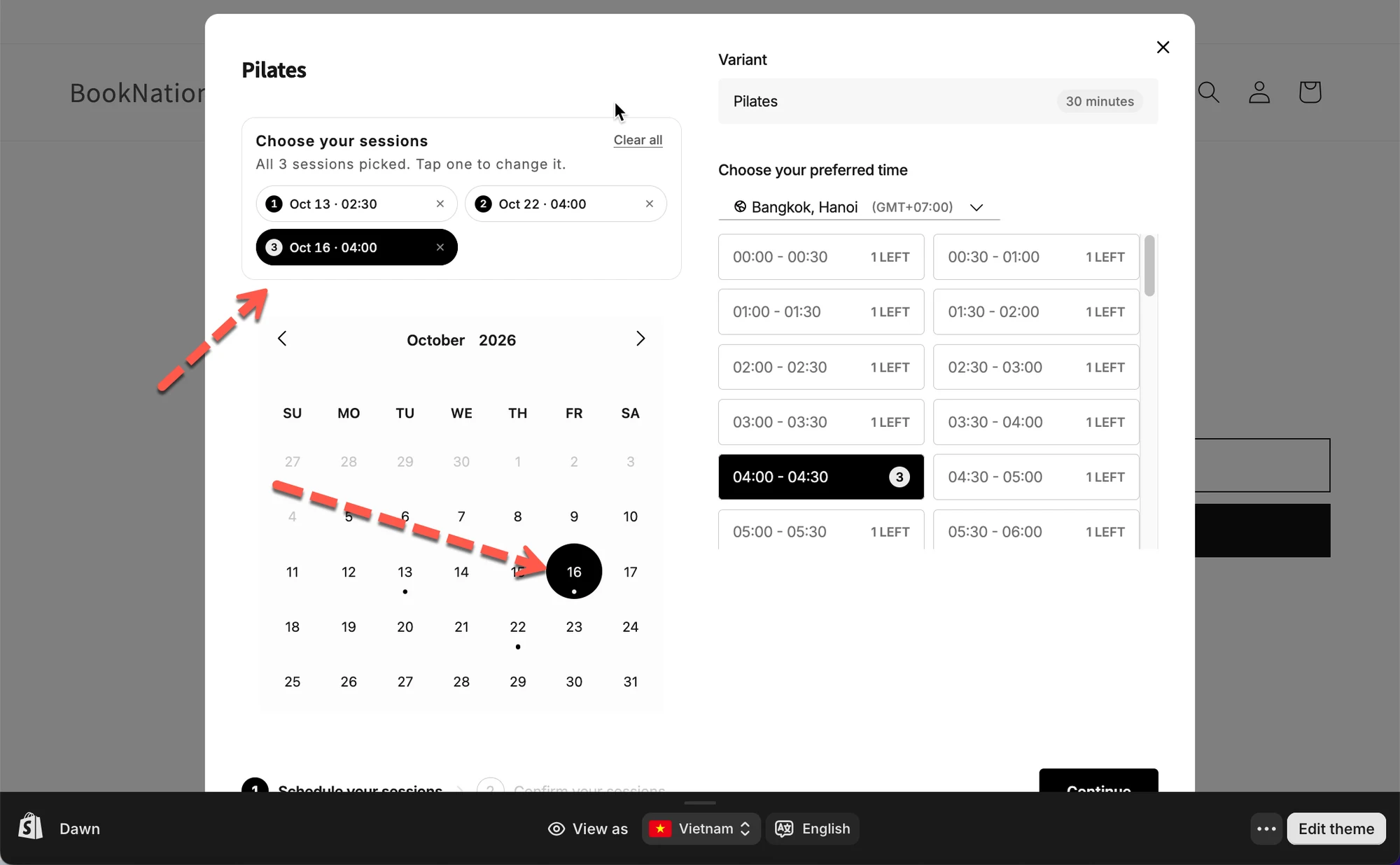
3. Once all sessions are picked , the panel shows a summary — “All 3 sessions picked. Tap one to change it.” Each session is listed with its date and time, and can be edited or removed individually. Clear all resets every session at once.
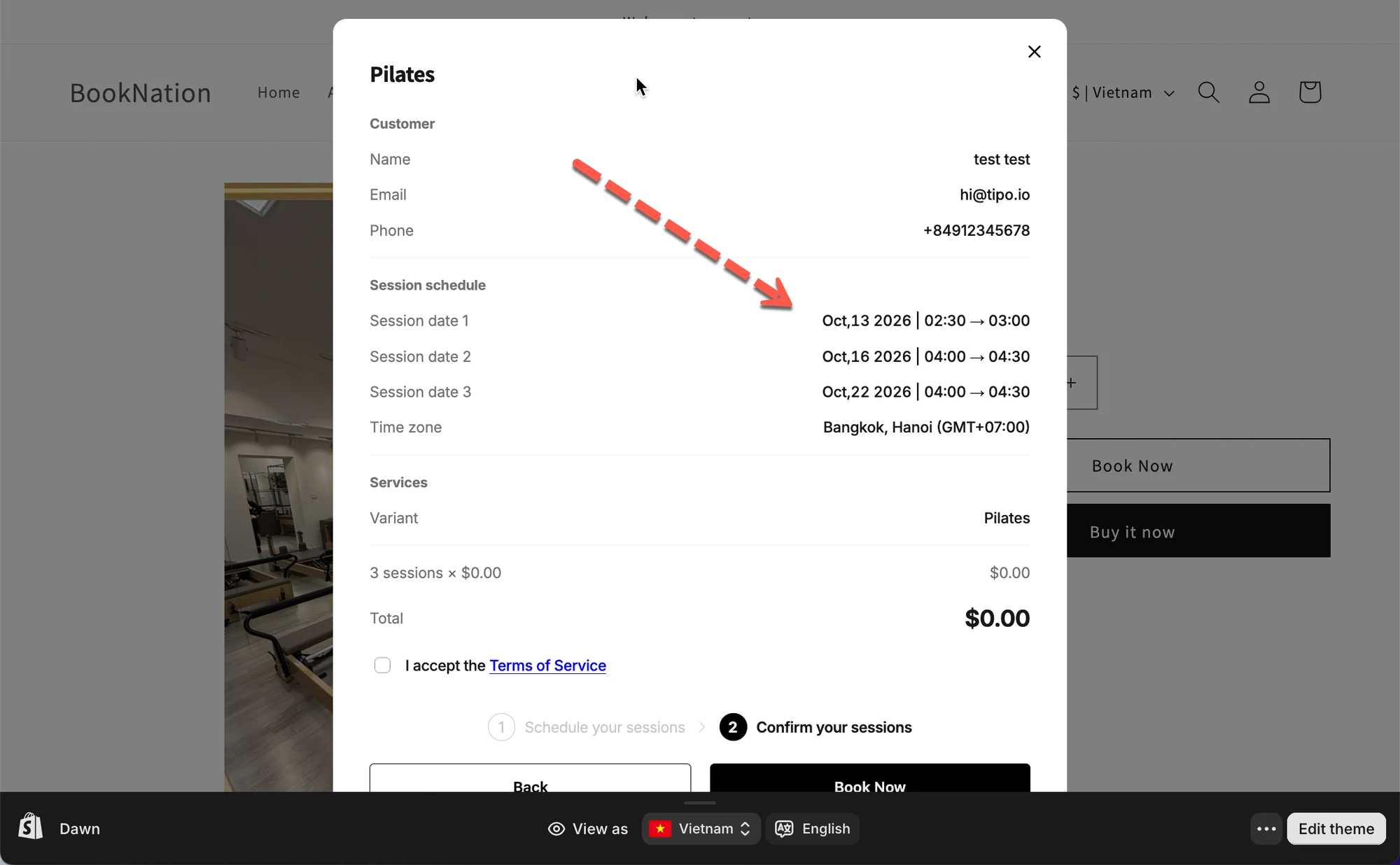
4. Customer confirms and pays once for the whole package — not per session.
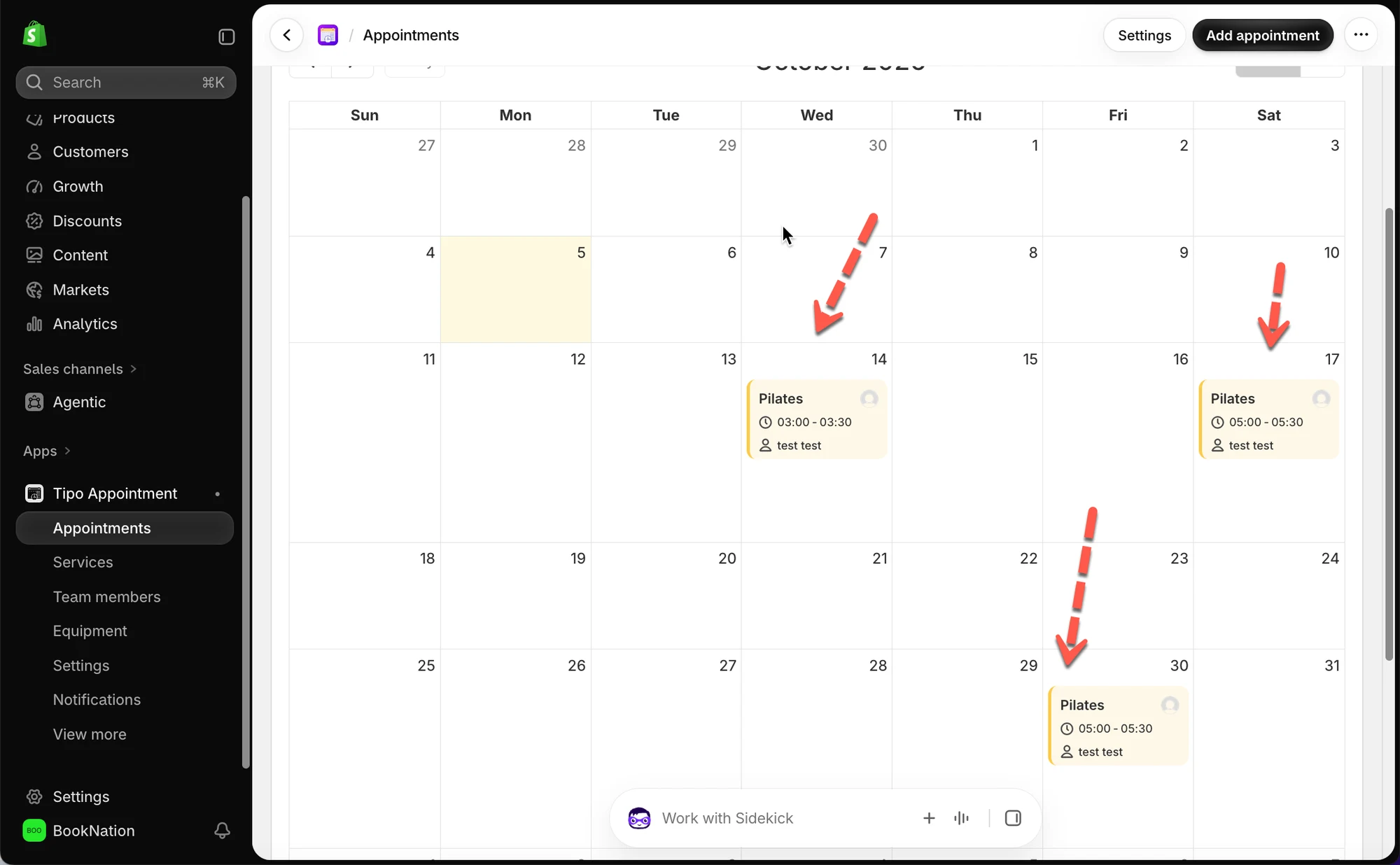
5. All sessions appear on your calendar under Appointments , each as its own entry on its own date, all linked to the same customer and service.
⚠️ Good to Know
- One payment, many sessions. The price is charged once for the full package, regardless of how many sessions are included.
- Sessions don’t have to be consecutive days. As shown in the example above, a customer can schedule their sessions in any order across any available dates.
- Minimum sessions must be met to complete checkout. If Minimum sessions is
1or higher, the customer can’t continue until they’ve scheduled that many.