# Book Multiple Sessions
Let customers pay once and book several sessions at different dates and times — perfect for course packages, therapy plans, or personal training bundles.
## 🛠️ How to set
### Choose This Service Type
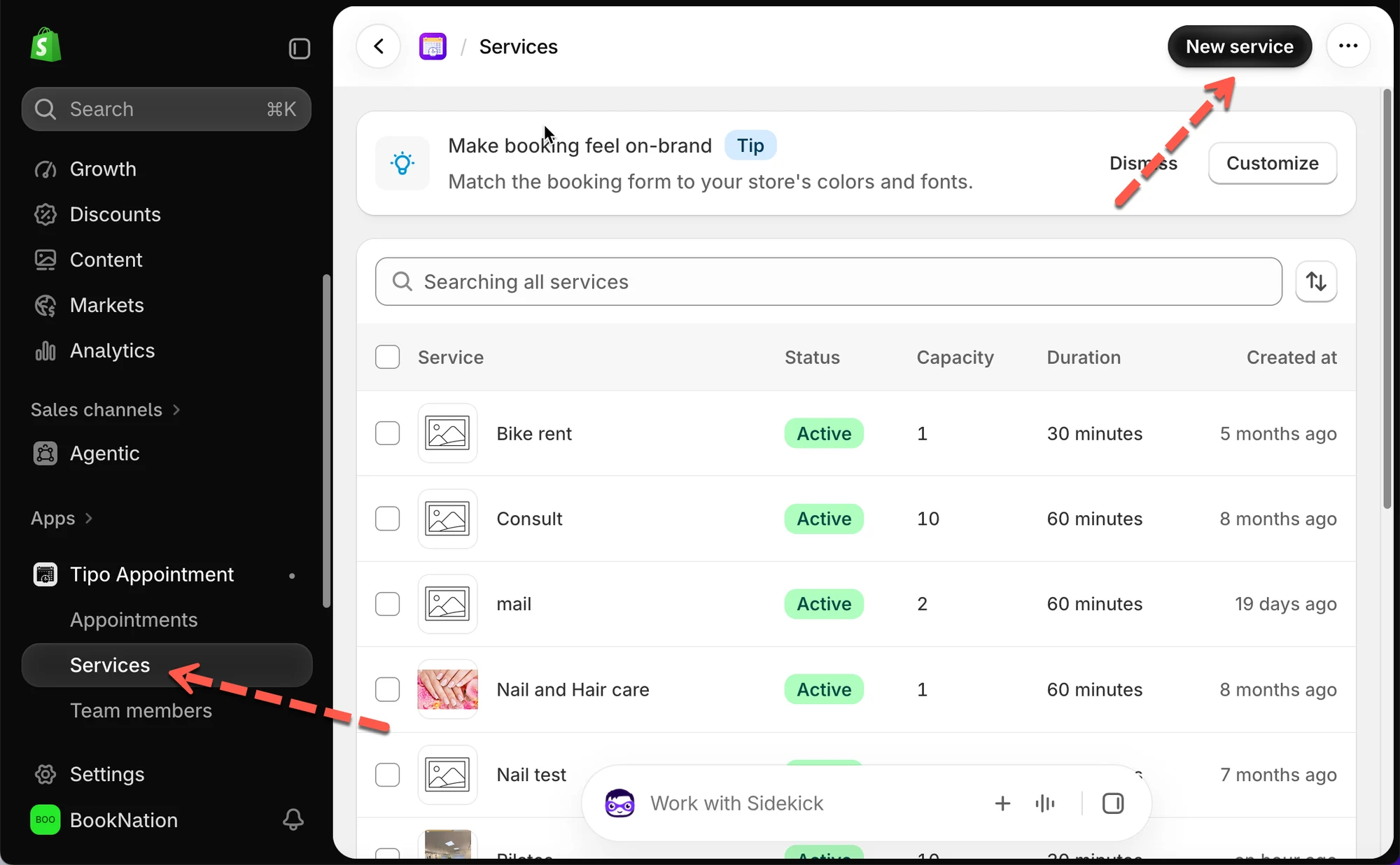
* Open the app > **Services** > **New service**
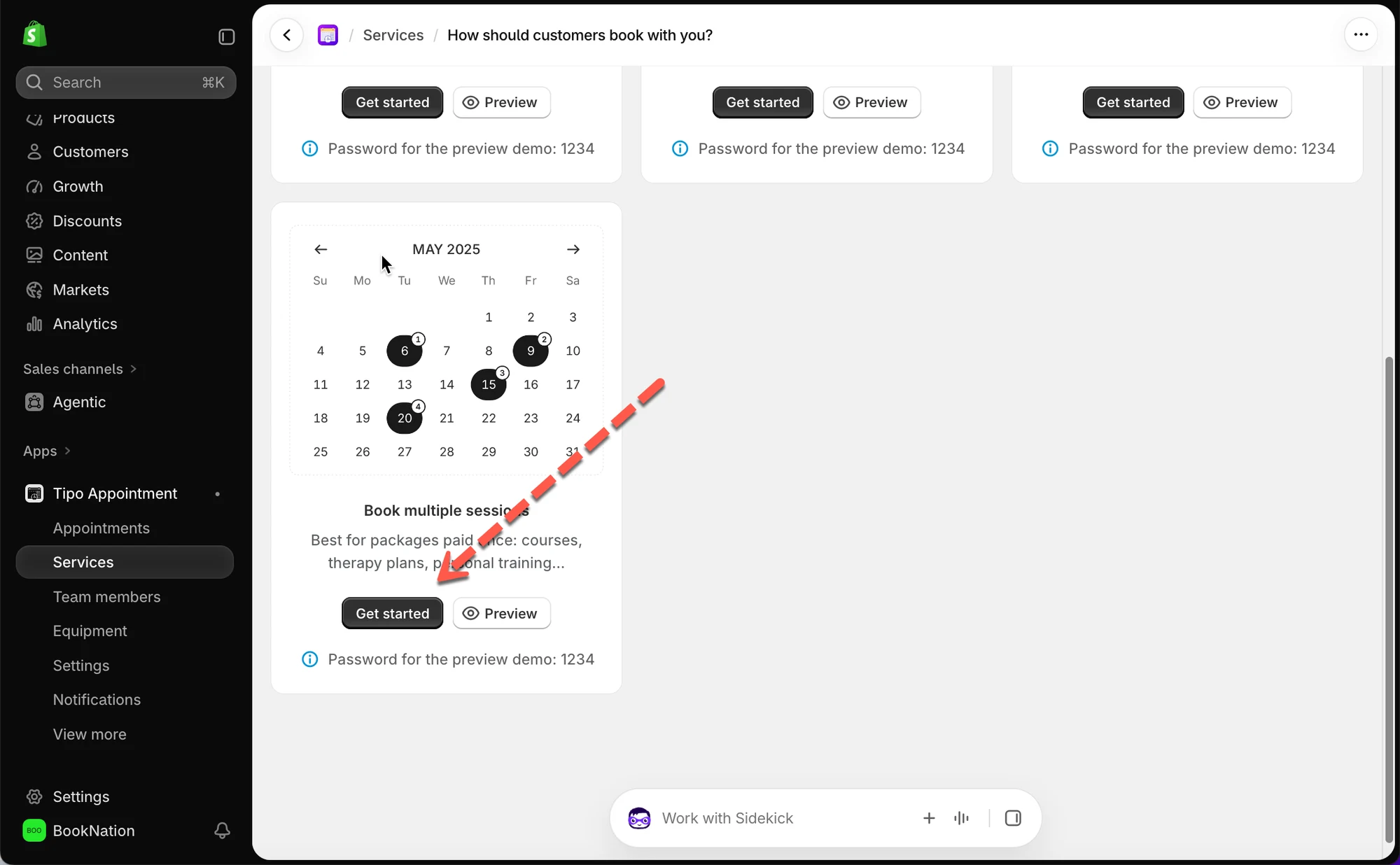
* On **How should customers book with you?** , select **Book multiple sessions**
### Create the Service Product
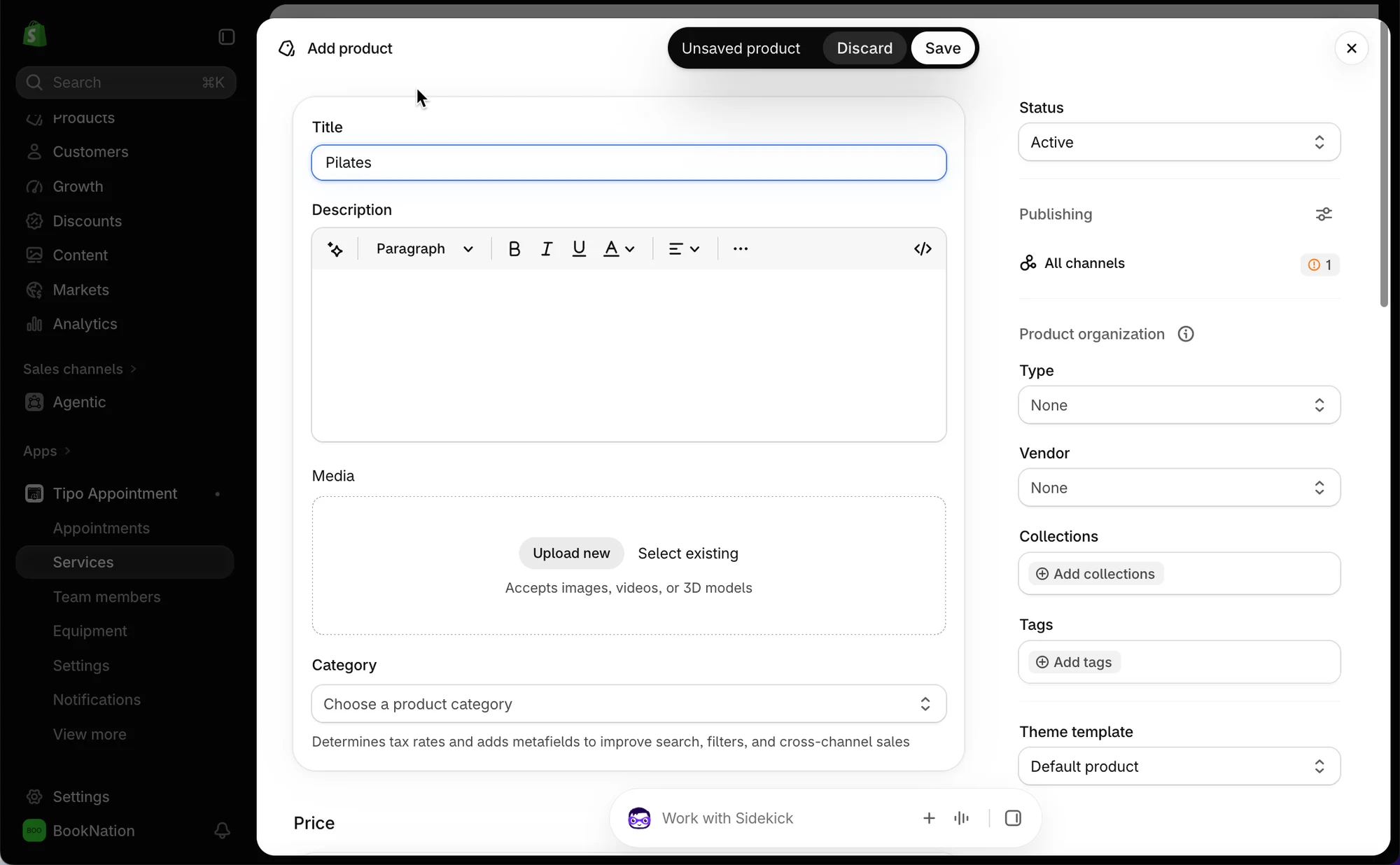
Same as any other service — set a **Title** , **Status** , **Category** , and **Price** . The price is what the customer pays once for the whole package, not per session.
Setting
What It Does
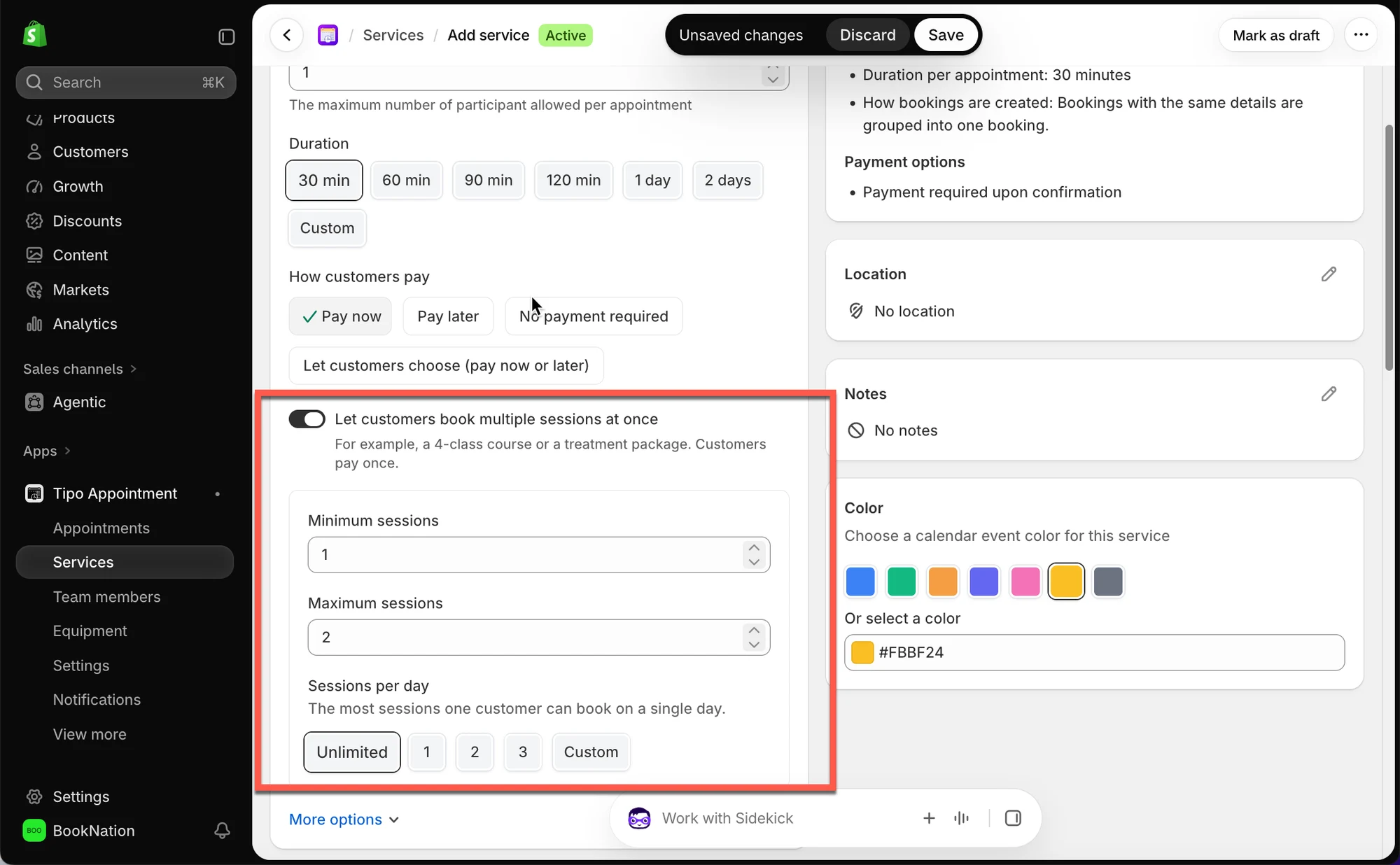
Minimum sessions
Fewest sessions a customer must schedule to complete the booking
Maximum sessions
Most sessions a customer can schedule in one booking
Sessions per day
Caps how many of those sessions one customer can book on the same day — Unlimited , a fixed number, or Custom
**Example:** A 3-class Pilates course sets **Minimum sessions** = `1`, **Maximum sessions** = `3`, so the customer schedules all 3 classes as part of one purchase — and **Sessions per day** stays **Unlimited** , so they could book two classes on the same day if they want.
### Turn On Multiple Sessions
Under **General** , find **Let customers book multiple sessions at once** and turn it on.
### Set Duration, Payment, and Availability
These work the same as any other service:
* **Duration** — how long each individual session lasts (eg `30 min`)
* **How customers pay** — Pay now, Pay later, No payment required, or let the customer choose
* **Availability** — assign team members or set service hours under **How availability works**
### Save
## **🌐 How It Works on Your Storefront**
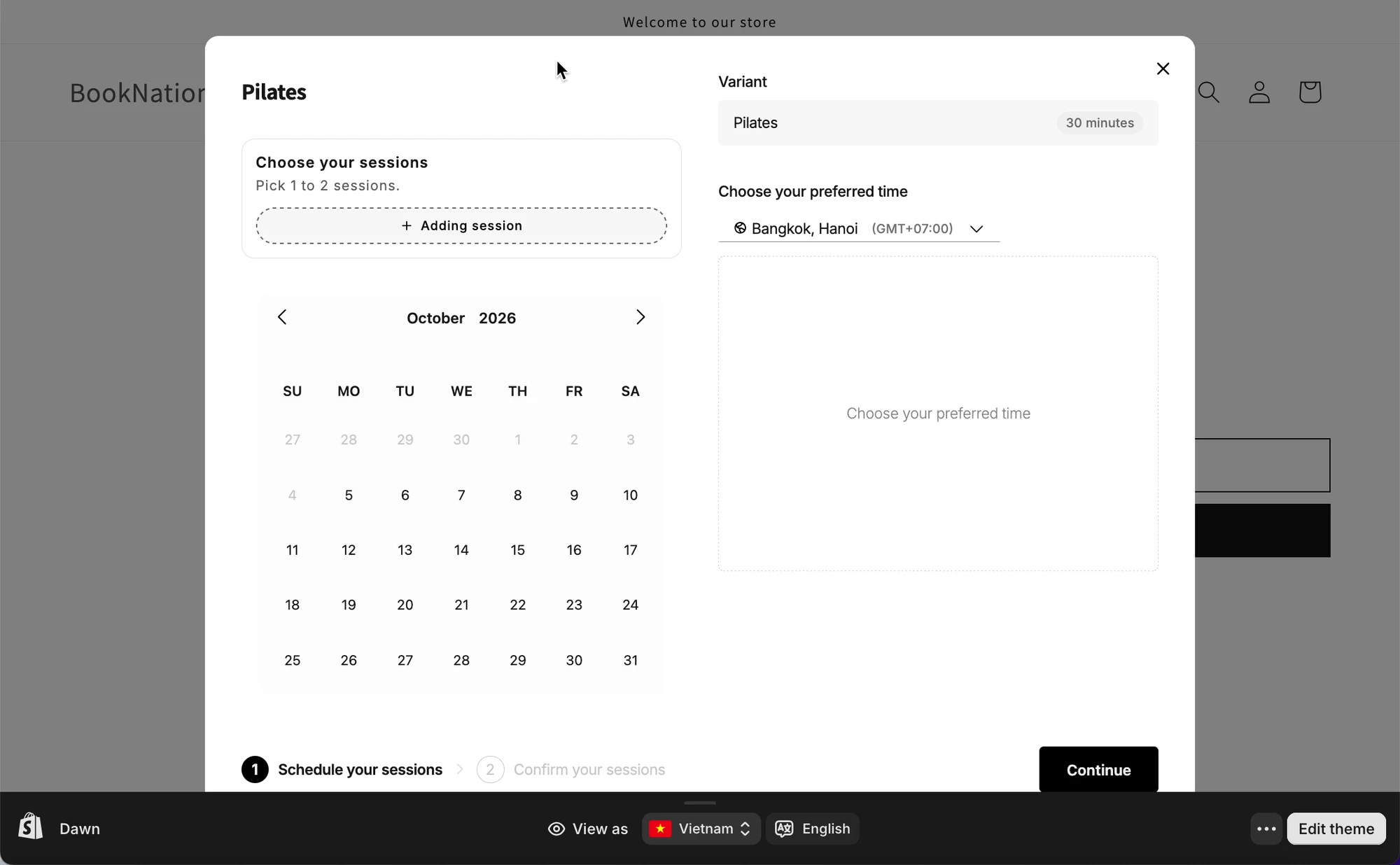
**1. Customer opens the service** and sees **Choose your sessions** , telling them how many to pick (eg *"Pick 1 to 3 sessions"* ).
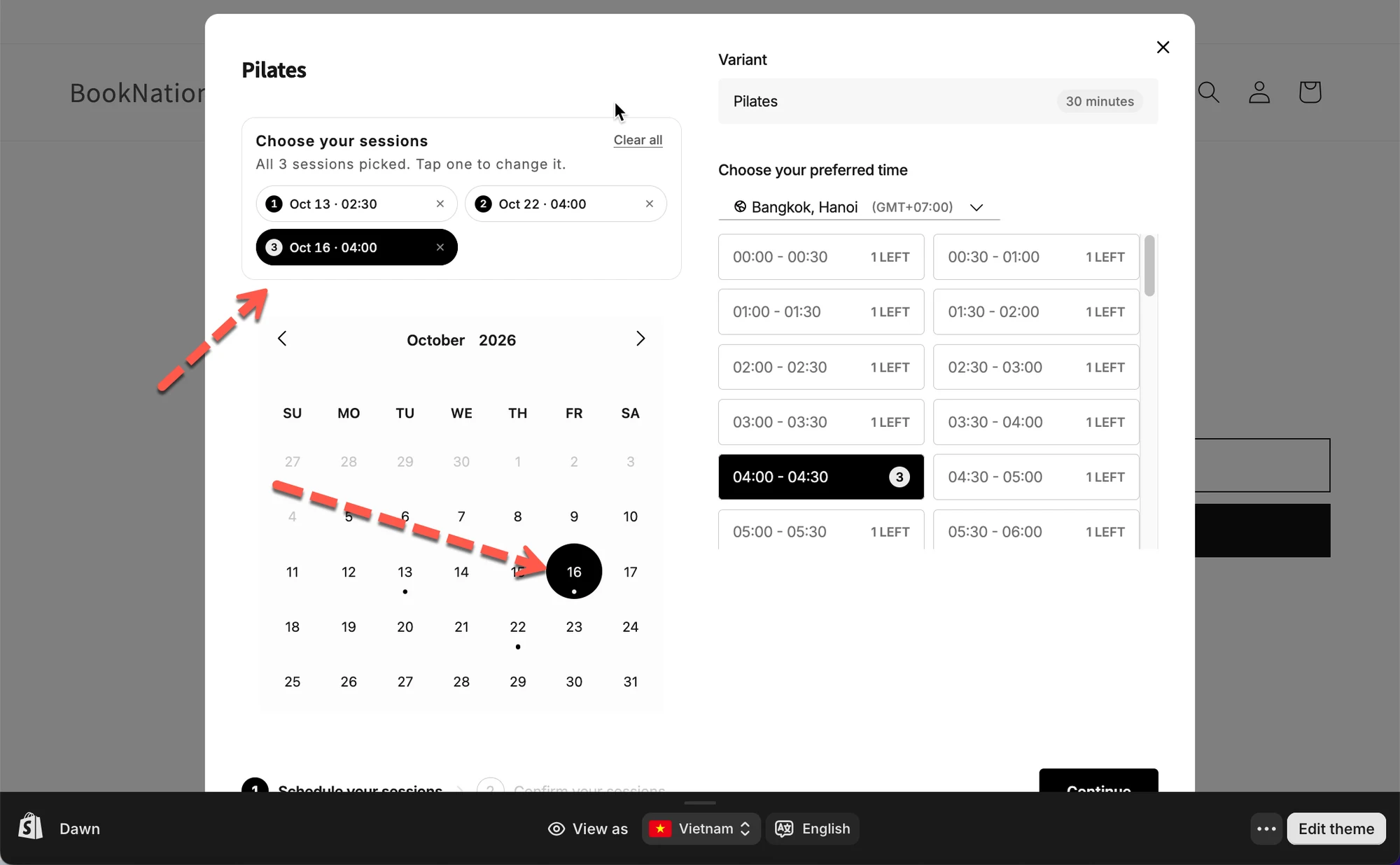
**2. Customer clicks “+ Adding session”** repeatedly, picking a date and time slot for each one. Each session gets numbered ( **1** , **2** , **3** ...) as they're added.
**3. Once all sessions are picked** , the panel shows a summary — *"All 3 sessions picked. Tap one to change it."* Each session is listed with its date and time, and can be edited or removed individually. **Clear all** resets every session at once.
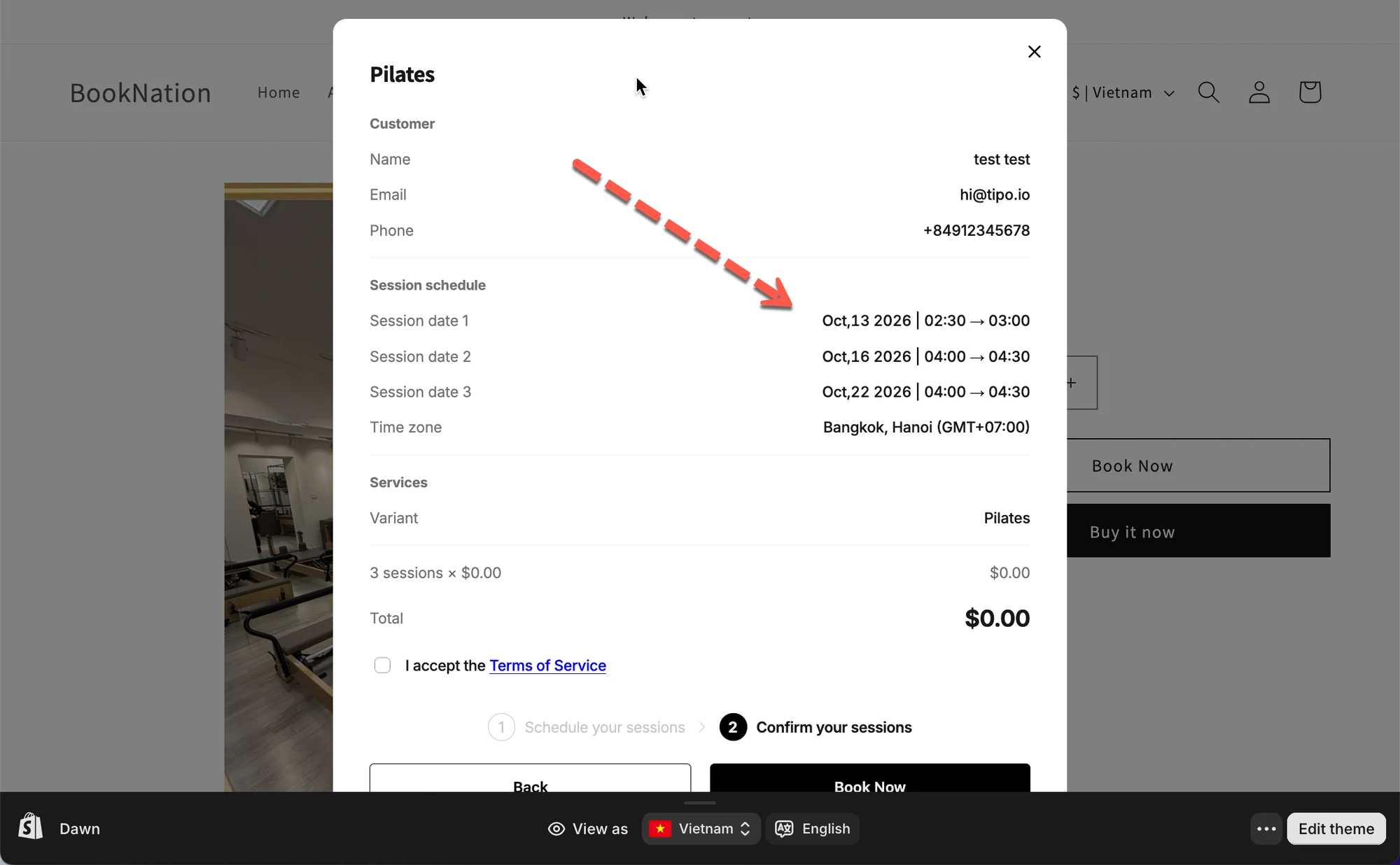
**4. Customer confirms and pays once** for the whole package — not per session.
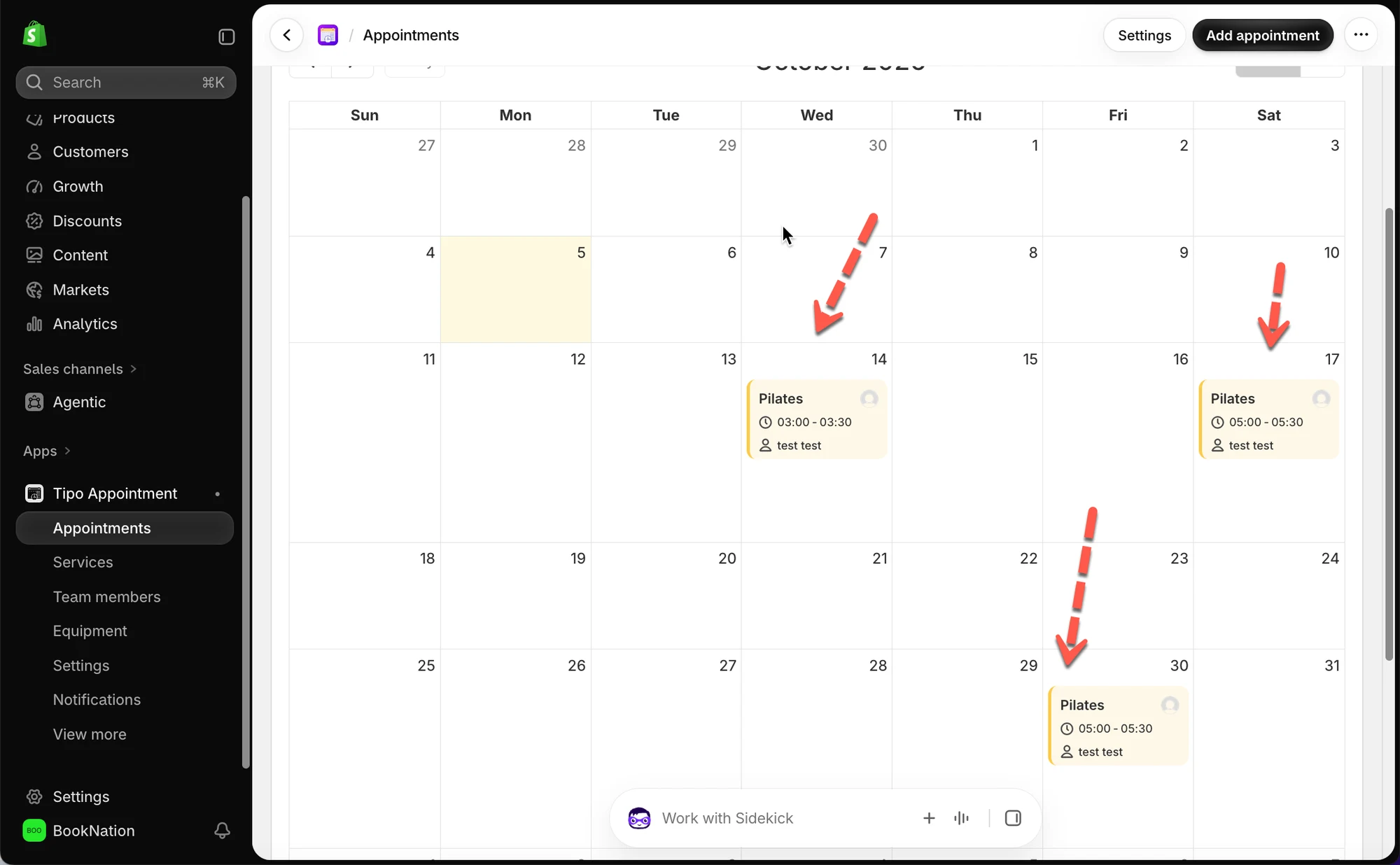
**5. All sessions appear on your calendar** under **Appointments** , each as its own entry on its own date, all linked to the same customer and service.
***
**⚠️ Good to Know**
* **One payment, many sessions.** The price is charged once for the full package, regardless of how many sessions are included.
* **Sessions don't have to be consecutive days.** As shown in the example above, a customer can schedule their sessions in any order across any available dates.
* **Minimum sessions must be met to complete checkout.** If **Minimum sessions** is `1`or higher, the customer can't continue until they've scheduled that many.