
Customize Add-on labels & prices
AI Overview
Control how add-ons, the extra paid options tied to services, display on your Tipo booking widget and in the admin. You set a label format that shows prices next to add-on names, and choose where those prices appear, so pricing is clear and consistent.
View moreView less
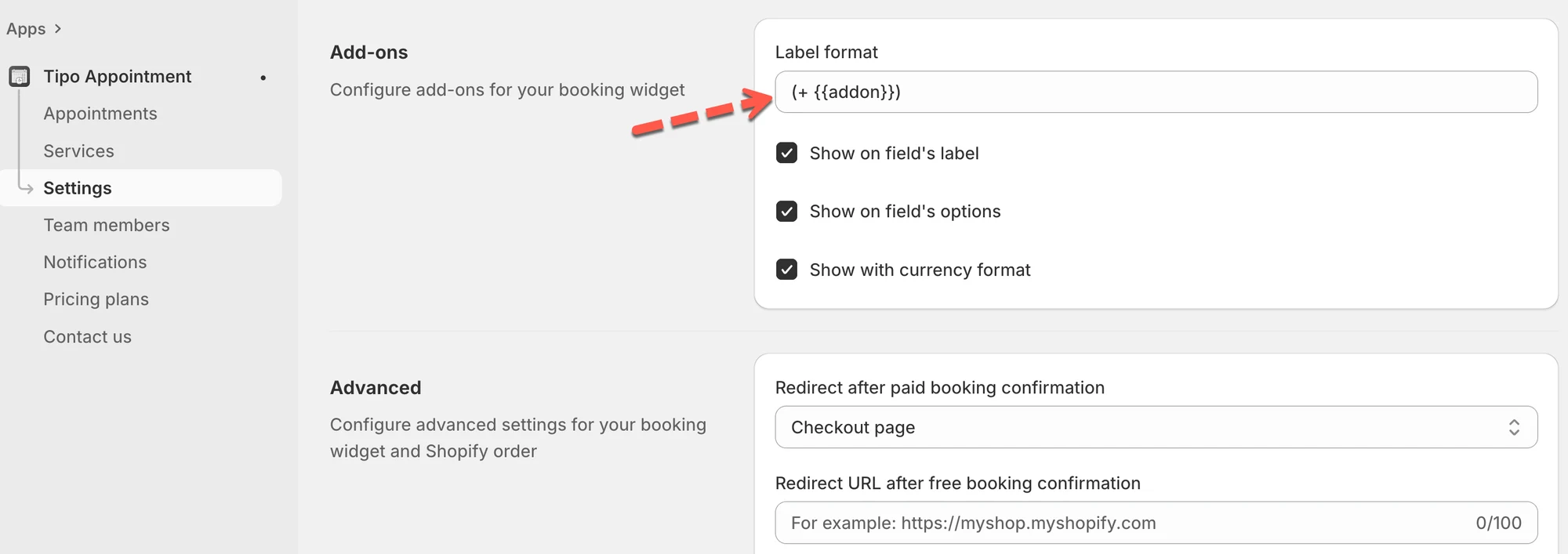
- Open the app, go to Settings, and scroll to Add-ons.
- In Label format, enter a format such as `(+ {{addon}})`.
- Choose where prices appear: Show on field's label, Show on field's options, or Show with currency format.
- Click Save.
Summary generated by AI. It can make mistakes, so check the full guide below.
Control how add-ons (extra paid options tied to services) display on your booking widget and in the admin.
This lets you show customers clear pricing next to each add-on choice and tailor the wording to match your brand or locale.
💡 What this setting changes
Section titled “💡 What this setting changes”Add-on labels define how paid extras show up in the booking widget . For example:
- Yoga mat rental
- Chair setup fee
- 🎁 Gift wrap (+$5.00)
Using this setting you can:
- Add a price format next to add-on names
- Show prices in a way that’s clear and consistent
🛠️ How to set
Section titled “🛠️ How to set ”- In the app > open Settings > scroll to Add-ons
- In Label format, enter your preferred format. Example:
(+ {{addon}}) - Choose where prices appear
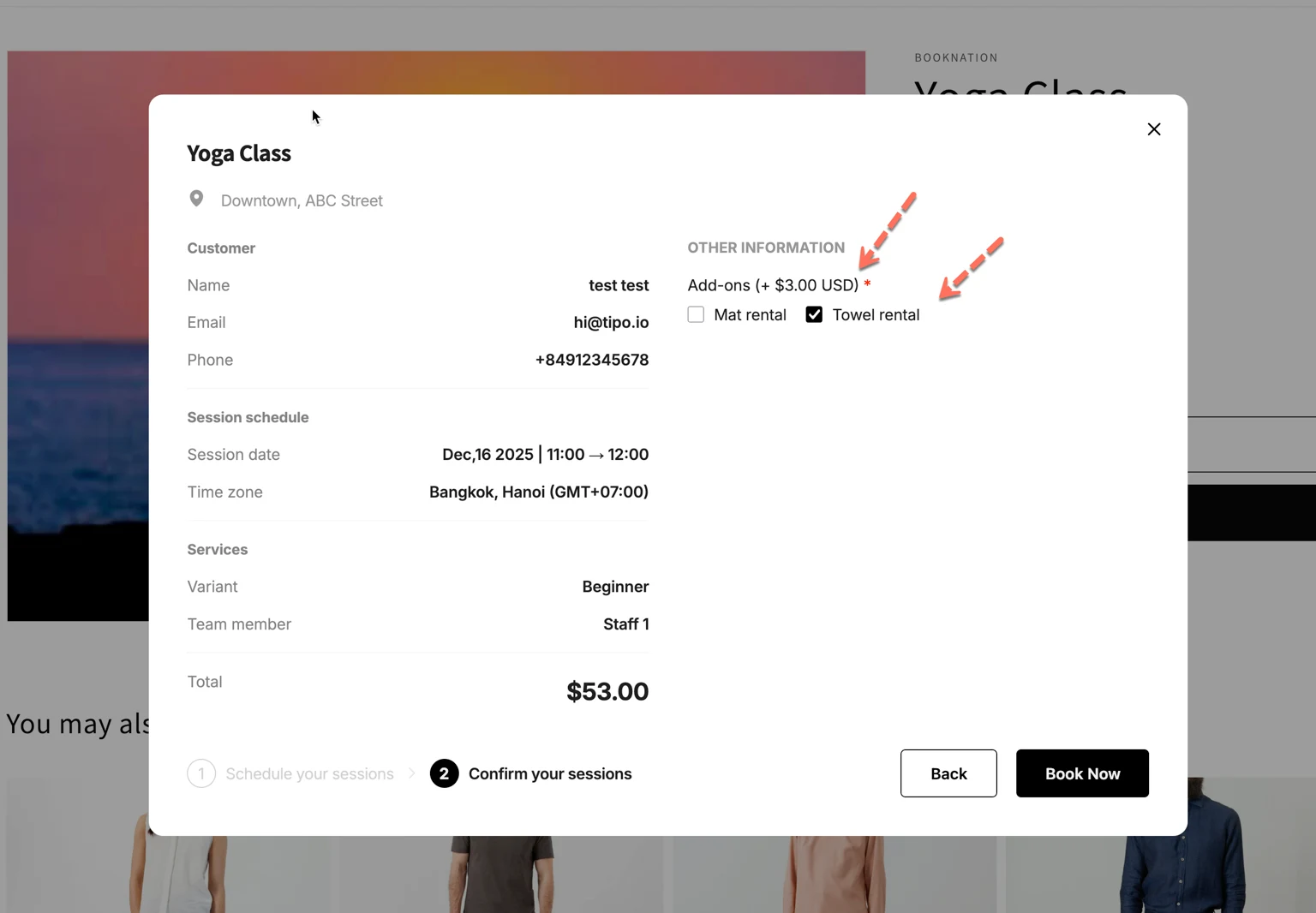
- Show on field’s label: Shows the add-on name with the price next to the add-on question label.
- Show on field’s options: Shows the price next to each add-on option in the list.
- Show with currency format: Displays the price with your store’s currency formatting (example: $3.00 USD).
- Click Save
🙋 Still need support?
If you still need help, please feel free to contact us at hi@tipo.io. We’ll be happy to assist you further.