
Default Appointment status
AI Overview
Choose which status new appointments start with in Tipo, and whether the status follows the Shopify order status. Sync with Order Status maps order states to appointment states automatically, while Pending or Approved sets a fixed status that no longer follows the order.
View moreView less
- Open the app, click Settings > General.
- In Advanced, open Default status for new bookings and choose Sync with Order Status, Pending, or Approved; click Save.
- Sync maps Paid to Approved, Pending to Pending, Cancelled to Cancelled, Draft to Pending.
- Fixed Pending or Approved ignores later order status changes.
Summary generated by AI. It can make mistakes, so check the full guide below.
This setting controls what status a new appointment starts with in Tipo, and (optionally) whether it should follow the Shopify order status.
⚙️ How to set
Section titled “⚙️ How to set”- Open the app > click Settings > General
- In Advanced, scroll to Default status for new bookings
- Select an option
- Sync with Order Status
- Pending
- Approved
- Click Save
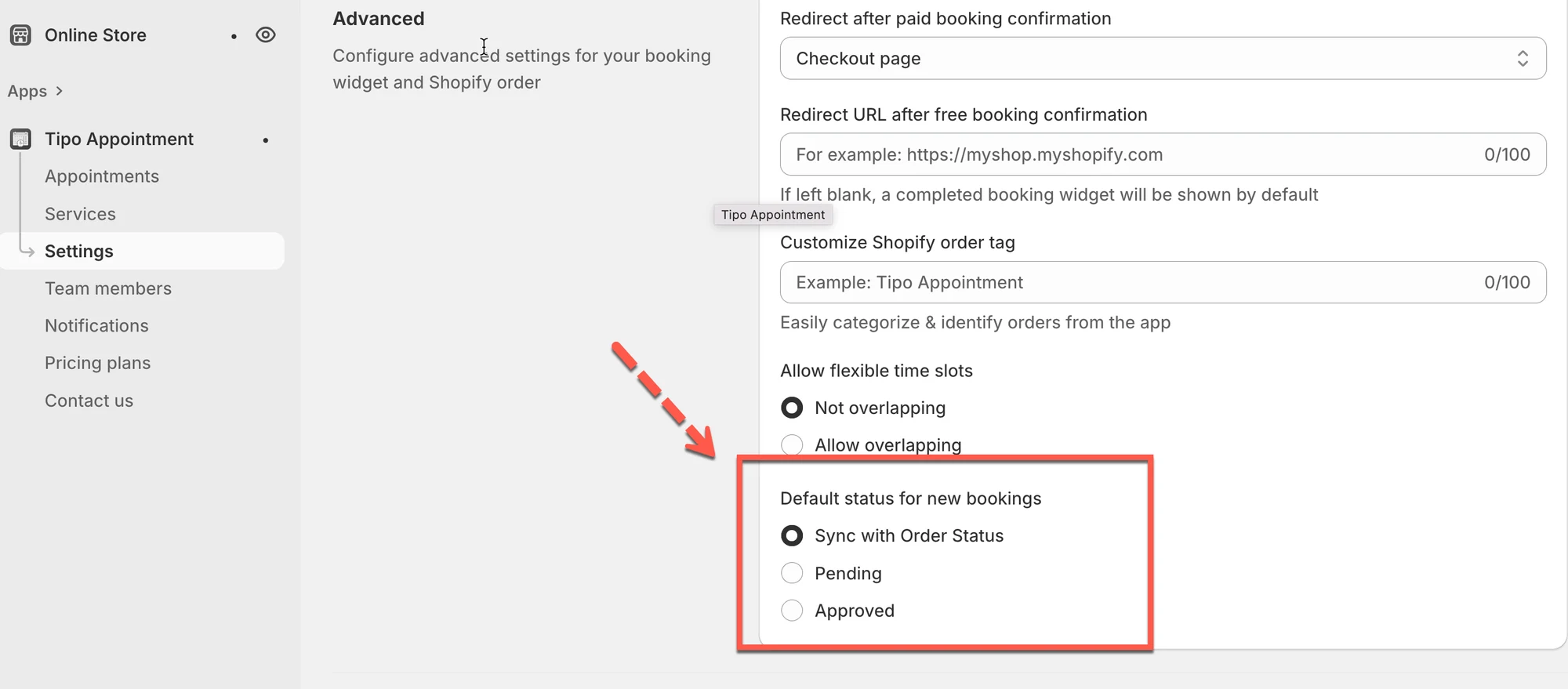
🔄 Option 1: Sync with Order Status
Section titled “🔄 Option 1: Sync with Order Status”When Sync with Order Status is enabled, Tipo will automatically update the appointment status based on the Shopify order status.
Status mapping
Section titled “Status mapping”| Shopify Order Status | Appointment Status (Tipo) |
|---|---|
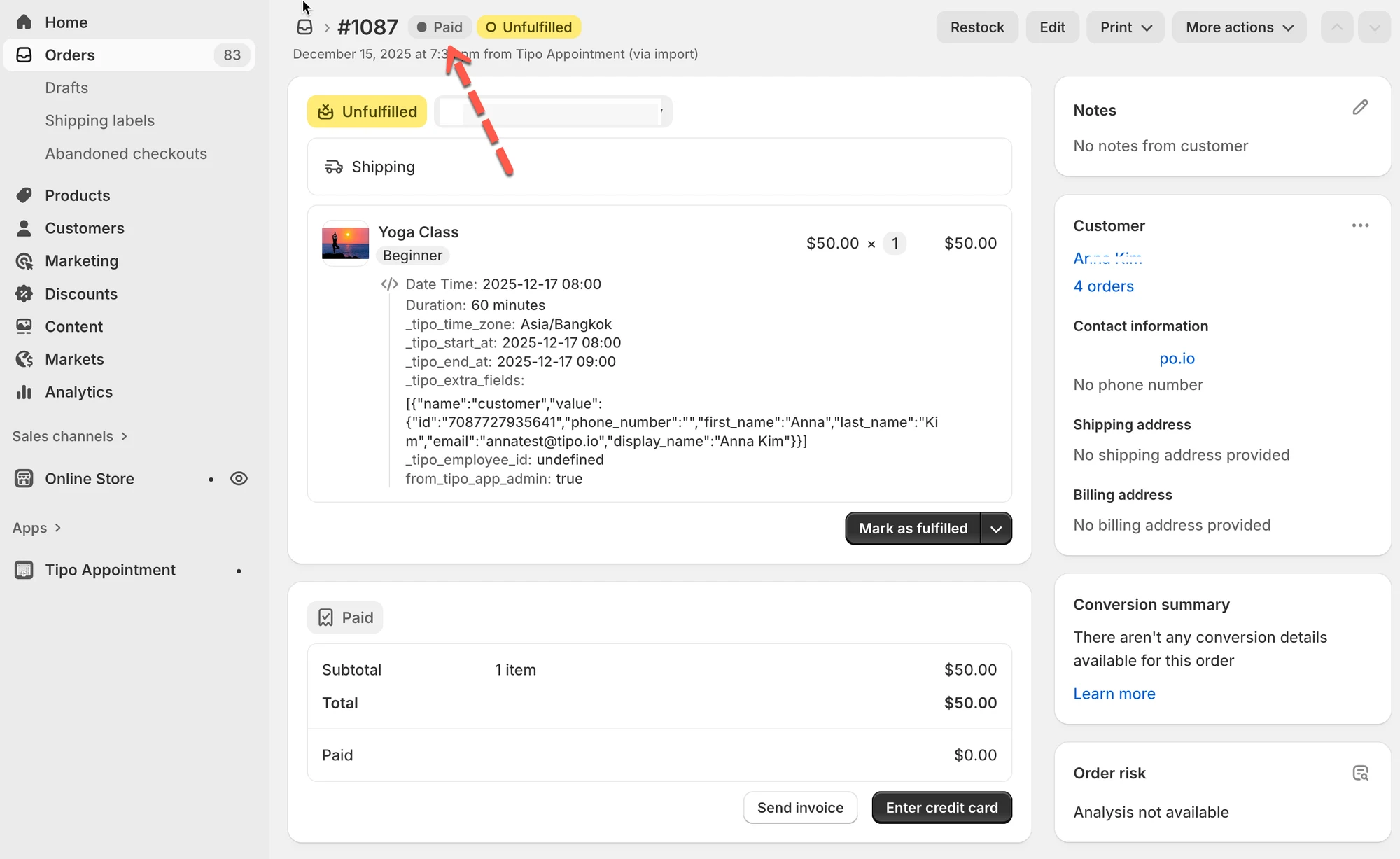
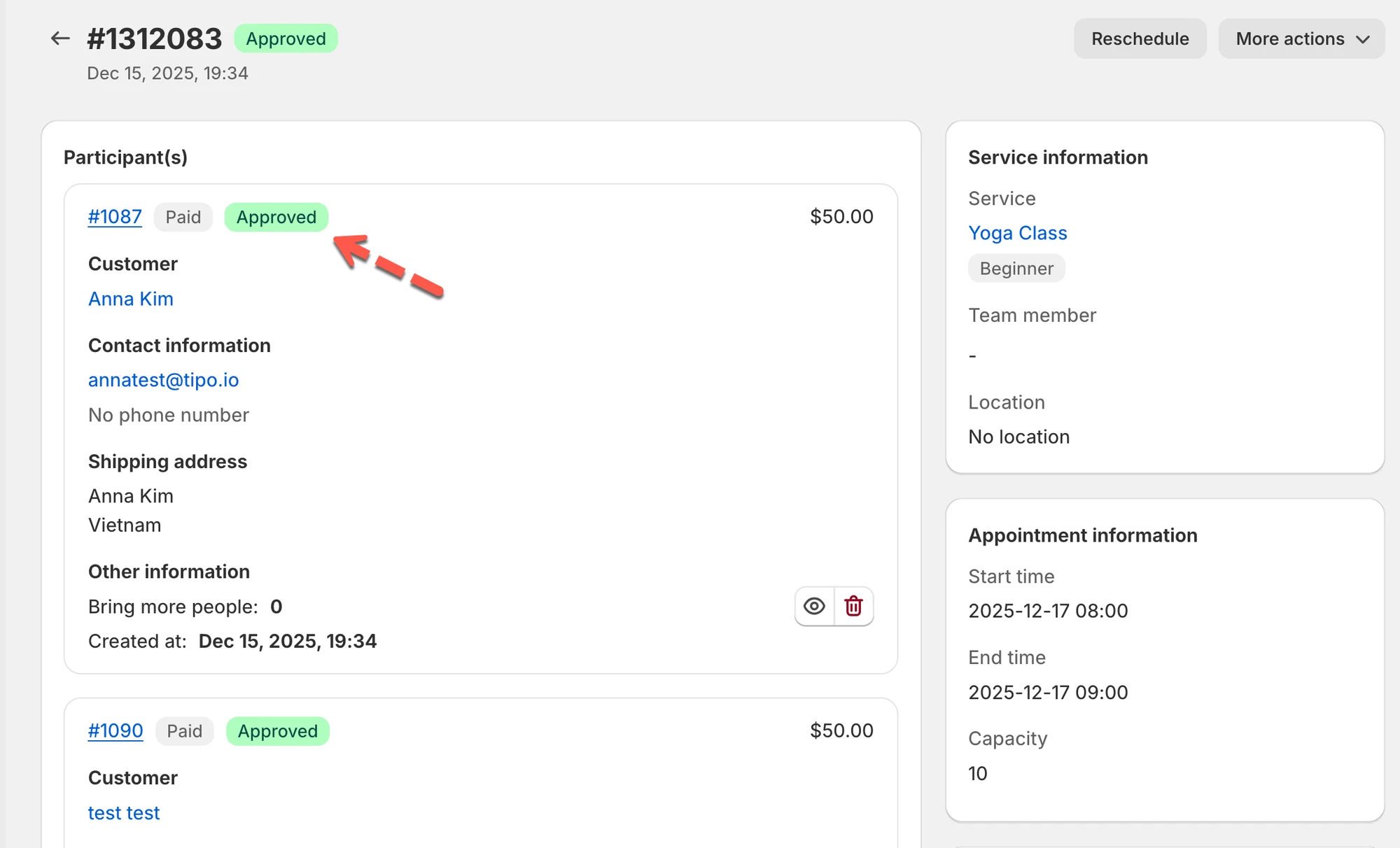
| Paid | Approved |
| Pending | Pending |
| Cancelled | Cancelled |
| Draft | Pending |
Example (Paid → Approved)
Section titled “Example (Paid → Approved)”Shopify order shows Paid:
Tipo appointment becomes Approved:
⚙️ Option 2: Set a fixed default status (Pending or Approved)
Section titled “⚙️ Option 2: Set a fixed default status (Pending or Approved)”If you select Pending or Approved as the default status:
- New appointments will always be created with that status
- The appointment will NOT follow Shopify order status anymore, even if the order later becomes Paid / Pending / Cancelled
Use this if you want full manual control (for example, you approve appointments yourself regardless of payment).
💡 Tips
Section titled “💡 Tips”- Choose Sync with Order Status if your workflow is payment-driven (paid bookings auto-approved).
- Choose Pending if you need to review or confirm appointments before approving.
- Choose Approved if most bookings should be confirmed immediately.
🙋 Still need support?
If you still need help, please feel free to contact us at hi@tipo.io. We’ll be happy to assist you further.