
Automatically Assign Team Members
AI Overview
Automatically assign bookings to an available team member when customers do not want to choose a specific person. You turn on the setting and pick an assignment method. Customers who select Any available under Team member are then assigned a person according to that method.
View moreView less
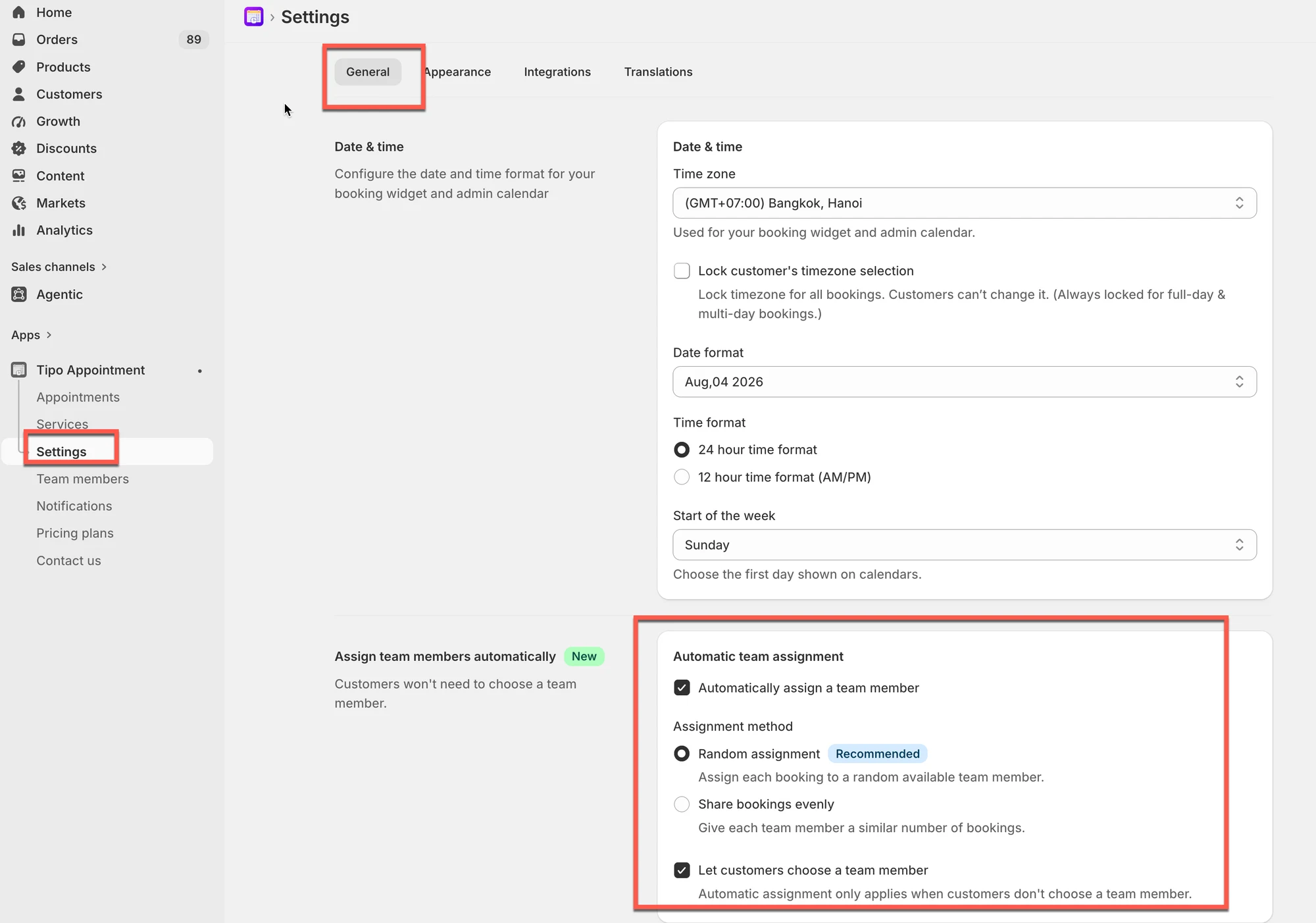
- Open the app, click Settings > General.
- Find Assign team members automatically and enable Automatically assign a team member.
- Choose Random assignment or Share bookings evenly (picks the member with the fewest bookings).
- Click Save; customers who skip choosing a team member get one assigned automatically.
Summary generated by AI. It can make mistakes, so check the full guide below.
Automatically assign bookings to an available team member when customers don’t want to choose a specific person.
⚙️ How to set
Section titled “⚙️ How to set”- Open the app > Settings > General
- Find Assign team members automatically > enable Automatically assign a team member.
- Choose an Assignment method
- Random assignment
- Share bookings evenly
- Click Save
- Random assignment: randomly selects one available team member.
- Share bookings evenly: selects the team member with the fewest bookings to help distribute bookings evenly across your team.
🌐 How it works
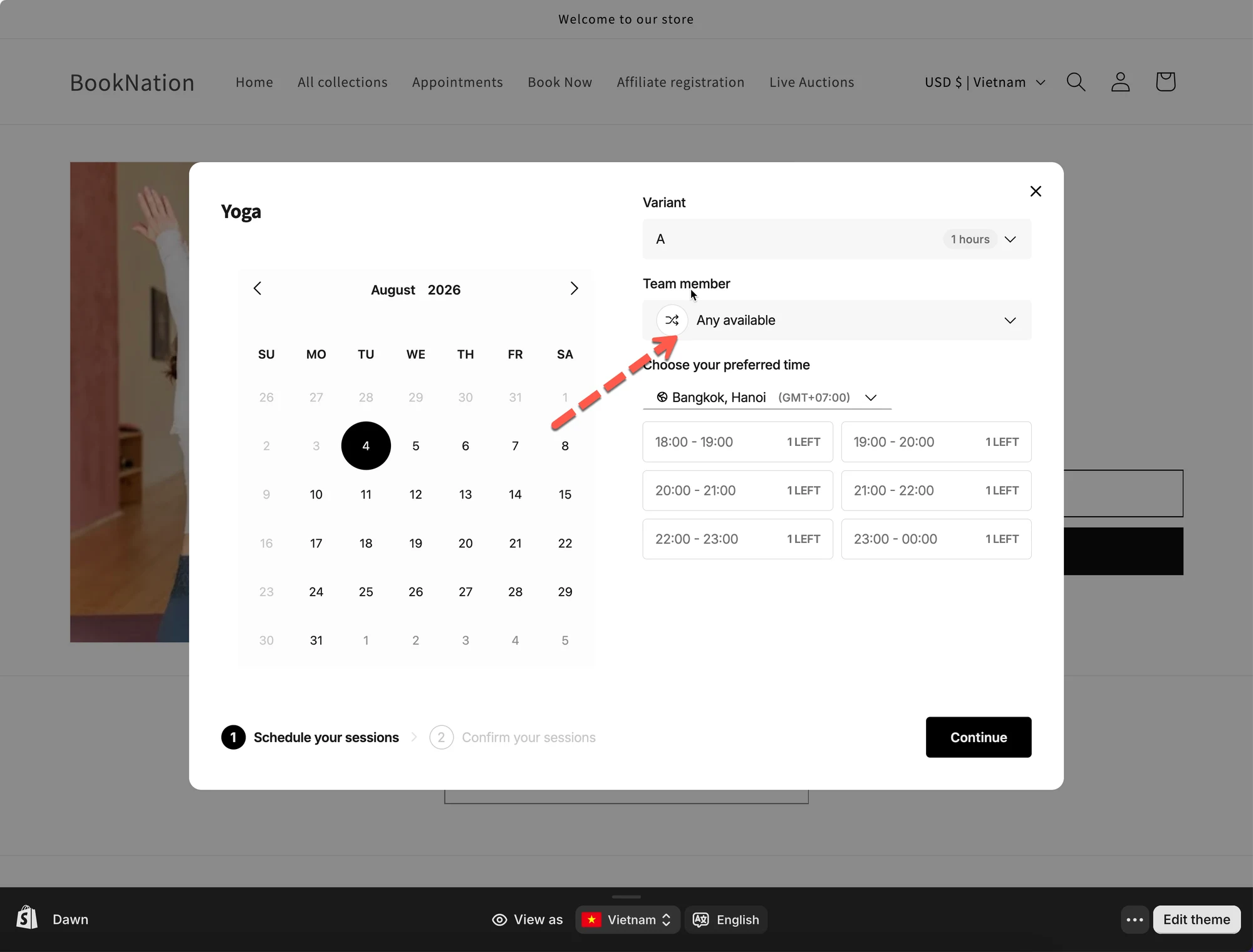
Section titled “🌐 How it works”- Customers open the booking widget on your store.
- If they don’t select a team member, the app automatically assigns one.
- The team member is selected based on your chosen assignment method.
For example, if a customer wants to book a Yoga session but doesn’t have a preferred instructor, they can select Any available under Team member.
The app will then automatically assign an available team member according to your selected assignment method.
🙋 Still need support?
If you still need help, please feel free to contact us at hi@tipo.io. We’ll be happy to assist you further.