# Automatically Assign Team Members
Automatically assign bookings to an available team member when customers don't want to choose a specific person.
### ⚙️ How to set
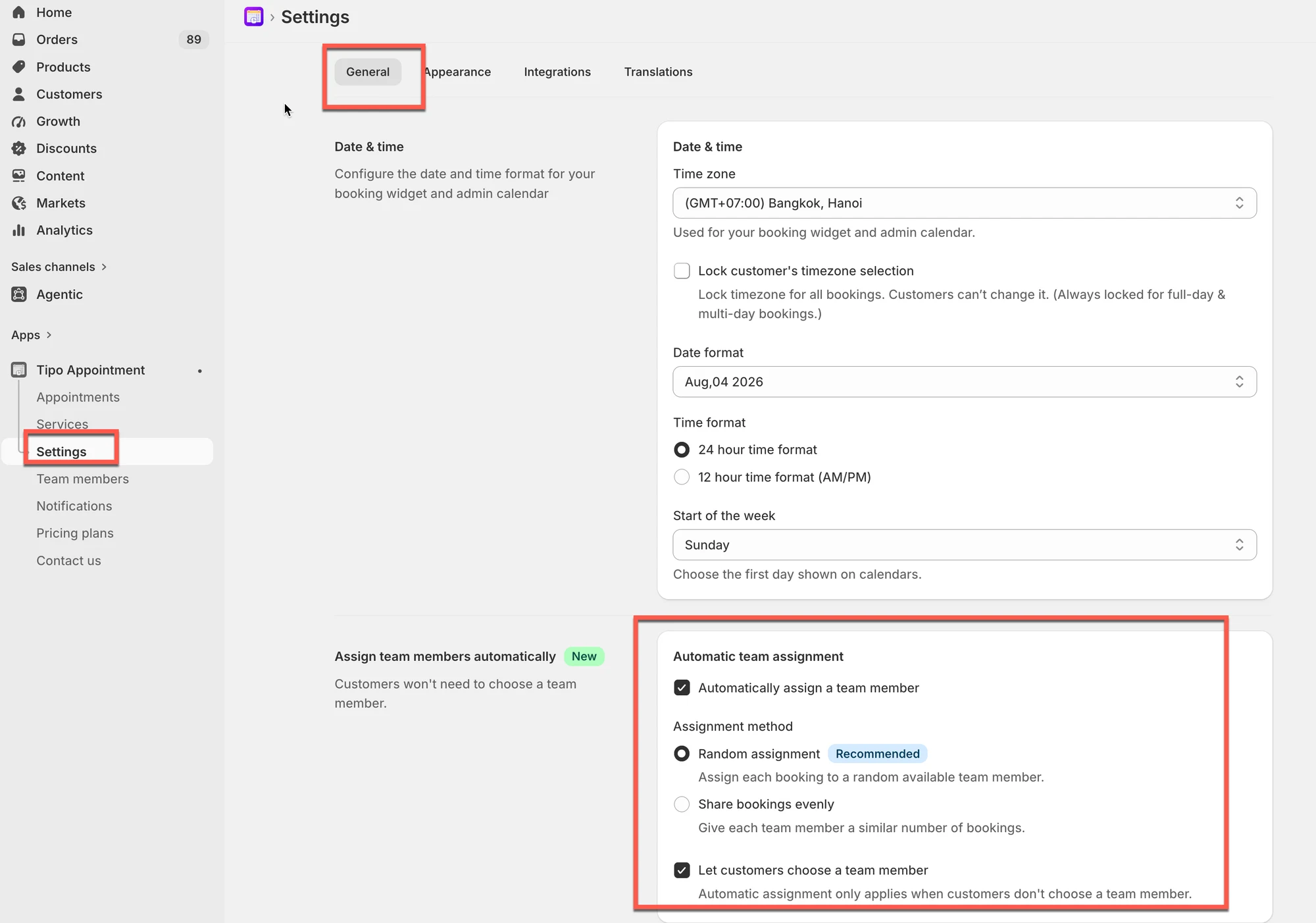
1. Open the app > **Settings** > **General**
2. Find **Assign team members automatically** > enable **Automatically assign a team member**.
3. Choose an **Assignment method**
* **Random assignment**
* **Share bookings evenly**
4. Click **Save**
> * **Random assignment:** randomly selects one available team member.
> * **Share bookings evenly:** selects the team member with the fewest bookings to help distribute bookings evenly across your team.
***
### 🌐 How it works
* Customers open the booking widget on your store.
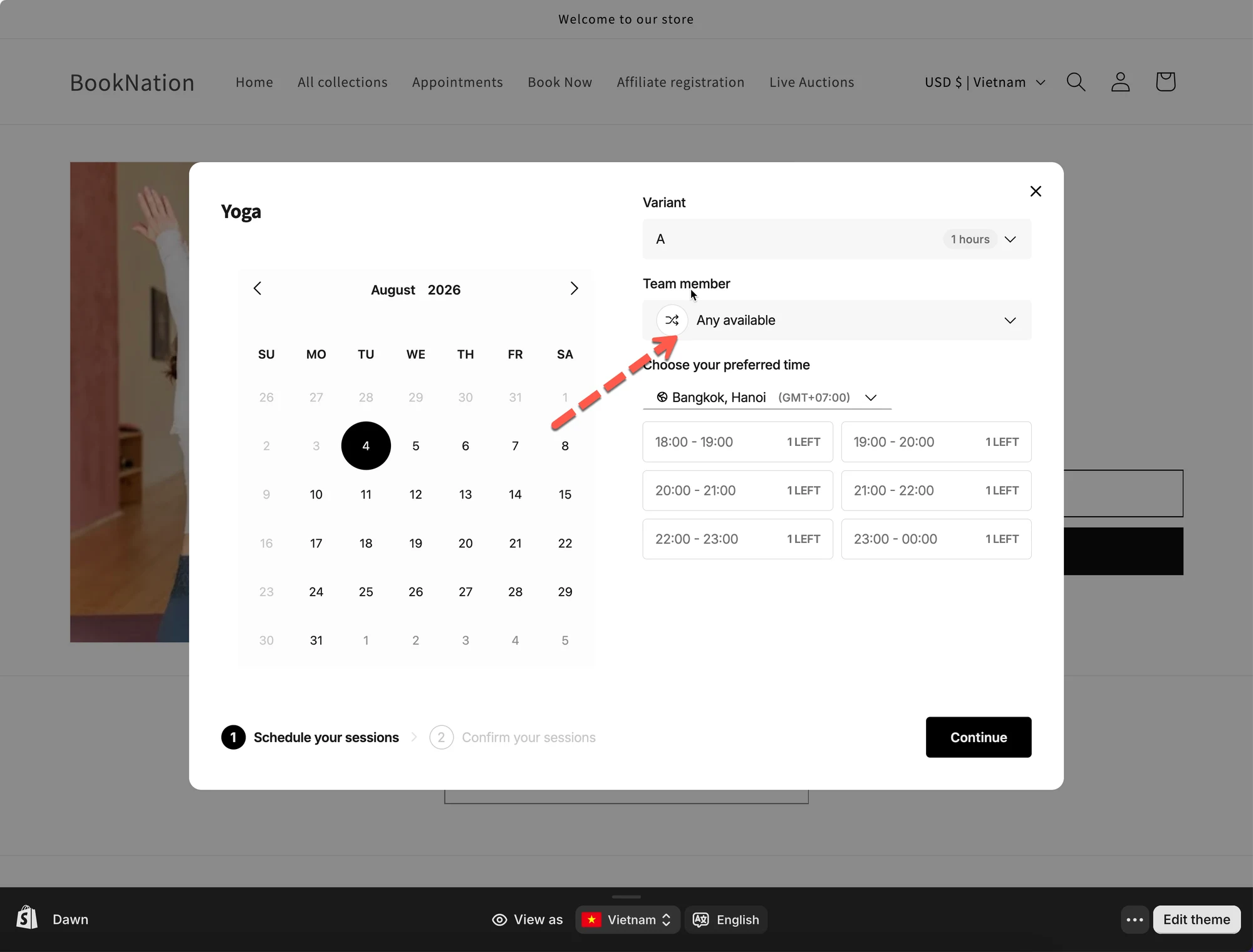
* If they don't select a team member, the app automatically assigns one.
* The team member is selected based on your chosen assignment method.
For example, if a customer wants to book a **Yoga** session but doesn't have a preferred instructor, they can select **Any available** under **Team member**.
The app will then automatically assign an available team member according to your selected assignment method.
***
**🙋 Still need support?**
If you still need help, please feel free to contact us at . We’ll be happy to assist you further.