
Allow overlapping time slots
AI Overview
Allow overlapping time slots to give customers more start times for the same service duration, such as 9:00, 9:15, 9:30 instead of only hourly. Service duration stays the same, and overlapping does not mean double booking because each booking still blocks its full duration.
View moreView less
- Open the app, click Settings > Advanced and scroll to Allow flexible time slots.
- Select Allow overlapping, choose a Time stepping, and click Save.
- Example: a 60-minute service with 15-minute stepping shows starts every 15 minutes.
- Avoid very small intervals like 5 minutes, which can make the list too long.
- If extra slots do not appear, check staff hours, blocked dates, date range limits, and service duration.
Summary generated by AI. It can make mistakes, so check the full guide below.
Overlapping time slots lets customers choose more start times for the same service duration. It’s great when you want flexible booking times like 9:00, 9:15, 9:30… instead of only 9:00, 10:00, 11:00.
✅ How it works
Section titled “✅ How it works”Your service still keeps the same duration (example: 60 minutes).
Overlapping only changes how frequently start times appear.
Example (60-minute service)
Section titled “Example (60-minute service)”Without overlapping
Customers see slots every 60 minutes: 9:00, 10:00, 11:00
With overlapping (every 15 minutes)
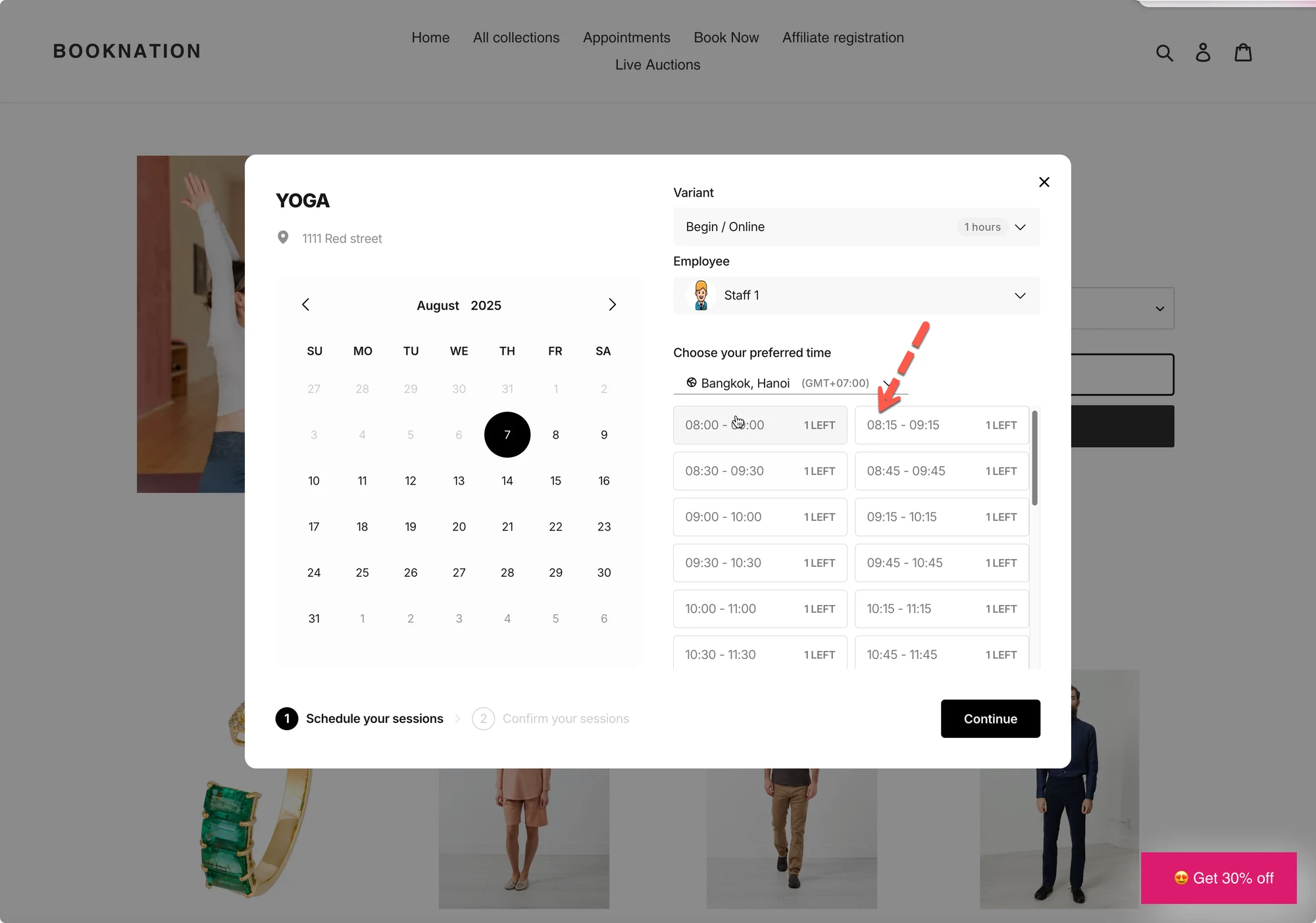
Customers see more start times: 9:00, 9:15, 9:30, 9:45, 10:00…
⇒ This gives customers more flexibility to book a time that fits their schedule.
💡 When to use this setting
Section titled “💡 When to use this setting”Use Allow overlapping if you want:
- More booking options
- Busy schedules where customers need flexibility
- Services like haircuts, consultations, yoga classes, etc.
Avoid very small intervals (like 5 minutes) unless you truly need it, your booking list can become too long.
🛠️ Set up overlapping time slots
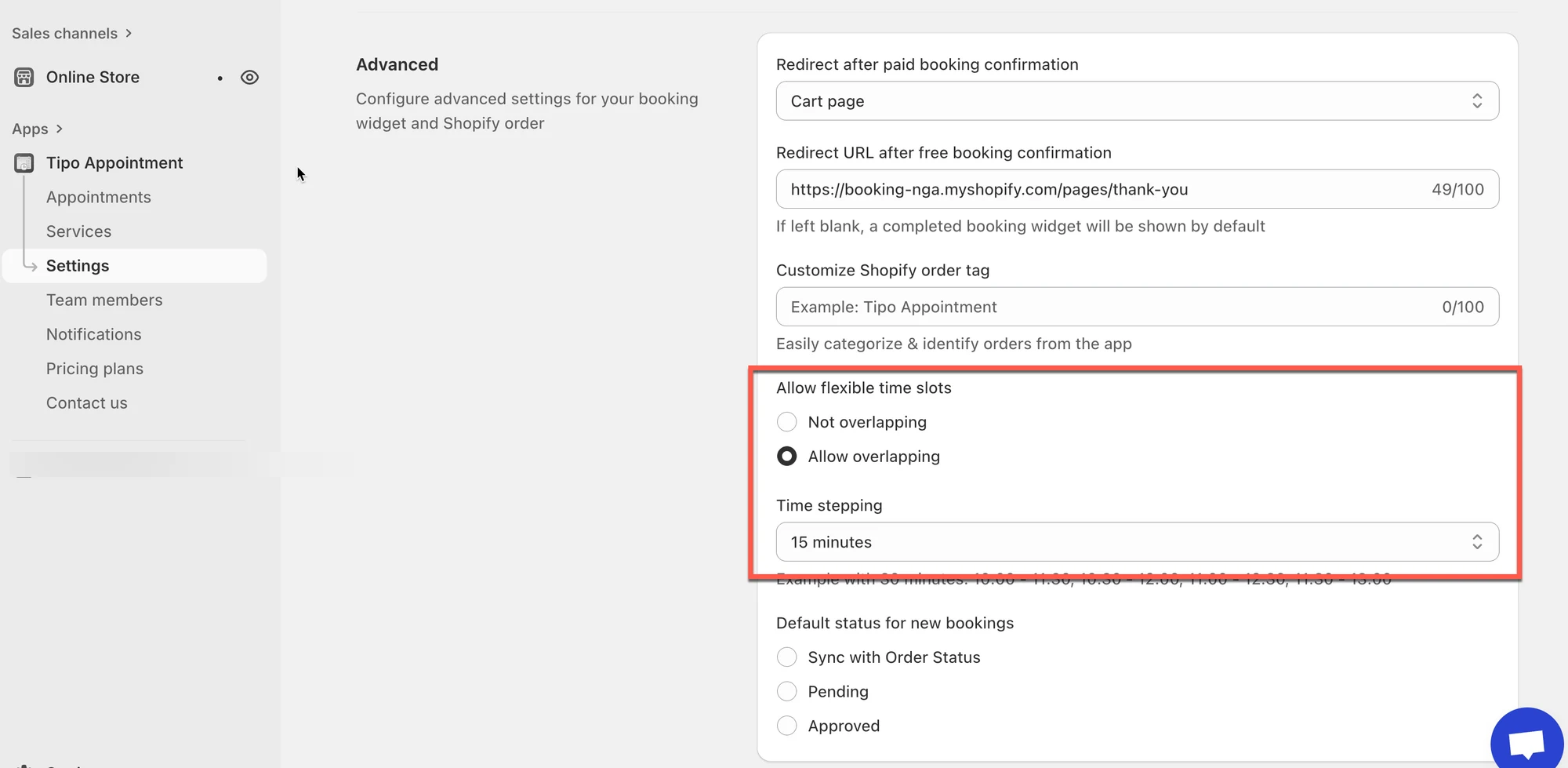
Section titled “🛠️ Set up overlapping time slots”- Open the app > click Settings > Advanced > scroll down to Allow flexible time slots
- Select option Allow overlapping
- Select Time stepping
- Click Save
Example
If you set:
- Service duration: 60 minutes
- Time stepping: 15 minutes
Customers may see available start times like:
9:00, 9:15, 9:30, 9:45, 10:00, 10:15…
Each booking still lasts 60 minutes, but customers can start at more times.
📌 Important notes
Section titled “📌 Important notes”- Overlapping slots do NOT mean double booking.
A booking still blocks the full service duration. - If you allow overlapping but still don’t see extra slots, check:
- staff availability hours
- blocked time/off dates
- booking date range limits
- service duration (very long durations naturally reduce available starts)
🙋 Still need support?
If you still need help, please feel free to contact us at hi@tipo.io. We’ll be happy to assist you further.