
Mailchimp integration
AI Overview
Connect Tipo to Mailchimp so customer information from new bookings is added to your Mailchimp Audience automatically. You generate an API key in Mailchimp and enter it in Tipo's Integrations settings, then choose the list.
View moreView less
- In Mailchimp, go to Account settings and create an API key.
- In Tipo, open Settings > Integrations, find Mailchimp, and click the connect icon.
- Enter the key in the API KEY field and select a Mailchimp list under Integrate.
- Click Save; after a booking, the customer is added to your selected audience.
Summary generated by AI. It can make mistakes, so check the full guide below.
Connect Tipo to Mailchimp so customer information from new bookings is added to your Mailchimp Audience automatically.
🔑 Step 1: Generate a Mailchimp API key
Section titled “🔑 Step 1: Generate a Mailchimp API key”- Log in to Mailchimp
- Go to Account settings
- Create an API key (Mailchimp has official steps)
🔌 Step 2: Connect Tipo to Mailchimp
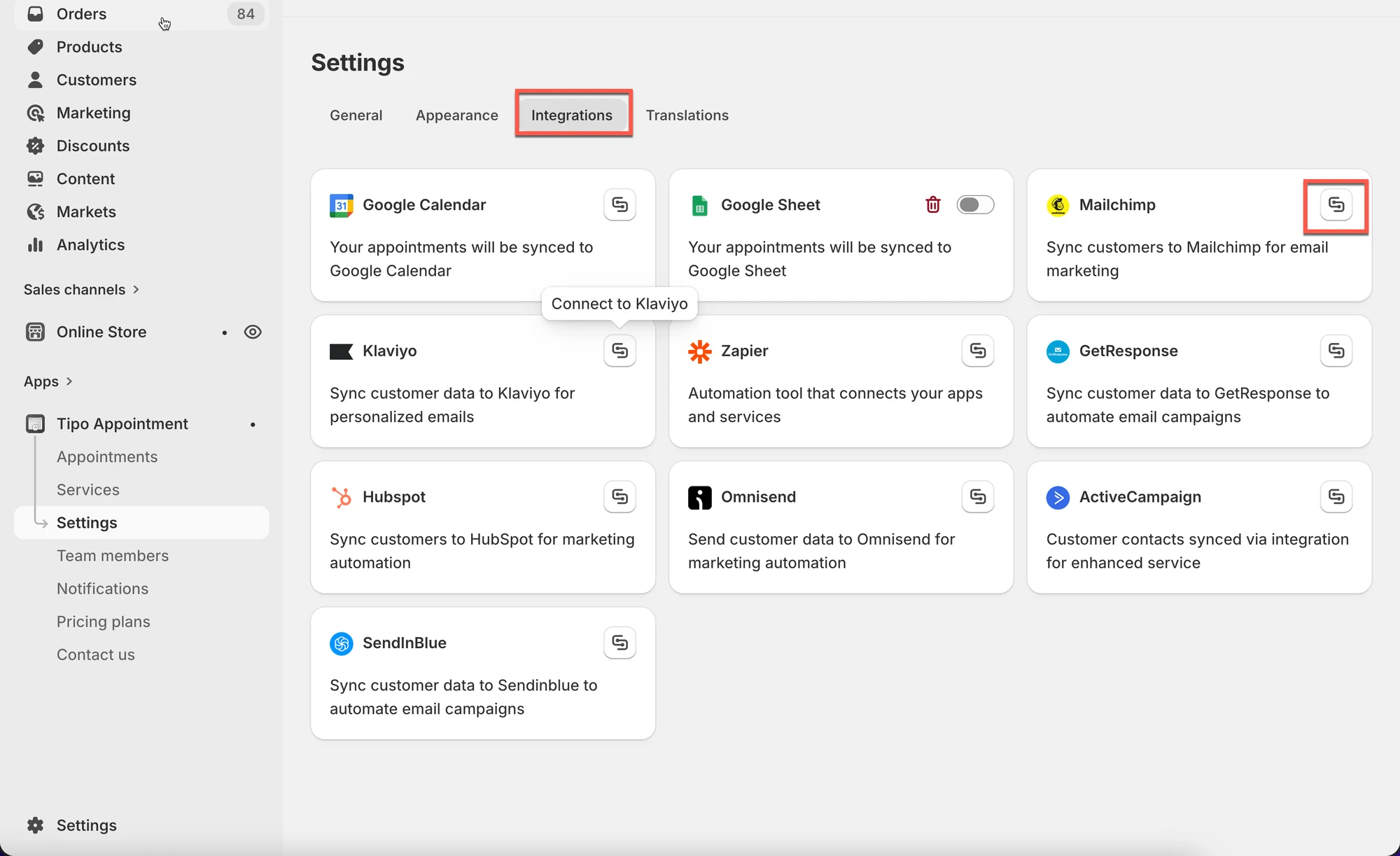
Section titled “🔌 Step 2: Connect Tipo to Mailchimp”- Open the app > click Settings > Integrations > find Mailchimp
- Click on the connect icon
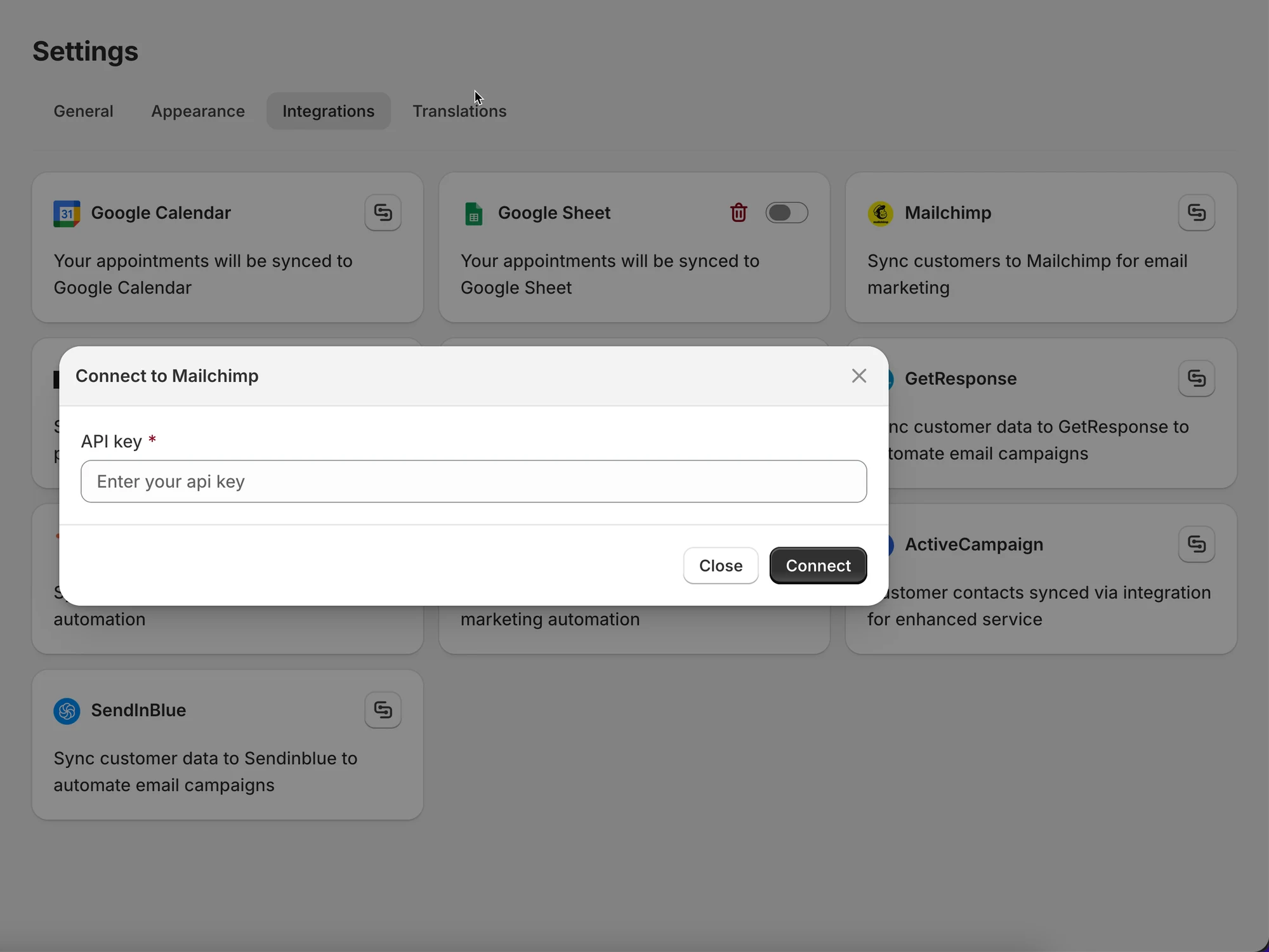
- Enter the API generated on the step 1 to API KEY field
- In Integrate sections, select a list from Mailchimp to connect data
5. Click Save
How Mailchimp integration works?
Section titled “How Mailchimp integration works? ”After an appointment is booked, the customer is added to your selected Mailchimp audience.
🙋 Still need support?
If you still need help, please feel free to contact us at hi@tipo.io. We’ll be happy to assist you further.