
Lock customer's timezone selection
AI Overview
The Lock customer's timezone selection setting stops customers from changing the time zone on the Tipo booking widget. When it is on, the widget shows one time zone and all slots follow your business time zone, even for customers browsing from another country.
View moreView less
- Best for in-person services or teams working in one time zone; leave it off for online services with customers in many countries.
- Open the app, click Settings > General.
- In Date time, tick Lock customer's timezone selection.
- Click Save; the widget shows only your business time zone.
Summary generated by AI. It can make mistakes, so check the full guide below.
✅ What this setting does
Section titled “✅ What this setting does”When Lock customer’s time zone selection is enabled, customers cannot change the time zone on the booking widget.
✅ How it works
Section titled “✅ How it works”When the setting is ON
- The widget shows only one time zone
- Customers cannot switch to another time zone
- All available time slots follow your business time zone
Example:
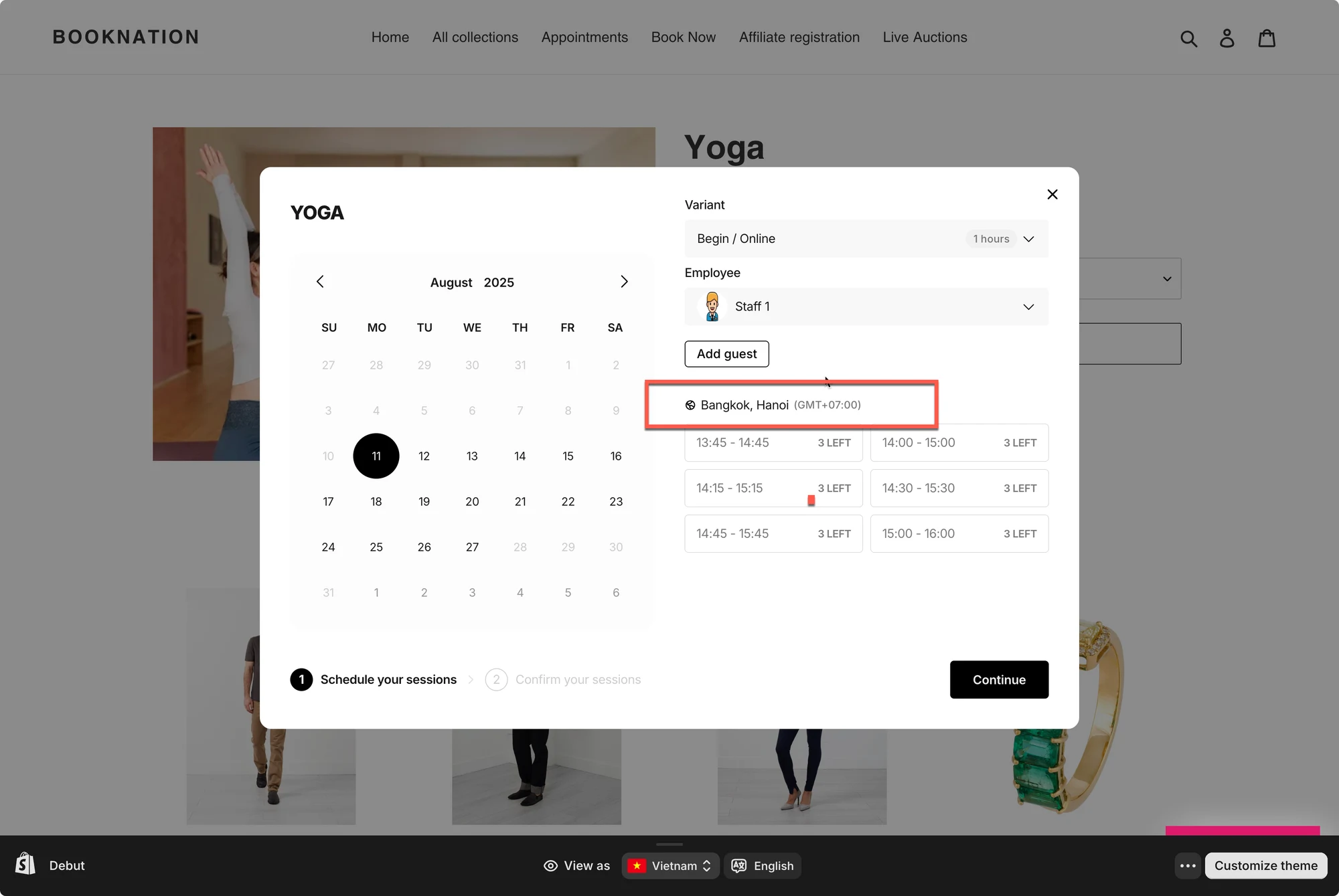
- Your store time zone: Bangkok, Hanoi (GMT+07:00)
- Customer is browsing from the US
⇒ The widget still shows times in GMT+07:00, and the customer cannot change it.
🛠️ Step-by-step: Enable this setting
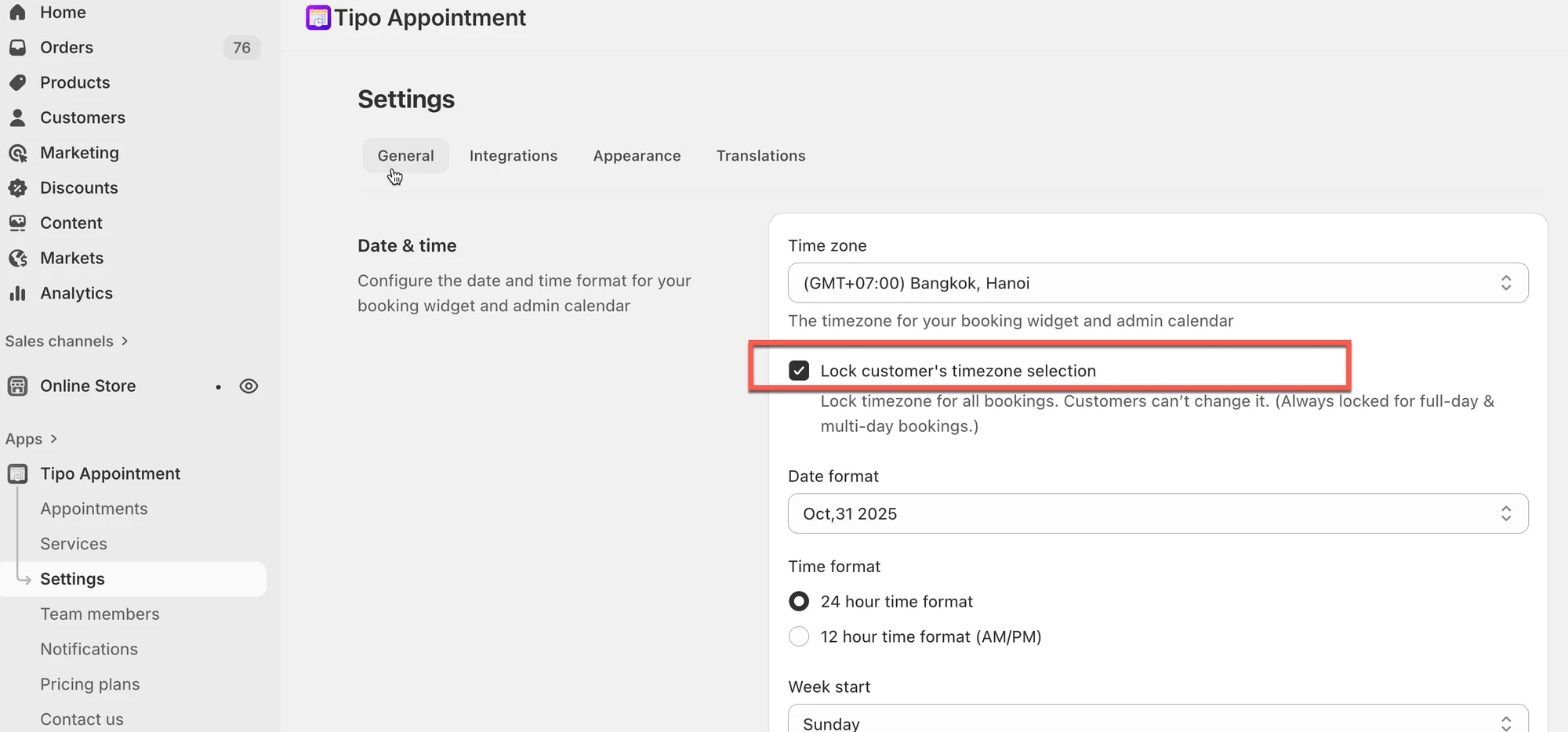
Section titled “🛠️ Step-by-step: Enable this setting”- Open the app > click Settings > General
- In Date time > tick on the checkbox Lock customer’s timezone selection to show 1 timezone on the booking widget only.
- Click Save.
Result on the booking widget on the site.
💡 When should you enable this?
Section titled “💡 When should you enable this?”Enable this setting if:
- You offer in-person services
- Your team works in one time zone
- You don’t want customers to misread appointment times
Leave it disabled if:
- You offer online services
- Customers join from multiple countries
🙋 Still need support?
If you still need help, please feel free to contact us at hi@tipo.io. We’ll be happy to assist you further.