
Show booking widget on your store (legacy)
AI Overview
This legacy guide shows how to display the Tipo booking widget on your Shopify store in three layouts: Form, List, and Grid. You can embed a form with copied code, add a Book now popup button, or add the Booking Widget as an App Block in the theme editor with no code.
View moreView less
- Layouts: Form (calendar for one service), List (vertical services), Grid (multi-column services).
- Form or popup: open a service, use the ⋯ menu, and copy the embed code.
- Paste the code in a page's HTML view or theme editor, then save.
- App Block: Online Store > Themes > Edit theme, Add Block, select Booking Widget, and choose a Layout.
- Embed Form suits full booking pages, popup button suits CTAs, and App Block needs no code.
Summary generated by AI. It can make mistakes, so check the full guide below.
Our app now supports three layout types for the Booking Widget:
Form – A calendar with available time slots for a single service
List – A vertical list of your services
Grid – A clean multi-column layout of all services
You can easily display any of these layouts on your Shopify store by using an App Block or by embedding a custom shortcode.
🧩 Option 1: Embed the Booking Form on a Page
Section titled “🧩 Option 1: Embed the Booking Form on a Page”Best for:
Landing pages, service pages, or a dedicated “Book Now” page.
Step 1: Copy the Embed Code
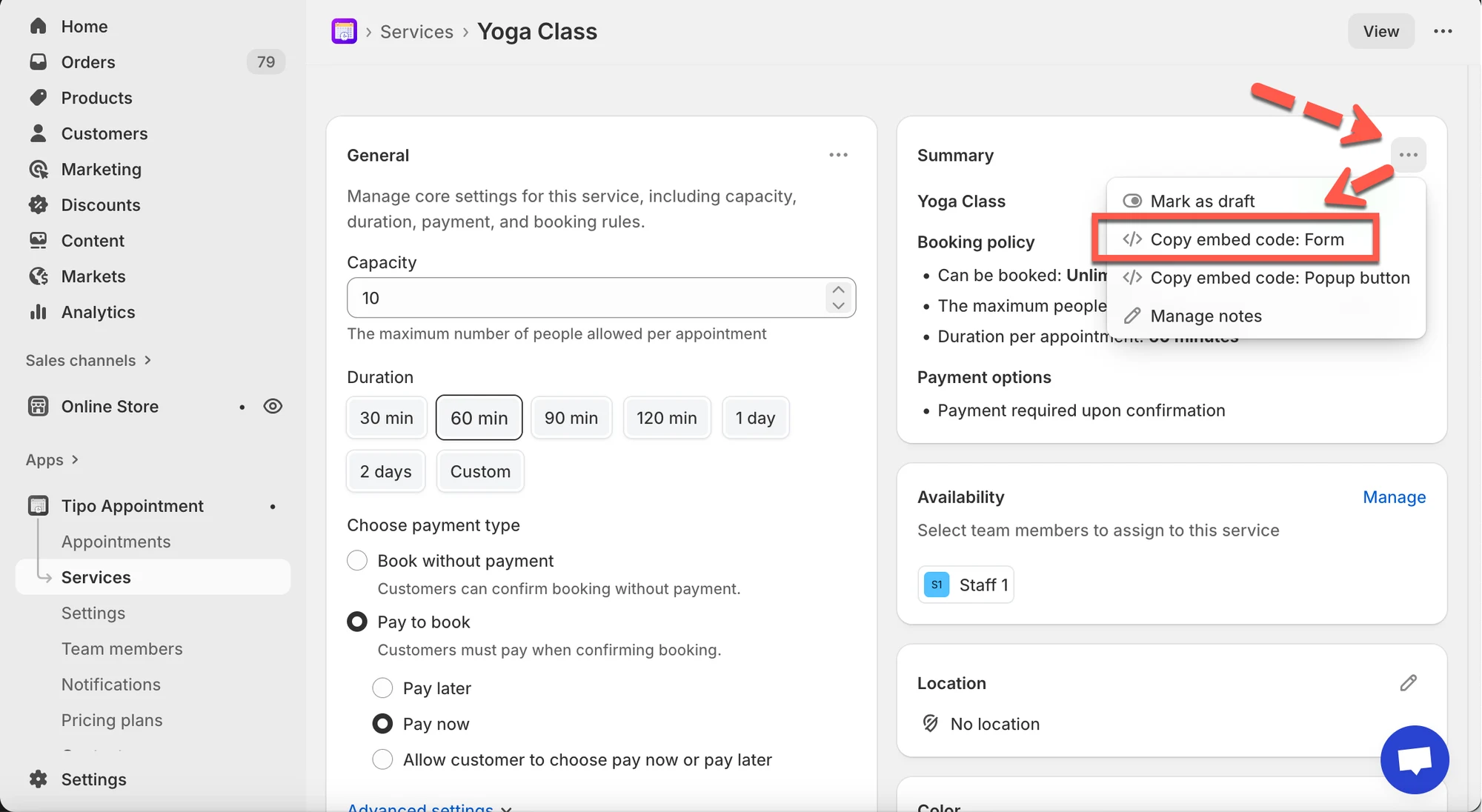
Section titled “Step 1: Copy the Embed Code”- Go to the app > click Services
- Open a service (e.g. Yoga Class)
- Click the ⋯ menu in the Summary panel
- Select Copy embed code: Form
Example code:
<div class="tpb-booking-form page" data-layout-type="form" data-id="8597055996057"></div>8597055996057 is them service ID
🧾 Step 2: Paste the Shortcode into a Page
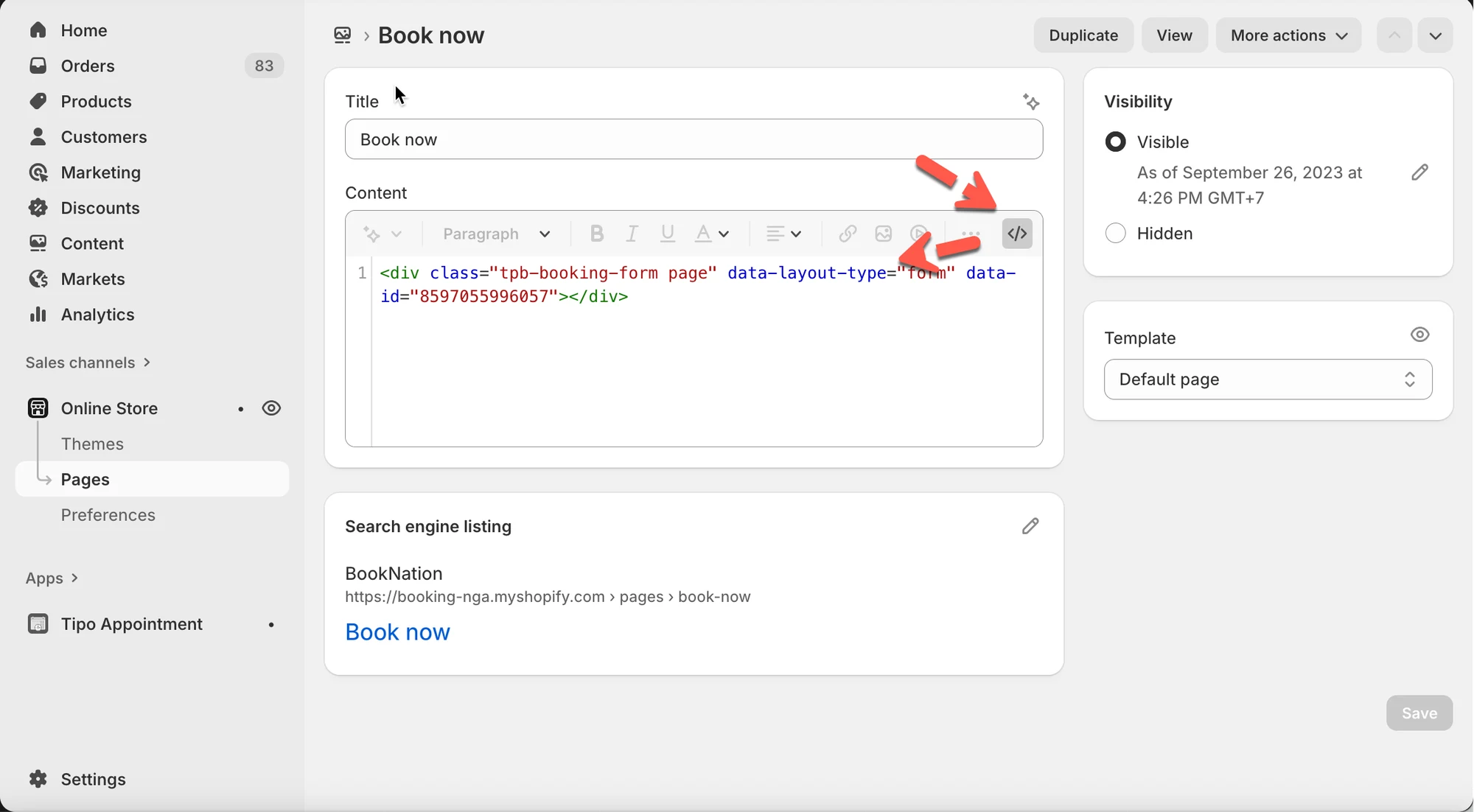
Section titled “🧾 Step 2: Paste the Shortcode into a Page”- Go to Online Stores > Pages
- Open (or create) the page where you want bookings
- Switch to HTML / source view
- Paste the shortcode
- Save the page
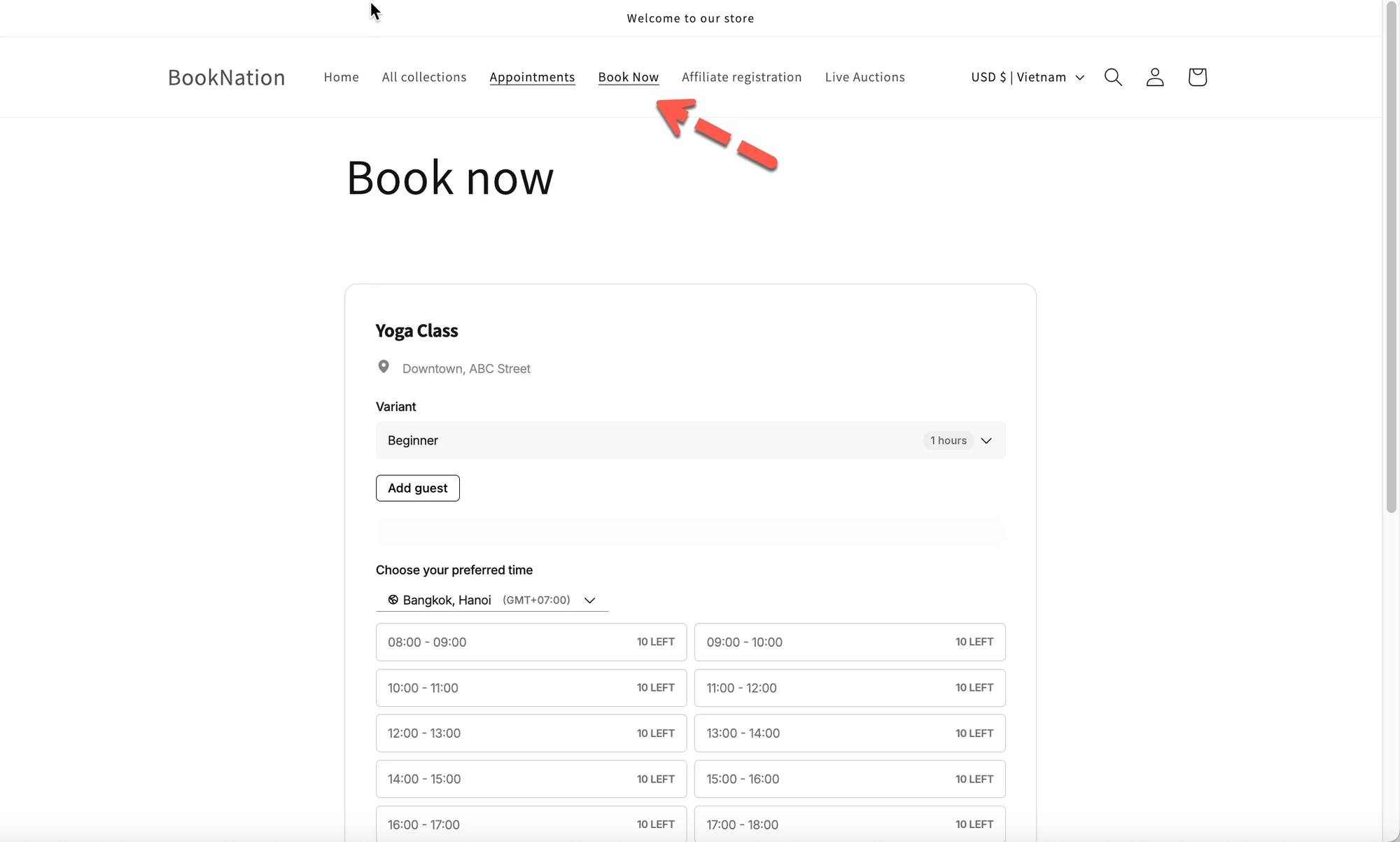
✅ Result:
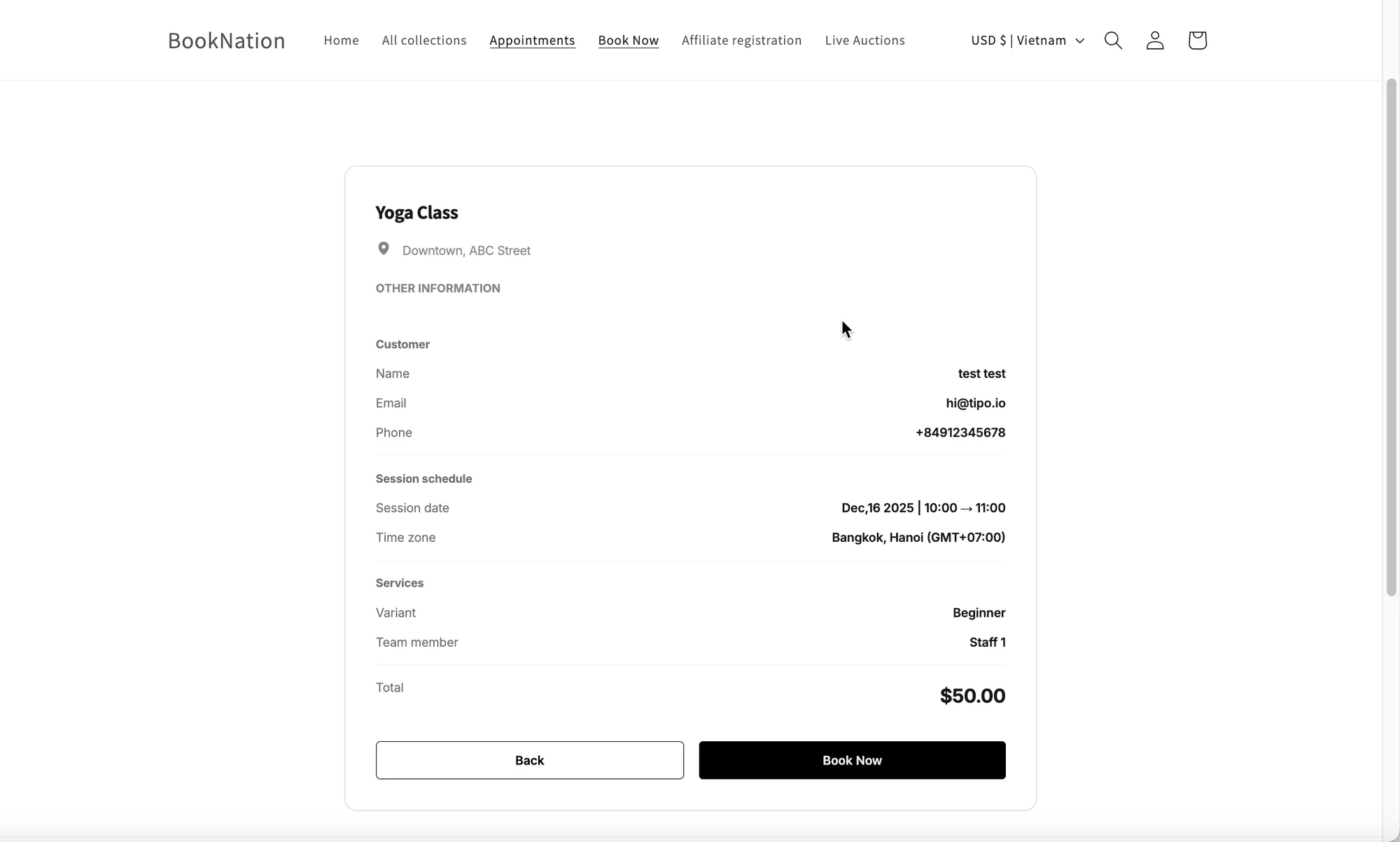
The booking form appears inline on the page.
🔘 Option 2: Add a Button with Booking Popup
Section titled “🔘 Option 2: Add a Button with Booking Popup”Best for:
Homepage buttons, banners, or “Book Now” CTAs.
Step 1: Copy the Popup Button Code
Section titled “Step 1: Copy the Popup Button Code”- Go to the app > click Services
- Open a service (e.g. Yoga Class)
- Click the ⋯ menu in the Summary panel
- Select Copy embed code: Popup button
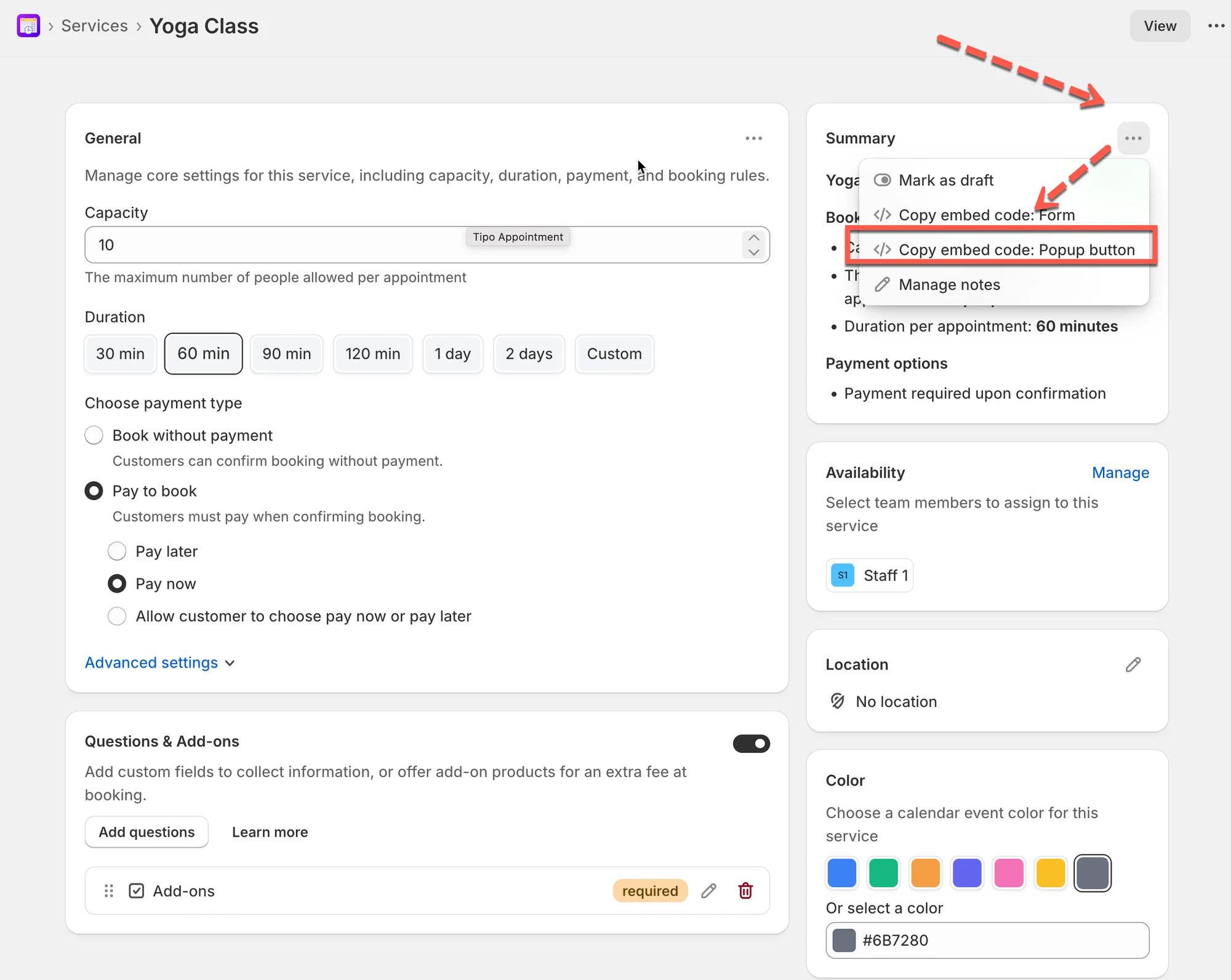
Example code:
<button type="button" class="button btn button--secondary tpb-book-on-grid-button" onclick="Tipo.Booking.openWidget(8597055996057)">Book now</button>8597055996057 is the service ID
🧾 Step 2: Add the Button to Your Page
Section titled “🧾 Step 2: Add the Button to Your Page”- Go to Online Store > Pages or Theme Editor
- Paste the button shortcode where you want it
- Save
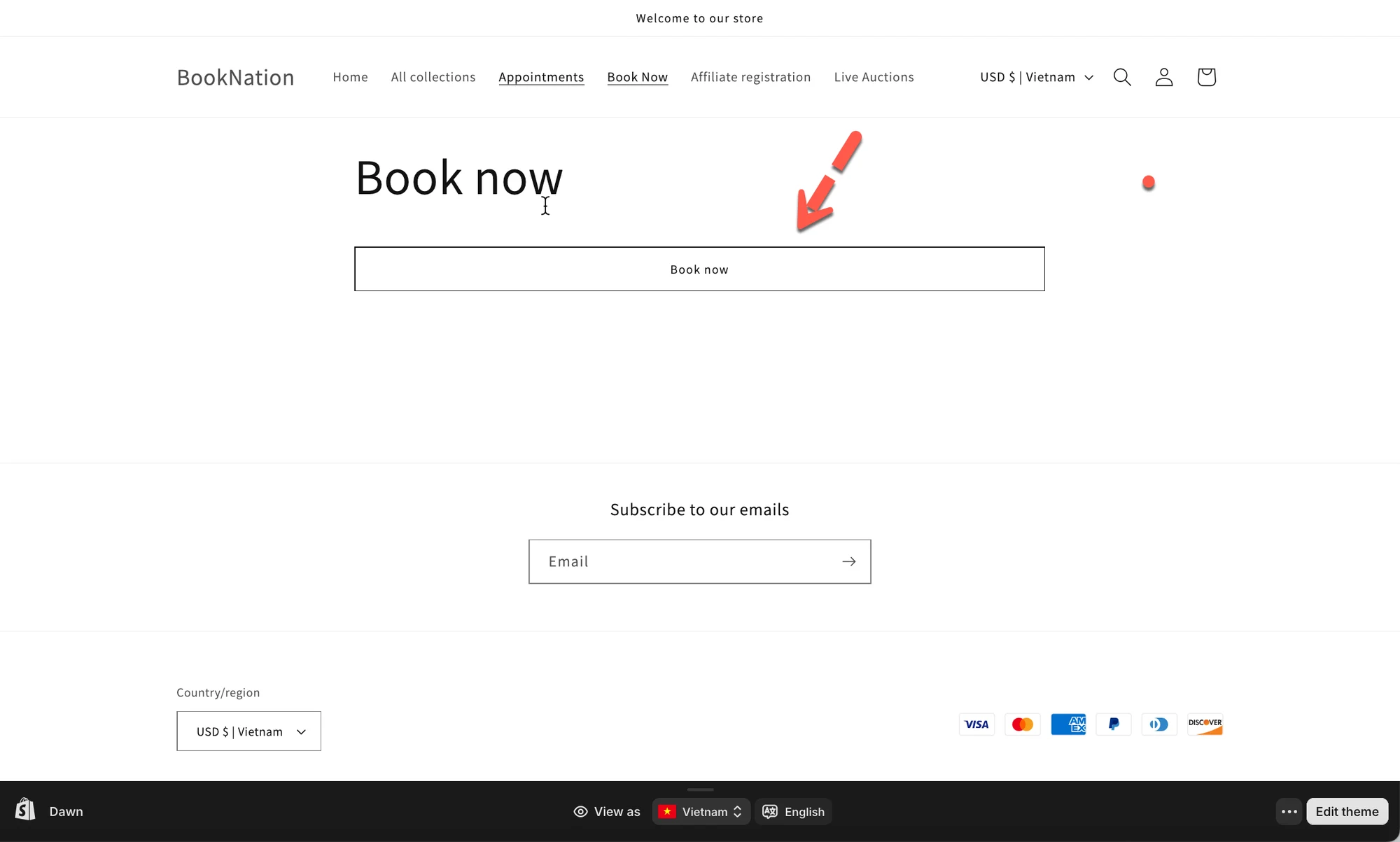
✅ Result:
Clicking the button opens the booking form in a popup.
🧱 Option 3: Add the Booking Widget as an App Block
Section titled “🧱 Option 3: Add the Booking Widget as an App Block”Best for:
Home pages or theme sections with no code required.
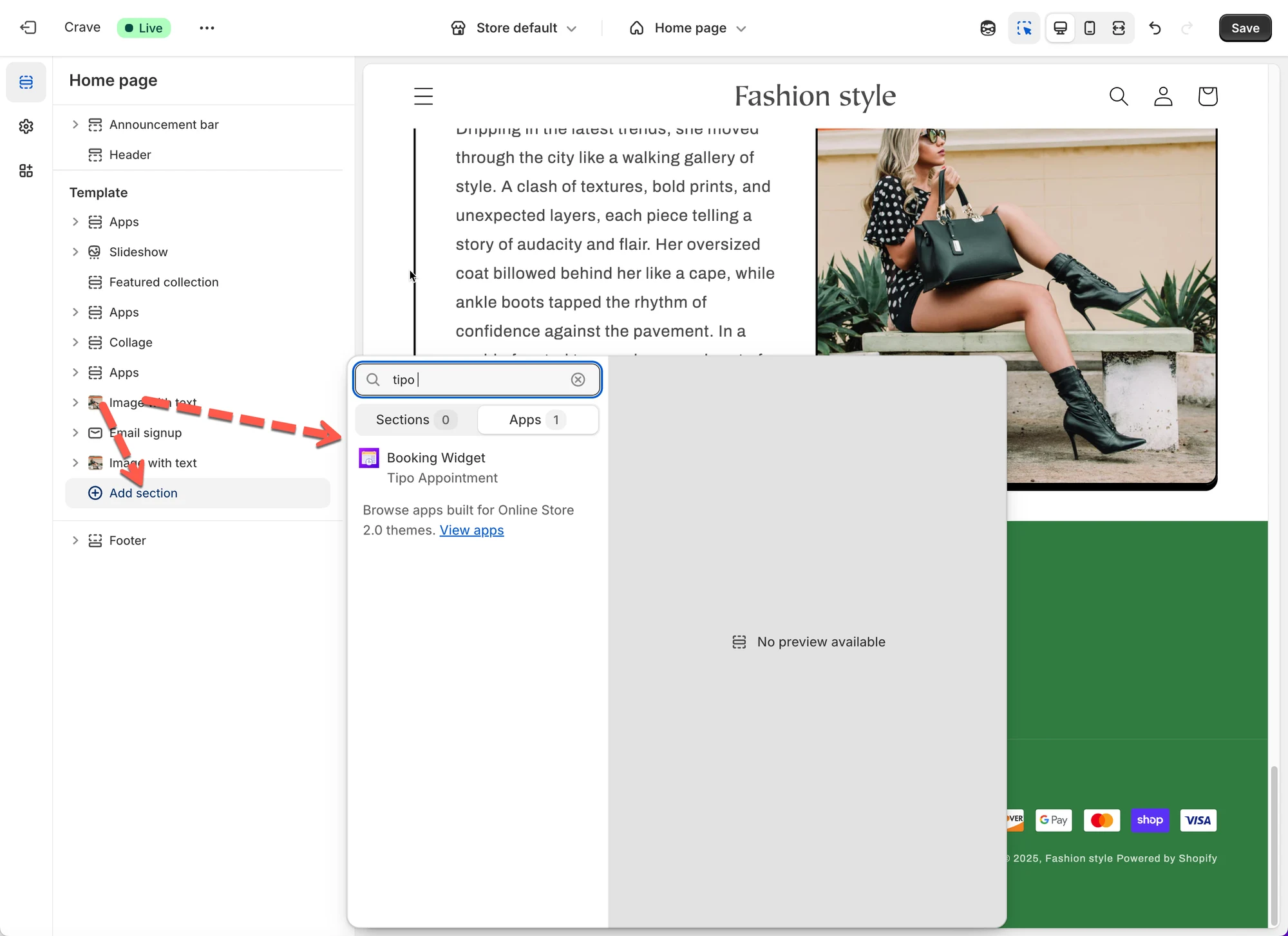
- Open the app > go to Online Store > Themes > Edit theme
- Select the page where you want to show the booking widget (e.g., Homepage, Product Page, etc.)
- In the left panel, click Add Block under the section you want to add the widget to > select Booking Widget from the list of available app blocks
- Choose your preferred Layout
- With the Booking Widget block selected, go to the right panel.
- Under the Layout dropdown, select one of the available styles:
- Form – Displays a calendar and time selector directly.
- List – Shows services in a vertical list format.
- Grid – Displays services in a grid layout for a more visual layout.
5. Save your Changes
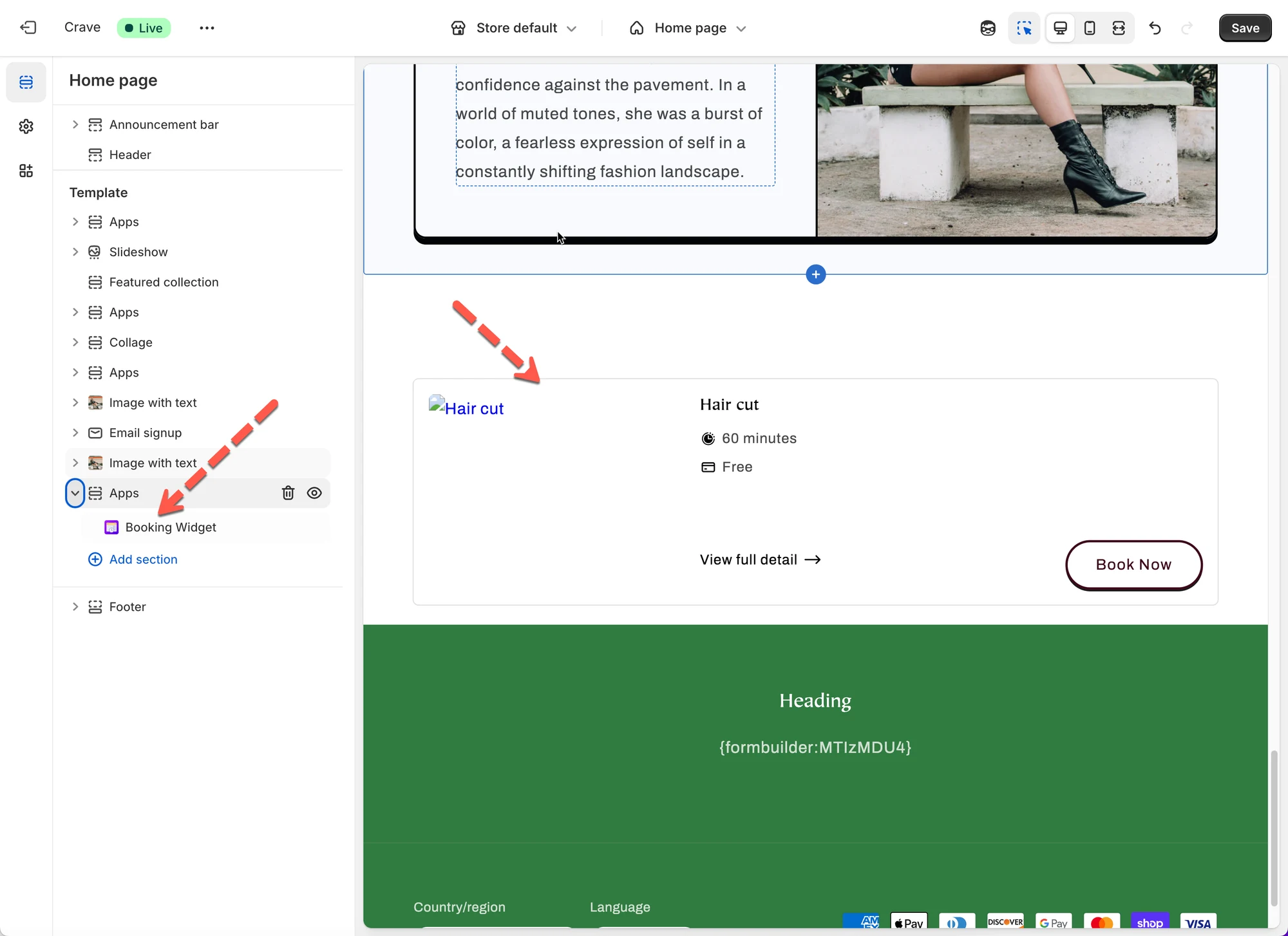
✅ Result:
The booking widget is fully embedded using Shopify’s app block system.
🆚 Which Option Should I Choose?
Section titled “🆚 Which Option Should I Choose?”| Goal | Recommended Option |
|---|---|
| Full booking page | 🧩 Embed Form |
| Simple “Book Now” button | 🔘 Button + Popup |
| No-code setup | 🧱 App Block |
🙋 Still need support?
If you still need help, please feel free to contact us at hi@tipo.io. We’ll be happy to assist you further.