
Time format
AI Overview
Choose how time is displayed on the Tipo booking widget: 24-hour format such as 13:30 or 12-hour AM/PM format such as 1:30 PM. The setting updates immediately but applies only to the widget on your online store; time inside the app is always shown in 24-hour format.
View moreView less
- Open the app, click Settings > General.
- In Date & time, find Time format and choose 24 hour time format or 12 hour time format (AM/PM).
- Click Save and check the booking widget on the online store.
- Time in the app always stays in 24-hour format.
Summary generated by AI. It can make mistakes, so check the full guide below.
Choose how time is displayed on the booking widget: 24-hour format or 12-hour (AM/PM).
Examples:
- 24-hour:
13:30 - 12-hour:
1:30 PM
How to set
- Open the app > click Settings > General
- In Date & time > find Time format > choose one option:
- 24 hour time format
- 12 hour time format (AM/PM)
- Click Save
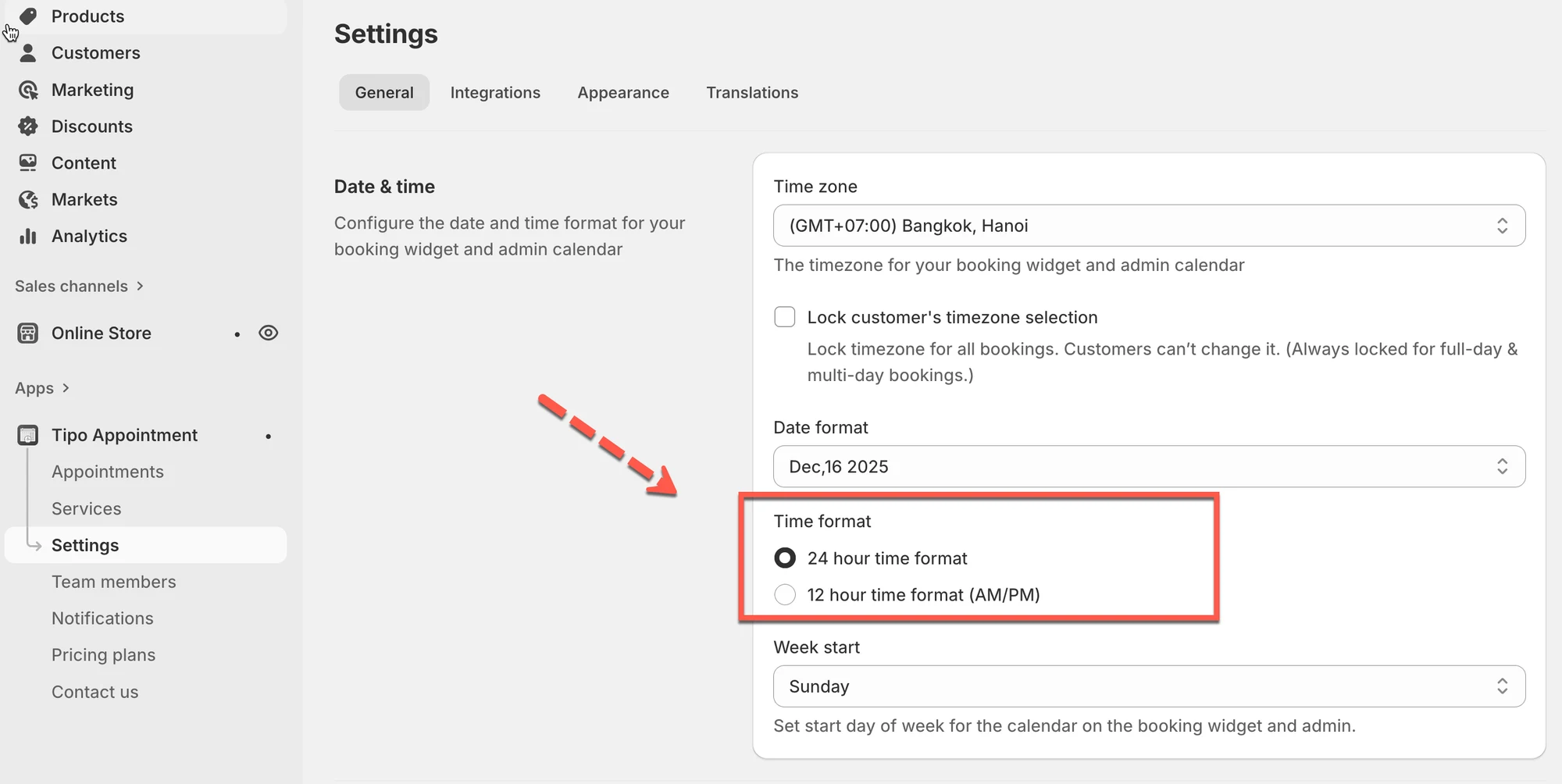
The setting updates immediately. Check the result on the booking widget on the online store.
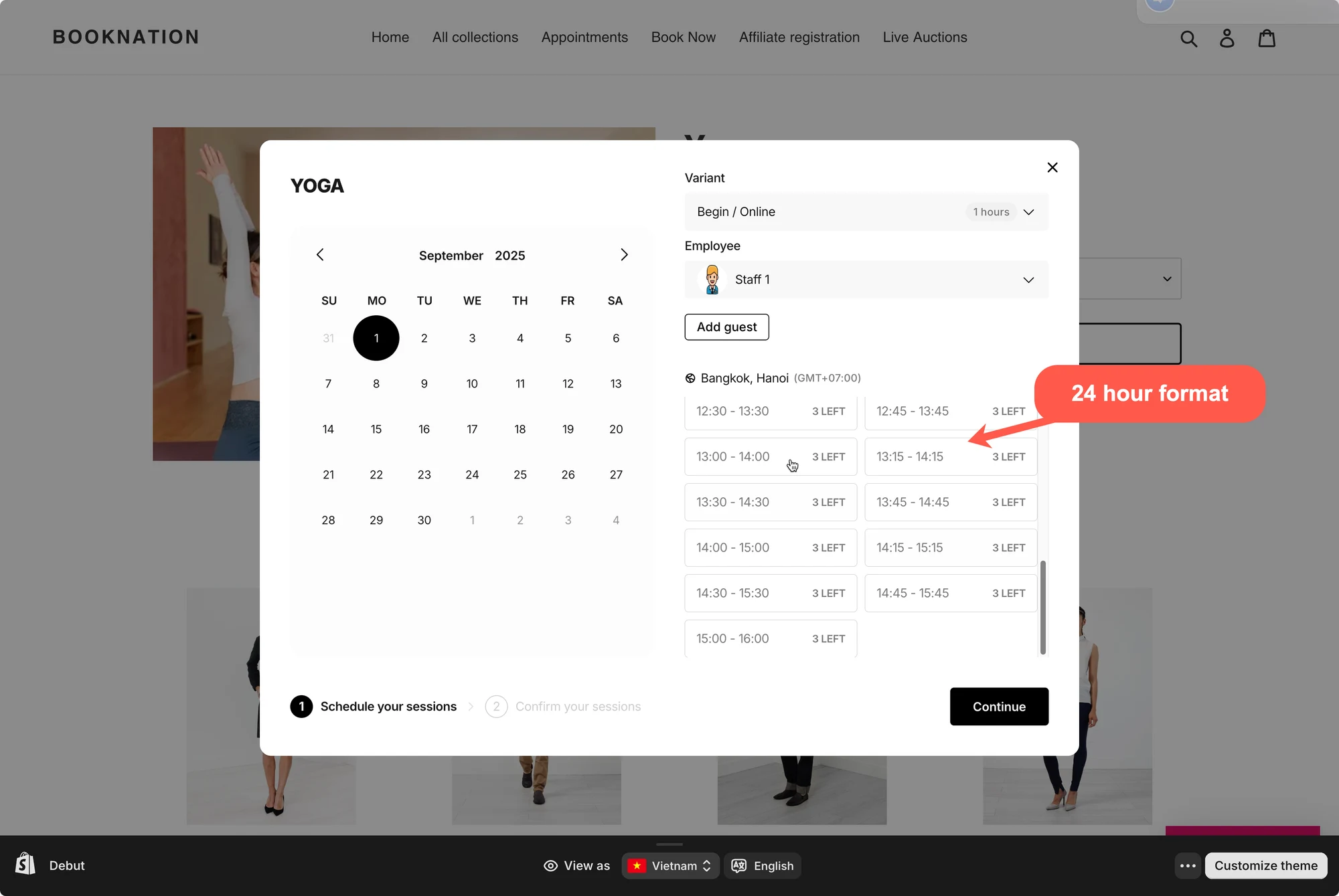
Note: time in the app is always in 24 hour format. The setting is applied to time on the booking widget on the online store only.
🙋 Still need support?
If you still need help, please feel free to contact us at hi@tipo.io. We’ll be happy to assist you further.