
Team member emails
AI Overview
Team member emails notify the staff member assigned to a booking, such as the employee providing the service. Tipo provides five built-in templates for team members, and you can edit the subject and content of each in the Notifications page.
View moreView less
- Templates: Appointment Approved, Pending, Rejected, Rescheduled, and Next Day Reminder.
- Open the app, click Notifications, then the Team Members tab.
- Tick the checkbox next to each template you want to send.
- Click a template name, update the Subject and Content, and save.
Summary generated by AI. It can make mistakes, so check the full guide below.
Team member emails notify the staff member assigned to the booking (for example, the employee providing the service). Tipo provides 5 built-in templates for team members.
- Appointment Approved
- Appointment Pending
- Appointment Rejected
- Appointment Rescheduled
- Appointment Next Day Reminder
🛠️ How to set
Section titled “🛠️ How to set ”1. Open the app > click Notifications > click Team Members tab
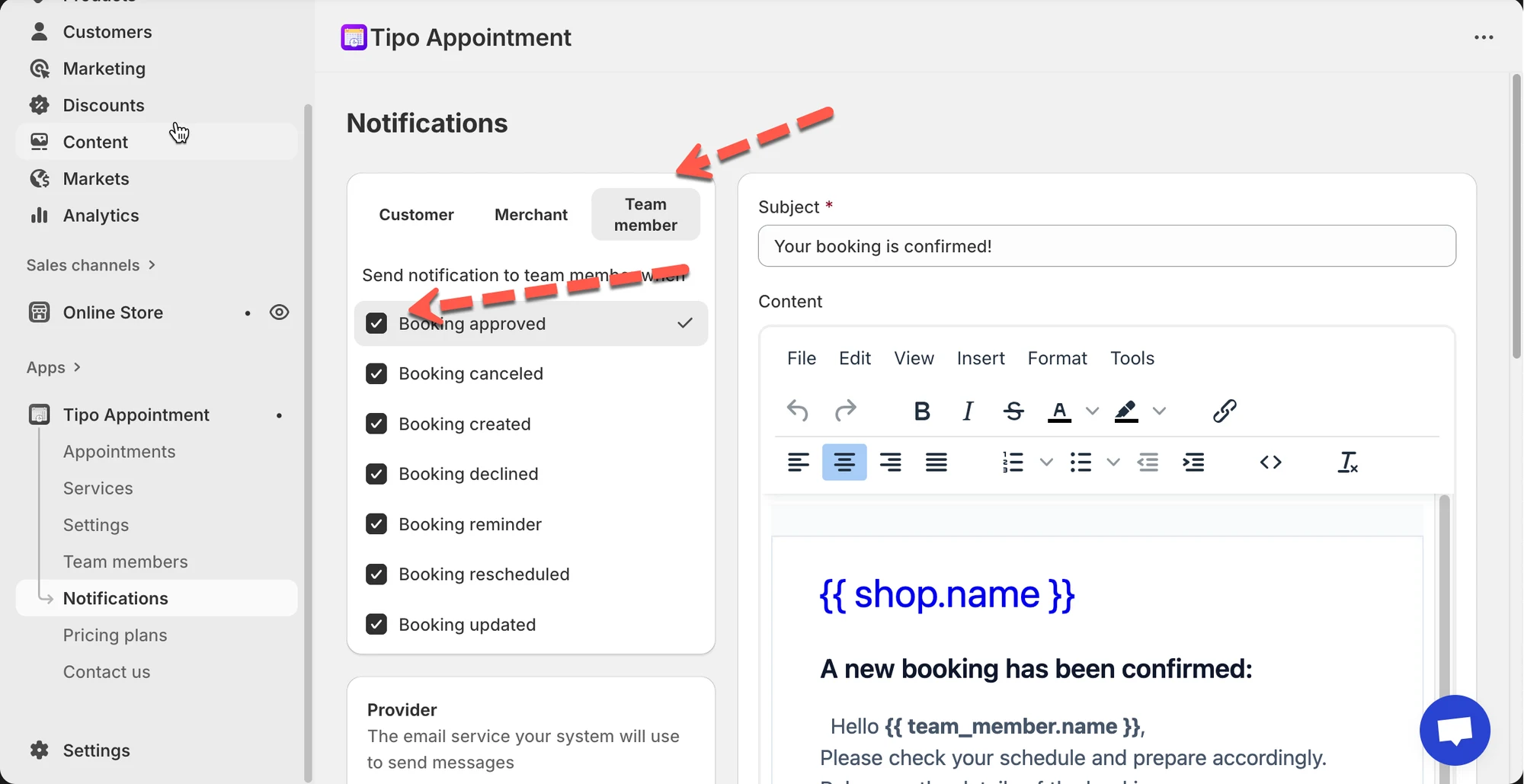
- In the list of triggers (e.g. “Appointment Approved,” “Appointment Pending”), make sure the checkbox next to the template is ticked
- Click the template name to open its editor:
- Update the Subject line.
- Modify the Content: you can add text, variables, links, or formatting as needed.
- Save the settings.
🙋 Still need support?
If you still need help, please feel free to contact us at hi@tipo.io. We’ll be happy to assist you further.