
Add admin email addresses
AI Overview
Add one or more admin email addresses in Tipo Appointment Booking so admin (merchant) notifications are sent to them. Multiple addresses are separated by commas.
View moreView less
- Open the app, click Notifications, then the Merchant tab.
- Enter the address(es) in the Admin email field, separated by commas.
- Click Save.
Summary generated by AI. It can make mistakes, so check the full guide below.
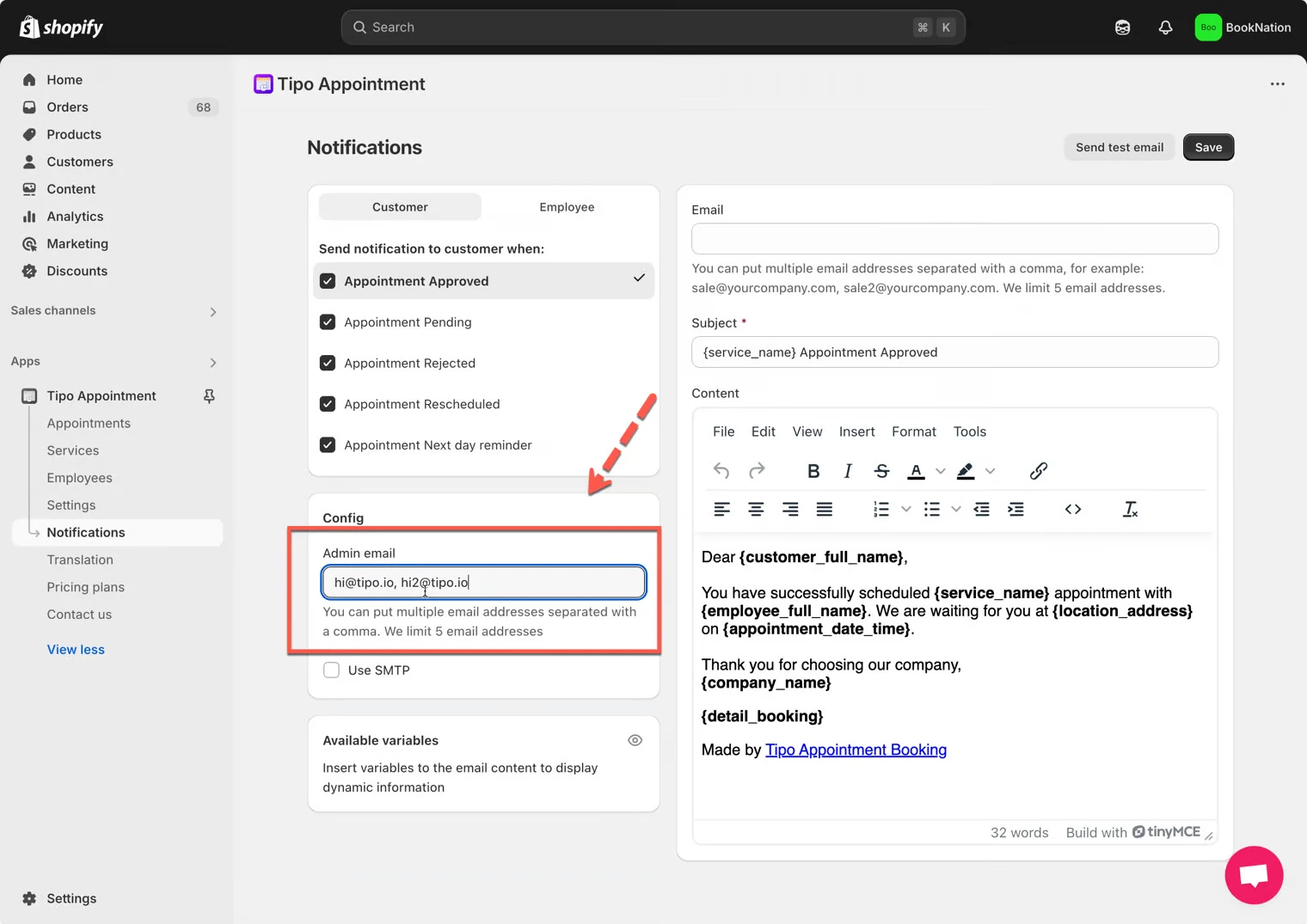
1. Open the app > click Notifications > click Merchant tab
2. Enter email address(es) to the Admin email field
Note: you can add multiple admin email addresses, separate email by comma character, for example: sale@yourcompany.com, sale2@yourcompany.com
- Click Save
🙋 Still need support?
If you still need help, please feel free to contact us at hi@tipo.io. We’ll be happy to assist you further.