
Manage Destination stores
AI Overview
Shows how to view and manage the Destination stores connected to your Source store in the Tipo app. You can check the connected list from the Dashboard, see synced products, and disconnect a store.
View moreView less
- Open the app in the Source store Dashboard to see the list of connected Destination stores.
- Click Products to view the synced products.
- To disconnect, open Stores in the Source store and click the disconnect icon next to the store; it is removed immediately.
- Then do the same in the app on the Destination store.
Summary generated by AI. It can make mistakes, so check the full guide below.
This guide shows how to view and manage all Destination stores connected to your Source store in Tipo app.
✅ Check destination store list
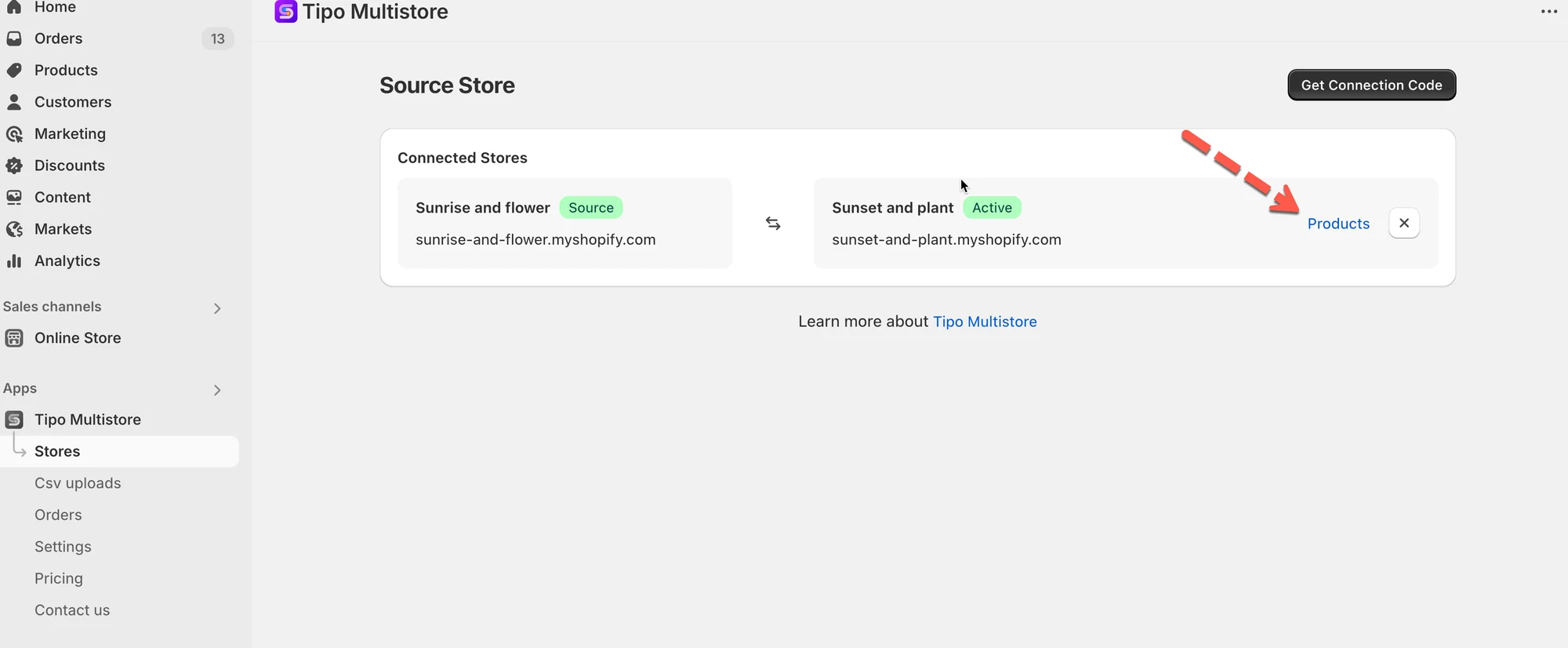
Section titled “✅ Check destination store list”Open the app in Source store > app Dashboard > you will see the list of Destination stores that are connected to your Source store.
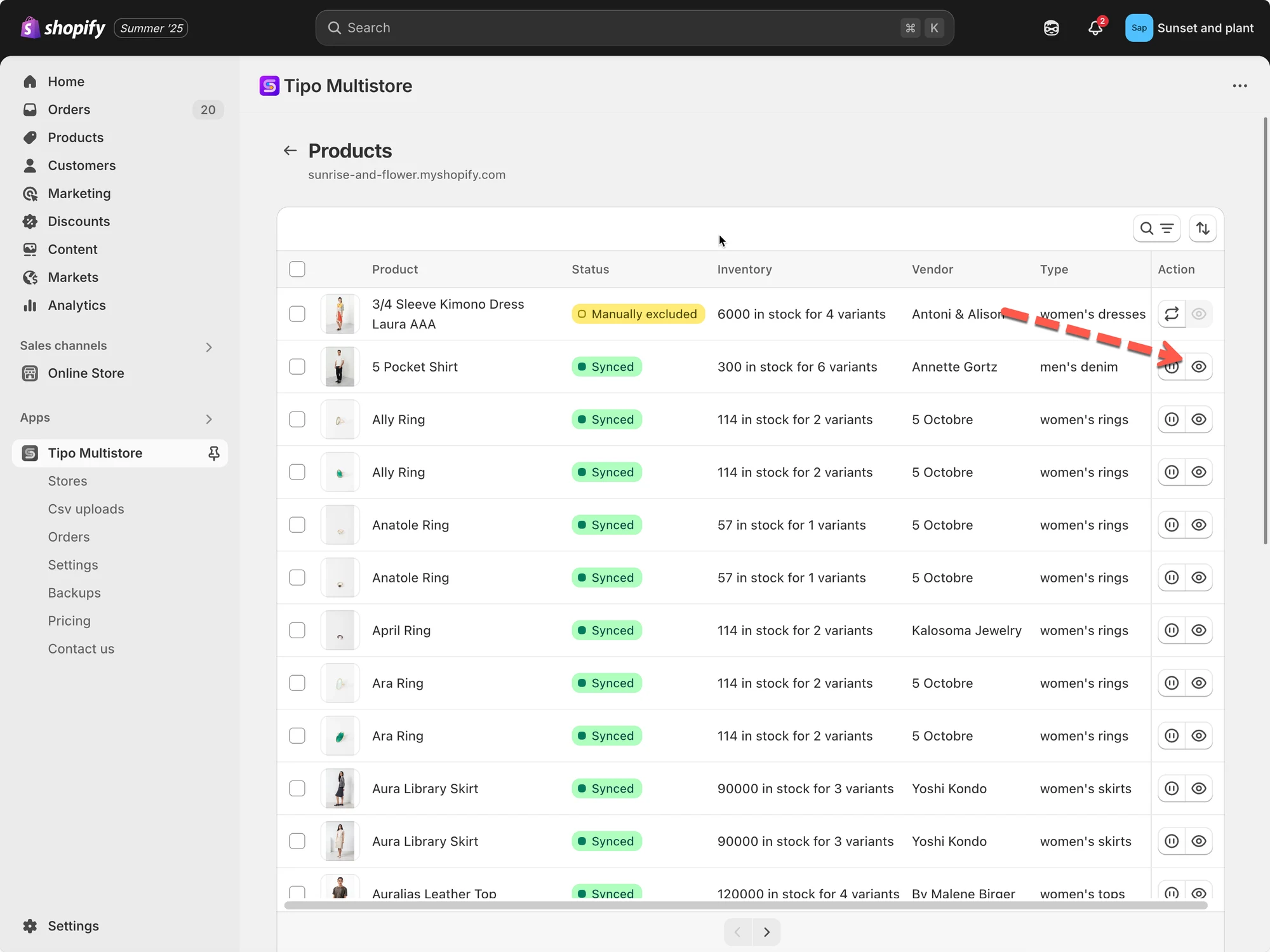
Click Products to view the synced products
🚫 Disconnect a destination store
Section titled “🚫 Disconnect a destination store”Open the app in Source store > click Stores > click disconnect icon next to the store you want > The connect is removed immediately.
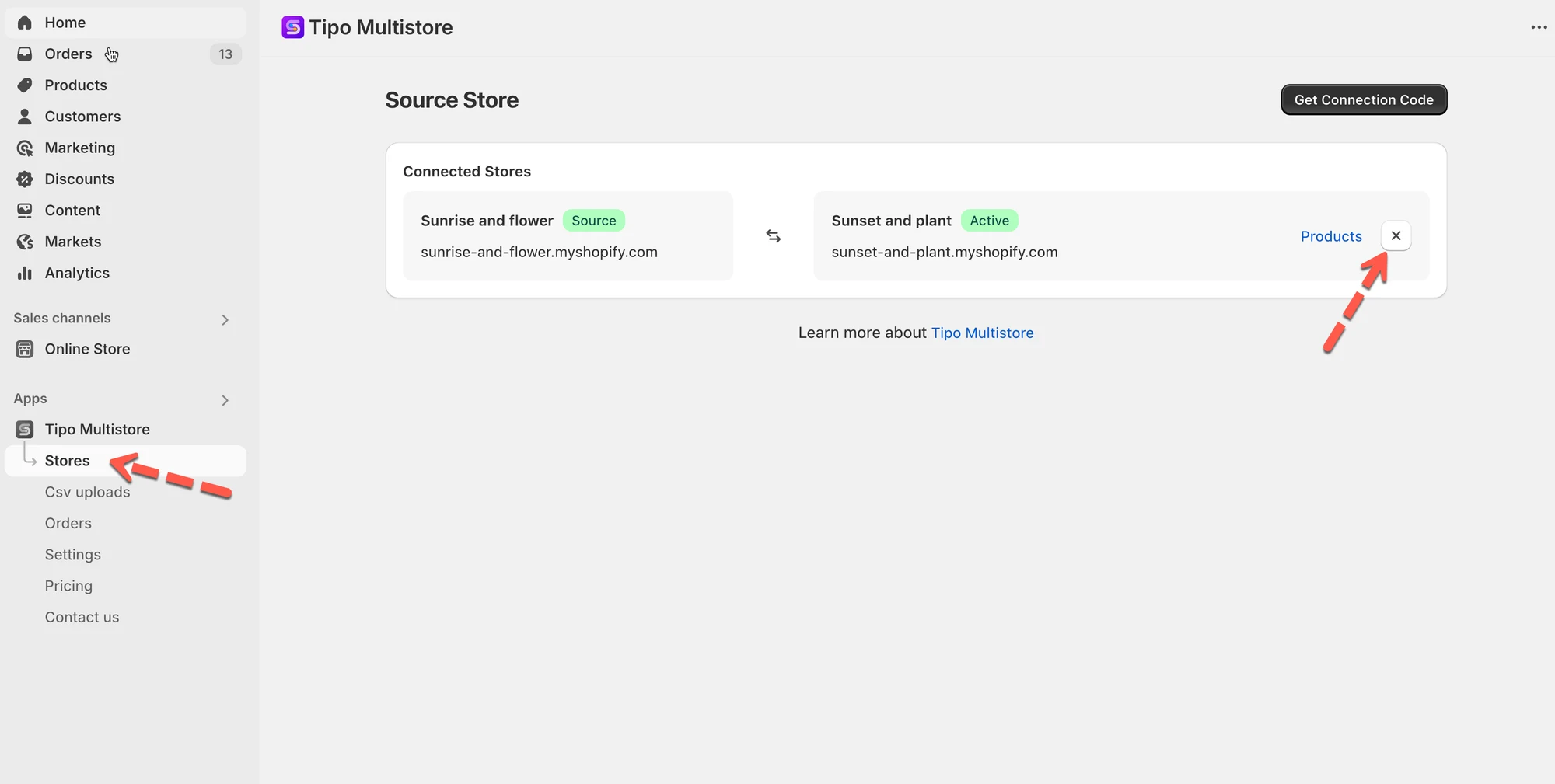
Then do the same in the app on Destination store.
🙋 Still need support?
If you still need help, please feel free to contact us at hi@tipo.io. We’ll be happy to assist you further.