
管理 Destination store
AI 概覽
說明如何在 Tipo 應用程式中檢視與管理已連線到 Source store 的 Destination store。您可以從 Dashboard 查看已連線清單、檢視已同步的商品,以及中斷商店連線。
查看更多收合
- 在 Source store 的 Dashboard 中開啟應用程式,即可看到已連線的 Destination store 清單。
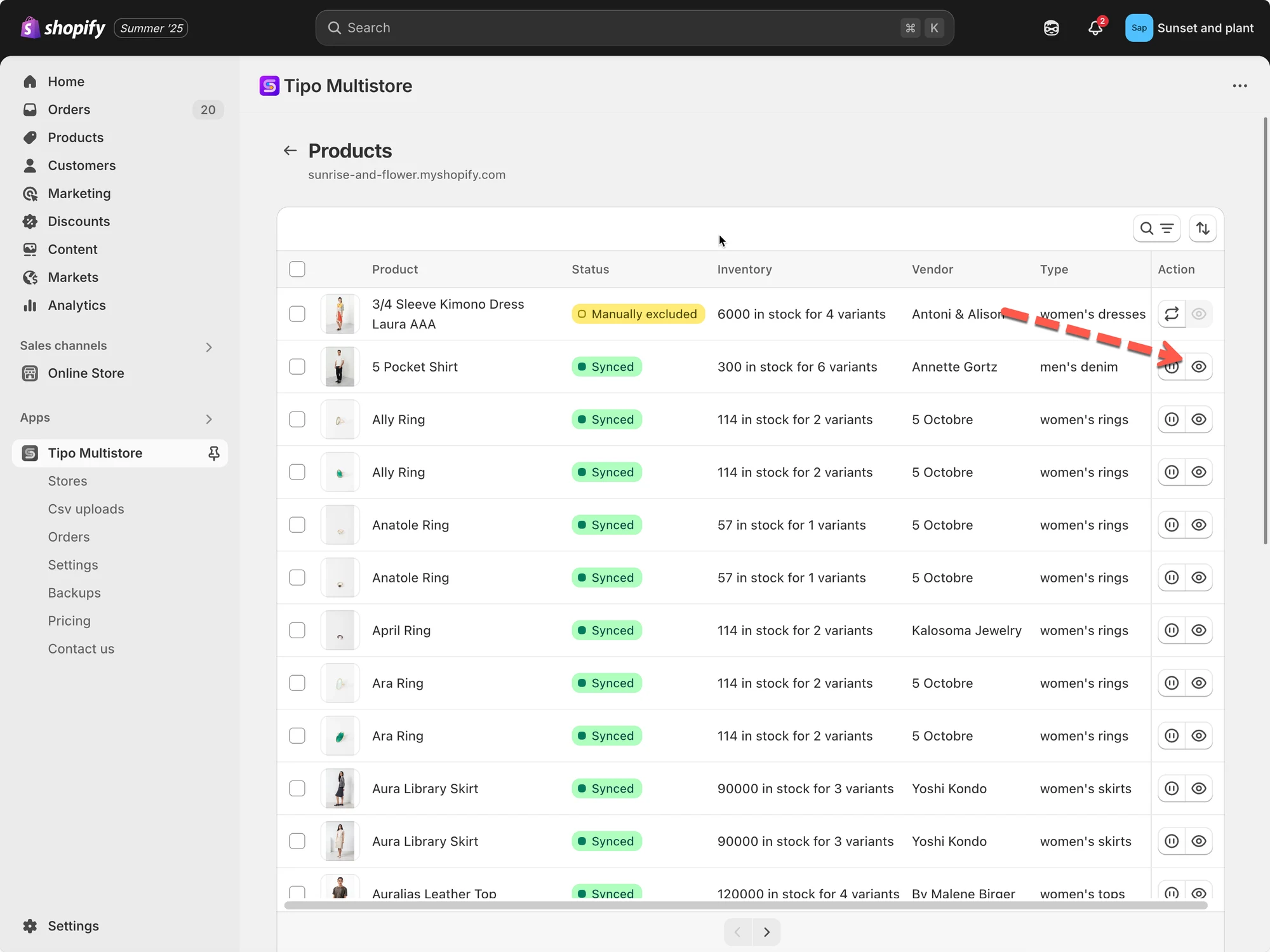
- 點選 Products 以檢視已同步的商品。
- 若要中斷連線,請在 Source store 開啟 Stores,點選該商店旁的中斷連線圖示;連線會立即移除。
- 接著在 Destination store 的應用程式中執行相同步驟。
由 AI 產生的摘要,可能有錯誤,請參閱下方的完整指南。
本指南說明如何在 Tipo 應用程式中,查看並管理與您的 Source store 連線的所有 Destination store。
✅ 查看 Destination store 清單
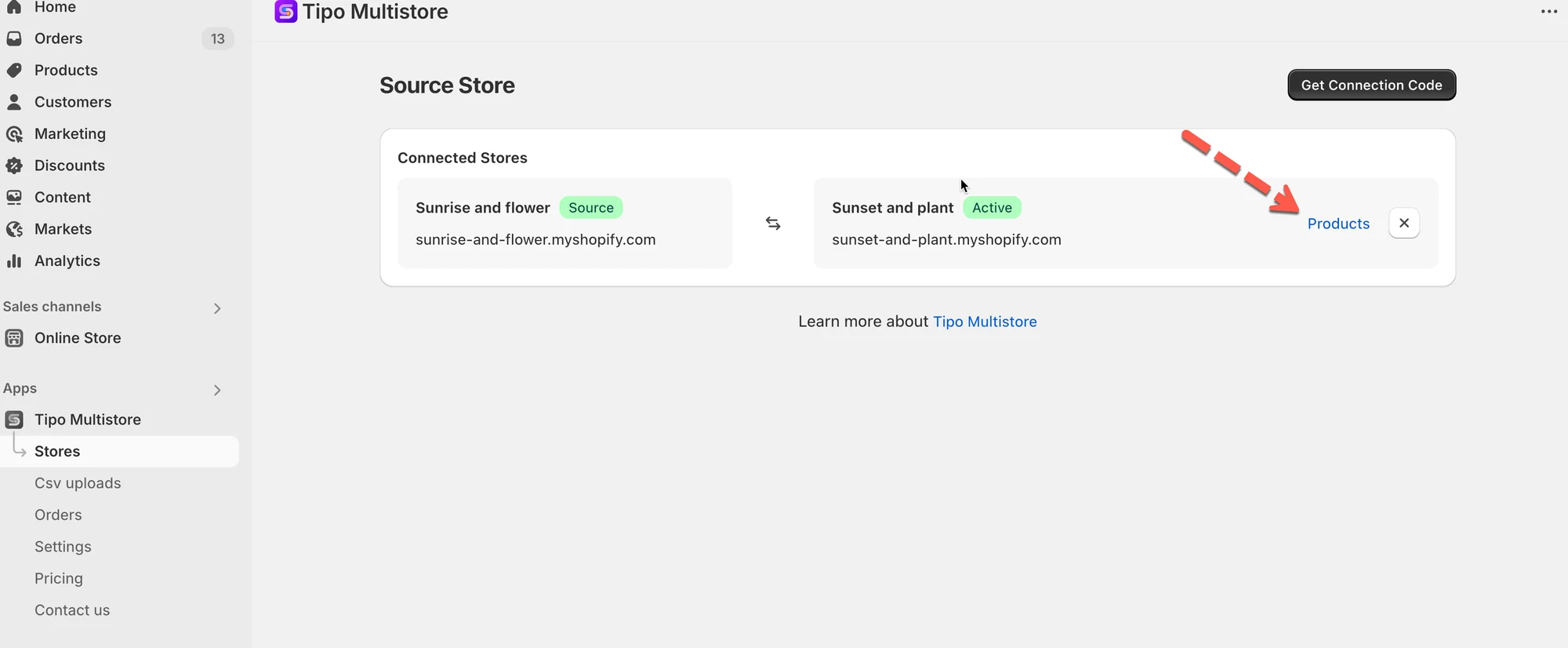
Section titled “✅ 查看 Destination store 清單”在 Source store 中開啟應用程式 > 應用程式 Dashboard > 您會看到與您的 Source store 連線的 Destination store 清單。
點選 Products 以查看已同步的商品
🚫 中斷與 Destination store 的連線
Section titled “🚫 中斷與 Destination store 的連線”在 Source store 中開啟應用程式 > 點選 Stores > 點選您想中斷的商店旁邊的中斷連線圖示 > 連線會立即被移除。
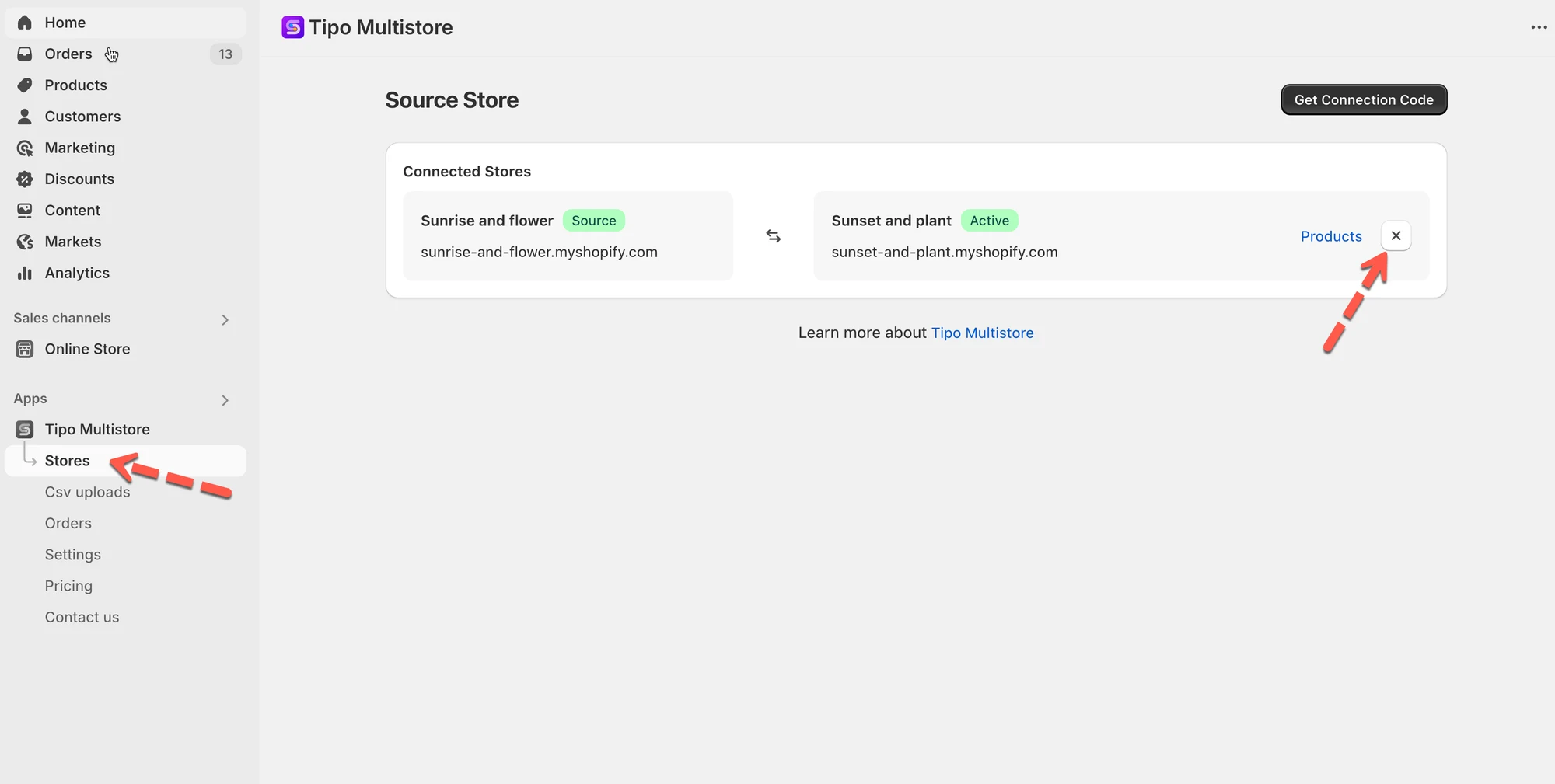
接著在 Destination store 的應用程式中執行相同操作。
🙋 還需要協助嗎?
如果您仍需要協助,歡迎隨時寄信至 hi@tipo.io 與我們聯繫,我們很樂意為您提供進一步的協助。