
Price sync & adjustments
AI 概覽
瞭解如何將商品價格從 Source store 同步到 Destination store,並可選擇性調整價格,例如針對不同市場、利潤、稅金或貨幣。您需在 Product Fields to Synchronize 中將 Price to Sync 設為同步,然後在連線中設定 Price mapping & transformations。範例涵蓋百分比、固定金額、貨幣與四捨五入調整。
查看更多收合
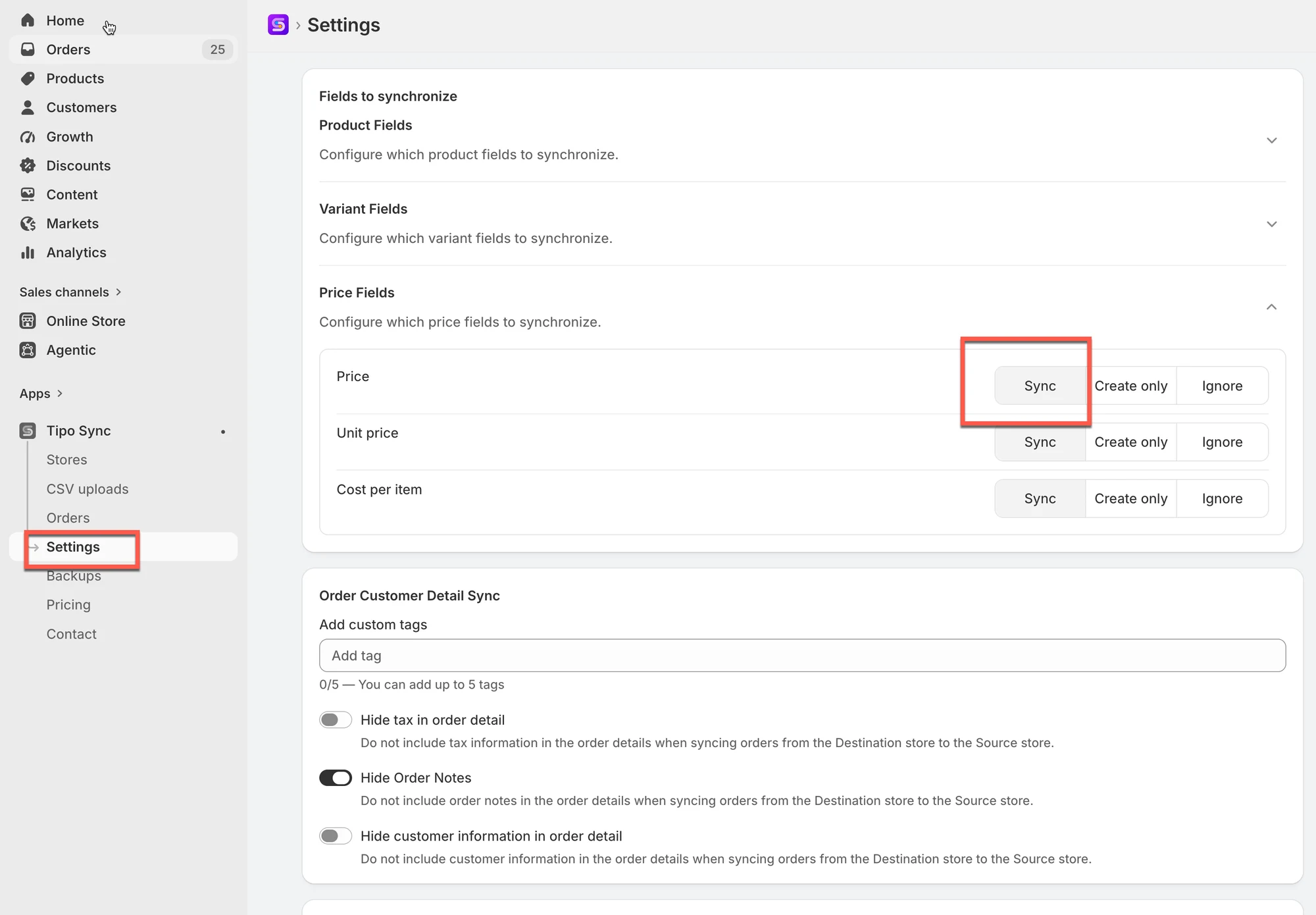
- 在 Destination store 中開啟 Settings > Product Fields to Synchronize,並將 Price 設為 Sync。
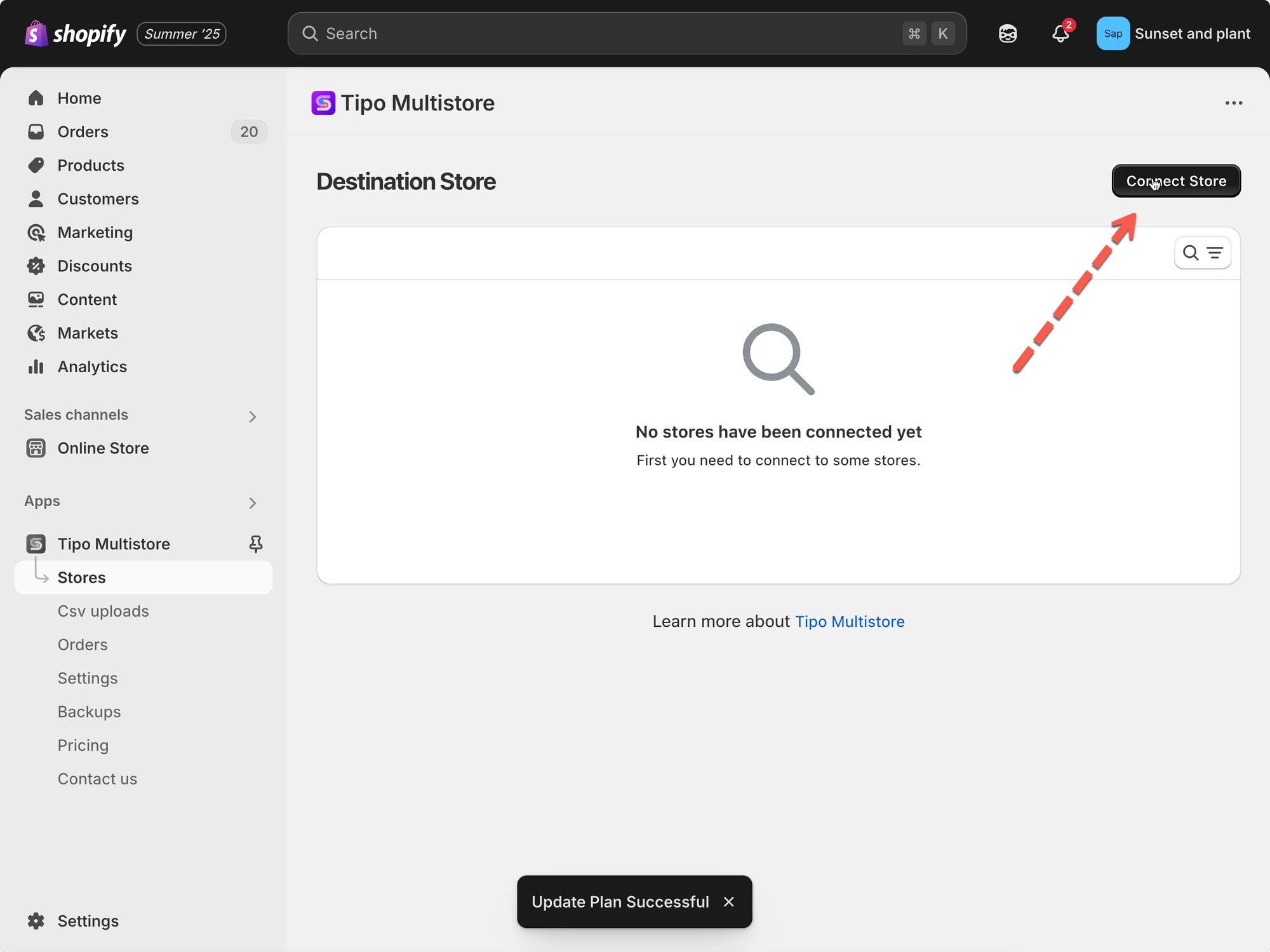
- 透過 Stores > Connect store 連線商店,或開啟現有連線的詳細資料。
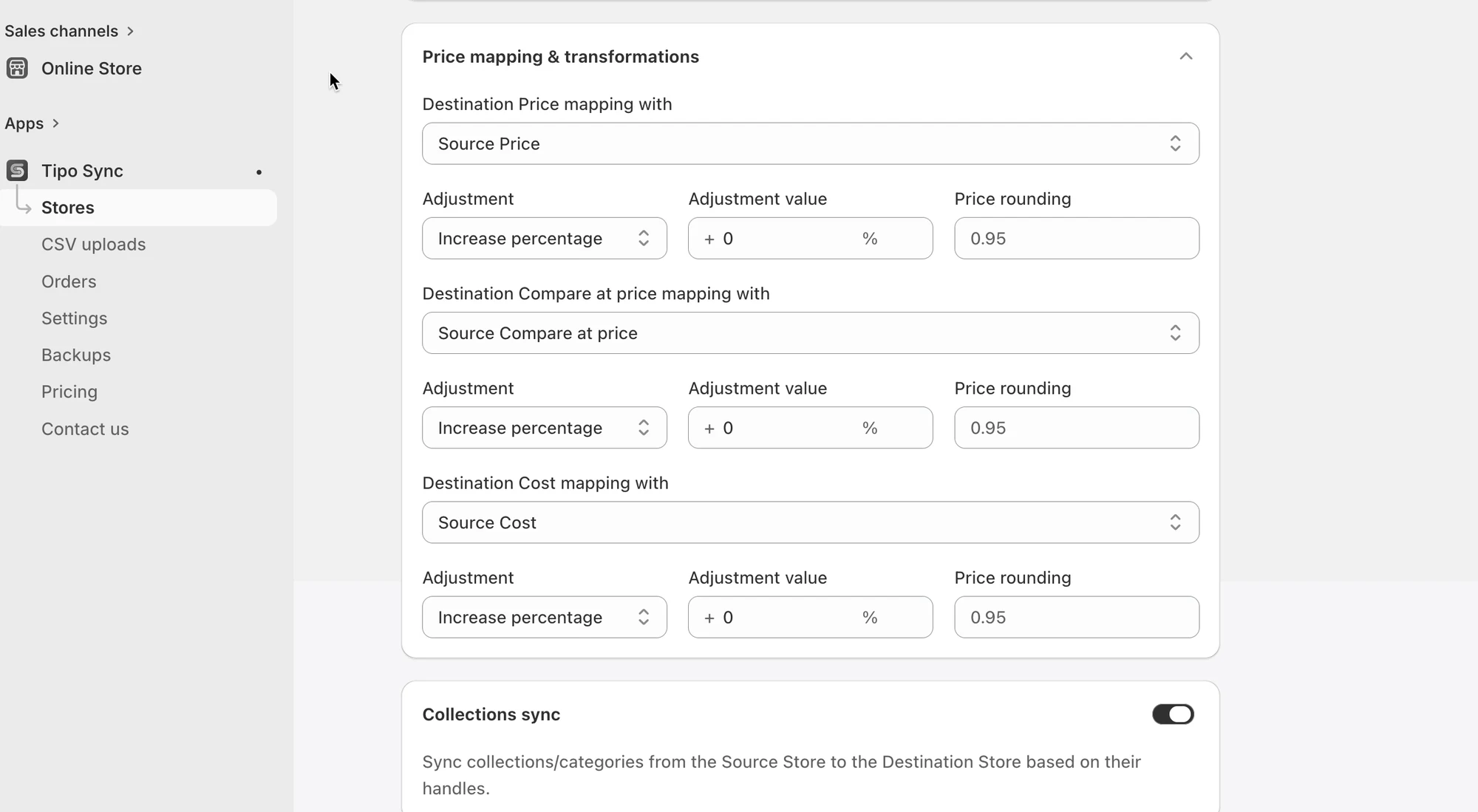
- 捲動到 Price mapping & transformations,設定選填的 Adjustment value,然後點選 Save。
- 範例包括調漲 20%、調降 10%、固定增加 $15、貨幣轉換與價格四捨五入。
- 同步後請檢查價格;若您更改了轉換比率,請告知支援團隊以便重新執行同步。
由 AI 產生的摘要,可能有錯誤,請參閱下方的完整指南。
應用程式可讓您將商品與商品價格從 Source store 同步到 Destination store。
✅ 何時該使用價格調整?
Section titled “✅ 何時該使用價格調整?”如果您希望 Destination store 的價格與 Source 不同,請使用此功能,例如:
- 不同國家/市場需要不同的定價
- 其中一間商店有額外的運費/稅金
- 批發與零售的利潤率不同
- 幣別差異(當您以規則管理定價時)
🛠️ 管理步驟
Section titled “🛠️ 管理步驟”新連線:
連線之前,請先檢查並選擇您想同步的商品資訊 此處。
- 在 Destination store 中開啟應用程式 > 點選 Settings > Product Fields to Synchronize > 為 Price 選擇 Sync 選項
- 點選應用程式左側選單的 Stores > 點選 Connect store 按鈕
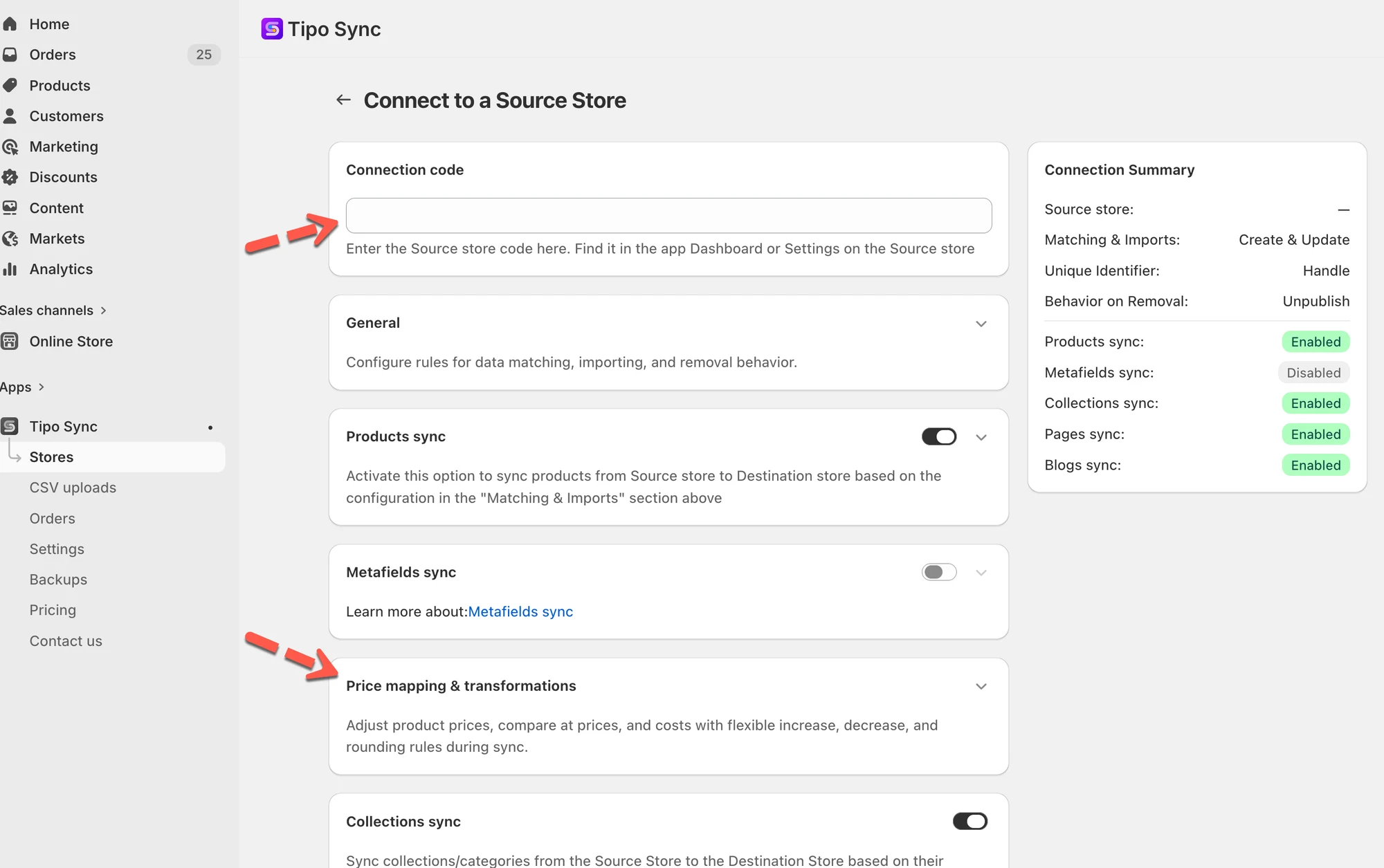
- 輸入從 Source Store 取得的 Connection Code(位於 Source Store 應用程式的 Settings 之下)
已在運作中的連線: 前往 Destinations 商店,開啟應用程式 > 點選 Stores > > 點選 Source store 的網址以開啟連線詳細資料
- 向下捲動到 Price mapping & transformations > 視需要設定價格與 Adjustment value(選填)
- 點選 Save
同步執行後,請檢查結果,確認價格已正確更新。
如果您變更了連線設定中的價格轉換比率,請通知我們。我們的開發團隊會重新檢查並重新執行同步,以確保您的變更被正確套用。
🔄 範例 1:將商品價格提高 20%
Section titled “🔄 範例 1:將商品價格提高 20%”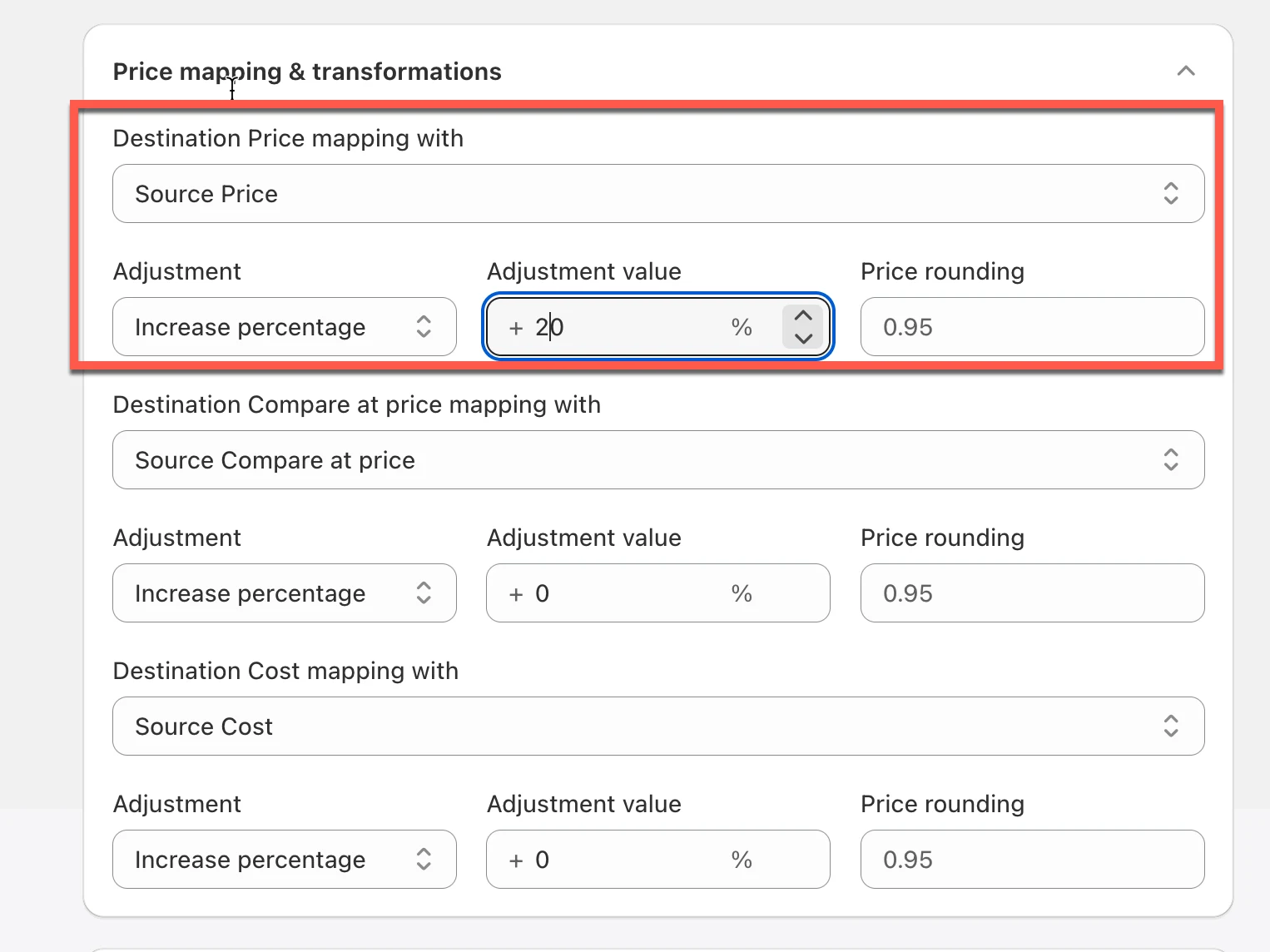
| 選項 | 值 |
|---|---|
| Destination Price mapping with | Source Price |
| Adjustment | Increase percentage |
| Adjustment value | 20% |
Source Store
Section titled “Source Store”| 商品 | 價格 |
|---|---|
| Summer Shirt | $100 |
| 商品 | Destination 價格 |
|---|---|
| Summer Shirt | $120 |
計算方式:
$100 + (20% × $100)= $120🔻 範例 2:將價格調降 10%
Section titled “🔻 範例 2:將價格調降 10%”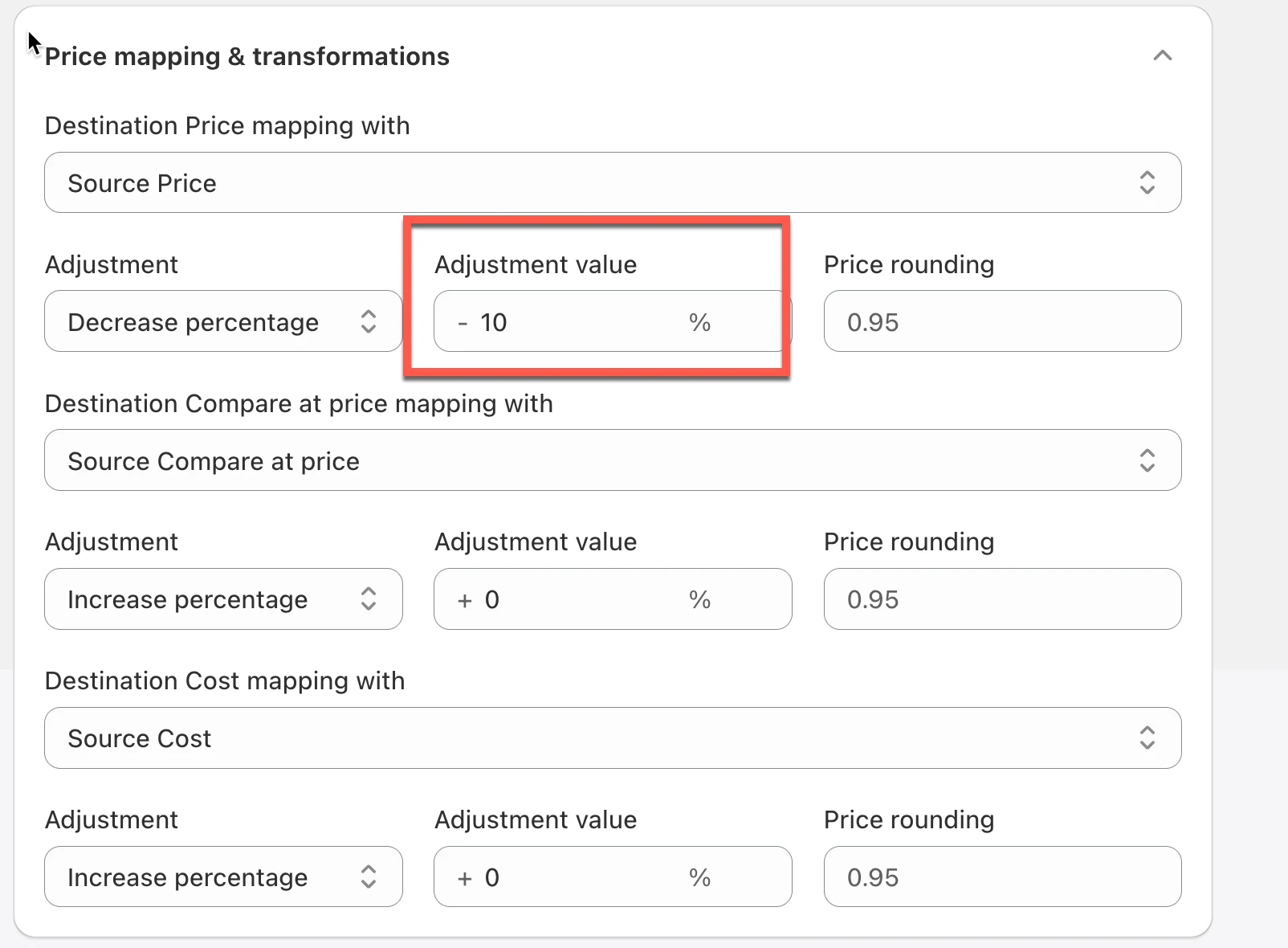
| 選項 | 值 |
|---|---|
| Destination Price mapping with | Source Price |
| Adjustment | Decrease percentage |
| Adjustment value | 10% |
Source Store
Section titled “Source Store”| 商品 | 價格 |
|---|---|
| Summer Shirt | $100 |
| 商品 | Destination Price |
|---|---|
| Summer Shirt | $90 |
計算方式:
$100 - (10% × $100)= $90💵 範例 3:加上固定金額
Section titled “💵 範例 3:加上固定金額”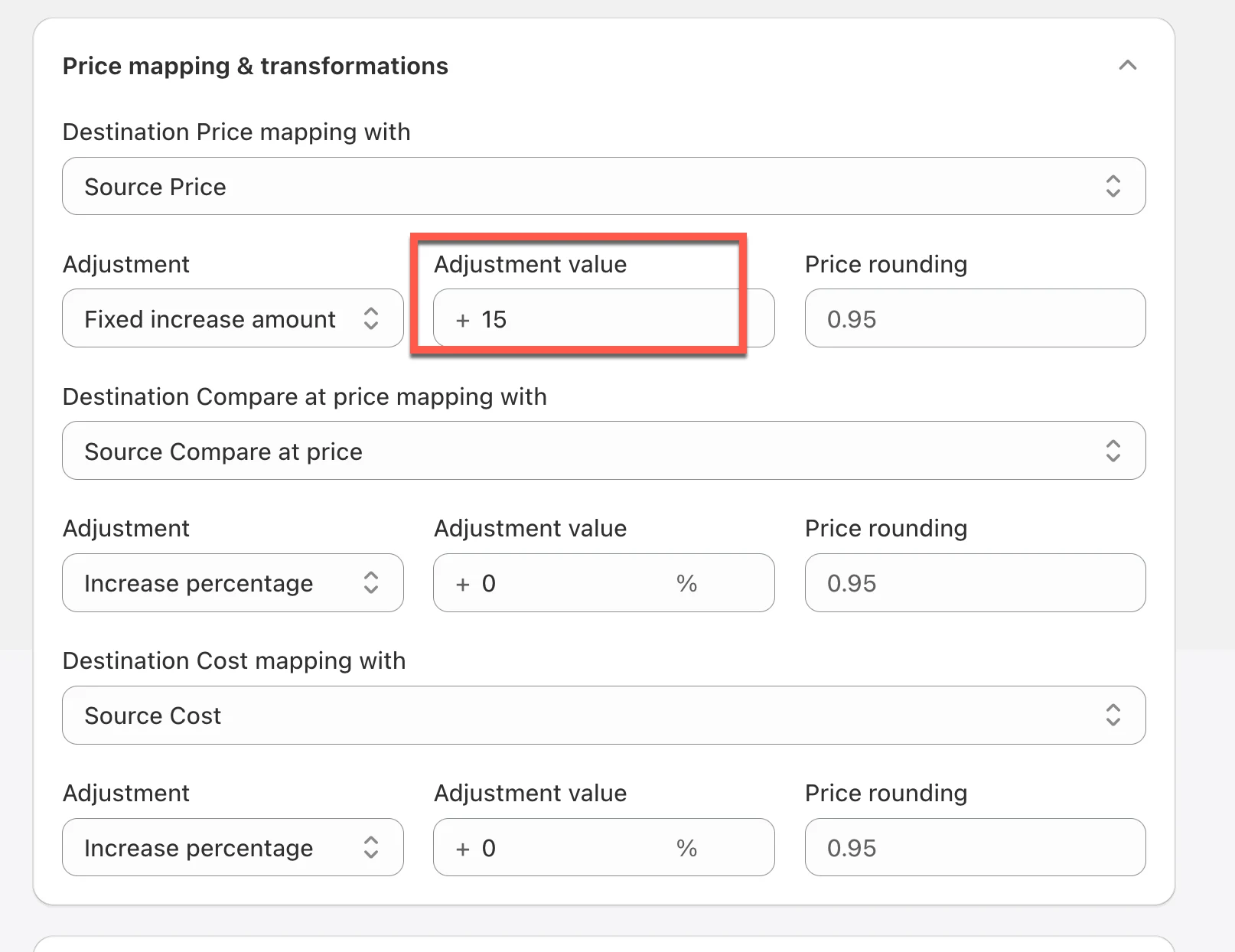
| 選項 | 值 |
|---|---|
| Destination Price mapping with | Source Price |
| Adjustment | Increase fixed amount |
| Adjustment value | $15 |
Source Store
Section titled “Source Store”| 商品 | 價格 |
|---|---|
| Summer Shirt | $100 |
| 商品 | Destination Price |
|---|---|
| Summer Shirt | $115 |
當每項商品都需要加收相同費用(例如運費或處理費)時,這個做法就很實用。
💵 範例 4:幣別轉換
Section titled “💵 範例 4:幣別轉換”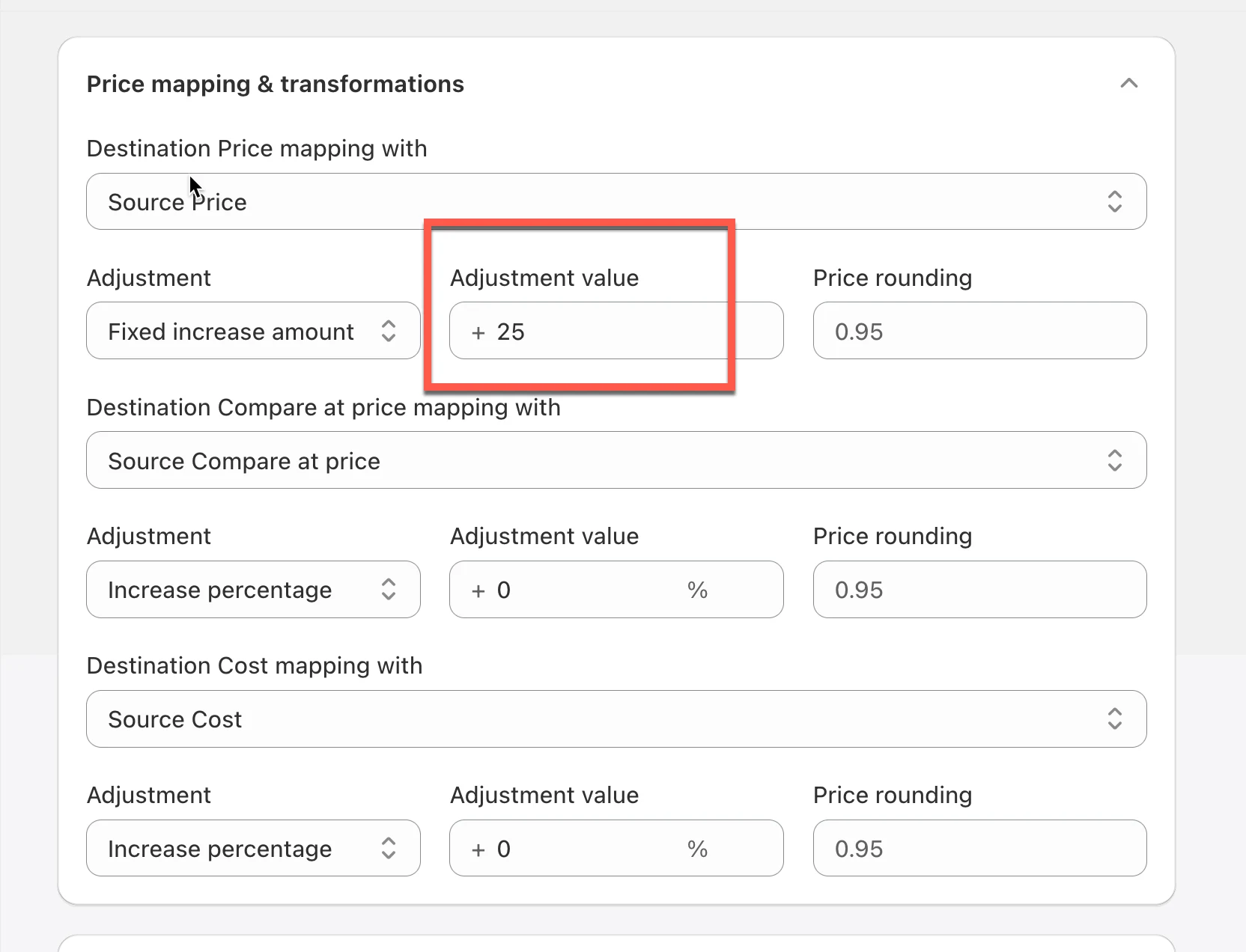
假設:
| 商店 | 幣別 |
|---|---|
| Source Store | GBP |
| Destination Store | USD |
匯率:
1 GBP = 1.25 USD| 選項 | 值 |
|---|---|
| Destination Price mapping with | Source Price |
| Adjustment | Increase percentage |
| Adjustment value | 25% |
Source 商品
Section titled “Source 商品”| 價格 |
|---|
| £80 |
| Destination Price |
|---|
| $100 |
計算方式:
£80 × 1.25= $100這有助於在使用不同幣別的商店之間,維持相近的定價價值。
💵 範例 5:價格進位
Section titled “💵 範例 5:價格進位”價格進位會在計算完成後調整最終價格。
| 價格進位 |
|---|
| 0.95 |
$125.27$124.95這通常用來讓零售價格看起來更整齊。
📊 範例:完整的價格轉換
Section titled “📊 範例:完整的價格轉換”Source Store
Section titled “Source Store”| 價格 | 原價 | 成本 |
|---|---|---|
| $100 | $120 | $60 |
| 欄位 | 調整方式 |
|---|---|
| 價格 | 增加 20% |
| 原價 | 不調整 |
| 成本 | 增加 10% |
| 欄位 | Destination 的值 |
|---|---|
| 價格 | $120 |
| 原價 | $120 |
| 成本 | $66 |
🙋 還需要協助嗎?
如果您仍需要協助,歡迎隨時寄信至 hi@tipo.io 與我們聯繫,我們很樂意為您提供進一步的協助。