
選擇要同步的商品
AI 概覽
瞭解如何控制 Tipo Sync 在商店之間分享哪些商品。您可以同步所有商品、只包含特定標籤的商品,或排除特定標籤的商品。請在 Source store 的 Settings 或 Destination store 的連線中設定。請使用明確且獨特的標籤,避免不相關的商品意外被同步。
查看更多收合
- 在 Source store 中開啟 Settings,開啟 Share products,並在 Product to sync 中選擇一個選項。
- 選項有 All products、Include by tags 與 Exclude by tags。
- 在 Destination store 中,連線時或在現有連線的詳細資料中,開啟 Products sync 並設定 Product to sync。
- 點選 Save 套用;首次使用者可先用少量商品測試,再同步全部商品。
- 避免使用 fish 或 food 這類過於籠統的標籤;它們可能會比對到不相關的商品。
由 AI 產生的摘要,可能有錯誤,請參閱下方的完整指南。
此應用程式可讓您控制要在各商店之間同步哪些商品。您可以同步所有商品,或只同步符合特定標籤的商品,也可以依標籤排除商品。
連線之前,請先檢查並選擇您想同步的商品資訊 此處。
⚙️ 在 Source store 中
Section titled “⚙️ 在 Source store 中”1 . 在 Source store 中,開啟應用程式 > 點選 Settings
2. 在 Share products 區塊中,將其開啟
3. 在 Product to sync 欄位中,選擇其中一個選項
- All products:Source store 中的所有商品都會分享給已連結的 Destination store。
- Include by tags: 只有包含至少一個指定標籤的商品才會被分享。
- Exclude by tags:除了包含任一指定標籤的商品之外,所有商品都會被分享。
4. 點選 Save 以更新變更
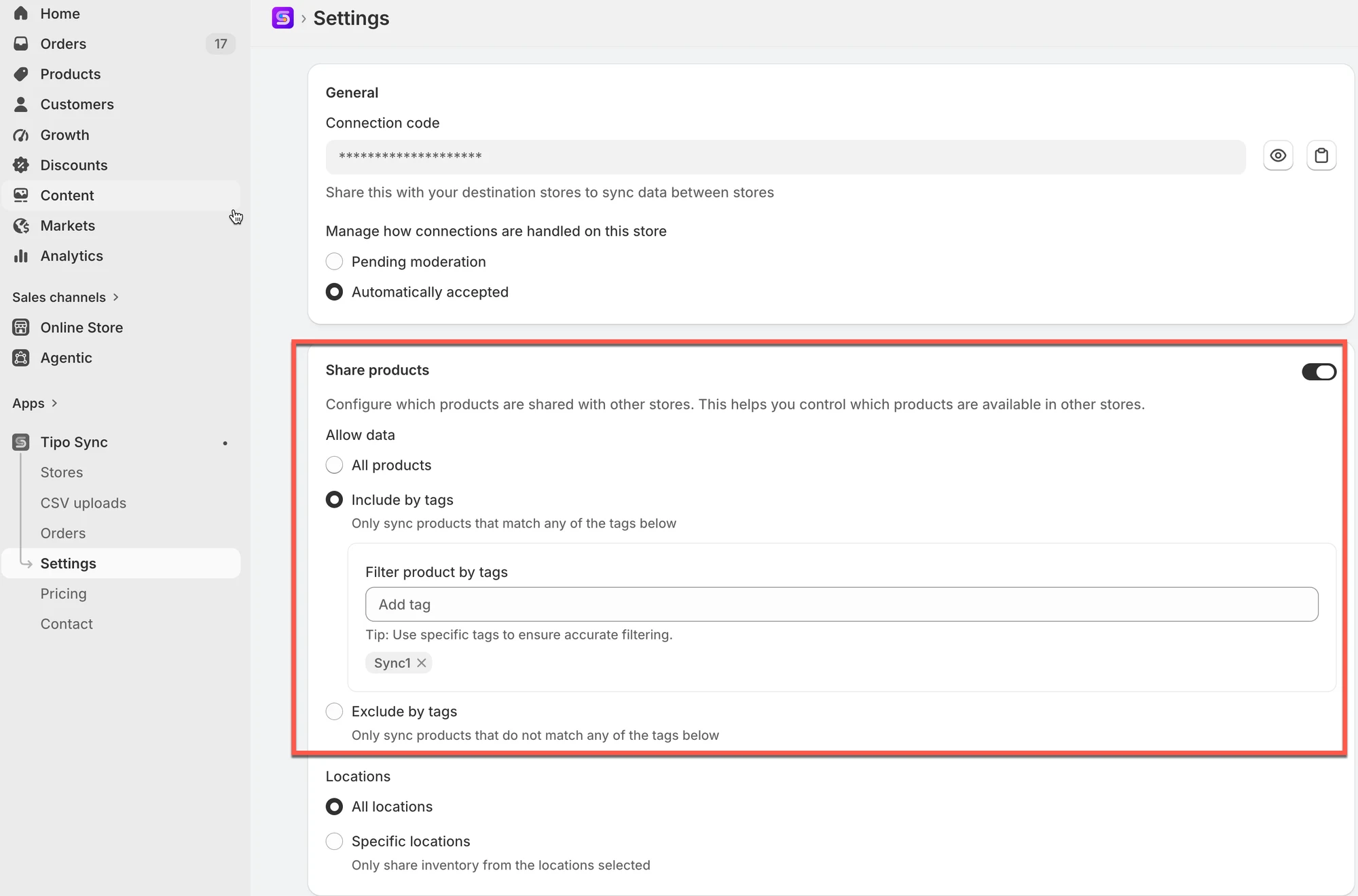
提示: 請使用明確的標籤來整理您想分享的商品。
例如,輸入:
Sync1只有標記為 Sync1 的商品才會被分享。
⚙️ 在 Destinations store 中
Section titled “⚙️ 在 Destinations store 中”新增連線:
Section titled “新增連線: ”連線之前,請先檢查並選擇您想同步的商品資訊 此處。
- 在 Destination store 中開啟應用程式 > 點選 Stores > 點選 Connect store 按鈕
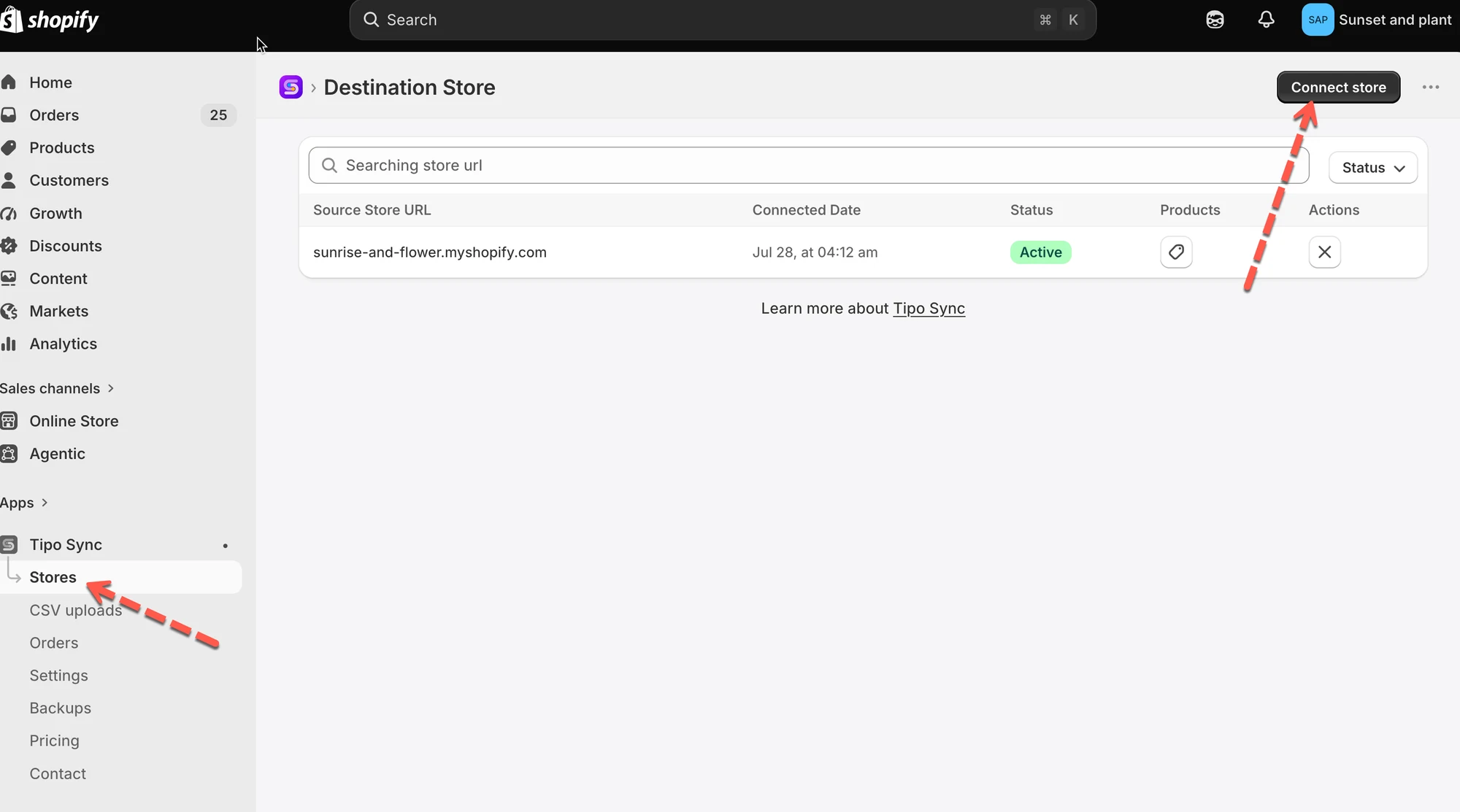
- 輸入您想連線的 Source store 的 Connection code
- 開啟 Products sync 選項
- 在 Product to sync 欄位中,選擇其中一個選項
- All products:Source store 中的所有商品都會分享給已連結的 Destination store。
- Include by tags: 只有包含至少一個指定標籤的商品才會被分享。
- Exclude by tags:除了包含任一指定標籤的商品之外,所有商品都會被分享。
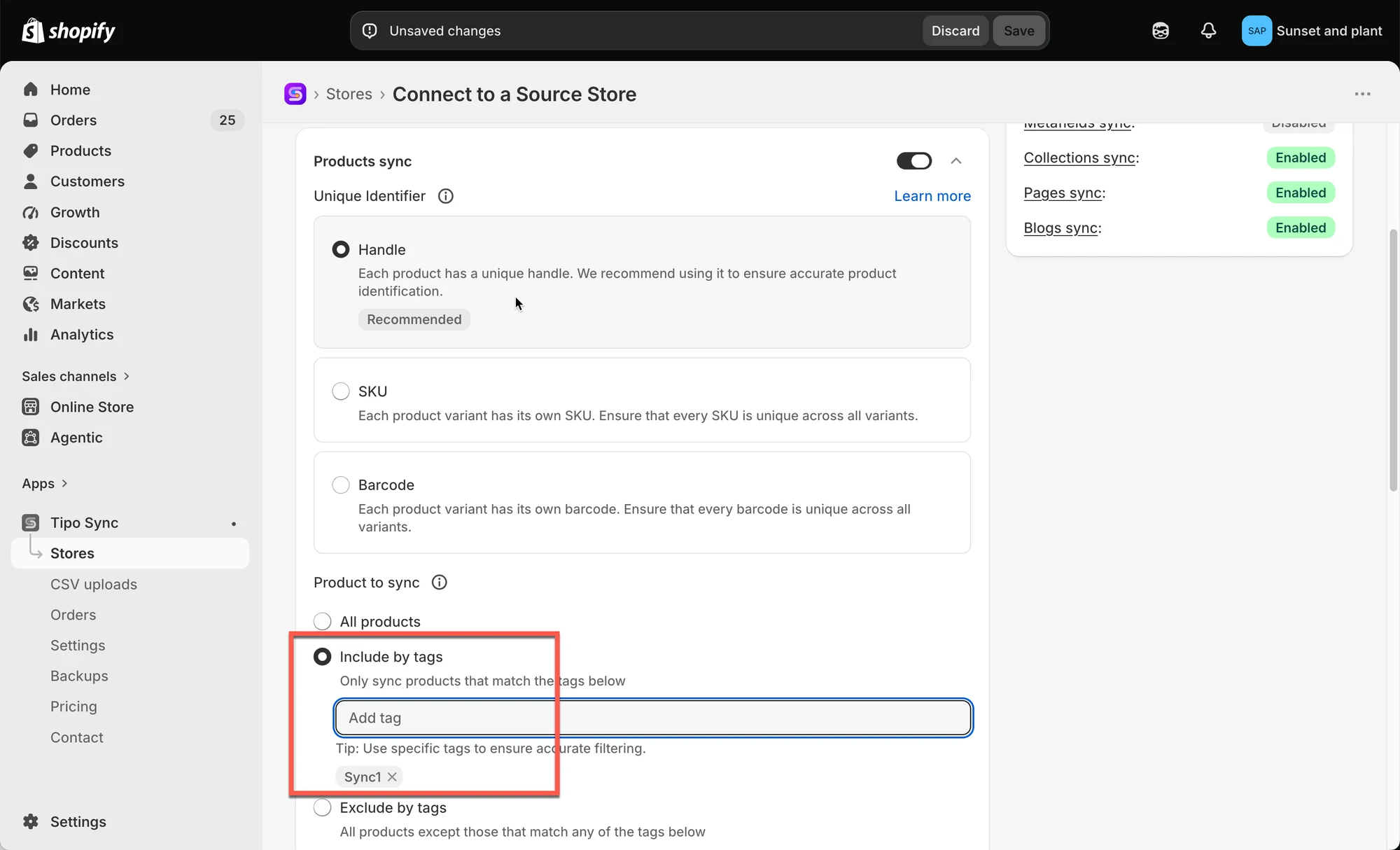
- 點選 Save 以更新變更
針對運作中的連線:
Section titled “針對運作中的連線:”1. 前往 Destinations store,開啟應用程式的 Dashboard > 點選來源商店的商店網址,開啟連線詳細資料
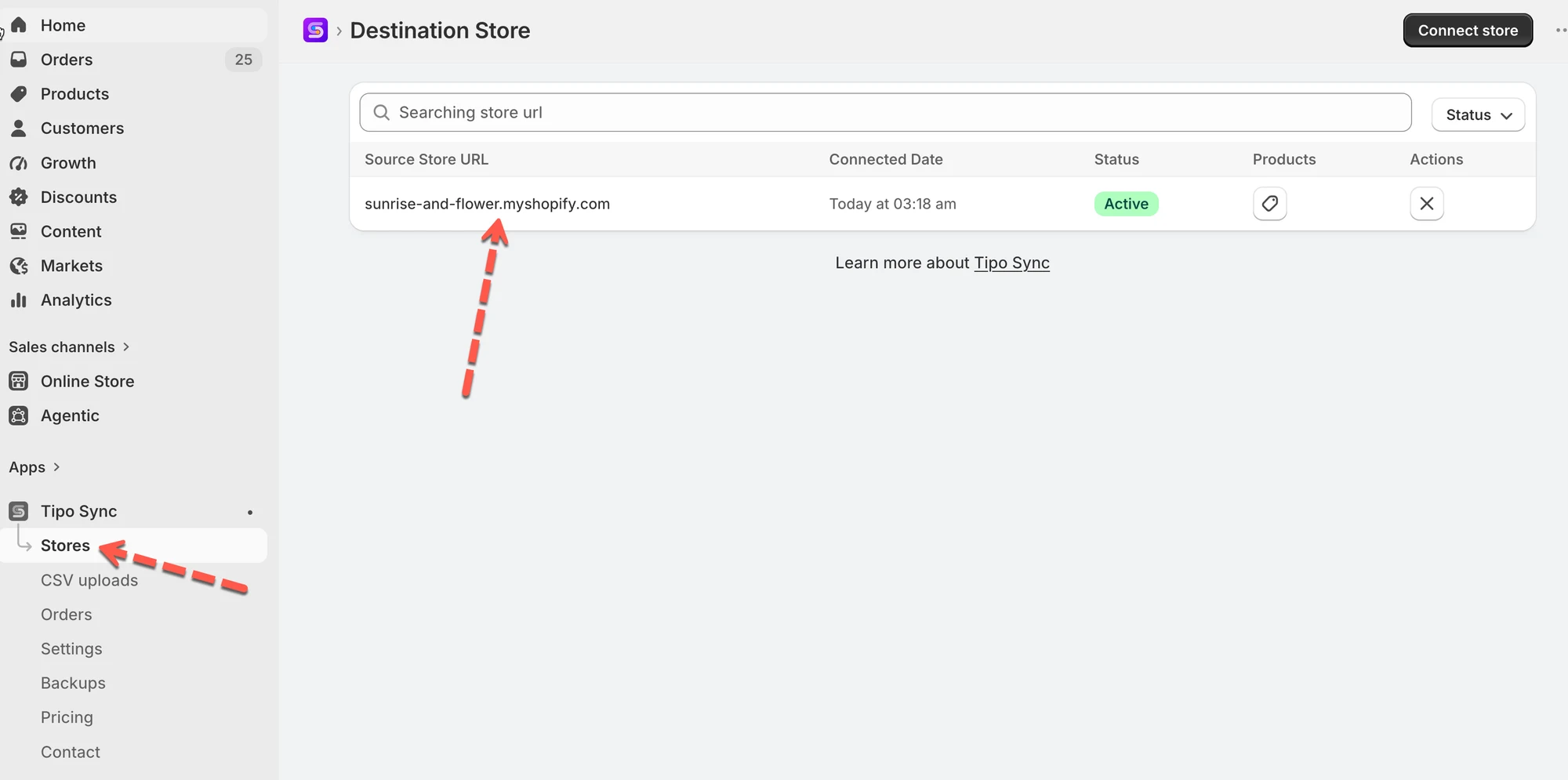
2. 在 Product to sync 欄位中,選擇其中一個選項
- All products:Source store 中的所有商品都會分享給已連結的 Destination store。
- Include by tags: 只有包含至少一個指定標籤的商品才會被分享。
- Exclude by tags:除了包含任一指定標籤的商品之外,所有商品都會被分享。
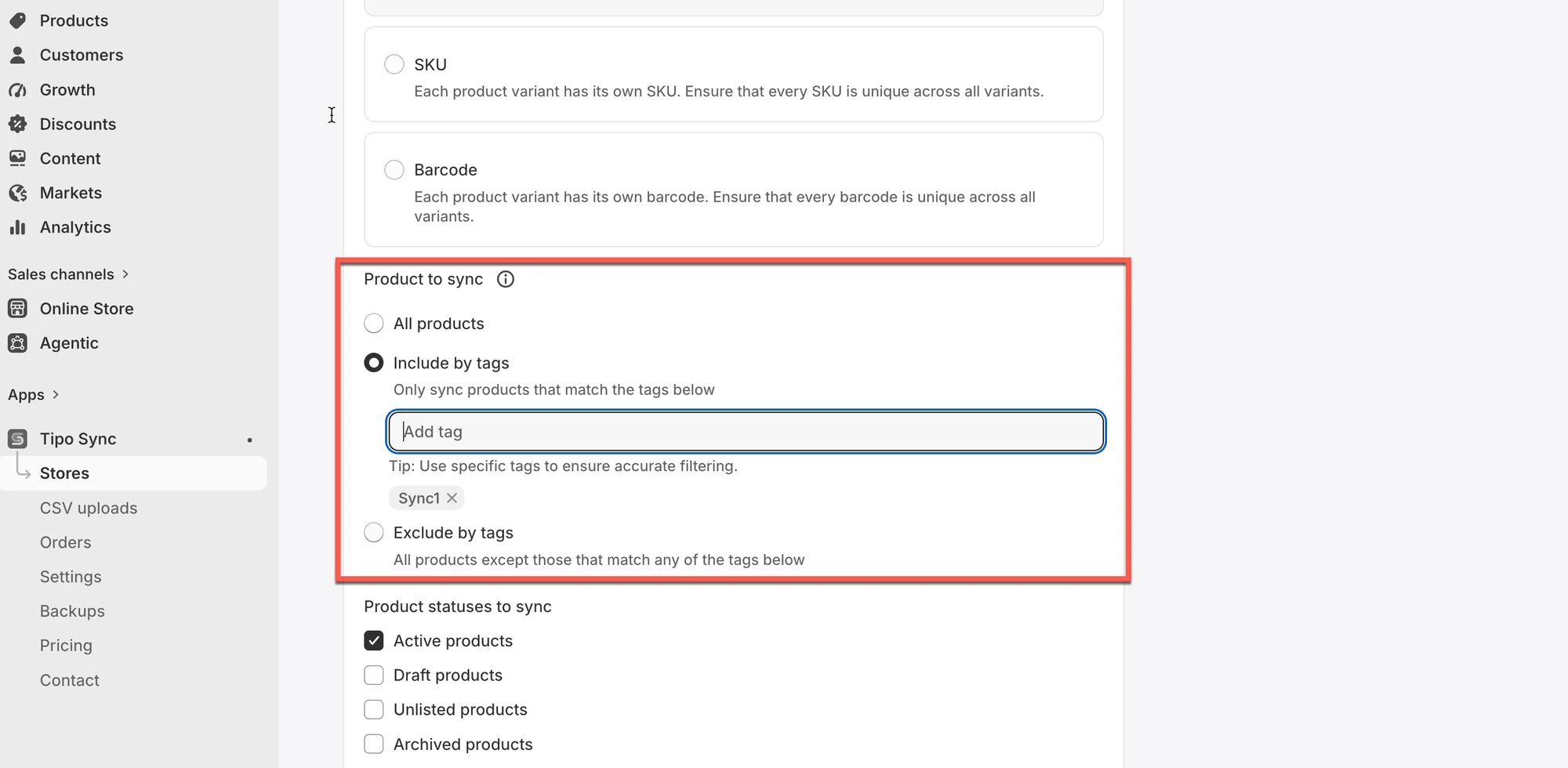
3. 選擇同步商品的選項。例如:選擇 All products that match any of the tags below > 新增您想要的商品
4. 點選 Save 以更新變更
✅ 建議的首次操作流程
Section titled “✅ 建議的首次操作流程”如果您是第一次設定同步:
- 選擇 Specific products
- 選取 1–5 項測試商品
- 執行同步
- 在 Destination 確認結果
- 確認無誤後,再擴大清單(或切換為「All products」)
假設您只想同步寵物相關的商品。
您可以輸入像這樣的標籤:
pet_food, pet_accessory, pet_toy
⇒ 現在,只有帶有其中一個標籤的商品才會同步到您的 Destination 商店。
如果您選擇「Sync all products except those that match the tags below」並輸入:
sale, clearance
⇒ 那麼任何標記為 sale 或 clearance 的商品都會被排除在同步之外。
重要提醒:請使用獨特且具描述性的標籤
Section titled “重要提醒:請使用獨特且具描述性的標籤”為了確保篩選準確,並避免出現非預期的比對結果:
✅ 請使用能準確描述您想同步內容的明確標籤,例如:
fish_only, pet_fish, fish_food🚫 請避免使用像這樣的通用標籤:
fish, food通用或有重疊的標籤,可能會導致不相關的商品被意外同步。
例如,如果您只使用「food」這個標籤,「cat food」商品也可能被同步。
使用清楚且獨特的標籤,可以讓您的篩選條件完全依照預期運作。
🔁 同步期間會發生什麼事
Section titled “🔁 同步期間會發生什麼事”目標: 只同步帶有標籤 SYNC 的商品
- 在 Source store 中,為 12 項商品加上標籤 SYNC
- 在 Tipo Sync 中選擇:Sync only products that match these tags
- 輸入標籤:
SYNC - 執行同步
✅ 首次同步後的結果:
- Tipo Sync 會將這 12 項商品匯入 Destination 商店。
✅ 日後變更後的結果:
- 如果您在 Source 商店中更新任何一項
SYNC商品,Destination 商店中具有相同 handle 的商品也會隨之更新(依據已啟用的同步欄位)。
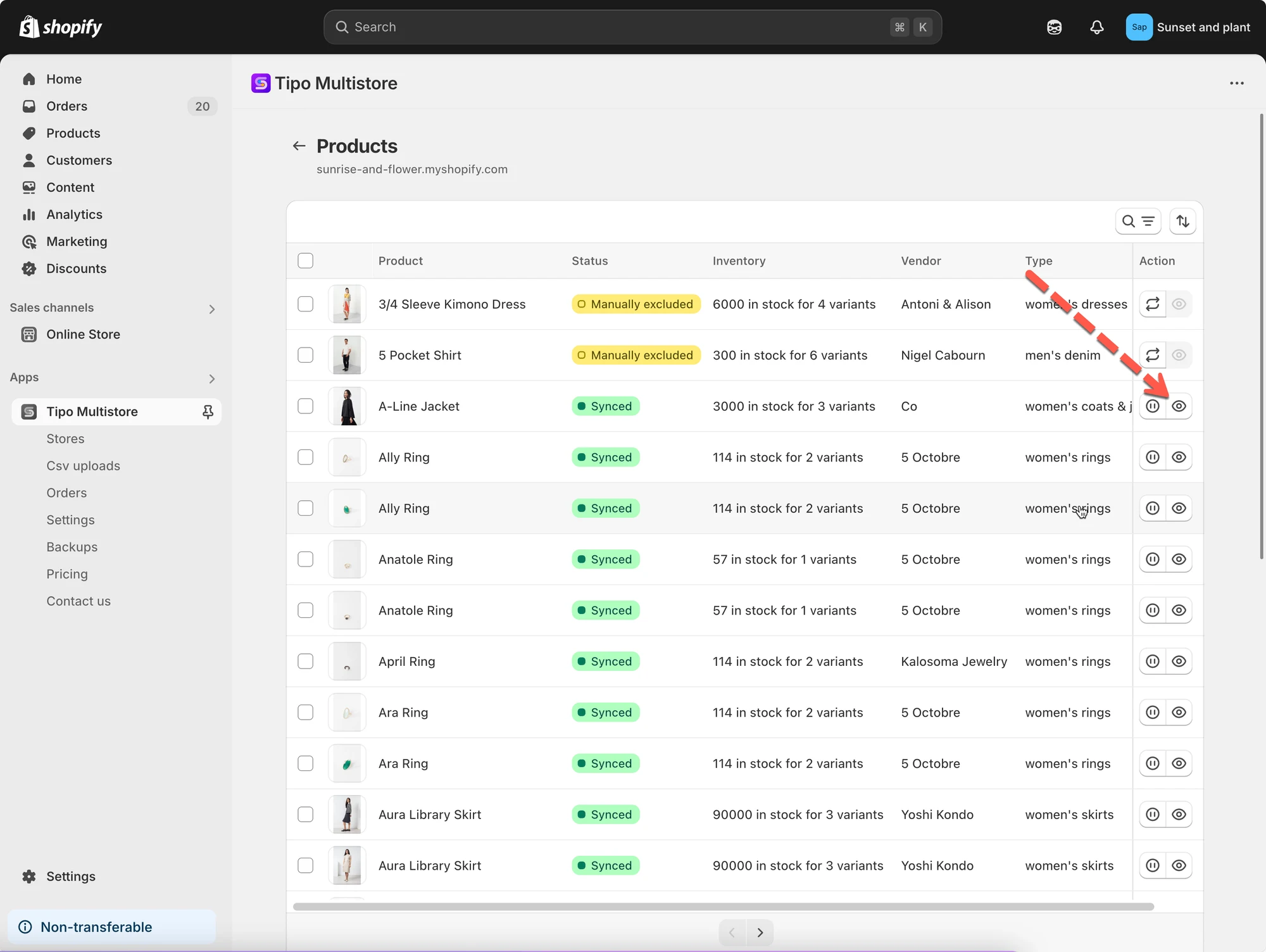
如果我為新商品加上標籤「SYNC」,該商品也會被建立並同步到 Destinations 商店。
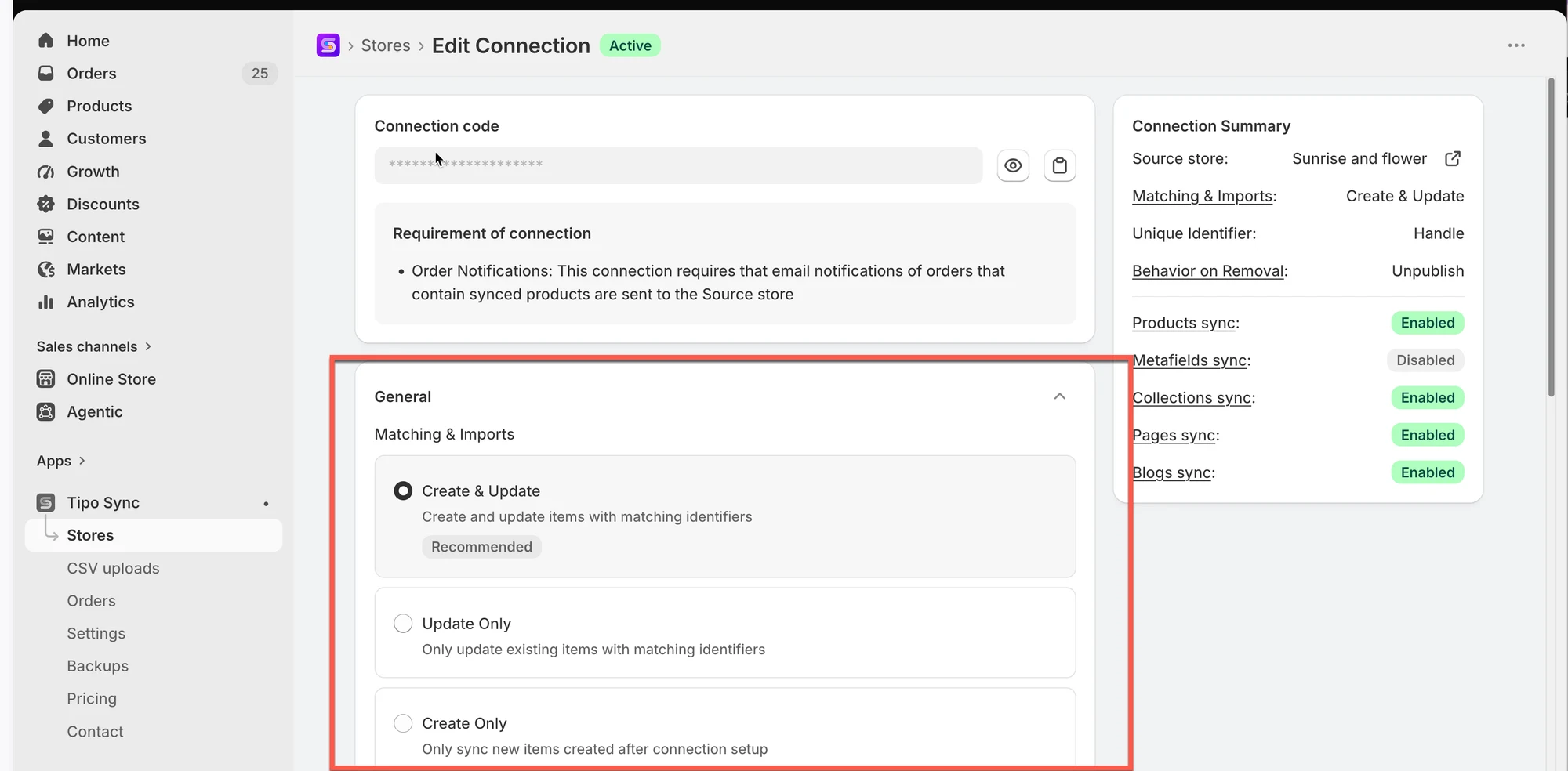
注意:商品同步也會依據 Matching & Imports 設定進行。
▶️ 教學影片
Section titled “▶️ 教學影片”🙋 還需要協助嗎?
如果您仍需要協助,歡迎隨時寄信至 hi@tipo.io 與我們聯繫,我們很樂意為您提供進一步的協助。