# Manage Destination stores
This guide shows how to view and manage all Destination stores connected to your Source store in Tipo app.
### ✅ Check destination store list
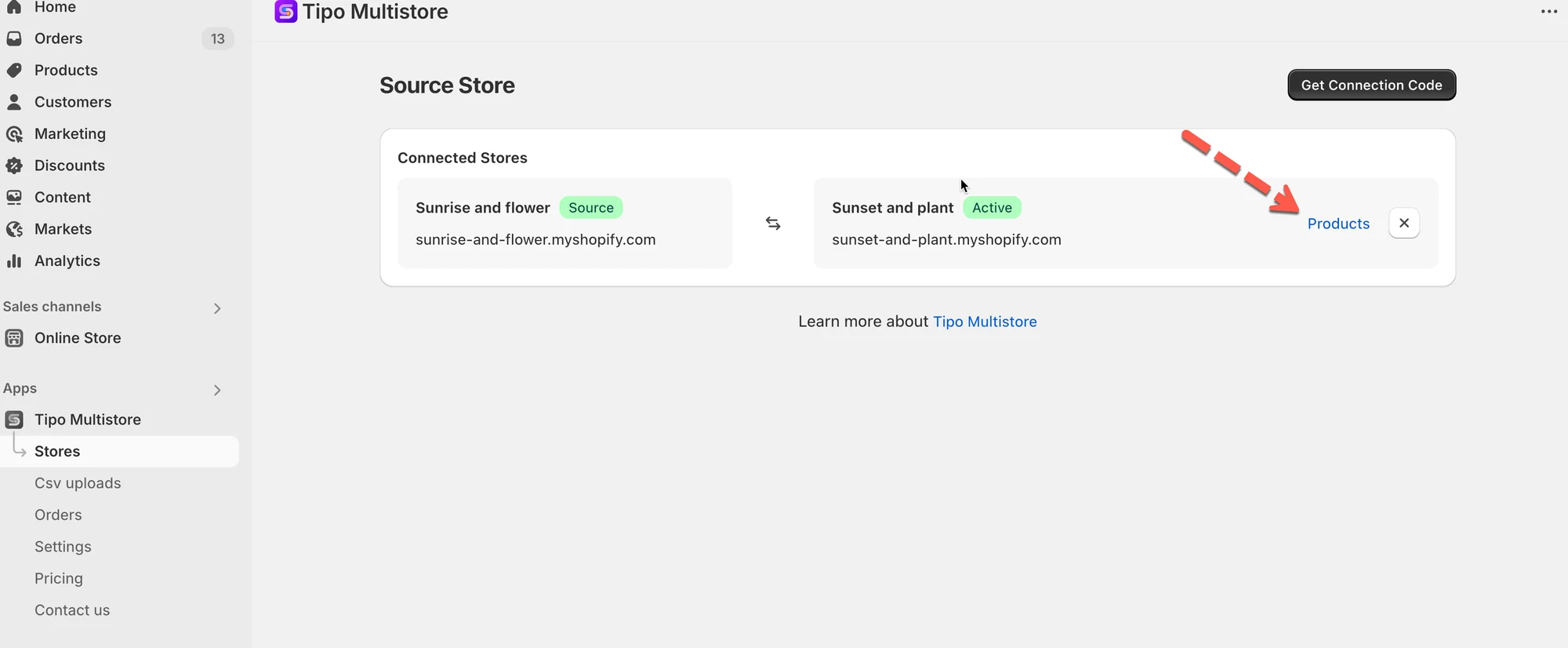
Open the app in Source store > app Dashboard > you will see the list of Destination stores that are connected to your Source store.
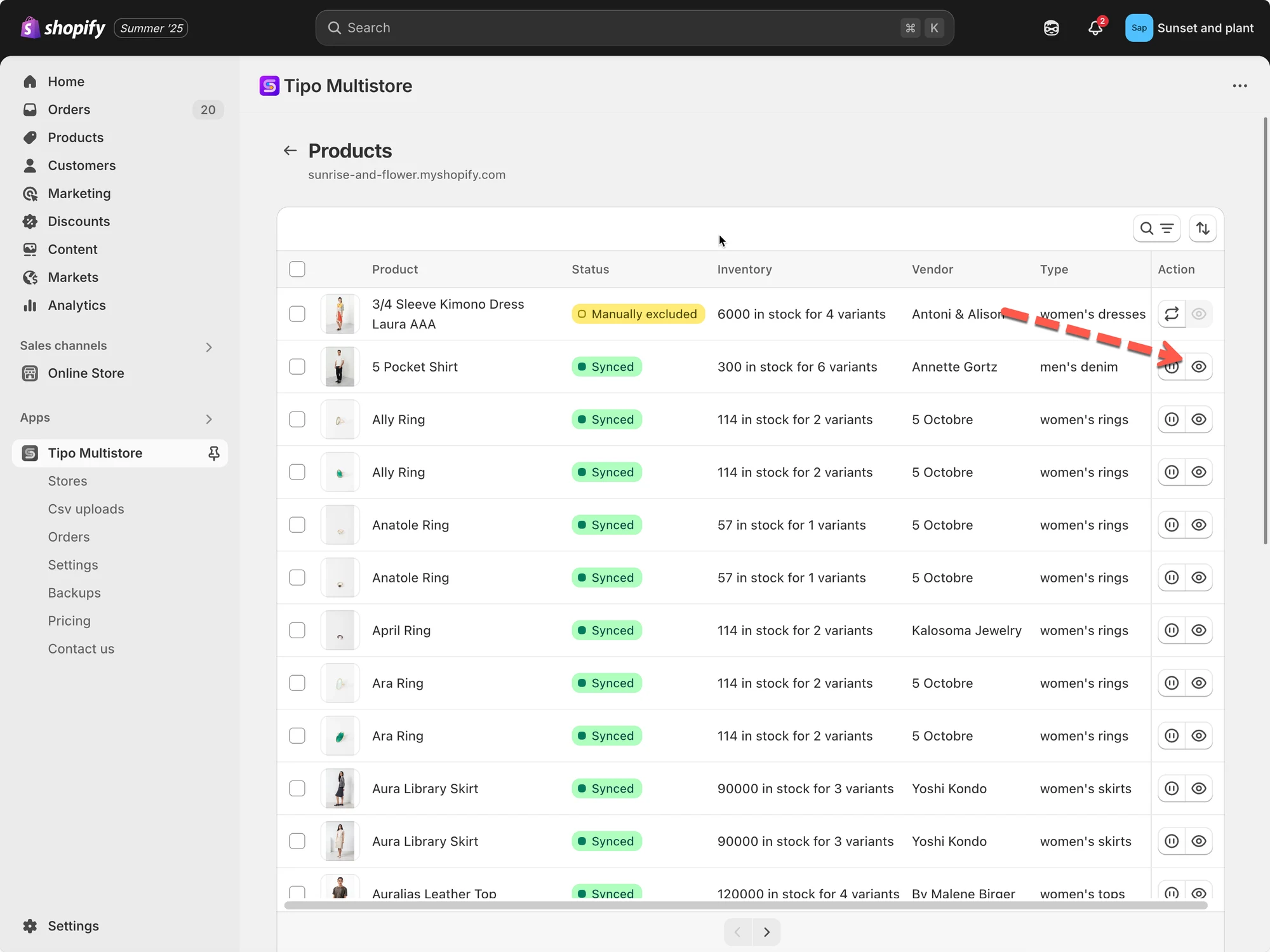
Click **Products** to view the synced products
***
### 🚫 Disconnect a destination store
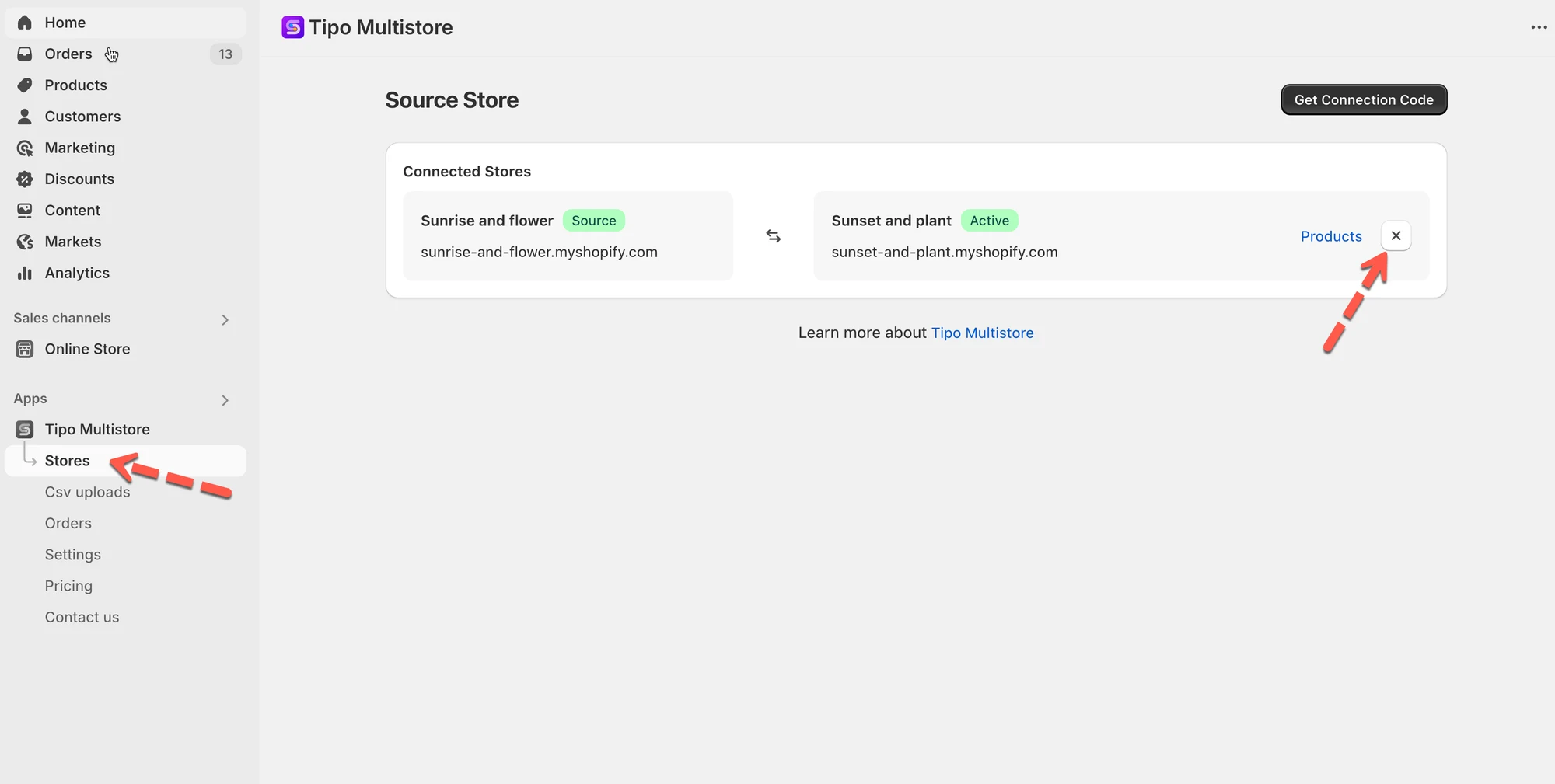
Open the app in **Source** store > click **Stores** > click disconnect icon next to the store you want > The connect is removed immediately.
Then do the same in the app on Destination store.
**🙋 Still need support?**
If you still need help, please feel free to contact us at . We’ll be happy to assist you further.