
Contact support
AI Overview
This page explains how to reach the Backup & Restore Tipo support team: live chat from inside the app, the Contact us form with screenshots or videos, or email to hi@tipo.io. Check Troubleshooting and the FAQ first. The team usually replies to the email you enter within 24 hours.
View moreView less
- Chat with us from the bubble on any app page or the Need help with backups? card on Home.
- For the form, open Contact us in the app menu and choose a topic.
- Fill in the required fields: issue, name, email and Describe your issue (up to 5,000 characters), then select Submit.
- Attach up to 5 files of 25 MB each, images or videos.
- Include the exact message, date and time, and the related backup or restore.
Summary generated by AI. It can make mistakes, so check the full guide below.
Chat with the team or send a support request with screenshots from inside Backup & Restore Tipo.
You can reach our support team in two ways: live chat, or the Contact us form inside the app. You can also email us at hi@tipo.io.
Before you write, check Troubleshooting and the FAQ. Your answer may already be there.
Chat with us
Section titled “Chat with us”A chat bubble appears in the bottom corner of every page of the app inside your Shopify admin. It can take a moment to appear after the page loads.
On Home, the last card is Need help with backups?. Select Chat with us to open the chat window. If the chat isn’t available, for example because a browser extension blocks it, Chat with us opens the Contact us form instead. The Contact us links on limit banners, in the Plan & usage card and in Settings also open the chat, or the form when the chat isn’t available.
When you chat from inside the app, we automatically see which store you are writing from and how much storage it uses. You do not need to explain that.
Send a request with the Contact us form
Section titled “Send a request with the Contact us form”Use the form when you want to include screenshots or videos, or when you prefer to write rather than chat.
Open Contact us
Section titled “Open Contact us”In the Shopify admin sidebar, select Apps, then Backup & Restore Tipo. In the app menu, select Contact us.
Choose a topic
Section titled “Choose a topic”Under What do you need help with?, select the topic closest to your problem. The form moves on to the next step as soon as you select one.
| Topic |
|---|
| Backup didn’t run |
| Restore failed or restored the wrong data |
| Missing data in a snapshot |
| Storage, retention, or backup size |
| Schedule and alerts |
| Pricing, plan, or feature question |
| Other |
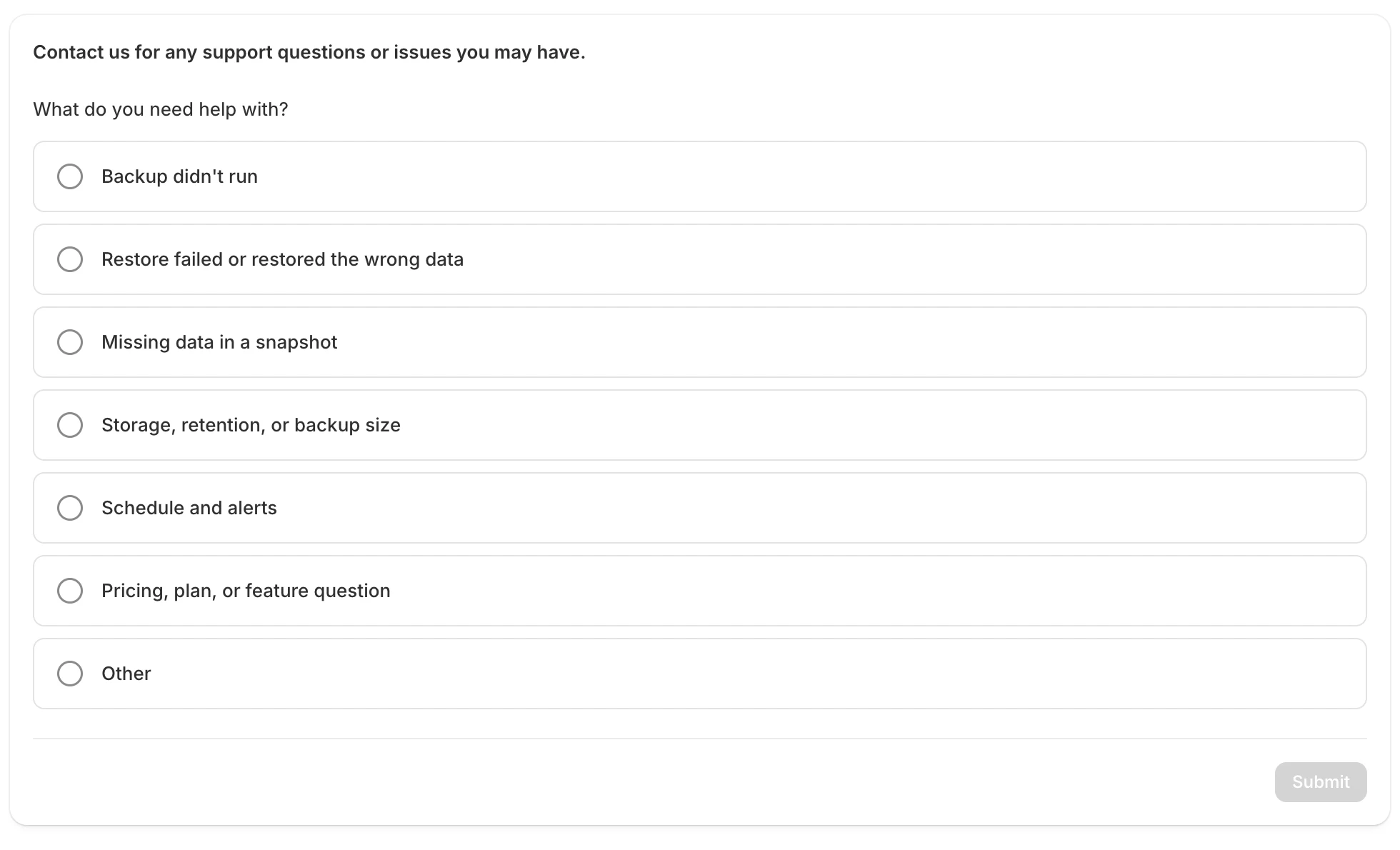
Choose the topic that best matches your problem.
If you chose the wrong one, select Change topic.
Fill in the details
Section titled “Fill in the details”| Field | Required | Notes |
|---|---|---|
| Which issue best describes your problem? | Yes | The choices depend on the topic you picked. |
| Your name | Yes | Filled in for you from your store. |
| Your email | Yes | Filled in for you from your store. We reply to this address. |
| Product or page URL | No | Paste the address of the product or page the problem is about. |
| Collaborator request code | No | Only if we may need to fix or customize your theme. The code lets us request admin access to your store. |
| Describe your issue | Yes | Say what happened and what you expected. Up to 5,000 characters. |
| Screenshot or video | No | Select Add files to attach images or videos. Remove a file with the x on its chip. |
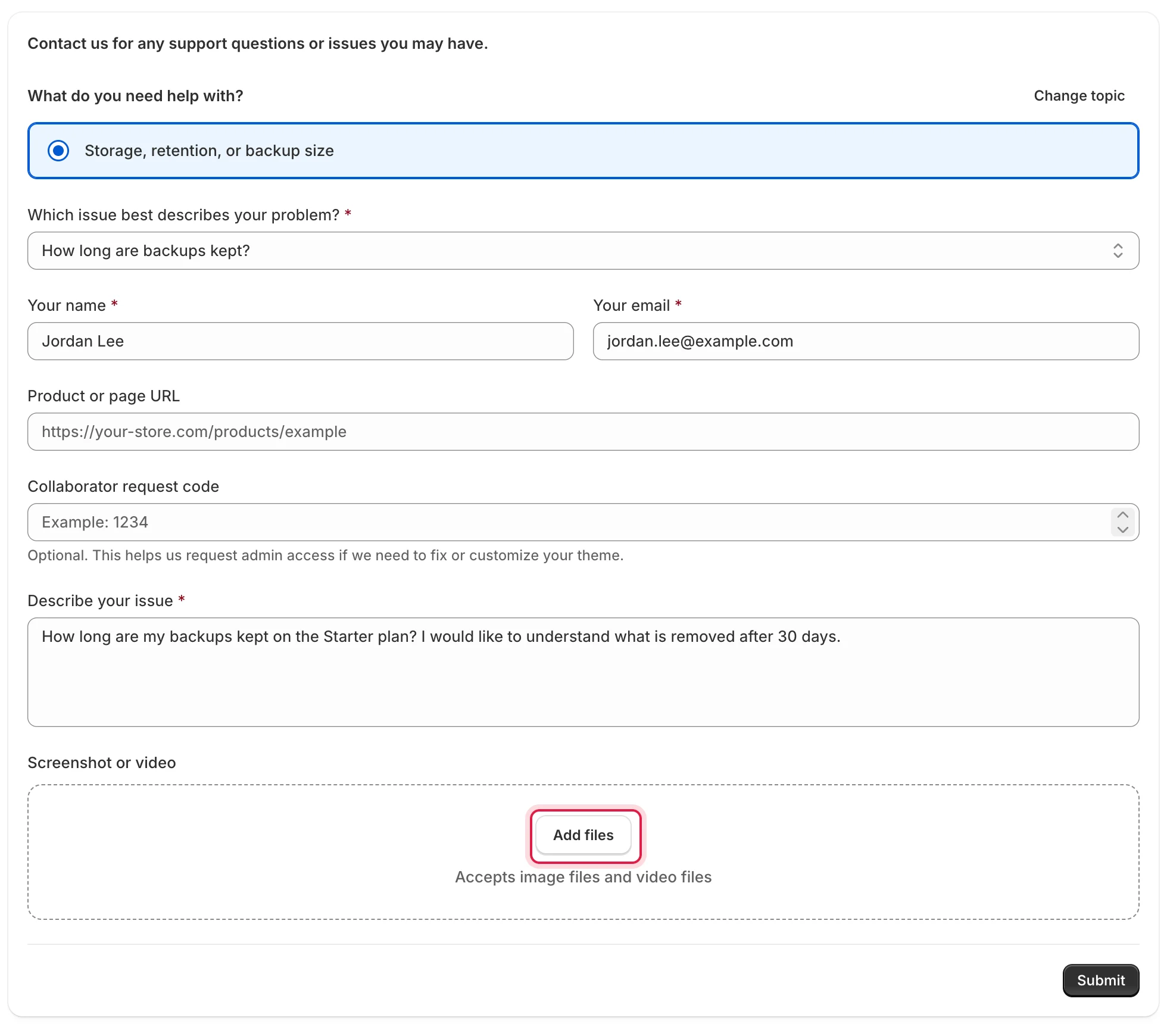
Attach screenshots or videos with Add files.
Include the exact message you saw, the date and time, and the backup or restore it relates to.
Submit
Section titled “Submit”Select Submit. The button is disabled until your name, email and description are filled in. When the request is sent, you see Your request has been sent. We reply to the email you entered, usually within 24 hours.
To send another request, select Submit another request.
Files you attach are stored privately. Our support team opens them through a secure link.
File limits
Section titled “File limits”| Limit | Value |
|---|---|
| Number of files | Up to 5 per request |
| Size of each file | Up to 25 MB |
| File types | Images (jpg, jpeg, png, gif, webp, heic, heif, bmp) and videos (mp4, mov, webm, avi, mkv, m4v) |
If you see “Something went wrong. Please try again.”
Section titled “If you see “Something went wrong. Please try again.””The request was not sent. Try these in order:
- Attach fewer or smaller files. The limit is 5 files of 25 MB each.
- Wait a minute and submit again. You can send up to 5 requests per minute.
- Use Chat with us or email hi@tipo.io instead.
If a field shows a message such as “Please enter a valid email address.”, fix that field and submit again.
Reply to an email from the app
Section titled “Reply to an email from the app”Emails from the app, such as a backup failure alert, send your reply to our support team. Reply to the email and we will look into it with you.