
Export inventory as CSV
Download a location’s backed-up inventory as a CSV file for review or for Shopify’s inventory import.
Inventory levels cannot be restored directly by the app. Export them as a CSV file instead, then review them in a spreadsheet or import them into Shopify.
Before you start
Section titled “Before you start”- Set an address in Send to under Notifications. The CSV link is sent only by email, so without an address you will not receive it. See Email notifications.
- Locations and Inventory must be turned on in Settings. See Choose what to back up.
- Only one inventory CSV export can run at a time for your store.
Export the CSV
Section titled “Export the CSV”Open the location
Section titled “Open the location”Open Backup & Restore Tipo from your Shopify admin. On Home, in the Store data card, select Locations, then select a location.
Find the Inventory export section
Section titled “Find the Inventory export section”Scroll to Inventory export. It shows which backup the inventory comes from, for example “Inventory data from” the backup name and date. Select Export CSV.

The Inventory export section is on the location page.
If you see “CSV isn’t available for this version”, this backup version has no inventory data. Choose another backup version at the top of the page.
Choose the CSV structure
Section titled “Choose the CSV structure”In the Download inventory CSV window, under CSV structure, choose one:
| Option | Use it when |
|---|---|
| CSV data | You want a full snapshot to review in a spreadsheet. It is not meant for Shopify’s inventory import. |
| CSV for Shopify import | You want to upload the file to Shopify’s inventory import. It has the columns On hand (current) and On hand (new). Only On hand (new) changes stock when imported. |
Choose an import goal
Section titled “Choose an import goal”If you chose CSV for Shopify import, pick an Import goal.
| Goal | What it does |
|---|---|
| Restore stock from backup | On hand (current) is left blank and On hand (new) is the backed-up quantity. Skips Shopify’s safety check. |
| Match current store stock (safer) | On hand (current) is your live quantity now and On hand (new) is the backed-up quantity. Rows are skipped if stock changed since the export. Large catalogs may take longer. |
| Custom column mapping | Advanced. You choose which backup fields (Available or On hand) fill On hand (current) and On hand (new). On hand is recommended for restore. |
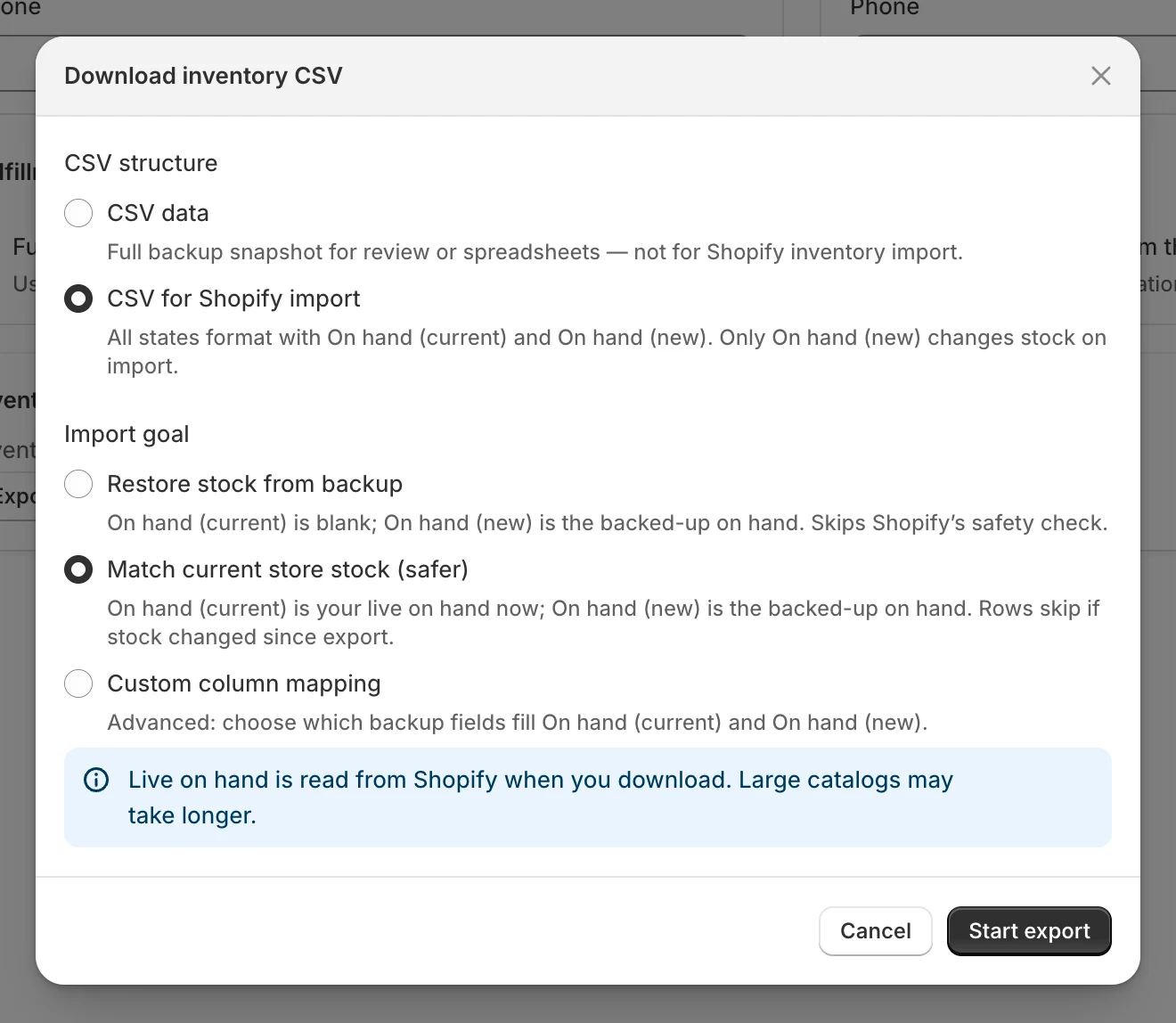
Choose the CSV structure and, for a Shopify import, the import goal.
Start the export
Section titled “Start the export”Select Start export. The window says Export queued and “We’re preparing your CSV. You’ll receive an email with a download link when it’s ready (based on your notification settings).” Select Done. You can close the app.
There is no download button in the app for the CSV. The email is the only way to get the file.
Download the file
Section titled “Download the file”Open the email “Inventory CSV for” your location “is ready” and select Download CSV. The same download page as for backup exports opens. See Use a download link. The link follows your download link settings. If it expires or runs out of downloads, start a new CSV export.
Use the file in Shopify
Section titled “Use the file in Shopify”Import the file with Shopify’s own inventory import in your Shopify admin. Only the On hand (new) column changes your stock. Use Match current store stock (safer) if you are unsure, so the import does not overwrite changes made after the backup.
For the exact import steps, see Shopify’s help center at help.shopify.com.
If something goes wrong
Section titled “If something goes wrong”| Message | What to do |
|---|---|
| An inventory CSV export is already running for this store. You’ll get an email when it finishes. | Wait for the email, then start another if needed. |
| Couldn’t start the export. Try again. | Select Start export again. |
| No email arrives | Check that Send to has a valid address, and your spam folder. See Not getting emails. |