
Restore from a backup (restore wizard)
Use the restore wizard to bring back whole data types, specific items or tagged products from any completed backup.
The restore wizard lets you pick a backup, choose exactly what to bring back, review the plan, and start the restore. Use it when you need more than one item, or whole data types.
Open the wizard
Section titled “Open the wizard”Go to your backups
Section titled “Go to your backups”In the Shopify admin, open Backup & Restore Tipo. On Home, in the Store data card, select Restore from a backup. This opens your list of backups.
Select the backup date
Section titled “Select the backup date”Select the date in the Backup column of a backup. Only backups with the status Completed or Completed with warnings have a clickable date. Backups that are pending, running, failed or cancelled show plain text.
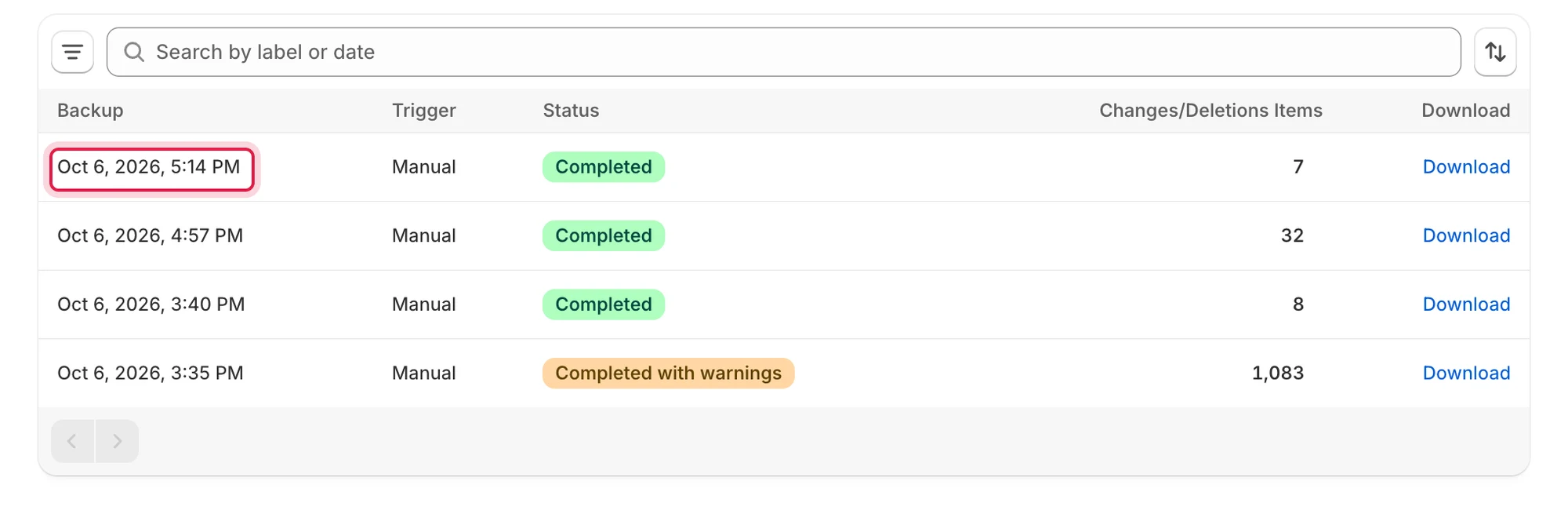
Select the date of a completed backup to open the restore wizard.
The page title is Restore. The first row, Source, shows the backup date and how it started (Scheduled, Manual or Pre-restore). Select Edit to go back to the backups list and pick a different one.
Choose what to bring back
Section titled “Choose what to bring back”The scope step is titled What do you want to bring back? It says: Only the differences are written. Anything that already matches this backup is left alone.
You see one row for each restorable data type in the backup, such as Products, Collections, Pages, Menus, Files, Themes and Customers. Each row shows how many items the backup holds. A type with nothing to restore is greyed out and says Nothing in this backup to restore.
Tick a data type to select it. The row expands to show How to select items:
| Option | What it does | Available for |
|---|---|---|
| Bring back all N items (default) | Restores every item of that type in the backup. | All types |
| Choose specific items | Restores only the items you choose. | All types |
| Filter by tag | Restores products that have any of the tags you enter. | Products only |
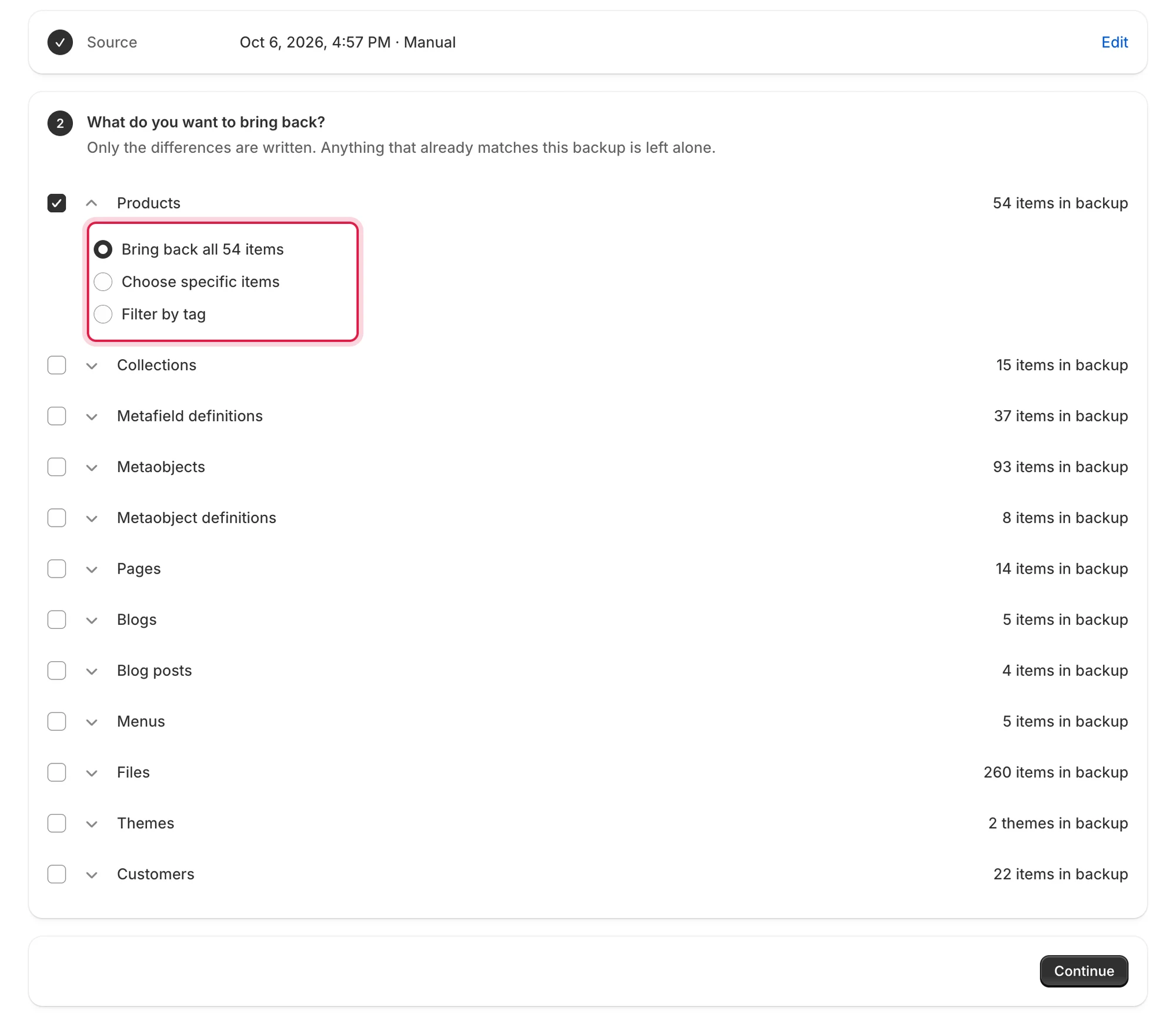
Products offer three ways to select what to restore.
Choose specific items
Section titled “Choose specific items”Select the search field or the Search button to open the picker Choose Products (or the name of the type you chose). Search by title or handle, tick the items you want, and select Select (N). Select Show more to load more rows. The chosen items appear in a table, where you can remove any with the X button.
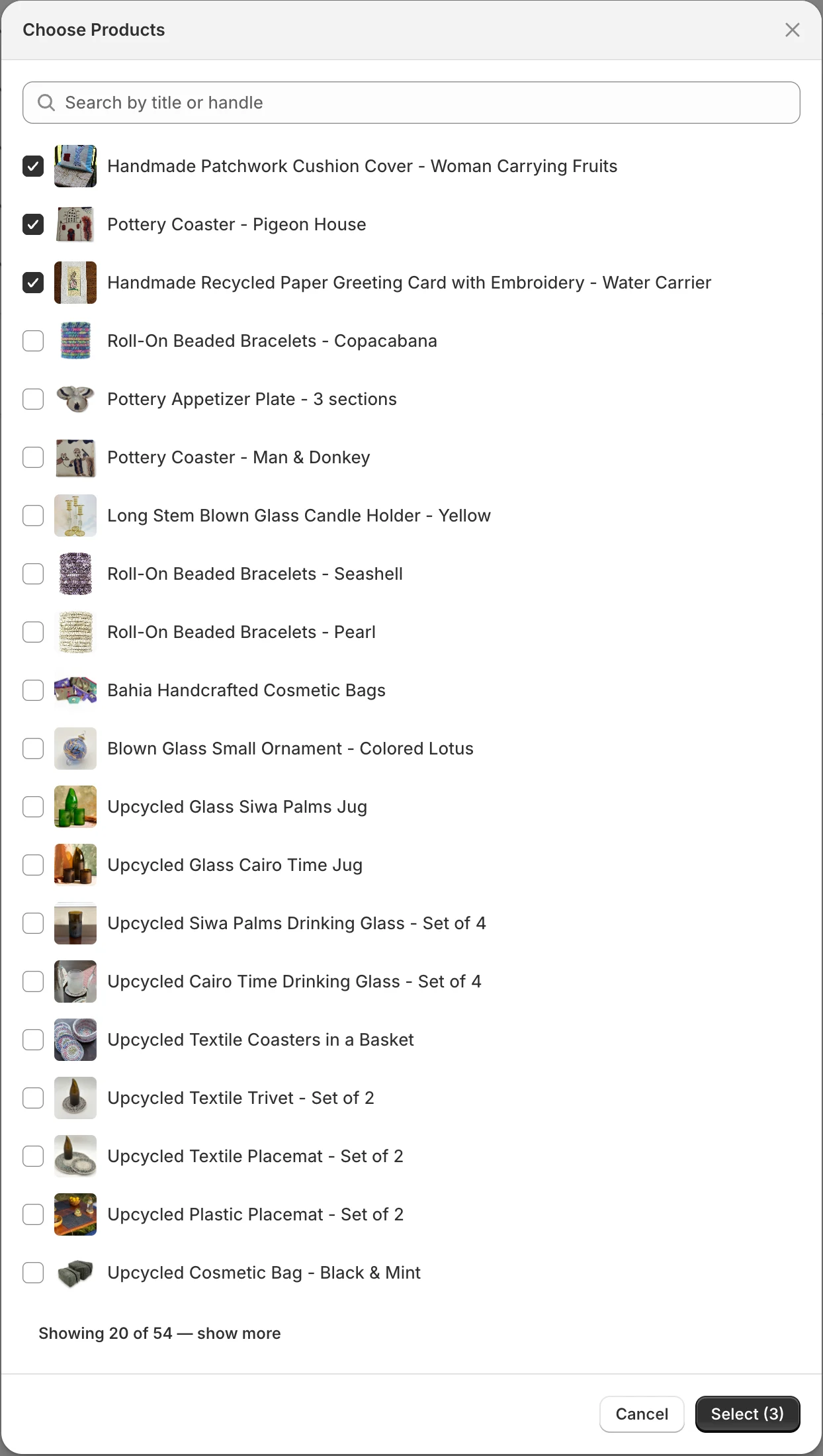
The picker lets you search the backup and tick the items to restore.
For themes you choose whole themes. To restore single theme files, use Restore a theme.
The wizard writes your published theme into an unpublished copy, and updates other themes directly. A theme that was deleted from your store is skipped. The review step reminds you of this with a note that starts Themes:.
Filter by tag
Section titled “Filter by tag”Type tags into the Tags box, separated by commas. Items with any of these tags will be restored.
Select Continue
Section titled “Select Continue”Select Continue. If something is missing, the wizard shows a message and scrolls to it:
| Message | What to do |
|---|---|
| Select at least one resource to bring back. | Tick at least one data type. |
| Choose at least one item from the type, or switch to bringing all of them back. | Pick items or switch the option. |
| Add at least one tag, or switch to bringing all the type back. | Enter a tag or switch the option. |
After you continue, the scope collapses to a summary with Edit selection.
Review your restore
Section titled “Review your restore”The review step is titled Take N items back? It says: Restoring writes the selected items from this backup over your store’s current data.
| Option | What it does | Default |
|---|---|---|
| Restore deleted items only | Restores only items that are missing from your store. Items still in your store are left as they are. See Restore deleted items. | Off, unless you started from Restore deleted on a list |
| Safety backup before restoring | Full, Incremental or Skip. Takes a copy of your store before anything is written. | Full when you restore more than 500 items, otherwise Incremental |
| Type {your store domain} to continue | A text box that confirms a whole-store restore, labeled with your store domain. | Shown only when you selected everything |
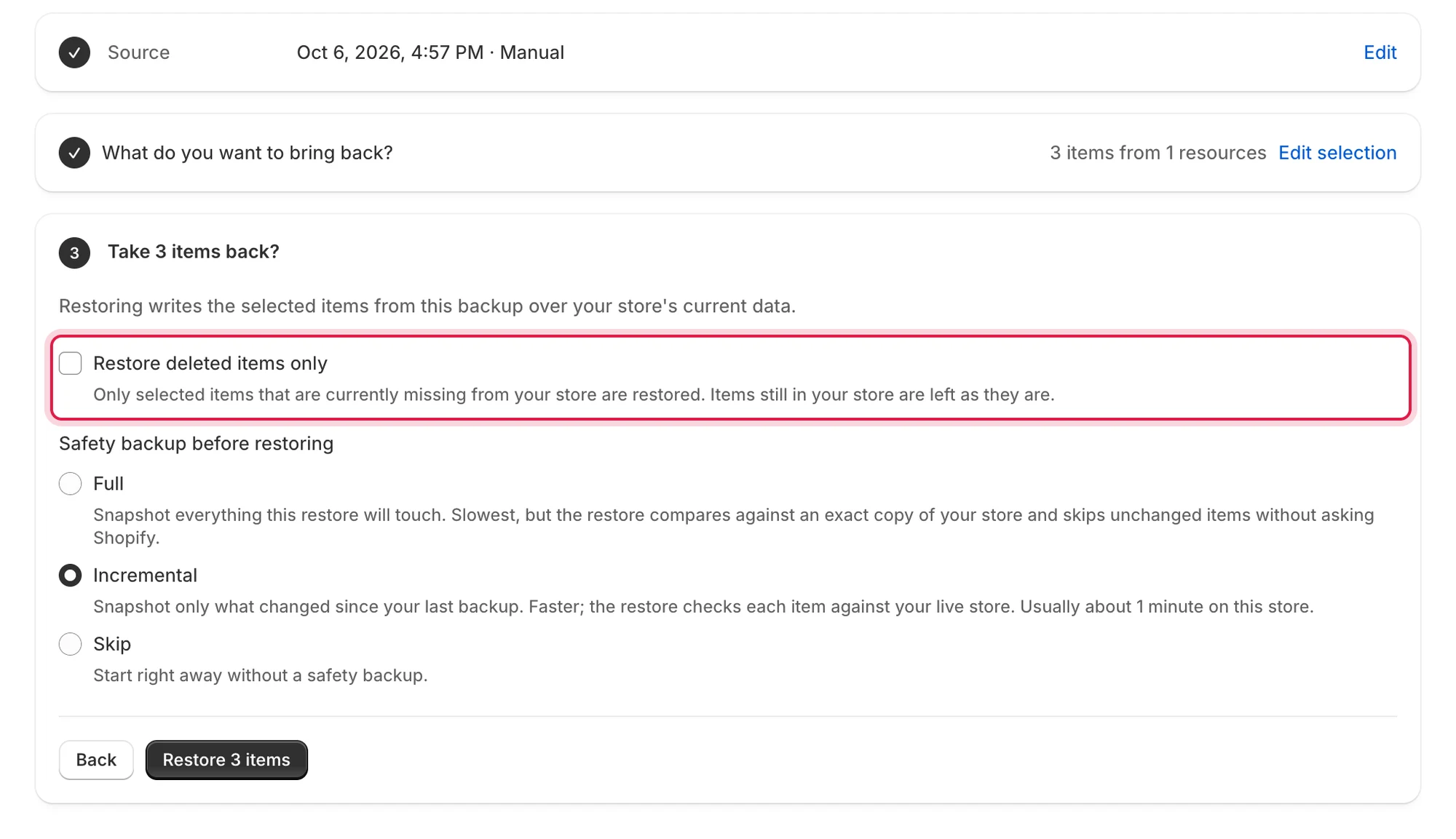
The review step shows the restore options before anything is written.
If you restore themes, a note in the review step explains how they are restored: your published theme is restored into an unpublished copy, and other themes are updated directly. A theme deleted from your store is skipped. Open it under Themes to bring it back as a new theme. See Restore a theme.
Writing theme files needs a theme-write permission that Shopify must approve for the app. Until it is approved, the review step tells you:
- Theme restore is currently unavailable: you selected only themes, so the restore cannot start. Your theme backups are safe.
- Themes are skipped in this restore: you selected themes and other data. The themes are skipped and everything else is restored as usual.
Choosing Skip shows a warning and a box you must tick: I understand and want to restore without a safety backup. See Safety backups and undoing a restore.
Restore the whole store
Section titled “Restore the whole store”When you select every restorable item in the backup, the wizard says Every restorable resource is selected. and asks you to type your store domain. Type it exactly as shown. The https:// prefix, a trailing slash and letter case are ignored. If the text does not match, you see: This doesn’t match, followed by your store domain, and then: Type the store domain exactly as shown.
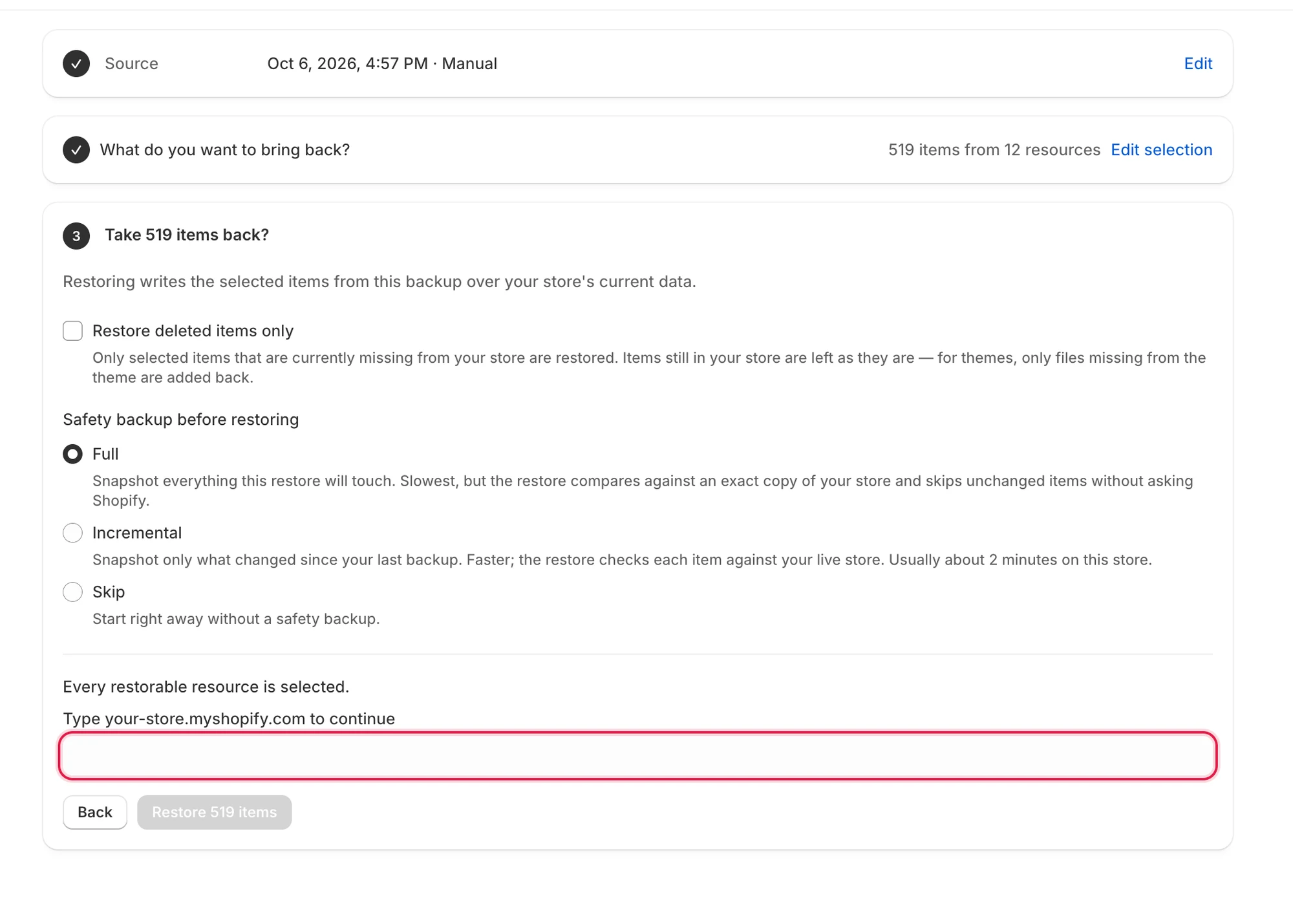
A whole-store restore asks you to type your store domain first.
Start the restore
Section titled “Start the restore”Select Restore N items (or Restore 1 item). The button stays disabled until the domain matches and, if you chose Skip, until you tick the acknowledgement. Select Back to return to the scope step.
The wizard then shows the running panel. You can close the page while it runs. If A restore finishes is on in your notification settings, you receive an email when it ends. The exception is a restore of one single item with Skip chosen for the safety backup. See Follow a restore and read the results.
Backups past your retention window
Section titled “Backups past your retention window”A backup older than 30 days, the time backups are kept, can no longer be restored as a whole. You can still use Choose specific items to restore single items from it. For whole restores, pick a newer backup. See Storage and retention.
If something goes wrong
Section titled “If something goes wrong”| Message | What to do |
|---|---|
| Couldn’t load what changed | Select Try again. |
| A restore is already in progress for this store. | Wait until it finishes. |
| You’ve reached today’s limit of N full restores (or N single-item restores) | You can start 3 full restores and 20 single-item restores in 24 hours. A restore of specific items only counts as single-item restores. Whole data types and tags count as full restores. Try again at the time shown, or contact us to raise the limit. |
| A backup is in progress for this store. Wait until it finishes before starting a restore. | Wait for the backup to finish. |
| This store has no completed backup yet to compare against. | Run Back up now first. |
| This backup is past your plan’s retention window. Only single items can still be restored from it. | Pick a newer backup, or choose specific items. |
| This upload is no longer available to restore. | Upload the file again. See Restore from an exported file. |
| Something went wrong. Please try again. | Try again. If it continues, contact hi@tipo.io. |