
Restore history and details
Review past restores and see the result and the reason for every item.
Restore history lists every restore you have run. Open one to see what happened to each item and why.
Open Restore history
Section titled “Open Restore history”Open Backups
Section titled “Open Backups”In your Shopify admin, select Apps, then open Backup & Restore Tipo. On Home, select Restore from a backup in the Store data card.
Select Restore history
Section titled “Select Restore history”Select Restore history in the page header.
Read the list
Section titled “Read the list”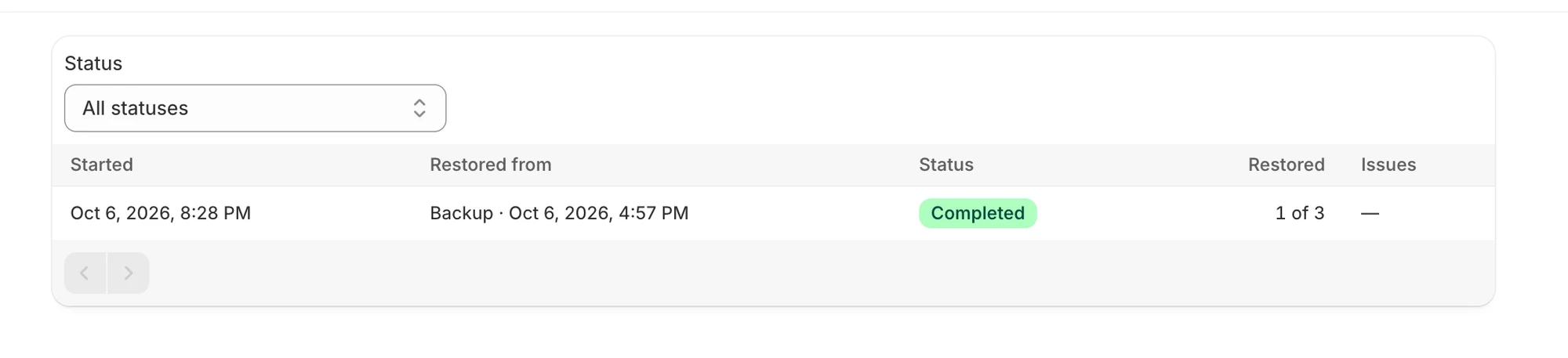
Each row is one restore, with its status and how many items were restored.
| Column | What it shows |
|---|---|
| Started | When the restore started. Select the date to open its details. |
| Restored from | The source: Backup “label” · date, Backup · date, Backup #N, Uploaded file · file name, A backup that has since been deleted or An uploaded file that has since expired. |
| Status | Starting, Preparing, Running, Stopping, Stopped, Completed, Completed with errors or Failed. |
| Restored | Items restored out of the total, for example 118 of 120. |
| Issues | For example 2 failed · 1 conflict, or — when there are none. |
Use the Status filter to show All statuses, Completed, Completed with errors, Failed, Stopped or Running. The list shows 25 restores per page and refreshes by itself every few seconds while a restore is running.
If you have not restored anything yet, the page says No restores yet. If a filter matches nothing, it says No restores match this status.
How long restore history is kept
Section titled “How long restore history is kept”A banner What we keep in restore history at the top of the list and of each restore’s details explains what is kept:
- Every restore stays listed with its status and counts.
- Within about a day after a restore finishes, temporary technical data is removed.
- The per-item results are kept for a limited time, for example 90 days. Your most recent restores, for example the last 25, keep their item lists longer.
- In a restore that also had errors, items that restored successfully can be removed from the list sooner, for example after 30 days. Failed items and items that need attention stay.
The banner shows the exact periods for your store. After the item list is removed, the summary on the details page stays accurate.
Open the details of a restore
Section titled “Open the details of a restore”Select the date in the Started column. The page title is Restore with the date. The top shows the same running or finished panel you saw during the restore. See Follow a restore and read the results.
Details
Section titled “Details”| Field | What it shows |
|---|---|
| Status | How the restore ended. |
| Restored from | The backup or file used. An Unverified file badge appears when the file was not an unchanged export of this store from this app. See Restore from an exported file. |
| Started and Finished | The times. |
| When items changed after the backup | Overwrite with the backup. Items changed in your store after the backup are replaced with the backed-up version. |
| Safety backup | Full, Incremental or Skipped. |
| Deleted items only | Yes, shown only when you restored deleted items only. |
| What went wrong | Shown only when the restore failed, with the reason. Include it when you contact support. |
The Items table lists each item with Item (title and handle), Data, Result and Details. It shows 25 rows per page. The page opens filtered to what needs attention most: failed items first, then conflicts, then partly restored items.
Use Result to filter by outcome and Data to filter by data type. Each option shows a count.
For an older restore, you may see one of these instead:
- Successful items are no longer listed: Items that restored successfully were removed from the list to save space. Items that failed or need attention are still listed, and the summary still counts every item.
- Item details are no longer available: The restore is older than the retention window, so the item list was removed. The summary above is still accurate.
| Result | What it means |
|---|---|
| Restored | The item was changed to match the backup. |
| Created | The item was deleted and has been created again, with a new ID. |
| Skipped | Nothing was written. See the reasons below. |
| Conflict | The item was skipped and left as it was. |
| Failed | The item could not be written and was left as it was. |
| Partly restored | Some files of a theme were written and some failed. |
| Not reached | The restore stopped before reaching it. |
| In progress | The restore is still working on it. |
Reasons in the Details column
Section titled “Reasons in the Details column”| Reason | What it means |
|---|---|
| Already matched the backup | The item had no differences. |
| Not in the backup’s data, so there was nothing to write | The backup holds nothing to restore for this item. |
| Still in your store — this restore brought back deleted items only | You restored deleted items only. It is also shown with (same handle) or (same email) when the match was found that way. |
| This theme is still in your store — only its missing files were brought back | Deleted-files-only theme restore. |
| Shopify doesn’t allow changes to this standard definition | Shopify’s own metafield definitions cannot be changed. |
| Not written — the restore stopped before reaching it | You stopped the restore, or it failed. |
| Changed in your store after the backup, so it wasn’t overwritten | The default message for a conflict, unless a more specific reason is shown. |
| A message that theme restore is currently unavailable | The app can’t write theme files until Shopify approves its theme-write permission, so the theme was skipped as a conflict. Your theme backup is safe. |
| A message that the theme no longer exists on the store | The theme was deleted from your store, so the restore skipped it. Open it under Themes to bring it back as a new theme. See Restore a theme. |
For a Failed item, Details shows the error text from Shopify or the app. It is often technical. Send it to support if you cannot tell what to fix.
Restore again from this backup
Section titled “Restore again from this backup”If the backup still exists and the restore has finished, Restore again from this backup appears in the page header. It opens the restore wizard on the same backup. See Restore from a backup (restore wizard).
If something goes wrong
Section titled “If something goes wrong”| What you see | What to do |
|---|---|
| Couldn’t load restore history or Couldn’t load this restore. | Select Try again. |
| This restore couldn’t be found | It may belong to another store, or its history was deleted along with the store’s backups. |
| No items here | No item in this restore had the result you filtered for. Choose another result. |
| Couldn’t load these items. | Select Try again. |