
Download a backup
Export a completed backup as .zip files and get the download links by email or in the app.
Export a completed backup, or only some of its data types, as .zip files you can keep on your computer. You can also upload these files later to restore from them.
Before you start
Section titled “Before you start”- Only backups with the status Completed or Completed with warnings can be exported.
- Only one export can run at a time for your store.
- Backups older than the 30-day retention period cannot be exported. See Storage and retention.
- The app emails the download links to the address in Send to under Notifications. If none is set, you can still get the links on the export page. See Email notifications.
Export a backup
Section titled “Export a backup”Open the Backups page
Section titled “Open the Backups page”From Home, select Restore from a backup in the Store data card. See View your backups.
Select Download
Section titled “Select Download”On the row of the backup you want, select Download in the last column. The Export backup page opens.
The Source section shows the backup (for example Backup #42) and when it was taken. Select Edit to go back and pick a different backup.
Choose what to download
Section titled “Choose what to download”Under What to Download, all data types that contain data are ticked by default. Untick the ones you do not need, or use the checkbox in the table header to select or clear all of them.
- The Items column shows how many items of each type your store had as of that backup.
- Types with 0 items are greyed out and cannot be selected.
- Products, Collections, Files and Themes show Includes files. Their images and theme files are added to the .zip.
- If your backup has inventory, Inventory is listed right under Locations, with the note “Inventory isn’t included in this export. Download it as a CSV from a location’s page.” Select Go to Locations to get it. See Export inventory as CSV.
- If nothing is selected, the page says “Nothing selected — pick at least one resource to continue” and Export stays disabled.
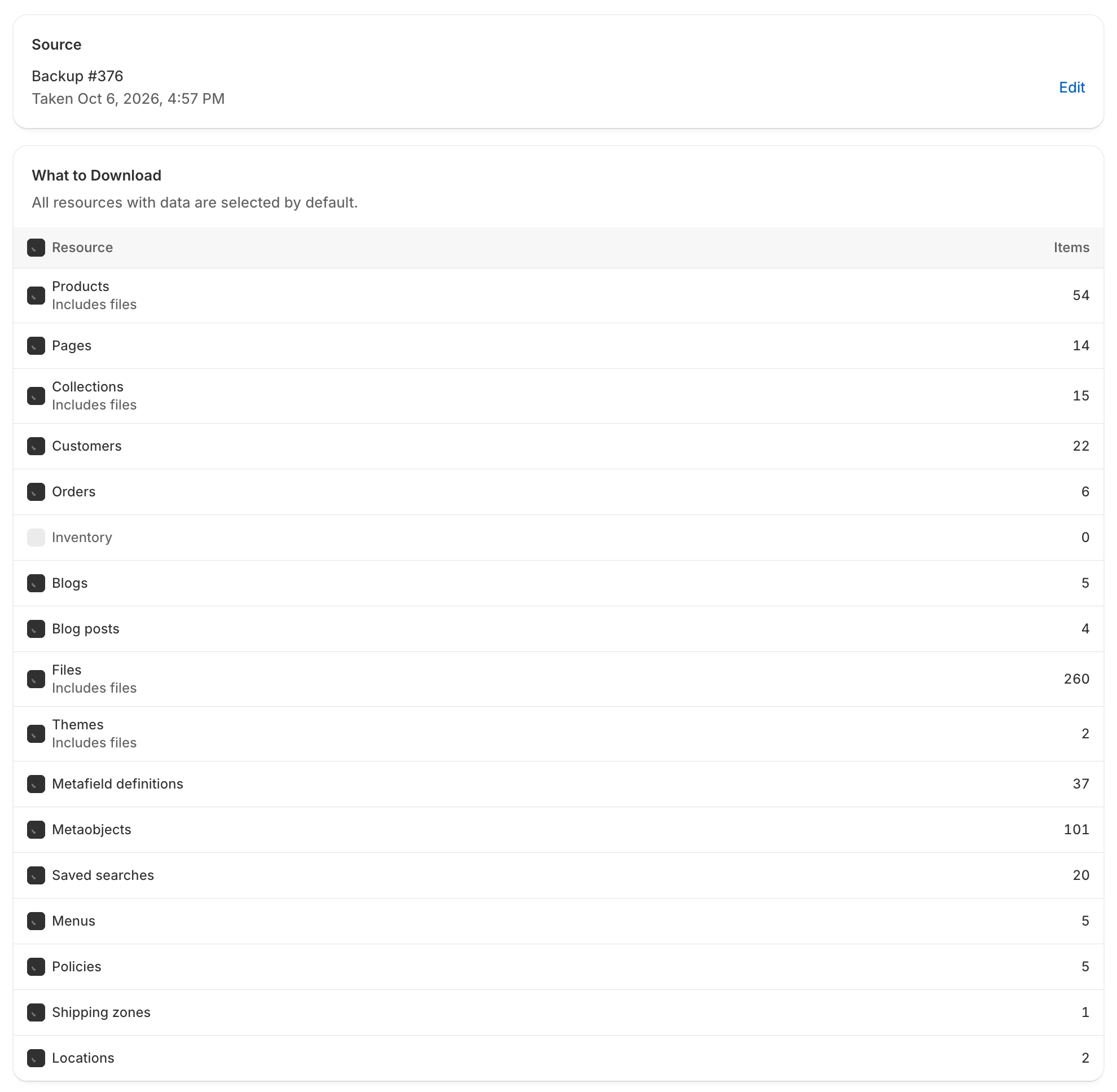
Choose which data types to include in the export.
Check the preview
Section titled “Check the preview”The Preview section tells you what will be produced:
- “Zip files for” your selected types. A large data type is split into several files, and each file can be downloaded and restored on its own.
- If you chose Customers or Orders, a banner says Includes customer or order data. Handle the file according to your store’s data protection obligations.
- If a notification email is set, you see “We’ll email a download link for each file to” that address “when this is ready.”
- If none is set, you see No notification email configured. Add one in Settings, or use Get download link after the export finishes.
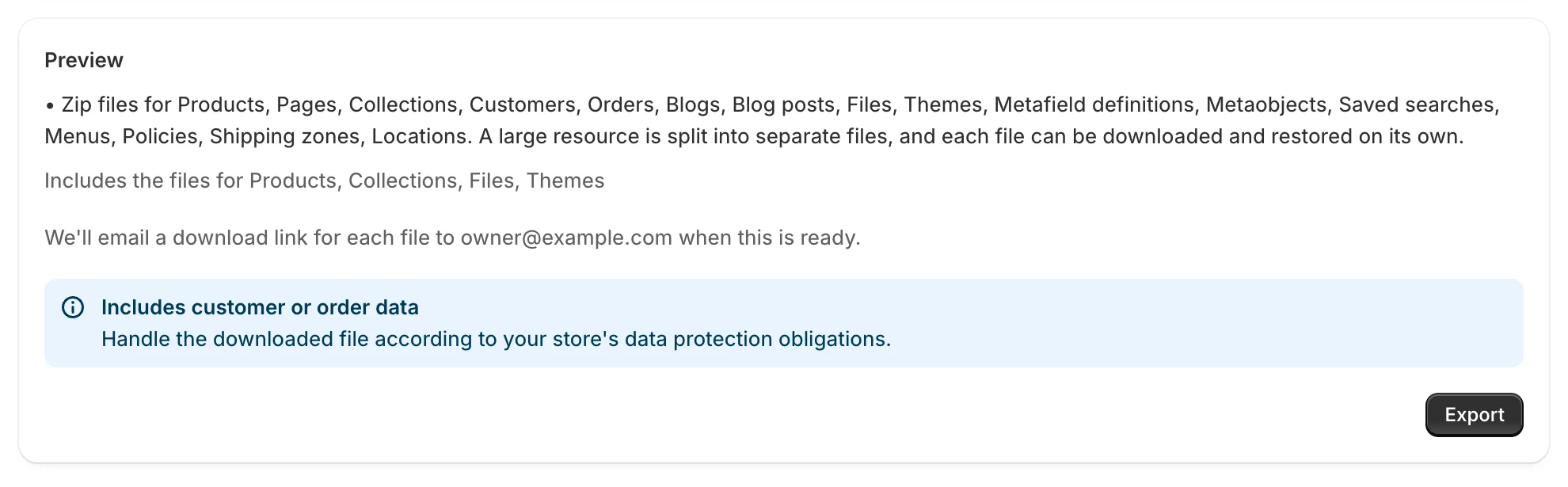
The preview shows what the export will contain and where the links will be sent.
Select Export and wait
Section titled “Select Export and wait”Select Export. The Source and What to Download sections are hidden, and the page shows Preparing your export… and “This can take a few minutes. You can leave this page.”
Each file appears in the list with Ready as soon as it is built, and the line under the heading counts them, for example “3 files are ready”. The note at the bottom says whether the links will be emailed, or that you can get them on this page when the export is ready.
You can close the page. The export keeps running.
Get your files
Section titled “Get your files”When it is done, the page heading changes to Export ready. Under it you see Your export file is ready (or, for example, Your 7 export files are ready when there are several), with how long it took and the total size. Each file has its name, size and group, and a Get download link button.
Select Get download link. A download page opens in a new browser tab. Each click creates a fresh link. See Use a download link for what to do there.
At the bottom, the page tells you whether the links were emailed (“We emailed the download link to” your address) or not.
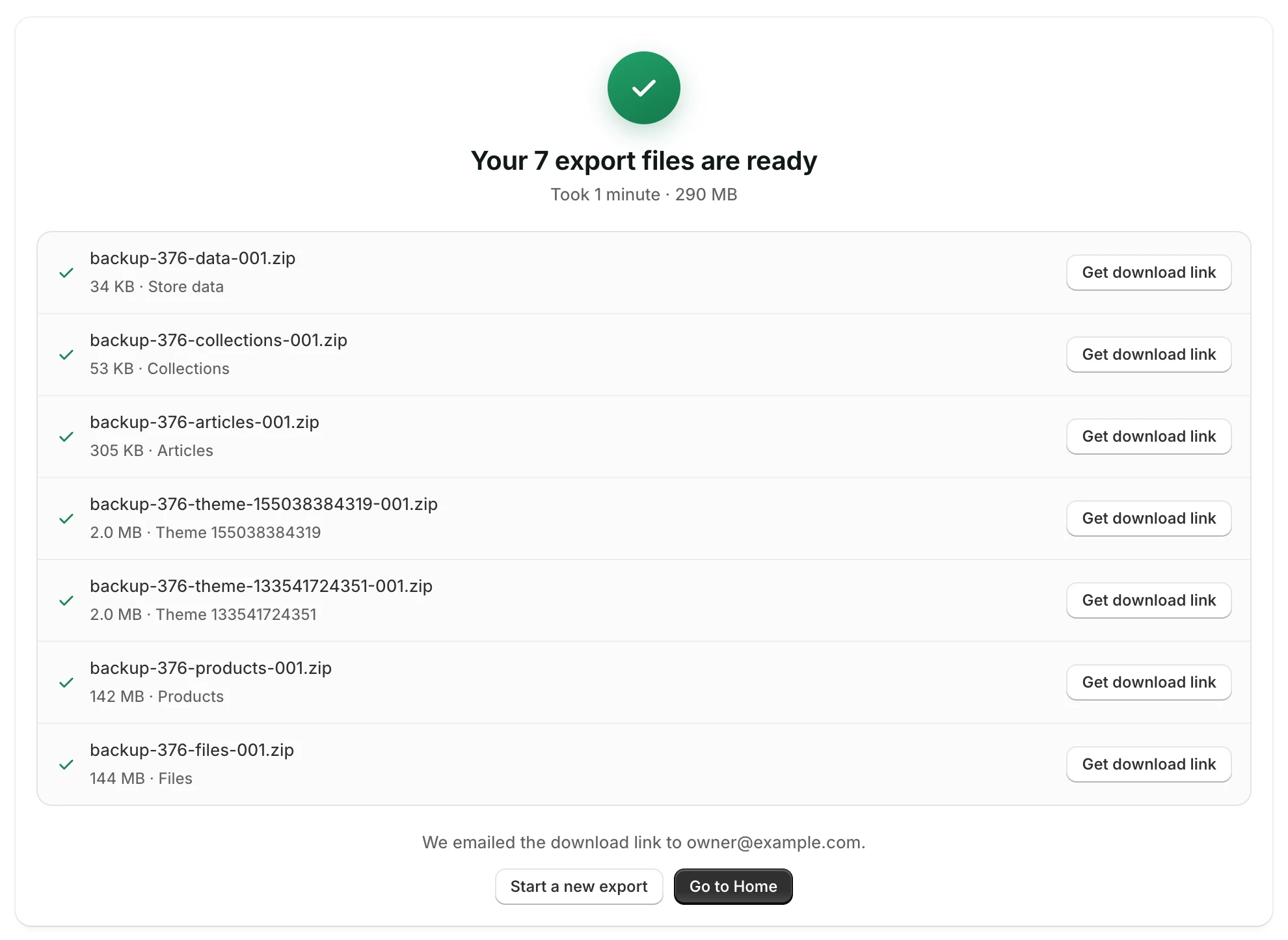
Each finished file has its own Get download link button.
To begin another export, select Start a new export. To leave, select Go to Home.
What the files are
Section titled “What the files are”- Each file is a .zip that contains your data as JSON Lines files plus any images or theme files.
- Data is split into groups: Store data (all the smaller data types together), Products, Collections, Articles, Files, and one group for each theme.
- A single export is named like
backup-42.zip. Several files are numbered, for examplebackup-42-products-001.zip. - Each .zip works on its own. You can upload any of them with Restore from a file without the others. See Restore from an exported file.
- Each .zip is signed by the app for your store. Do not edit or repack it. If a file was changed after export, or was made for another store, its themes are left out when you restore from it, and you are asked to review the rest of its data first.
For the full layout, see Export file format.
If something goes wrong
Section titled “If something goes wrong”| Message | What to do |
|---|---|
| This backup can’t be exported yet. Only completed backups can be exported. | Pick a backup with the status Completed or Completed with warnings. |
| An export is already running for this store. Try again once it finishes. | Wait for the current export to finish. |
| The export failed. You can try again. | Select Export again. If it keeps failing, contact support. |
| This backup is past your plan’s retention window and can no longer be exported. | Choose a newer backup. |
| Couldn’t create a download link. Try again. | Select Get download link again. |
| You’ve reached today’s limit of 3 exports. You can try again in about 5 hours, or contact us to raise the limit. | You can start 3 exports in 24 hours. Wait the time shown, or contact support. |
| Something went wrong. Please try again. | Reload the page and try again. |
More fixes are in Download and export problems.