
Back up now
Start a backup on demand, for example before a theme change or a bulk import, and follow its progress on Home.
Take a backup whenever you want, without waiting for the next scheduled one. You can keep working in Shopify while it runs.
When to take one
Section titled “When to take one”Take a manual backup right before you do something that is hard to undo, such as:
- Editing or replacing your theme.
- Running a bulk import or bulk edit of products or customers.
- Deleting many items at once.
- Installing or removing an app that changes your store data.
Start a backup
Section titled “Start a backup”All the buttons below start the same backup. Use whichever you see first.
Open the app
Section titled “Open the app”In your Shopify admin, select Apps, then open Backup & Restore Tipo. The app opens on Home.
Select Back up now
Section titled “Select Back up now”On the card at the top of Home, select Back up now. The card title depends on your store’s state, for example Your store is backed up, Your store isn’t backed up yet, Your backup may be outdated or Your backup needs attention. You can also use:
- Take a snapshot on the card titled Take a snapshot before your next big change.
- Back up now in step 1, Create your first backup, of the setup guide (shown until you finish it).

Select Back up now on the top card of Home to start a manual backup.
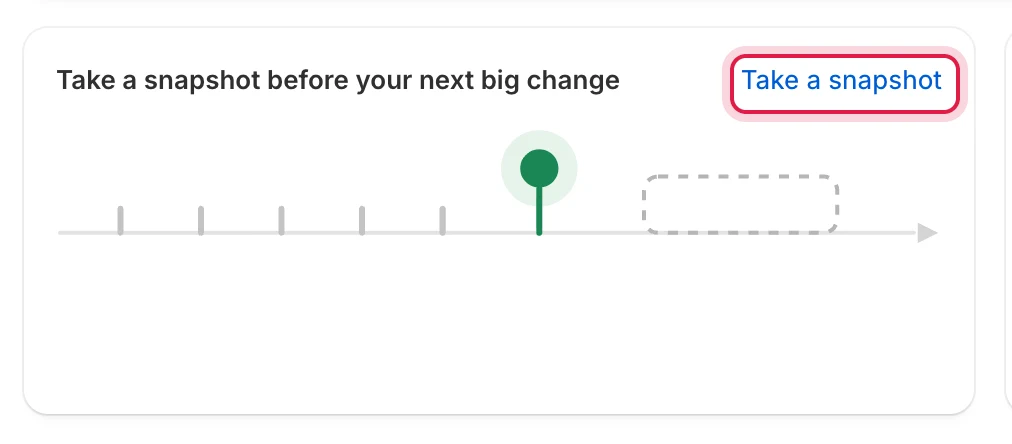
The Take a snapshot button starts the same backup.
Watch the progress
Section titled “Watch the progress”The card title changes to Backing up your store and the badge shows In progress. The line below shows how many data types are copied, for example “3 of 15 data types copied”.
In the Store data card, each row shows Waiting, then Backing up…. Several data types can be backed up at the same time. As soon as a data type finishes, its row shows its updated record count and size, without waiting for the whole backup. If a row shows Calculating, the app is still working out its count and size. Rows you turned off in Settings show Not included.
The check mark next to a data type appears only once it has been backed up. Before your first backup, no row shows a check mark.
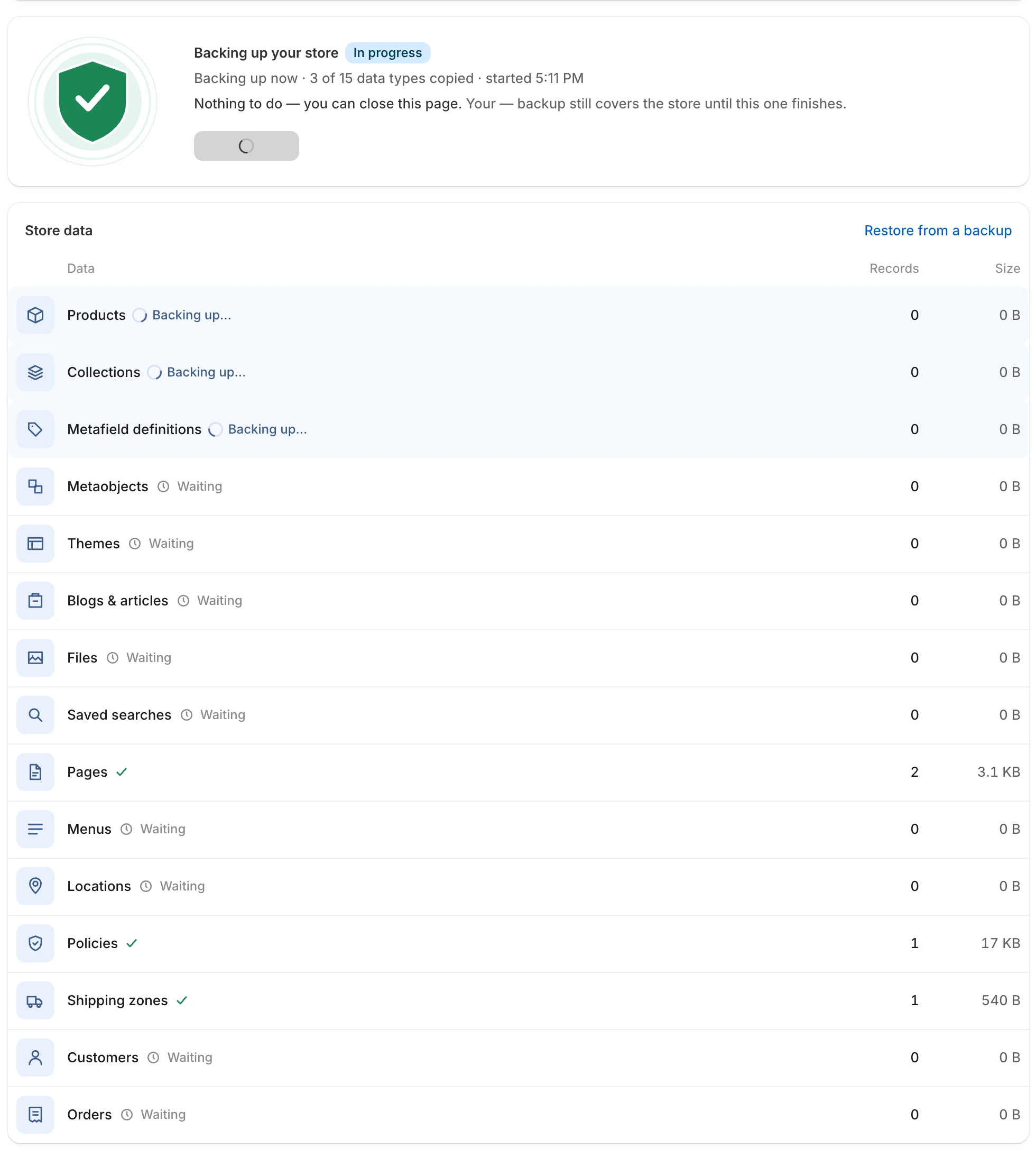
While a backup runs, each data type shows its own progress.
Wait for it to finish
Section titled “Wait for it to finish”You do not need to stay on the page. The card says “Nothing to do — you can close this page.” Your previous backup still covers the store until this one finishes. If you come back later or reload the page, Home picks up the running backup again.
When the backup finishes, you see the message Backup completed, the title changes to Your store is backed up and the badge shows Protected. The progress line reads “Backup finished. All 15 data types copied in” followed by how long it took.
Check the result
Section titled “Check the result”Open the backups list to confirm the new backup. It appears at the top with the trigger Manual and the status Completed. See View your backups.
If the backup does not start
Section titled “If the backup does not start”A red banner on Home explains why.
| Message | What it means | What to do |
|---|---|---|
| A backup is already in progress for this store. (You may also see: A backup is already running for this store. Wait until it finishes.) | Another backup is running. Only one runs at a time. | Wait until it finishes. |
| A restore is in progress for this store. Wait until it finishes before starting a backup. | A restore is running. | Wait for the restore to finish, then try again. |
| Could not start the backup. Try again. | A general failure. Common causes: every data type is turned off in Settings, you reached the limit of 3 manual backups in 24 hours, or a network problem. | Check Choose what to back up, then try again. See Backup problems. |
| The backup finished with an error. | The backup started but failed. | Try again. If it keeps failing, contact support. |
If your store goes over its storage or product limit, a banner on Home tells you what happens next. Nothing already backed up is deleted. See Usage and limits.
- Your store is over the plan limit. Backups and restores keep running. Contact us to raise your limits.
- Automatic backups are paused. Your store is far over its limit, so scheduled backups stop. You can still back up manually.
A backup that has already started always finishes, even if it takes your store over the limit.