
Restore selected items from a list
Tick items on a data type list and restore them together with the restore wizard.
Use a data type list to pick several items, choose a backup, and restore them together. The restore wizard opens with your items already chosen.
Restore the items you tick
Section titled “Restore the items you tick”Open a list
Section titled “Open a list”In the Shopify admin, open Backup & Restore Tipo. On Home, select a data type in the Store data card, for example Products, Pages or Customers.
The list shows every item that was ever backed up, including items you have since deleted from your store.
Tick the items
Section titled “Tick the items”Tick the box beside each item you want. To tick every item on the page, use Select all items on this page. A bar replaces the search bar and shows N of M selected.
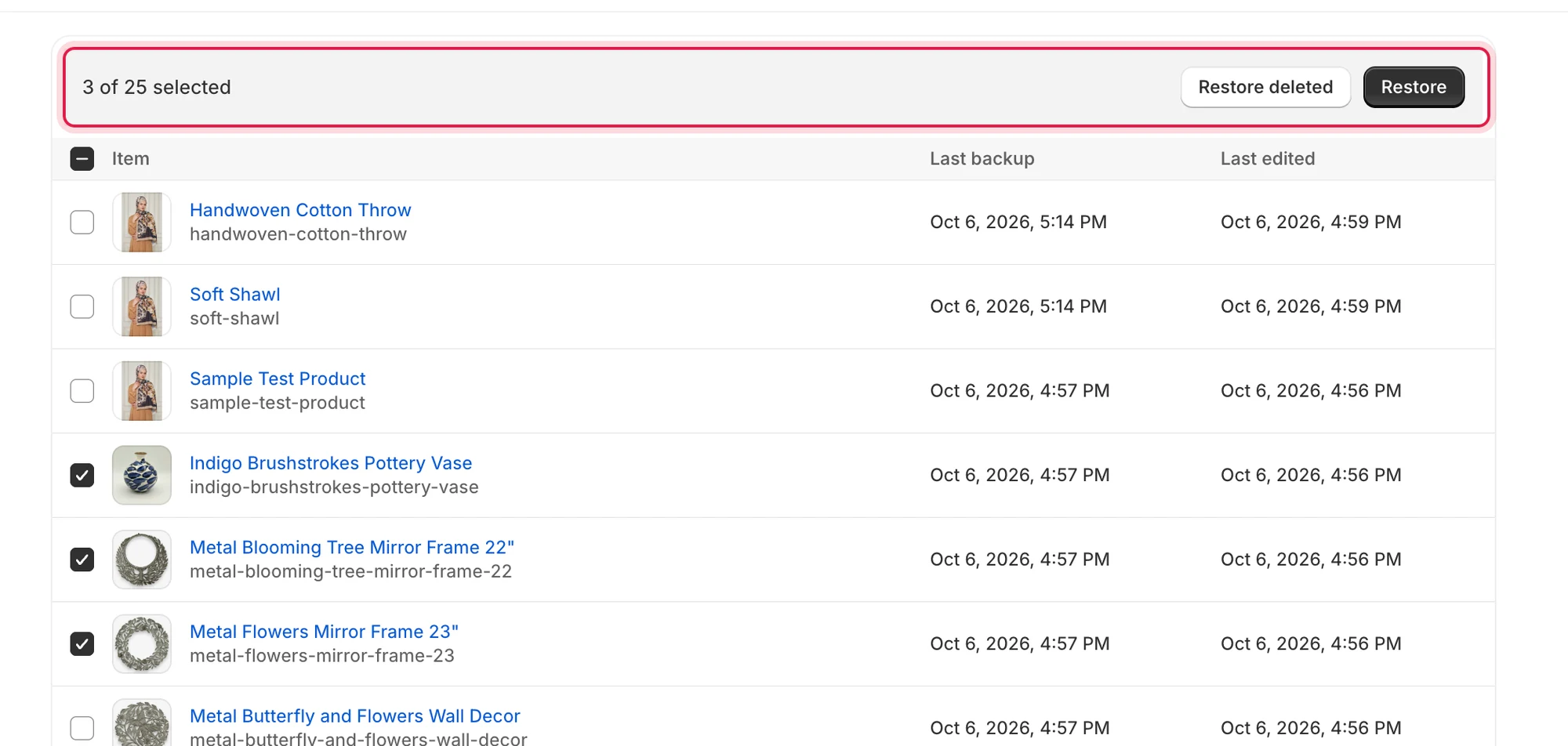
The selection bar shows how many items you ticked. Restore deleted appears when your selection includes a deleted item.
Select Restore or Restore deleted
Section titled “Select Restore or Restore deleted”- Select Restore to bring back every ticked item, overwriting the live version.
- Select Restore deleted to bring back only the ticked items that are missing from your store. Items that are still in your store are left as they are. This button appears only when at least one ticked item has the Deleted badge. See Restore deleted items.
Choose a backup
Section titled “Choose a backup”The window Choose a backup to restore from lists your completed backups. Each row shows:
- Backup: the backup name, or Backup # and its number if it has no name, with the date underneath.
- Type: Scheduled, Manual or Pre-restore.
- Status: Completed or Completed with warnings.
Pick one backup, then select Continue. Continue stays disabled until you pick a backup.
If you have no completed backup yet, the window says No completed backups yet.
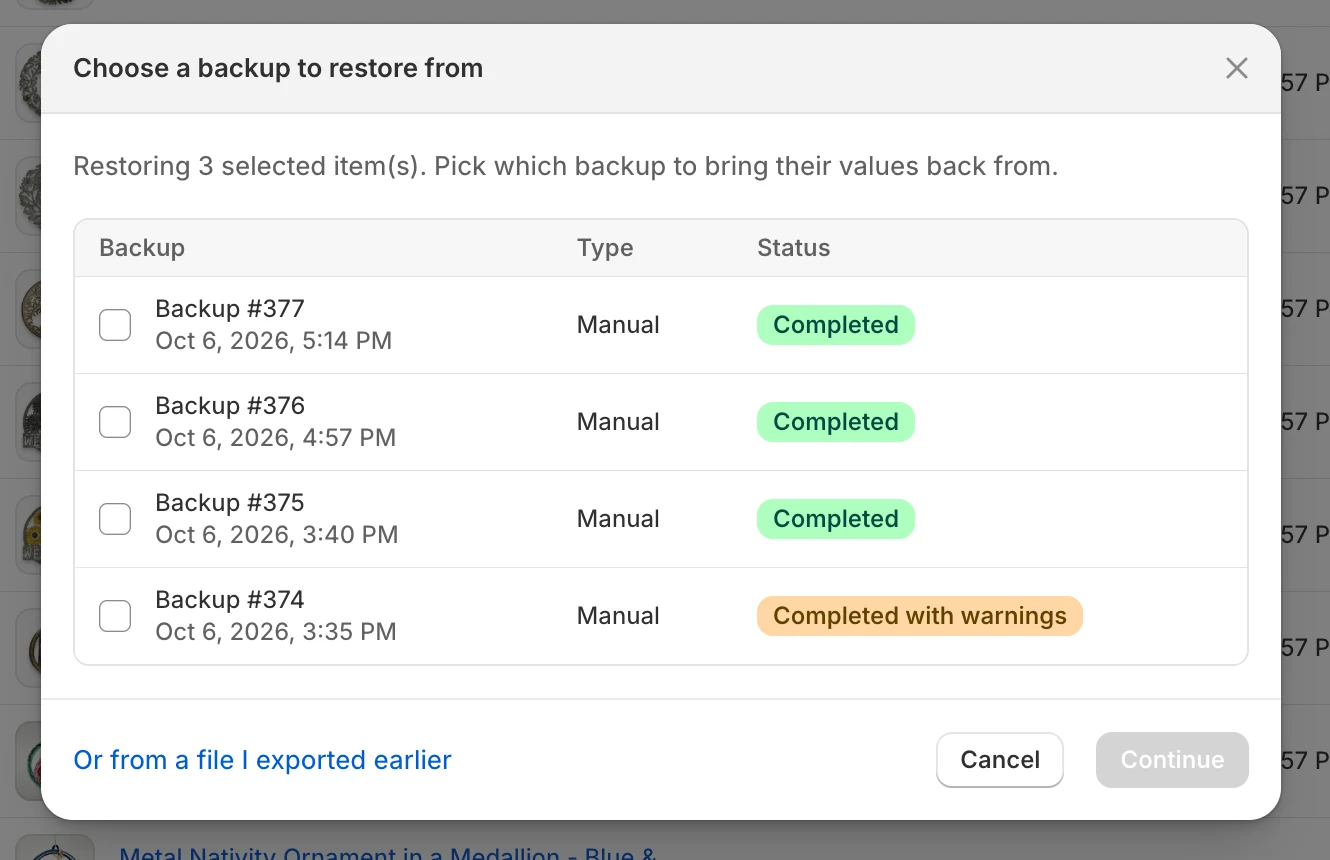
Pick a backup, or use the link at the bottom to restore from a file you exported earlier.
To use a file instead, select Or from a file I exported earlier. See Restore from an exported file.
Review in the wizard
Section titled “Review in the wizard”The restore wizard opens with that data type expanded and Choose specific items selected, with your items already chosen. Only that data type appears. Select Continue to reach the review step, choose a safety backup option, and select the Restore button. The wizard is described in Restore from a backup (restore wizard). The breadcrumb at the top of the wizard takes you back to your list.
Watch it run
Section titled “Watch it run”The wizard shows progress and then a summary. See Follow a restore and read the results.
Themes, blogs and metaobject definitions
Section titled “Themes, blogs and metaobject definitions”Inside a theme, a blog or a metaobject definition, you can tick files, articles or entries, but the bar only shows N of M selected. Start the restore from the Restore button at the top of that page instead:
- Theme files: Restore a theme
- Articles and entries: Restore a blog or metaobject definition
On the Themes list itself, the Restore button works and opens the wizard, which restores whole themes. The Themes list has no Restore deleted button. Your published theme has a Current badge.
Data types without a Restore button
Section titled “Data types without a Restore button”Lists for Orders, Locations, Policies, Saved searches and Shipping zones have no tick boxes and no Restore button, because those types cannot be restored.
If something goes wrong
Section titled “If something goes wrong”| What you see | What to do |
|---|---|
| Couldn’t load backups | Select Try again. |
| The bar is missing | The app was uninstalled for this store, or the data type cannot be restored. |