
Restore a blog or metaobject definition
Restore a blog together with its articles, or a metaobject definition together with its entries, in one step.
Some items have a parent and children: a blog has articles, and a metaobject definition has entries. This page shows how to restore the parent, the children, or both in one restore.
Why the order matters
Section titled “Why the order matters”An article needs its blog, and an entry needs its definition. If the parent is gone from your store, it must come back first. The app does this for you: when you restore a parent and its children together, the parent is written first.
Restore a blog and its articles
Section titled “Restore a blog and its articles”Open the blog
Section titled “Open the blog”In your Shopify admin, select Apps, then open Backup & Restore Tipo. On Home, select the Blogs & articles row in the Store data card, then select the blog.
Pick the backup version
Section titled “Pick the backup version”Use the Backup version list to choose the backup you want to restore from. Compare the Live store and Backup columns to confirm it is the one you want. See Compare an item with your live store.
(Optional) Tick articles in the list
Section titled “(Optional) Tick articles in the list”To restore only some articles, tick them in the Articles list on the page.
Select Restore
Section titled “Select Restore”Select Restore in the page header. The Restore this blog? window opens.
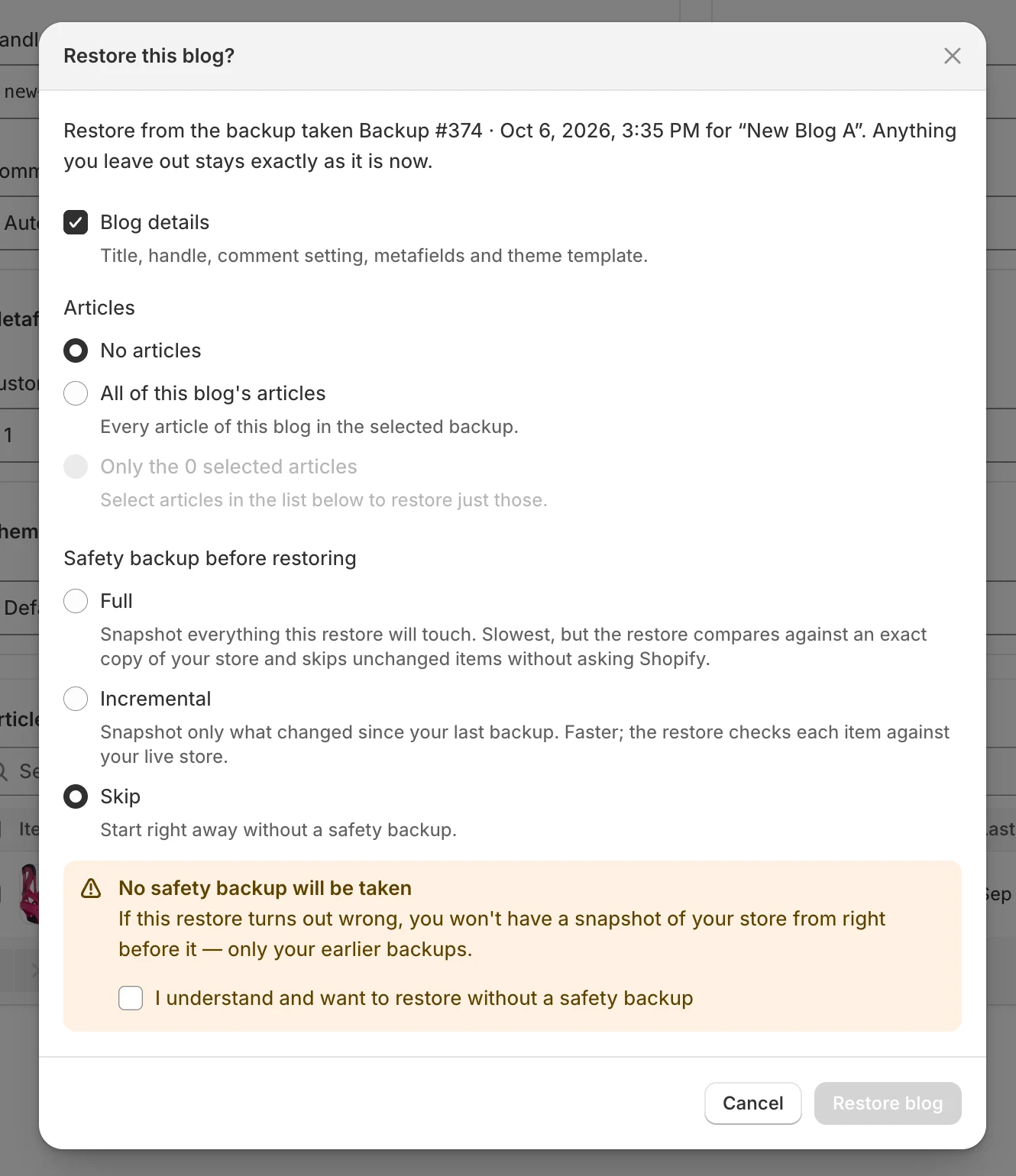
Choose the blog details, the articles, or both before you confirm.
Choose what to restore
Section titled “Choose what to restore”| Option | What it does | Default |
|---|---|---|
| Blog details | Restores the title, handle, comment setting, metafields and theme template. | Ticked. If the blog is no longer in your store, it is ticked and locked, because its articles need it. |
| Articles > No articles | Restores no articles. | Chosen when you ticked no articles in the list. |
| Articles > All of this blog’s articles | Restores every article of this blog in the selected backup. | Not chosen. |
| Articles > Only the selected article (or Only the N selected articles) | Restores the articles you ticked in the list. Disabled until you tick some. | Chosen when you ticked articles in the list. |
| Safety backup before restoring | Takes a backup of your store before anything is written. | Skip |
Anything you leave out stays exactly as it is now.
Decide on a safety backup
Section titled “Decide on a safety backup”Choose Full, Incremental or Skip. If you choose Skip, tick I understand and want to restore without a safety backup. To learn which to choose, see Safety backups and undoing a restore.
Confirm
Section titled “Confirm”The confirm button changes with your choices:
- Restore blog when you restore only the blog details.
- Restore articles when you untick Blog details and restore only articles.
- Restore blog and articles when you restore both.
If nothing is chosen, the window says Choose the blog details or some articles to restore.
Read the result
Section titled “Read the result”The window shows Restored successfully and one line per type, for example 12 articles — 9 restored · 3 already matched. An item that already matched the backup is counted as already matched and is not rewritten. If some items could not be restored, you see a warning and the count of items that couldn’t be restored. Select Done to close the window.
Restore a metaobject definition and its entries
Section titled “Restore a metaobject definition and its entries”Open the definition
Section titled “Open the definition”On Home, select the Metaobjects row in the Store data card, then select the definition.
Pick the backup version and tick entries
Section titled “Pick the backup version and tick entries”Choose the Backup version. To restore only some entries, tick them in the entries list on the page.
Select Restore
Section titled “Select Restore”Select Restore in the page header. The Restore this metaobject definition? window opens.
Choose what to restore
Section titled “Choose what to restore”| Option | What it does | Default |
|---|---|---|
| Definition | Restores the name, description, fields, access and capabilities. | Ticked. If the definition is no longer in your store, it is ticked and locked, because its entries need it. |
| Entries > No entries | Restores no entries. | Chosen when you ticked no entries. |
| Entries > All entries of this definition | Restores every entry of this type in the selected backup. | Not chosen. |
| Entries > Only the selected entry (or Only the N selected entries) | Restores the entries you ticked. Disabled until you tick some. | Chosen when you ticked entries. |
| Safety backup before restoring | Takes a backup of your store before anything is written. | Skip |
Confirm
Section titled “Confirm”Select Restore definition, Restore entries or Restore definition and entries, depending on your choices. The result lists each type with its restored and already matched counts.
If something goes wrong
Section titled “If something goes wrong”| What you see | What to do |
|---|---|
| Restore failed | Select Try again. If it fails again, open Restore history and details to read the reason. |
| Restore is disabled | The item has no backup version to restore from, or the app is uninstalled. Pick a Backup version that holds the item. |
| A message says a restore or backup is already running, or that restores are paused | Wait for it to finish, or see Restore problems. |
| An article was not restored | Its blog is missing. Restore the blog and the article together. |