
Restore deleted items
Bring back only items that are missing from your store and leave everything else as it is.
If items were deleted from your store by mistake, you can bring back only those items. Everything that is still in your store stays exactly as it is.
Find what was deleted
Section titled “Find what was deleted”- Lists. Items that no longer exist in your store show a Deleted badge in the data type list.
- Item page. A deleted item’s page says This item no longer exists in your store. The backup beside it is the last copy the app captured. The page also shows Restorable at least until a date. After that date, the item is removed. Deleted items are kept for 90 days.
- Email. If the Deletion alert rule is on, the app emails you when items were deleted. The email has a button Review and restore deleted items. See Alert rules.
Choose one of the options below.
Option 1: From a list
Section titled “Option 1: From a list”Open the list
Section titled “Open the list”In the Shopify admin, open Backup & Restore Tipo. On Home, select a data type in the Store data card, for example Products.
Tick the items
Section titled “Tick the items”Tick the items you think were deleted. Restore deleted appears in the selection bar only when at least one ticked item has the Deleted badge. You can tick other items too: items that are still in your store are skipped.
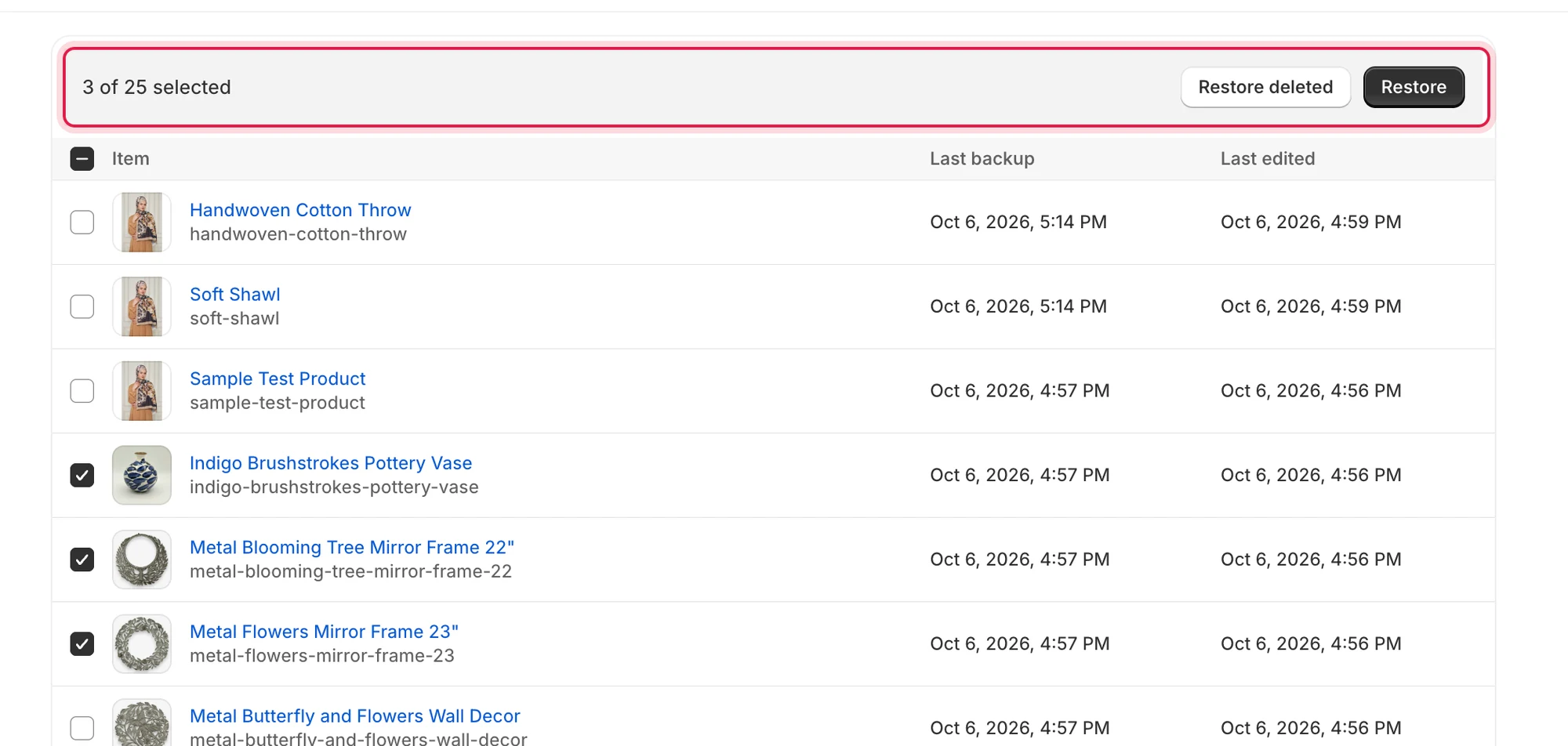
Select Restore deleted in the selection bar to bring back only missing items.
Select Restore deleted
Section titled “Select Restore deleted”Select Restore deleted in the selection bar. The window Choose a backup to restore from says: Restoring only the selected items that are currently missing from your store. Items still in your store are left as they are. Pick a completed backup and select Continue.
Review and restore
Section titled “Review and restore”The wizard opens with Restore deleted items only already ticked. Choose a safety backup option and select Restore. See Restore from a backup (restore wizard).
Option 2: From the wizard
Section titled “Option 2: From the wizard”Open a backup in the wizard
Section titled “Open a backup in the wizard”Select Restore from a backup in the Store data card on Home, then select the date of a completed backup. See Restore from a backup (restore wizard).
Choose what to check
Section titled “Choose what to check”Tick the data types, or choose specific items. Select Continue.
Tick Restore deleted items only
Section titled “Tick Restore deleted items only”On the review step, tick Restore deleted items only. The step now says: Only the items among these selected items that are missing from your store are restored. Items still in your store are left as they are.
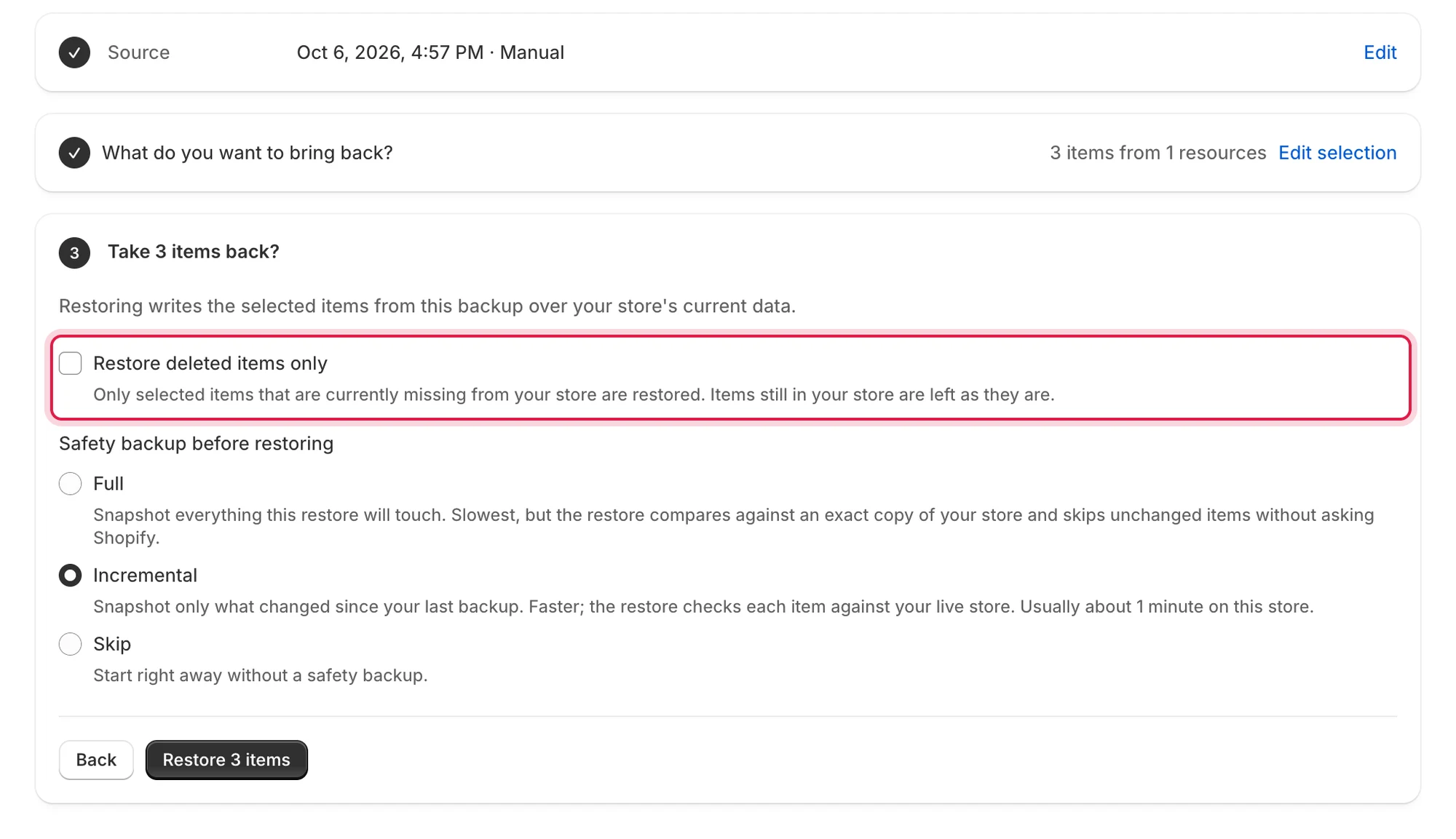
Tick Restore deleted items only on the review step.
Start the restore
Section titled “Start the restore”Select Restore N items.
Option 3: Open the deleted item
Section titled “Option 3: Open the deleted item”Open the deleted item from its list, check that Backup version is the version you want, and select Restore. This restores that one item. See Restore a single item. Blogs, metaobject definitions and themes use their own windows.
Themes
Section titled “Themes”- In a theme’s Restore this theme? window, tick Restore deleted files only. Only files that are missing from the theme are added back. Files the theme already has stay as they are, even if they changed.
- The Themes list has no Restore deleted button.
- A whole theme that was deleted comes back as a new, unpublished theme. Open it from the Themes list and select Restore. See Restore a theme.
How the app decides an item is still in your store
Section titled “How the app decides an item is still in your store”The app matches each item to your live store by its ID first. If that does not match, it uses the handle, or the email address for customers. An item that matches is “still in your store” and is skipped.
What to expect
Section titled “What to expect”- A deleted item comes back as a new item. Shopify gives it a new ID, so links and apps that used the old ID will not find it automatically.
- The done screen shows how many selected items were skipped, for example “N selected items were still in your store, so they were left as they are.”
- In Restore details, a skipped item shows: Still in your store, because this restore brought back deleted items only. See Restore history and details.
How long deleted items stay restorable
Section titled “How long deleted items stay restorable”Deleted items stay restorable for 90 days. The date on the item’s page, Restorable at least until, tells you the earliest day removal can happen. See Storage and retention.