
Store data and Changes chart
See record counts and size per data type from your latest backup, and how many items were added, changed or deleted over the last 30 days.
The Store data card shows what your latest backup contains. The Changes card shows how many items were added, changed or deleted over the last 30 days. Both sit on Home.
Store data
Section titled “Store data”The card has three columns: Data, Records and Size. It lists 15 data types:
Products, Collections, Metafield definitions, Metaobjects, Themes, Blogs & articles, Files, Saved searches, Pages, Menus, Locations, Policies, Shipping zones, Customers and Orders.
Each row shows an icon, the name, a green check (hover to see Backed up), the number of records and the size in your latest backup.
Before your first backup, the rows have no green check, because nothing is backed up yet. During your first backup, each row gets its check as soon as that data type finishes.
Rows you switched off
Section titled “Rows you switched off”If you turned a data type off in Settings, its row stays in the list but is greyed out and says Not included. Earlier backups that contain it are kept.
While a backup is running
Section titled “While a backup is running”Rows show Waiting until it is their turn, then Backing up…. Several rows can show Backing up… at the same time. As soon as a data type finishes, its row shows the new record count and size. You don’t have to wait for the whole backup to end.
Calculating
Section titled “Calculating”Right after a backup ends, the app adds up the final totals. A row that has no numbers yet shows a spinner and Calculating. A row that already has numbers keeps showing them, with a small Calculating note next to them, until the new totals arrive. This usually takes a few seconds. If it takes longer, the rows go back to the last numbers the app has, and the new totals appear when you open Home again later.
Browse a data type
Section titled “Browse a data type”Select a row to open the list of backed-up items for that data type. From there you can search, compare an item with your live store and restore it. See Browse and compare backed-up data.
Restore from a backup
Section titled “Restore from a backup”The Restore from a backup link at the top right of the card opens your Backups list. Select the date of a completed backup there to start the restore wizard.
Changes chart
Section titled “Changes chart”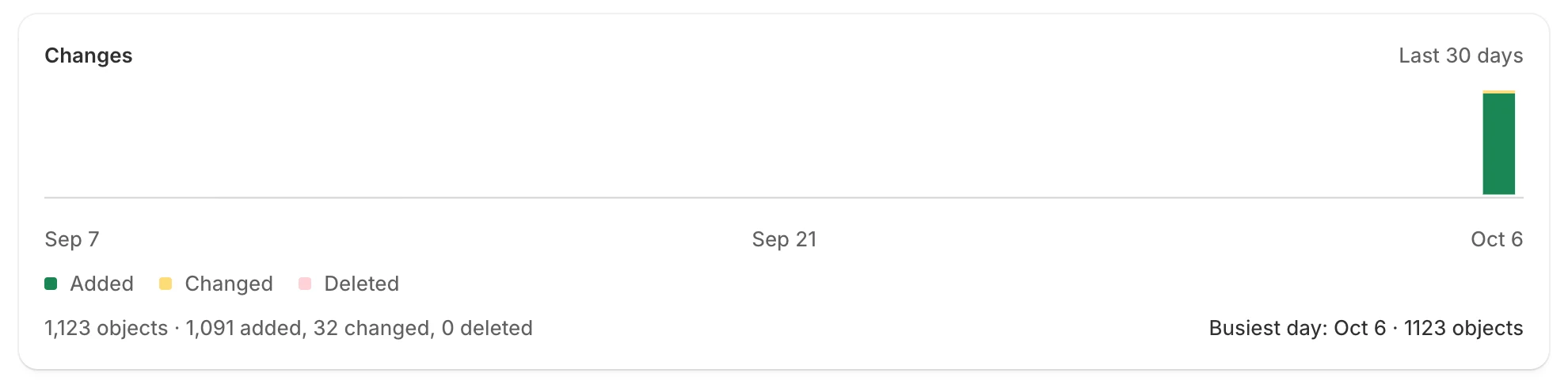
The summary line adds up everything your completed backups recorded in the last 30 days.
The Changes card is titled Last 30 days. It is a stacked bar chart with one bar per day and three colours:
| Legend | Meaning |
|---|---|
| Added | Items that are new since the previous backup. |
| Changed | Items that were edited since the previous backup. |
| Deleted | Items that were removed from your store since the previous backup. |
Below the chart, a summary line reads like 1,240 objects · 900 added, 300 changed, 40 deleted. On the right, Busiest day shows the day with the most changes and how many objects it had.
The bars aren’t clickable. To see what a single backup captured, open the Backups list and select the items number in a row.