
Alert rules
Get emailed about unusual changes such as mass deletions, skipped backups or theme changes, and tune or mute each rule.
Alert rules email you when something unusual happens in your store, such as many items deleted at once. Rules are checked after each backup. You can turn each rule on or off, change its threshold, or mute it for 24 hours.
Open the rules
Section titled “Open the rules”In the Shopify admin sidebar, click Backup & Restore Tipo, then Settings.
In the Notifications card, click the Alert rules link in the sentence under the checkboxes. The table opens below it. Click the link again to close it.
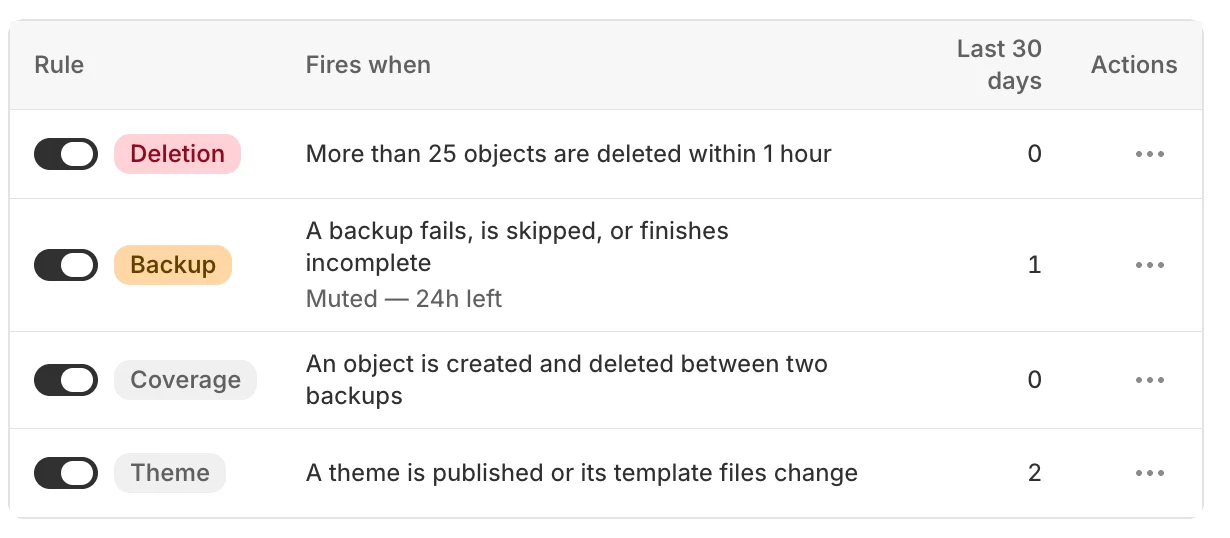
The table shows each rule, when it fires and how many alerts it sent in the last 30 days.
The columns are Rule, Fires when, Last 30 days and Actions. Last 30 days is the number of alerts that rule produced in the last 30 days.
The four rules
Section titled “The four rules”All four rules are on by default.
| Rule | Fires when (default) | Can you change it? |
|---|---|---|
| Deletion | More than 25 objects are deleted within 1 hour. | Yes |
| Backup | A backup fails, is skipped, or finishes incomplete. | Yes |
| Coverage | An object is created and deleted between two backups. | No |
| Theme | A theme is published or its template files change. | Yes |
What each rule means:
- Deletion: the number of deleted objects inside the time window is above your threshold.
- Backup: “skipped” means a scheduled backup did not start because the previous one was still running. You get at most one such email per hour. “Incomplete” means the backup finished, but some items could not be saved.
- Coverage: an item was created and deleted between two backups. It is in no backup, so it can’t be restored.
- Theme: only your live theme counts. A change to the template files means files in the
templates,sectionsorlayoutfolders. Assets, locales and settings files are ignored.
Rules are not checked after a backup that failed.
Turn a rule on or off
Section titled “Turn a rule on or off”Use the switch in the rule’s row.
Click Save in the save bar.
Edit a threshold
Section titled “Edit a threshold”Click the … button in the Actions column.
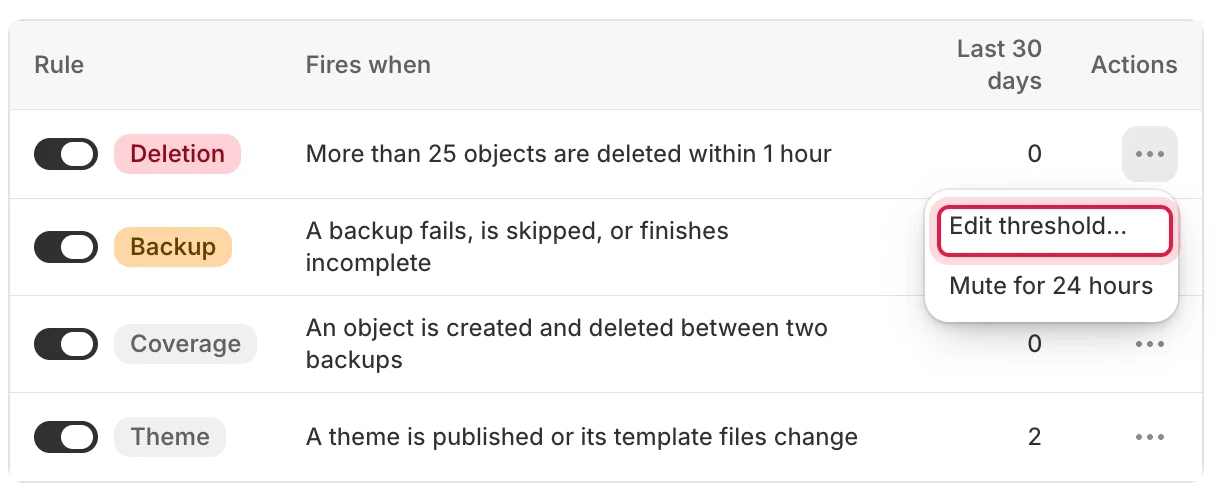
The Actions menu has Edit threshold and the mute option.
Click Edit threshold…. The Coverage rule does not have this option.
Change the dropdowns in the sentence. The box under it shows how many alerts you would have had in the last 30 days.
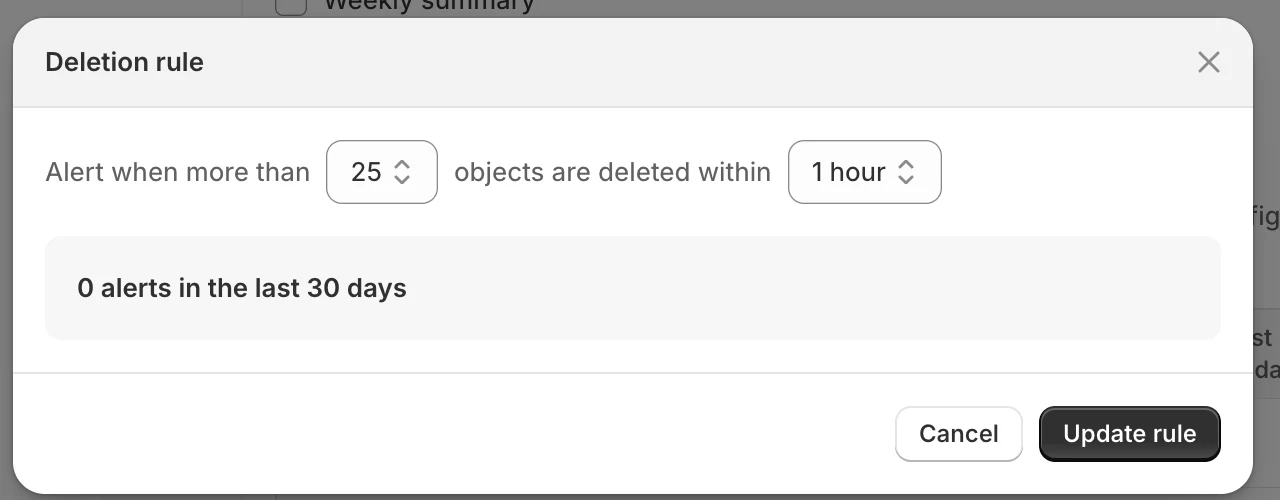
The preview uses your own store's history from the last 30 days.
Click Update rule, then click Save in the save bar. The change is not saved until you do.
| Window | What you can choose |
|---|---|
| Deletion rule | More than 5, 10, 25, 50, 100 or 250 objects, within 1 hour, a day or a week. |
| Backup rule | A backup “fails or is skipped”, or “fails, is skipped, or finishes incomplete”. |
| Theme rule | A theme “is published only”, or “is published or its template files change”. |
The preview also says how the new value compares with the saved one, for example “3 fewer than at 25”. For the Deletion rule it shows the range of your recent deletions. If it can’t be loaded, you see Couldn’t read this store’s history just now.
Mute a rule for 24 hours
Section titled “Mute a rule for 24 hours”Click the … button in the rule’s row.
Click Mute for 24 hours. You see Alerts muted. The row shows Muted — Nh left.
To stop early, open the menu again and click Unmute. You see Alerts resumed.
Muting and unmuting apply at once, without the save bar. Muted alerts are still counted in Last 30 days, but no email is sent. If it fails, you see Couldn’t update this alert.