
Restore a theme
Restore a whole theme or selected files into the theme itself, a safe copy of it, or a new theme.
You can restore a whole theme, or just some of its files. You choose where the files go: into the theme itself, into a copy of it, or into a new theme.
Open the theme
Section titled “Open the theme”Find the theme
Section titled “Find the theme”In the Shopify admin, open Backup & Restore Tipo. On Home, select Themes in the Store data card. Select the theme you want. Your published theme has a Current badge in the list.
Pick the version
Section titled “Pick the version”Use the Backup version list to pick the backup you want to restore from.
Optional: tick files
Section titled “Optional: tick files”To restore only some files, tick them in the file list on the page.
Select Restore
Section titled “Select Restore”Select Restore in the title bar at the top of the page. The window Restore this theme? opens. It says that it restores the theme from the backup taken on that date, and that only files that differ from your live theme are written.
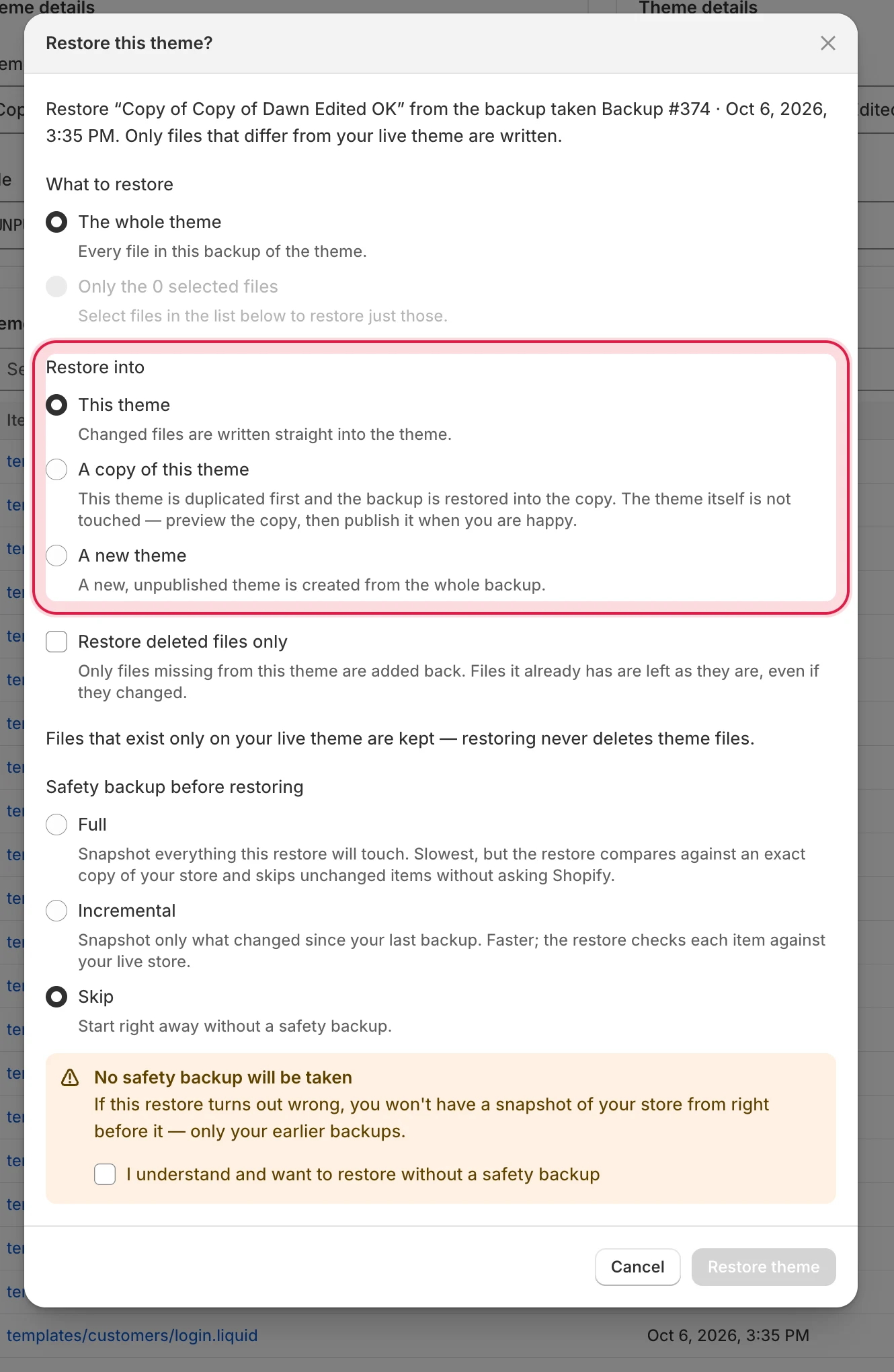
The Restore this theme window lets you choose what to restore and where to put it.
Choose your options
Section titled “Choose your options”| Option | Choices | Default |
|---|---|---|
| What to restore | The whole theme (every file in this backup of the theme), or Only the selected file / Only the N selected files | The files you ticked, or the whole theme if none are ticked |
| Restore into | This theme, A copy of this theme, A new theme | A copy of this theme for your published theme, otherwise This theme |
| Restore deleted files only | A tick box | Off |
| Safety backup before restoring | Full, Incremental, Skip | Skip |
What to restore
Section titled “What to restore”If you did not tick any files, Only the selected file is disabled and says Select files in the list below to restore just those. The window lists up to five of the selected file names.
Restore into
Section titled “Restore into”- This theme: Changed files are written straight into the theme.
- A copy of this theme: The theme is duplicated first and the backup is restored into the copy. The theme itself is not touched. Preview the copy, then publish it when you are happy.
- A new theme: A new, unpublished theme is created from the whole backup. Your existing themes are not touched. This option is only available when you restore the whole theme. If you chose to restore only the selected files, it is disabled and says Only available when restoring the whole theme.
Restore deleted files only
Section titled “Restore deleted files only”Tick this to add back only the files that are missing.
- With This theme: Only files missing from this theme are added back. Files it already has are left as they are, even if they changed.
- With A copy of this theme: The copy gets only the files missing from the theme. No copy is made if nothing is missing.
- With A new theme: A new theme is built only if this theme is no longer in your store. If the theme is still there, nothing is restored and the result says This theme is still in your store, so no new theme was created.
Safety backup
Section titled “Safety backup”The safety backup is off by default in this window. If you keep Skip, you must tick I understand and want to restore without a safety backup. Choose Full or Incremental to take a copy of your store first. See Safety backups and undoing a restore.
Confirm
Section titled “Confirm”The confirm button changes with your choices: Restore theme, Restore 1 file, Restore N files, or Create theme from backup when you restore into a new theme. Select it to start. The window shows Restoring theme files… while it works.
Files that exist only on your live theme are kept. A restore never deletes theme files.
Read the result
Section titled “Read the result”A green banner Theme restored says one of these:
- Your live theme now has the backed-up files.
- Nothing to write: your live theme already matches this backup.
- No files were missing: the theme already has every file in this backup.
A summary lists the counts: files restored, files already matched, files already in the theme and files failed. If you restored into a copy, it says the files went into an unpublished copy and names it. If you restored into a new theme, it says Created “Theme name”, a new unpublished theme. Preview it in your Shopify admin and publish it when you are ready. Select Done to close.
Some files failed
Section titled “Some files failed”If some files were restored and some were not, the banner Restored, with some files failing appears. The failed files are listed. Restore again: it only rewrites what still differs.
Deleted themes
Section titled “Deleted themes”A theme that no longer exists in your store comes back as a new, unpublished theme built from the backup. Your other themes are not touched.
- Open the deleted theme from the Themes list. Its page shows This item no longer exists in your store and says restoring brings it back as a new, unpublished theme.
- Pick the backup version and select Restore.
- The window restores the whole theme into A new theme. This theme and A copy of this theme are disabled, and a note says the theme will come back as a new, unpublished theme built from the backup.
- Select Create theme from backup.
When it finishes, the result names the new theme. Preview it in your Shopify admin and publish it when you are ready. Shopify gives the new theme a new ID.
You can only bring back a deleted theme from its own page. Restore deleted on the Themes list does not include themes, and the restore wizard skips deleted themes.
Restoring one theme file
Section titled “Restoring one theme file”To restore a single file, open the file from the theme page, then select Restore. This is the same as Restore a single item: it writes that one file into its theme, with no destination or safety backup options.
The wizard restores themes differently
Section titled “The wizard restores themes differently”The restore wizard restores whole themes only. It cannot pick single theme files, and it has no Restore into choice:
- Your published theme is restored into an unpublished copy.
- Other themes are updated directly.
- A theme deleted from your store is skipped. Open it under Themes to bring it back as a new theme. See Deleted themes.
If something goes wrong
Section titled “If something goes wrong”| What you see | What to do |
|---|---|
| Theme restore is currently unavailable | The app can’t write theme files until Shopify approves its theme-write permission, so the restore button is disabled. Your theme backups are safe, and you can still compare and download them. |
| Restore failed | Select Try again. If it continues, contact hi@tipo.io. |
| Nothing was restored: This theme no longer exists in your store | The theme was deleted, so it can’t be restored into itself or a copy. Open it under Themes and restore it as a new theme. See Deleted themes. |
| A restore is already in progress for this store. | Wait until it finishes. |