
Delete all backups
Permanently delete every backup for your store.
Use Delete all backups to permanently remove every backup of your store from the app.
Delete all backups
Section titled “Delete all backups”In the Shopify admin sidebar, click Backup & Restore Tipo, then Settings.
Scroll to the Your data card and click Delete all backups.
In the Delete all backups? window, read the text. It tells you how many backups will be deleted and how far back they go.
Type your store handle in the field Type {handle} to confirm. The handle is the first part of your store’s myshopify address. For my-store.myshopify.com, type my-store.
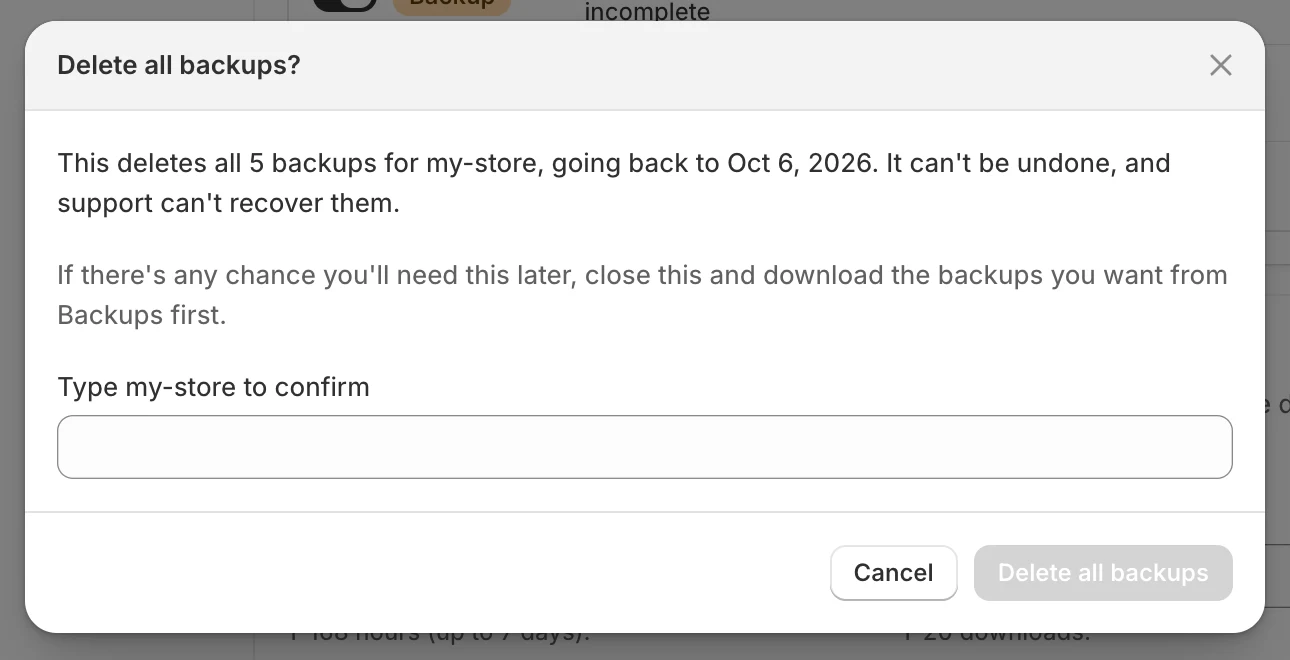
The red button stays disabled until the handle matches exactly.
Click the red Delete all backups button. It stays disabled until what you typed matches the handle exactly. Click Cancel to stop.
What happens next
Section titled “What happens next”You see Deletion started. The deletion runs in the background. This action does not use the save bar.
If it is blocked
Section titled “If it is blocked”The window stays open and shows the reason.
| Message | What to do |
|---|---|
| A backup is in progress for this store. Wait for it to finish, then try again. | Wait for the backup to end. |
| A restore is in progress for this store. Wait for it to finish, then try again. | Wait for the restore to end. |
| A download is being prepared for this store. Wait for it to finish, then try again. | Wait for the export to finish. |
| The store handle you typed does not match this store. | Check the handle and type it again. |
| Couldn’t delete backups. Please try again. | Try again. If it keeps failing, email hi@tipo.io. |
Good to know
Section titled “Good to know”- There is no way to delete a single backup. This button removes all of them.
- Backups are also deleted automatically after you uninstall the app. See Uninstalling and reinstalling.