
Choose what to back up
Turn data types on or off for future backups.
Use the What we back up card to decide which kinds of data are included in your future backups.
Change what is included
Section titled “Change what is included”In the Shopify admin sidebar, click Backup & Restore Tipo, then Settings.
Find the What we back up card. Under the title it says Counts update after each completed backup.
In the Included column, tick or untick the boxes.
Click Save in the save bar.
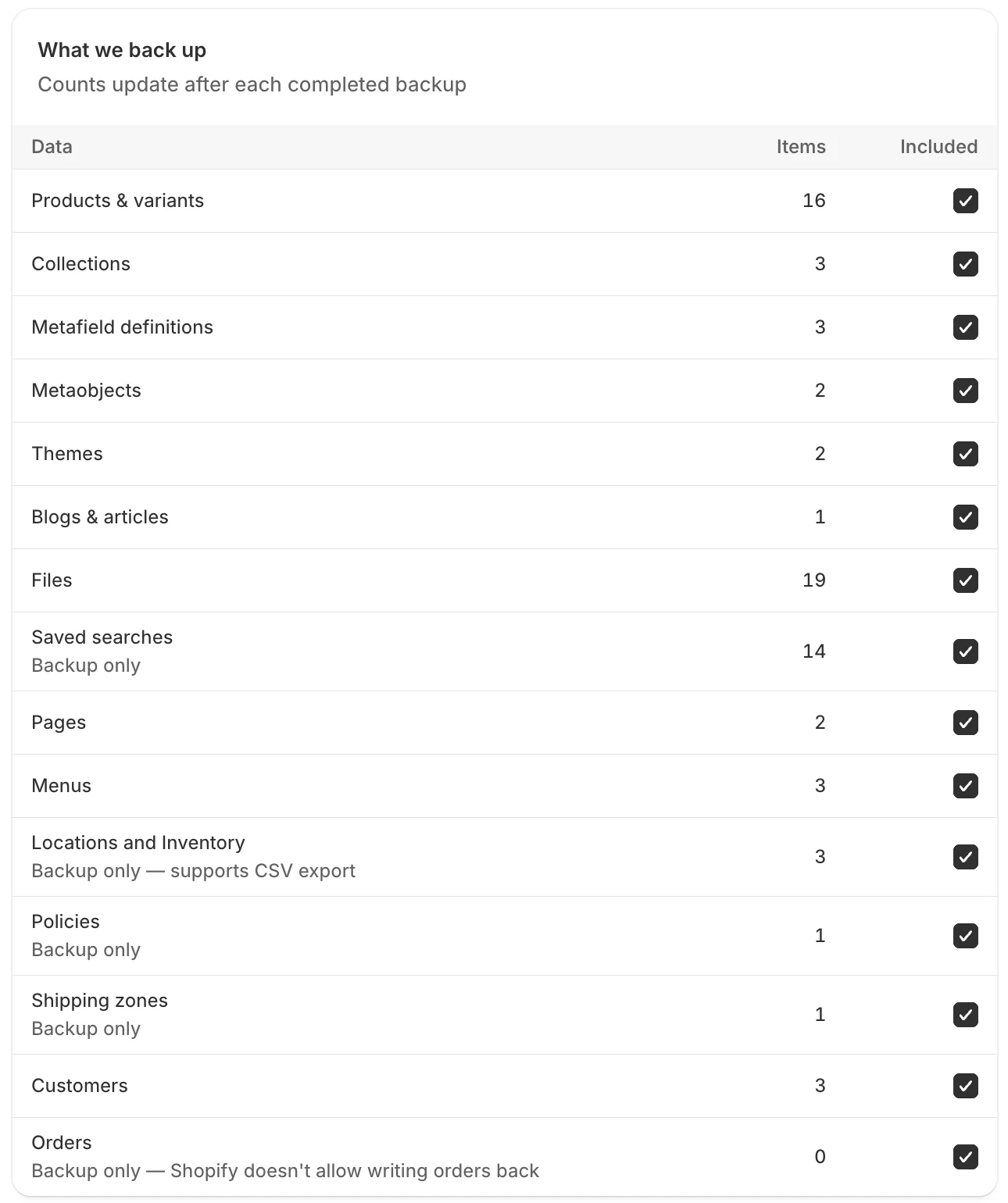
Each row has an item count and an Included checkbox.
The table
Section titled “The table”The columns are Data, Items and Included. Items is the count from your latest completed backup, and 0 before your first backup. All rows are on by default.
| Data | Notes |
|---|---|
| Products & variants | |
| Collections | |
| Metafield definitions | |
| Metaobjects | |
| Themes | |
| Blogs & articles | Articles follow this row. There is no separate row for them. |
| Files | |
| Saved searches | Shows Backup only. Saved searches are backed up and included in exports, but the app can’t restore them into your store. |
| Pages | |
| Menus | |
| Locations and Inventory | Shows Backup only — supports CSV export. The count is the number of locations. Inventory can’t be restored directly, but you can download it as a CSV. See Export inventory as CSV. |
| Policies | Shows Backup only, like Saved searches. |
| Shipping zones | Shows Backup only, like Saved searches. |
| Customers | Includes customer personal data. Untick it if you do not want that data in backups. |
| Orders | Shows Backup only — Shopify doesn’t allow writing orders back. Orders are backed up so you can download them, but they can’t be restored into your store. If you chose to back up only orders from a date, the row also shows a badge such as Start at Oct 1, 2026. |
Below the table, a note called What we can’t back up explains the limits. For example, Shopify masks gift card codes, so only the last four characters can be kept.
Order history
Section titled “Order history”During setup, the app asks How much order history? You choose All orders or Only orders from a date, with a start date before today. Orders created before that date are not backed up. You can set this only once. After it is saved, it can’t be changed. The Start at badge on the Orders row shows the date you picked.
What happens when you untick a row
Section titled “What happens when you untick a row”- The data type is left out of future backups.
- Backups you already have are not changed. They keep the data they hold.
- The column is called Included, not “Backed up”, because it controls future backups only.
For exactly what each type contains, see What we back up.
If saving fails
Section titled “If saving fails”A red banner shows the reason, or Couldn’t save settings. Click Save again, or Discard to go back to the saved values.