
Restore a single item
Bring one product, collection, page, customer or other item back to a chosen backup version from its detail page.
You can restore one item to the version stored in any backup, straight from the item’s detail page. This is the quickest way to undo a single mistake.
Where this is available
Section titled “Where this is available”The Restore button is on the detail page of these items:
- Products
- Collections
- Customers
- Pages
- Menus
- Files
- Blog posts (articles)
- Metafield definitions
- Metaobject entries
- Theme files
Blogs, metaobject definitions and themes have their own restore options. See Restore a blog or metaobject definition and Restore a theme.
Restore one item
Section titled “Restore one item”Open the item
Section titled “Open the item”In the Shopify admin, open Backup & Restore Tipo. On Home, select the data type in the Store data card, for example Products. Search for the item and select it.
Pick the backup version
Section titled “Pick the backup version”Use the Backup version list to choose the version you want to go back to. The page shows your live item beside the backup version, so you can see what would change. See Compare an item with your live store.
Select Restore
Section titled “Select Restore”Select Restore at the top of the page. The button is not available if the item has no backup version.
Choose what to restore (products only)
Section titled “Choose what to restore (products only)”For a product, the window lists what to restore. All options start ticked. Untick anything you want to keep as it is now.
| Option | What it restores |
|---|---|
| Product details | Title, description, handle, vendor, type, status, tags, theme template, SEO, category and which collections the product belongs to. |
| Media | Images, videos and 3D models, in the order they were in. Which image each variant uses is restored with Options and variants. |
| Options and variants | Option names and values, plus each variant’s SKU, barcode, tax setting, inventory policy and the image assigned to it. |
| Prices | Each variant’s price and compare-at price. |
| Metafields | Custom fields stored on the product. |
| Sales channels | Which sales channels the product and each variant are published to, including scheduled publish dates. |
If you untick everything, the Restore button is disabled.
Inventory quantities and locations are not restored.
Confirm
Section titled “Confirm”The window Restore this item? asks whether to restore the item to the version from the backup you picked, and says: This overwrites the current live data. Select Restore to continue, or Cancel to stop.
Wait for the result
Section titled “Wait for the result”You see Restoring… while it runs. When it finishes, the window shows Restored successfully with a Done button. Select Done to close it. For most items the window also closes by itself after a moment. The live column on the page refreshes to show your new values.
No email is sent for a single-item restore, because the window already shows the result. If you close the window while the restore runs and open it again, it shows the progress. Otherwise it opens at the start.
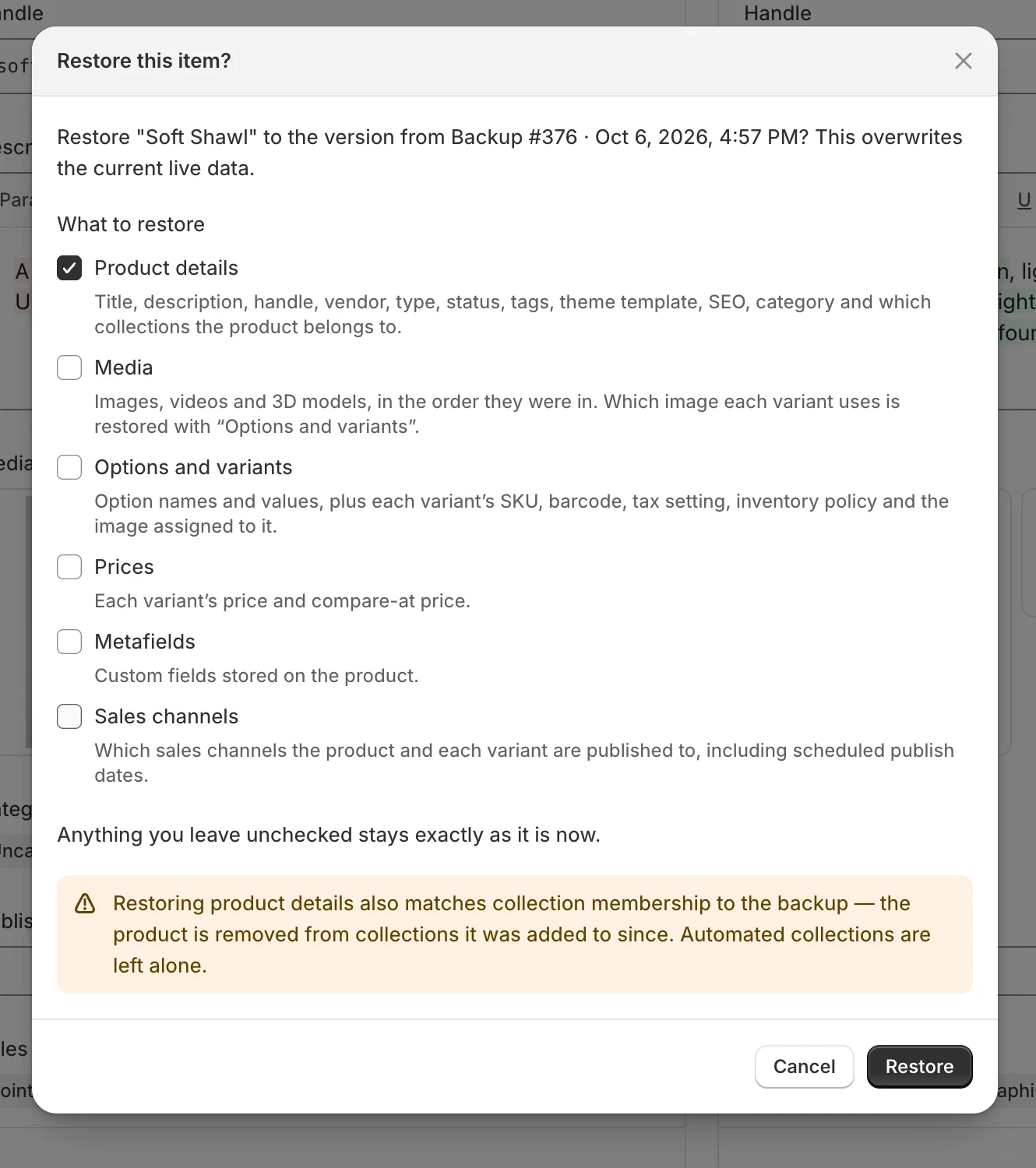
Untick the options you do not want to change before you restore a product.
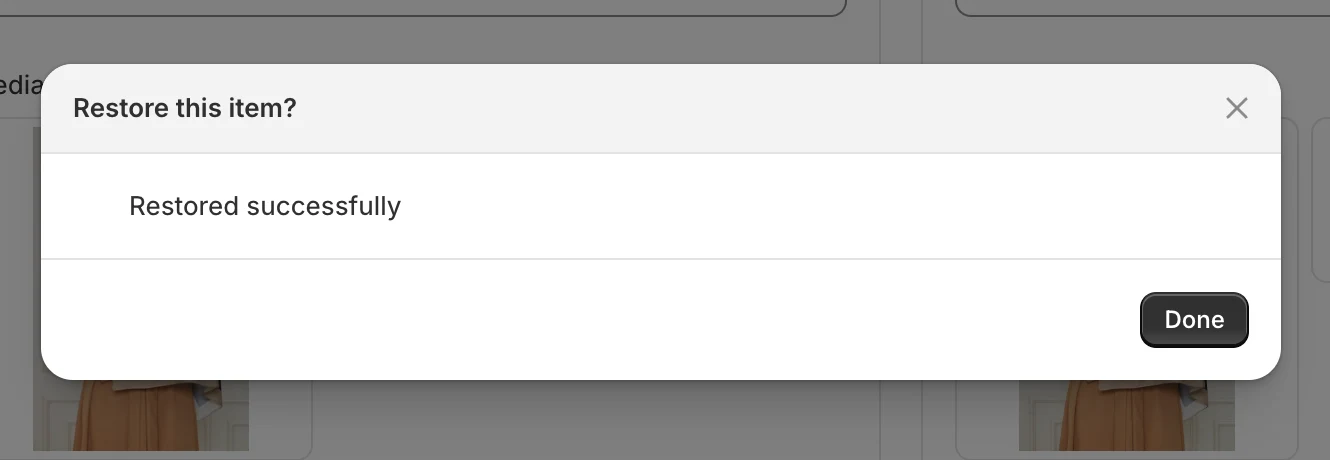
The window shows Restored successfully and a Done button when the item is back.
Restore a file’s content
Section titled “Restore a file’s content”For a file, the default is to restore only its details, such as alt text. The window then does one of these:
- If the app could compare the file and its content changed, it says: This file’s content has changed since the backup and will be restored too.
- If the app could not check the content because the file is too large or not a safe type to check, it shows the box Also replace the file’s content. It is unticked by default. Tick it to replace the file with the backed-up version.
Metafield definitions keep their category assignments
Section titled “Metafield definitions keep their category assignments”Restoring a metafield definition updates its validation, options and access, but not which product categories it applies to (category assignments). Set those in Shopify admin if you need them to match.
There is no safety backup here
Section titled “There is no safety backup here”A single-item restore writes directly. It does not take a safety backup first. If you want a copy of your store before you restore, select Back up now on Home first. See Back up now. To restore several items with a safety backup, use Restore selected items from a list.
Deleted items come back with a new ID
Section titled “Deleted items come back with a new ID”If the item no longer exists in your store, restoring recreates it. Shopify gives it a new ID, so links and apps that pointed to the old ID will not pick it up automatically.
What you might see
Section titled “What you might see”| Message | What it means |
|---|---|
| Restored successfully | The item now matches the backup version. |
| Nothing was restored: Your live store already matches this backup version for everything this restore was asked to change. | There was nothing to change. |
| Nothing was restored: This backup does not include sales channel data. | An older backup did not capture sales channels. Run a new backup, then restore again, or restore a different option. |
| Nothing was restored: This item depends on something that isn’t in your store anymore. | For an article, this is its blog. Restore the blog first, then try again. See Restore a blog or metaobject definition. |
| Nothing was restored: This backup doesn’t record which blog the article belonged to, so it can’t be recreated. | Restore from a newer backup. |
| Nothing was restored: This theme no longer exists in your store, and restore can’t rebuild a deleted theme. | The theme was deleted from your store. Open it under Themes and restore the whole theme as a new theme. See Restore a theme. |
| Nothing was restored: Theme restore is currently unavailable, so this theme was left unchanged. Your backup is safe. | The app can’t write theme files until Shopify approves its theme-write permission. Try again later. |
| Restored, with some files failing | Some theme files were restored and some were not. The failed files are listed. Restore again to rewrite only what still differs. |
| Restored, with some items left unchanged | Some items were restored and some could not be. |
| A restore is already in progress for this store. | Wait until it finishes. See Restore history and details. |
| You’ve reached today’s limit of N single-item restores. | You can start 20 single-item restores in 24 hours. Try again at the time shown, or contact us to raise the limit. See Usage and limits. |
| Restore failed | Something went wrong. Select Try again. If it keeps failing, contact hi@tipo.io. |