
Restore from an exported file
Upload a .zip file you exported earlier and restore from it with the same restore wizard.
If you downloaded a backup earlier, you can upload that .zip file and restore from it. This is useful when the backup is no longer in your list, for example after it passed the 30-day retention period.
Before you start
Section titled “Before you start”- You need a .zip file you downloaded from the app. See Download a backup.
- Themes can only be restored from an unchanged export that this app made for this store. Theme files in any other .zip are left out.
- The file can be up to 200 MB.
- You can start 5 uploads in 10 minutes for your store.
- The app keeps an uploaded file for about 24 hours. After that, upload it again.
- Only one restore can run at a time, and not while a backup is running.
Upload the file
Section titled “Upload the file”Open the Backups page
Section titled “Open the Backups page”In your Shopify admin, select Apps, then open Backup & Restore Tipo. On Home, select Restore from a backup in the Store data card.
Select Restore from a file
Section titled “Select Restore from a file”Select Restore from a file in the page header. The Upload a previously exported file window opens.
Choose and upload your file
Section titled “Choose and upload your file”Select Choose file and pick your .zip. The window shows Selected file with the file name. To pick another file, select Change file. Then select Upload.
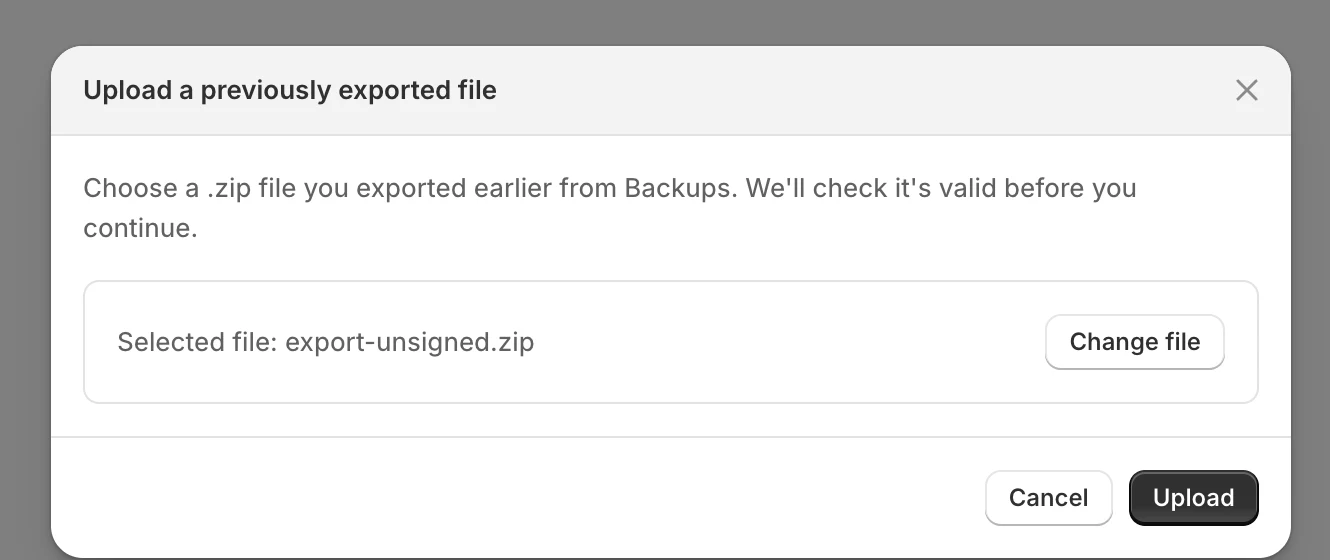
Choose a .zip file, then select Upload.
Wait while we check the file
Section titled “Wait while we check the file”You see Uploading…, then Checking this file…. Larger exports take longer.
Read what we found
Section titled “Read what we found”When the check ends, the window shows File is ready and a table of what is inside, with the number of items for each resource.
Look for these warnings:
- Unverified file. The warning reads: “This file was not exported by this app for this store, or it was changed after export. You can still restore its data, but review what it will change first.” Every export the app makes is signed for your store. A file you edited, an export from another store, or a file from another source fails this check.
- Themes left out. The warning reads: “Themes in this file were left out. A theme can only be restored from an export this app made for this store.” It appears when an unverified file contains theme files.
- Not restorable yet. Some data types in the file cannot be restored by the app yet. They are listed here and are ignored.
Select Continue
Section titled “Select Continue”The restore wizard opens with your file as the source. Cancel, Escape and clicking outside the window all discard the uploaded file.
Finish in the restore wizard
Section titled “Finish in the restore wizard”The wizard works as described in Restore from a backup (restore wizard). For an uploaded file, you will also notice:
- A warning on the scope step: This file was uploaded, so it may not match an export from this app. Restoring it can change prices, customer records, and theme code. For an unverified file it reads instead: This file was not exported by this app for this store, or it was changed after export. Its themes are not restored. Restoring the rest can change prices and customer records.
- If you restore Customers or Themes, you must tick I understand this file can change customers and theme code on the review step. Customers are matched by email. A theme from the file is written into an unpublished copy of the same theme in your store, never into the theme itself.
- For an unverified file, you must also tick I reviewed this file and want to restore it anyway on the review step. The restore button stays disabled until you do.
- In Restore history and details, a restore from an unverified file shows an Unverified file badge next to its source.
Choose a safety backup too. See Safety backups and undoing a restore.
Start from a list instead
Section titled “Start from a list instead”You can also start from a data list. Tick items on a list such as Products, select Restore, and in the Choose a backup to restore from window select Or from a file I exported earlier. The upload window opens, and the wizard is limited to the items you ticked. See Restore selected items from a list.
If something goes wrong
Section titled “If something goes wrong”| What you see | What to do |
|---|---|
| Zip files only. | Choose a .zip file. |
| An upload is already being validated for this store. | Wait for the current check to finish. |
| You’ve uploaded several files in a short time. Wait a few minutes, then try again. | Wait about 10 minutes. |
| This file couldn’t be used. | The file is not a valid export. Download a fresh export and try again. |
| Themes can only be restored from an export this app made for this store. This file is not one, or it was changed after export. | The file holds only theme files, and it is not an unchanged export of this store. Download a fresh export of the theme from the app and upload that. |
| Something went wrong. Please try again. | Try again. If it keeps failing, contact support. |
| This upload is no longer available to restore. | The 24-hour period has passed. Upload the file again. |