
Check your protection status
Read the status card to see whether your store is backed up, when the last and next backups run, and what is running now.
The status card at the top of Home answers one question: is my store backed up? It also shows when the last backup finished, when the next one runs and what is happening right now.
The states
Section titled “The states”The card has a green shield on the left and a Back up now button. The heading and badge show one of five states:
| State | Heading | Badge | When you see it |
|---|---|---|---|
| No backup yet | Your store isn’t backed up yet | Not backed up | No backup has completed yet. The card says No backup yet — run one now to protect your store. Under it, either when the next backup runs or No backup is scheduled yet — set a schedule in Settings. |
| First backup running | Backing up your store | In progress | Your first backup is running and none has completed yet. |
| Backed up | Your store is backed up | Protected | Your last successful backup finished less than 24 hours ago. |
| Outdated | Your backup may be outdated | Outdated | Your last successful backup finished more than 24 hours ago. Select Back up now, and check your Backup schedule. |
| Needs attention | Your backup needs attention | Action needed | Your most recent backup failed, but an earlier one succeeded. That earlier backup still protects your store. Check your email for the reason, then try again. See Backup problems. |

After a backup completes, the card shows Protected with the last and next backup lines.
Under the heading, the card shows two lines:
- When no backup is running: Last backup with the date and time, the size and how long it took, then Next backup with the time. For example: Last backup today at 4:58 PM · +589 KB · took 58s, then Next backup tomorrow at 6:00 AM. and Runs automatically, nothing for you to do.
- While a backup is running: a line such as Backing up now · 0 of 15 data types copied · started 5:14 PM, then Nothing to do — you can close this page. and a note that your previous backup still covers the store until this one finishes. The button shows a spinner.
Reading the last and next backup lines
Section titled “Reading the last and next backup lines”- Last backup shows the date and time. If it finished today, it says today. The size is the storage that backup added, shown like +12.3 MB, or a dash if it isn’t known yet.
- Next backup says today at a time, tonight at a time, tomorrow at a time, or a date and time.
- Times follow the time zone you chose for your schedule: your store time zone or UTC. Change it in Backup schedule.
Back up now
Section titled “Back up now”Select Back up now to start a backup straight away. For the full guide, see Back up now.
While a backup runs:
- The line under the heading changes to Backing up now and counts the data types copied so far. If this is your first backup, the heading also changes to Backing up your store. If you already have a backup, the heading and badge stay as they were, because your earlier backup still protects the store.
- In Store data, each data type shows Waiting, then Backing up…. Several data types can back up at the same time. As soon as one finishes, its record count and size appear.
- The line under the heading tells you that your previous backup (for example Your Oct 6, 4:58 PM backup still covers the store until this one finishes.) still protects the store until this one finishes.
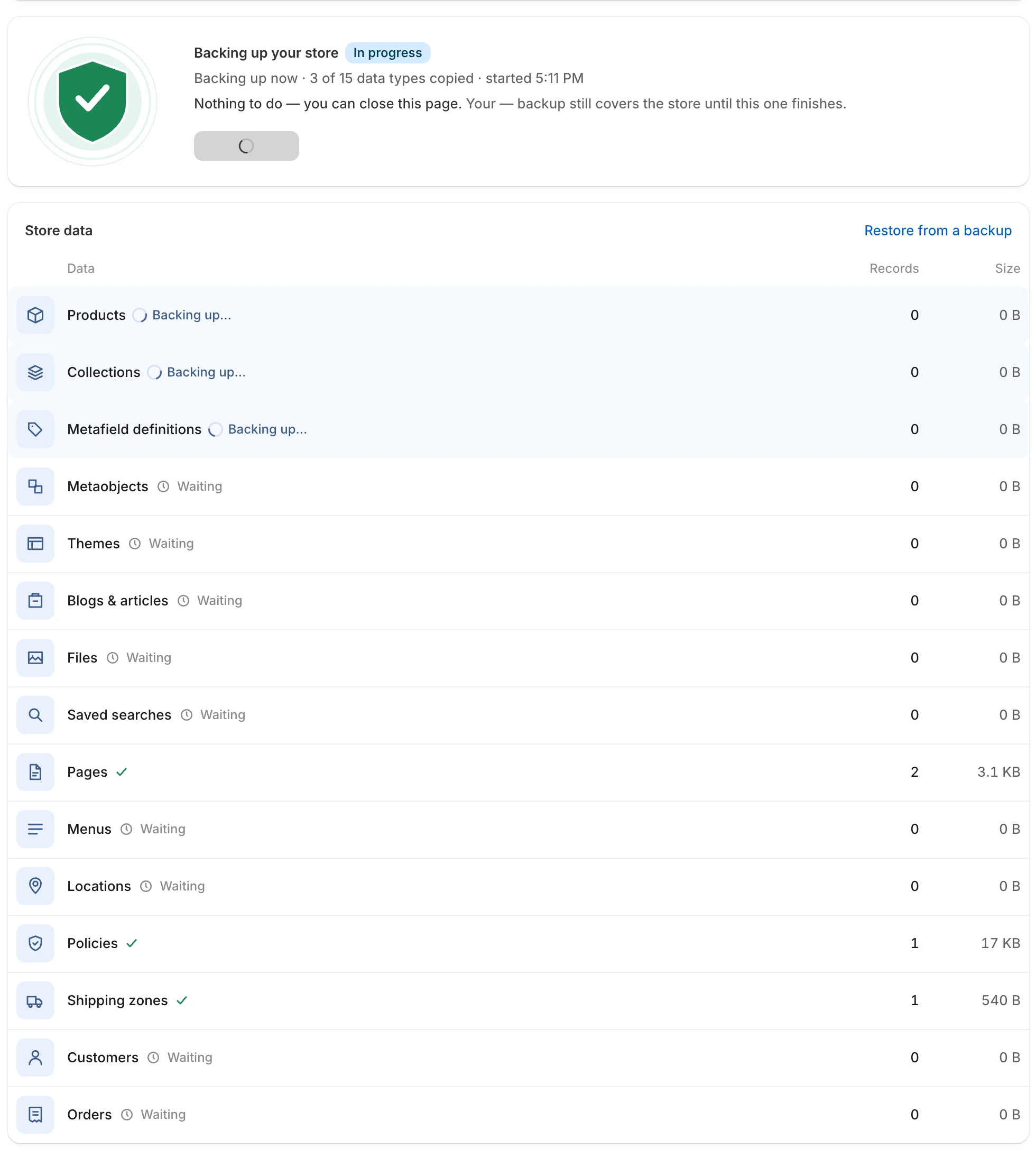
You can close the page. The backup keeps running.
When the backup finishes successfully, a Backup completed message appears at the bottom of the screen.
A running backup also survives a page refresh. When you open Home, the app finds a backup that is already running, including a scheduled one, and shows its progress. The progress refreshes every few seconds.
Take a snapshot
Section titled “Take a snapshot”The Take a snapshot before your next big change card has a Take a snapshot link. It starts the same backup as Back up now. It is not a different kind of backup. Use it before a big change such as a theme edit or a bulk import.
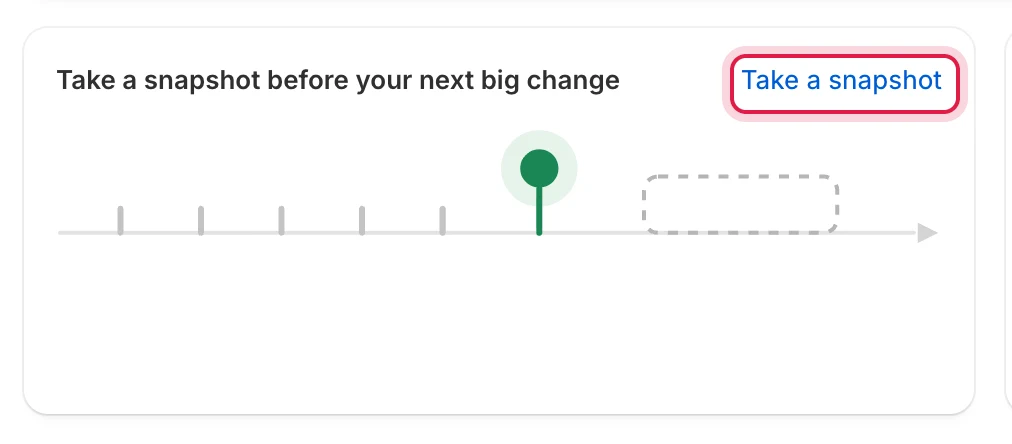
Take a snapshot starts the same manual backup as Back up now.
Only one backup can run at a time. While one is running, Back up now and Take a snapshot are disabled.
Banners on Home
Section titled “Banners on Home”A red banner at the top of Home appears when something goes wrong.
| Message | What it means |
|---|---|
| Could not start the backup. Try again. | The backup didn’t start. Try again. If it keeps happening, you may have reached today’s limit of manual backups or switched every data type off. See Backup problems. |
| A backup is already in progress for this store. | A backup is running. Wait for it to finish. |
| A restore is in progress for this store. Wait until it finishes before starting a backup. | A restore is running. Wait for it to finish. |
| The backup finished with an error. | The run failed. Check your email for the failure message, then try again. |
| Your store is over the plan limit | A yellow banner. Your store uses more than the free offer includes, for example more than 1 GB of storage. Backups and restores keep running. Select Contact us and the team will raise your limits. See Usage and limits. |
| Automatic backups are paused | Your store is far over its limit. Scheduled backups have stopped, but you can still back up manually and restore. Select Contact us to raise your limits. |
A backup that finishes with warnings counts as a success on Home. You can see which items were skipped in your Backups list.