
Safety backups and undoing a restore
Choose between Full, Incremental and Skip safety backups, and undo a restore by restoring its safety backup.
A safety backup is a backup of your store taken just before a restore writes anything. If the restore turns out wrong, you can restore the safety backup to go back.
What a safety backup is
Section titled “What a safety backup is”- It appears in your Backups list with the trigger Pre-restore.
- It runs even when your store is over its storage limit, and it doesn’t count toward your daily limits.
- The restore starts only after the safety backup finishes. If the safety backup does not finish, nothing is written to your store.
Choose a type
Section titled “Choose a type”You pick the type in the Safety backup before restoring option on the review step.
| Option | What it does |
|---|---|
| Full | Snapshots everything this restore will touch. It is the slowest option. The restore then compares against an exact copy of your store and skips unchanged items without asking Shopify. |
| Incremental | Snapshots only what changed since your last backup. It is faster. The restore checks each item against your live store. |
| Skip | Starts right away without a safety backup. |
When your store has backup history, the option shows an estimate such as Usually about 2 minutes on this store.
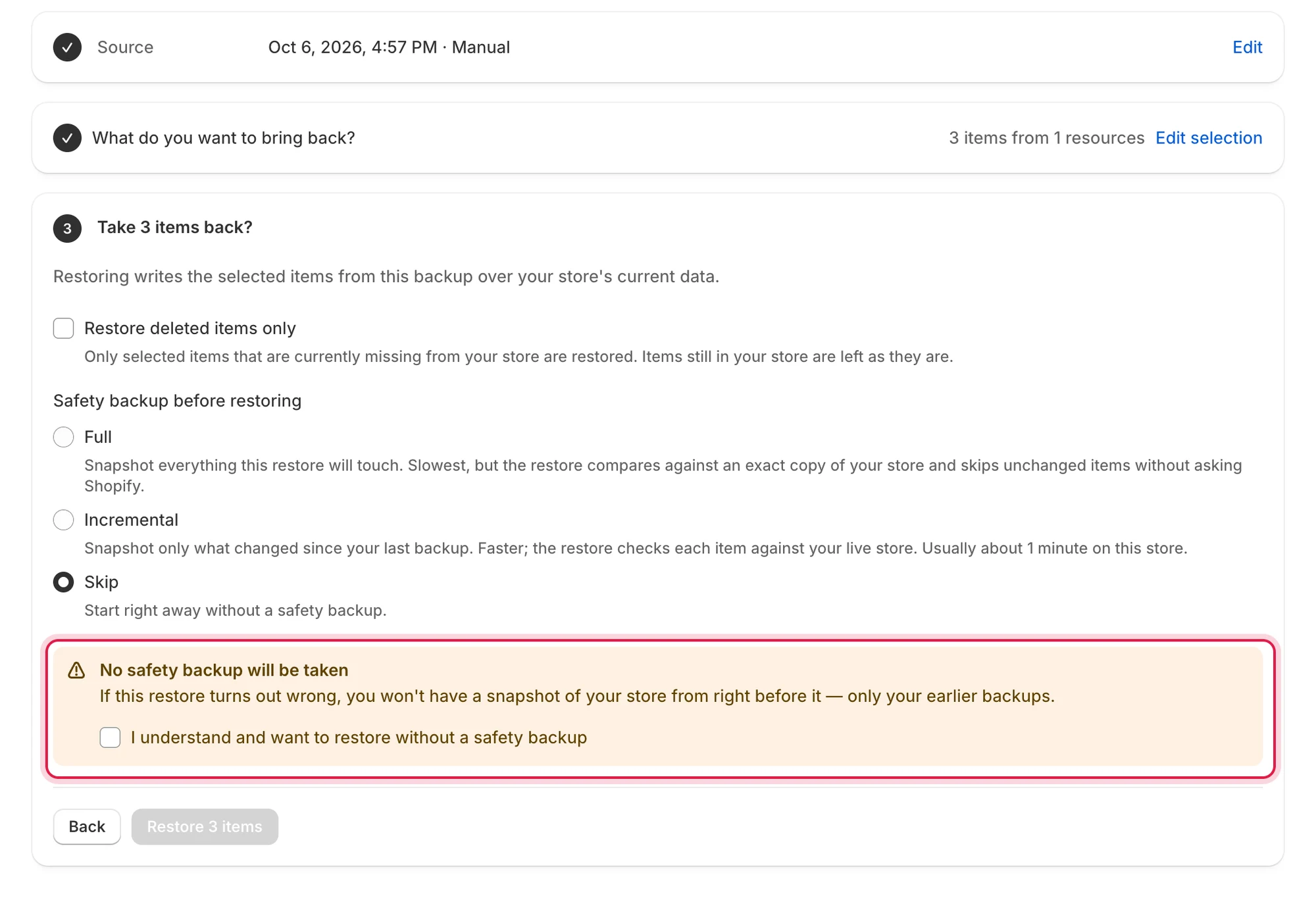
Choosing Skip shows a warning and a checkbox you must tick.
What is chosen by default
Section titled “What is chosen by default”| Where you restore | Default |
|---|---|
| Restore wizard (Restore from a backup) | Full when you restore more than 500 items, otherwise Incremental. |
| Theme, blog and metaobject definition windows (theme, blog or metaobject definition) | Skip |
| Restoring a single item (Restore a single item) | No safety backup is offered. |
If you choose Skip
Section titled “If you choose Skip”A warning titled No safety backup will be taken appears: “If this restore turns out wrong, you won’t have a snapshot of your store from right before it — only your earlier backups.” Tick I understand and want to restore without a safety backup. The restore button stays disabled until you do.
Undo a restore
Section titled “Undo a restore”Open the result
Section titled “Open the result”When the restore finishes, the result screen shows a line such as Safety backup taken at 3:05 PM — restore it to undo these changes. You can also open the restore from Restore history and details.
Select Restore safety backup
Section titled “Select Restore safety backup”The restore wizard opens with the safety backup as the source.
Choose what to bring back and confirm
Section titled “Choose what to bring back and confirm”Follow the steps in Restore from a backup (restore wizard). Choose a safety backup for this new restore too, so you can undo it if needed.
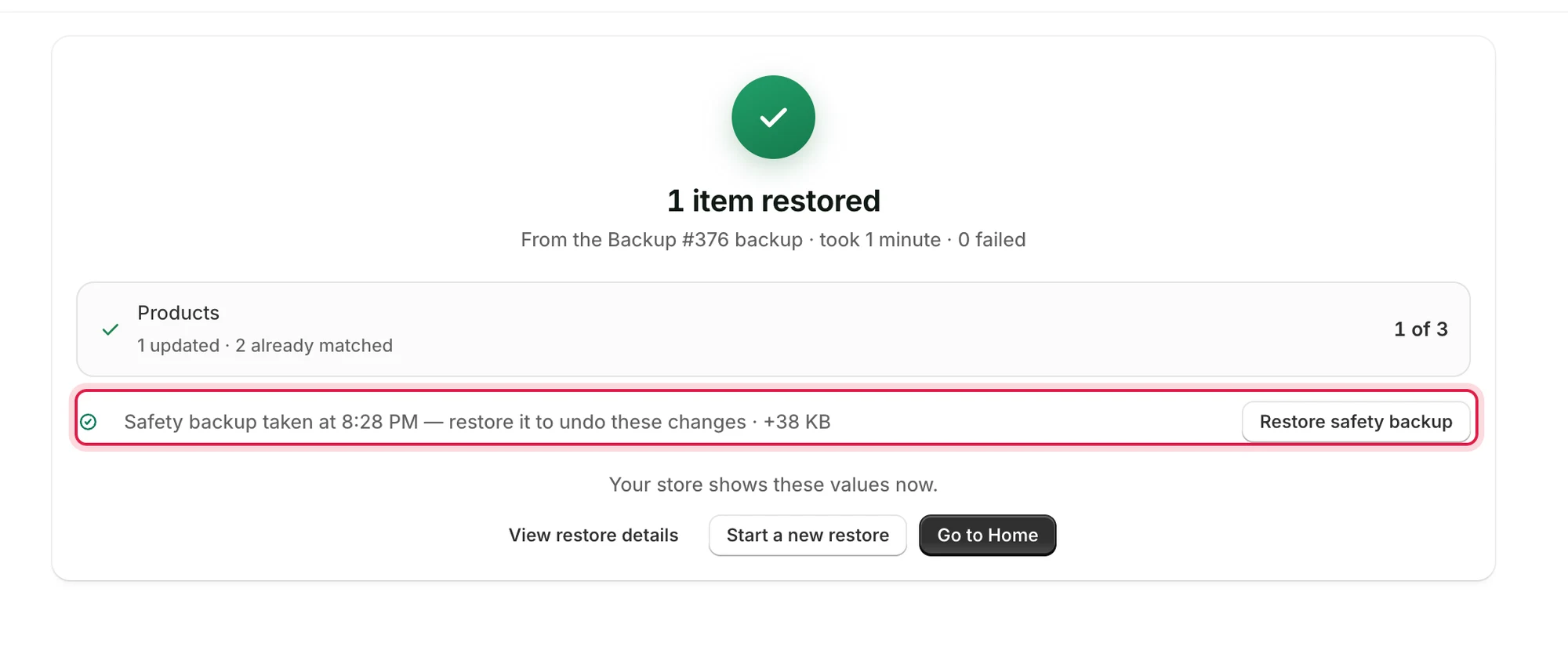
The Restore safety backup button opens the wizard on the backup taken before the restore.
If the safety backup did not finish
Section titled “If the safety backup did not finish”The result screen tells you what happened:
- The safety backup did not finish, so nothing was written to your store. The restore did not start writing. It is safe to try again.
- The safety backup did not finish — it cannot undo this restore. The restore ran, but the safety backup is incomplete. To go back, restore one of your earlier backups.
- No safety backup was taken for this restore. To undo it, restore from one of your earlier backups. You chose Skip.