
Email notifications
Choose who receives emails from Backup & Restore Tipo and which events send one.
Choose which email addresses receive messages, and which events send an email.
Change your notifications
Section titled “Change your notifications”In the Shopify admin sidebar, click Backup & Restore Tipo, then Settings.
Find the Notifications card.
Edit Send to and tick the events you want under Send an email when.
Click Save in the save bar.
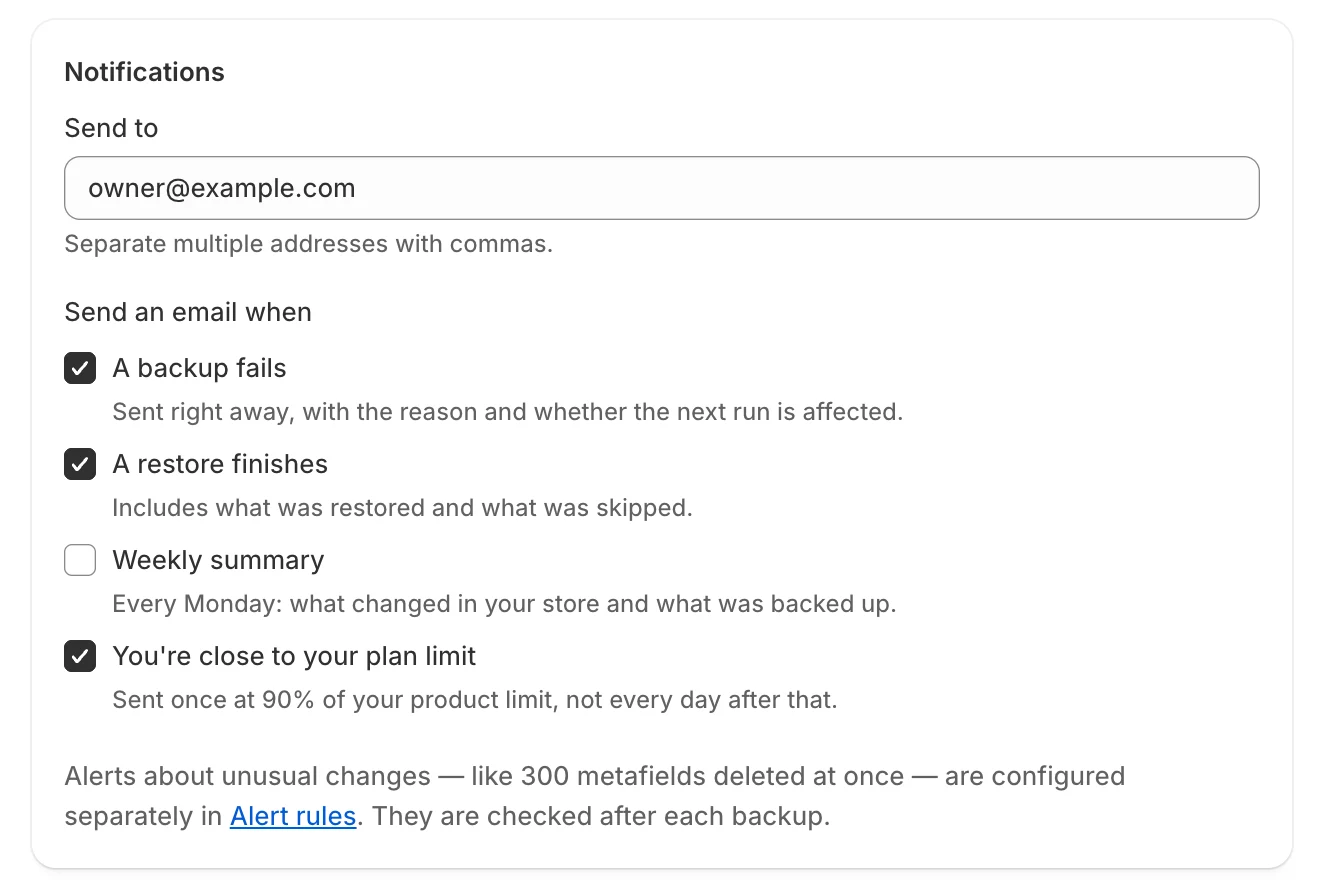
The Notifications card has the Send to field and the event checkboxes.
Send to
Section titled “Send to”Type one or more email addresses in Send to. Separate several addresses with commas.
- Invalid addresses are dropped without a warning. A typo does not stop the other addresses from working, so check the list after you save.
- You can use up to 5 addresses.
- If the field is empty, or has no valid address, notification emails go to your store’s contact email from Shopify.
- If nothing was saved yet, the field starts with your store’s contact email.
Export download links are also sent to this address. See Download link settings.
Send an email when
Section titled “Send an email when”| Event | What you get | Default |
|---|---|---|
| A backup fails | Sent right away, with the reason and whether the next run is affected. | On |
| A restore finishes | Includes what was restored and what was skipped. Sent when a restore completes, completes with errors, or fails. | On |
| Weekly summary | Every Monday: what changed in your store and what was backed up. It arrives on Monday from 8:00 AM, store time, and covers the previous Monday to Sunday. | On |
| You’re close to your plan limit | Sent once at 90% of your product limit, not every day after that. It also covers your 1 GB storage limit. It can be sent again after your usage drops below 80%. | Off |
Emails you always get
Section titled “Emails you always get”Some emails can’t be turned off. You get one when your store goes over its storage or product limit, another when it goes far over and automatic backups pause, and one when Shopify forwards a customer’s data request. See Usage and limits.
You also get a one-time email, Your first backup for your store is done, when your store’s first backup finishes. It is sent once, whatever you tick under Send an email when.
Alert rules
Section titled “Alert rules”Alerts about unusual changes, like many items deleted at once, are set up separately. See Alert rules.