
Reports
AI Overview
Reports in the Tipo app let you export store data and spot inventory issues without checking products one by one. You choose a report type, select the data, and generate a CSV file. When the export finishes, Tipo emails a download link to your Shopify account email address.
View moreView less
- Open the app and click Reports, then choose Product, Location, Threshold, Out of Stock, No Recent Inventory Updates, or Dead Stock.
- Select the data to export, then click Generate report.
- For the Product report, include all products or specific ones; the message Task created successfully appears.
- All reports download as CSV files that open in Excel or Google Sheets.
Summary generated by AI. It can make mistakes, so check the full guide below.
✅ What Reports does
Section titled “✅ What Reports does”Reports help you export store data and spot inventory issues fast without manually checking products one by one.
In Tipo app > click Reports, you can:
- Export data (for CSV import or analysis)
- Identify products that need attention (out of stock, dead stock, no recent updates, etc.)
📊 How to generate a report
Section titled “📊 How to generate a report”- In Shopify Admin, open Apps > open Inventory Sync, Multi store TP app
- Click Reports in the left menu
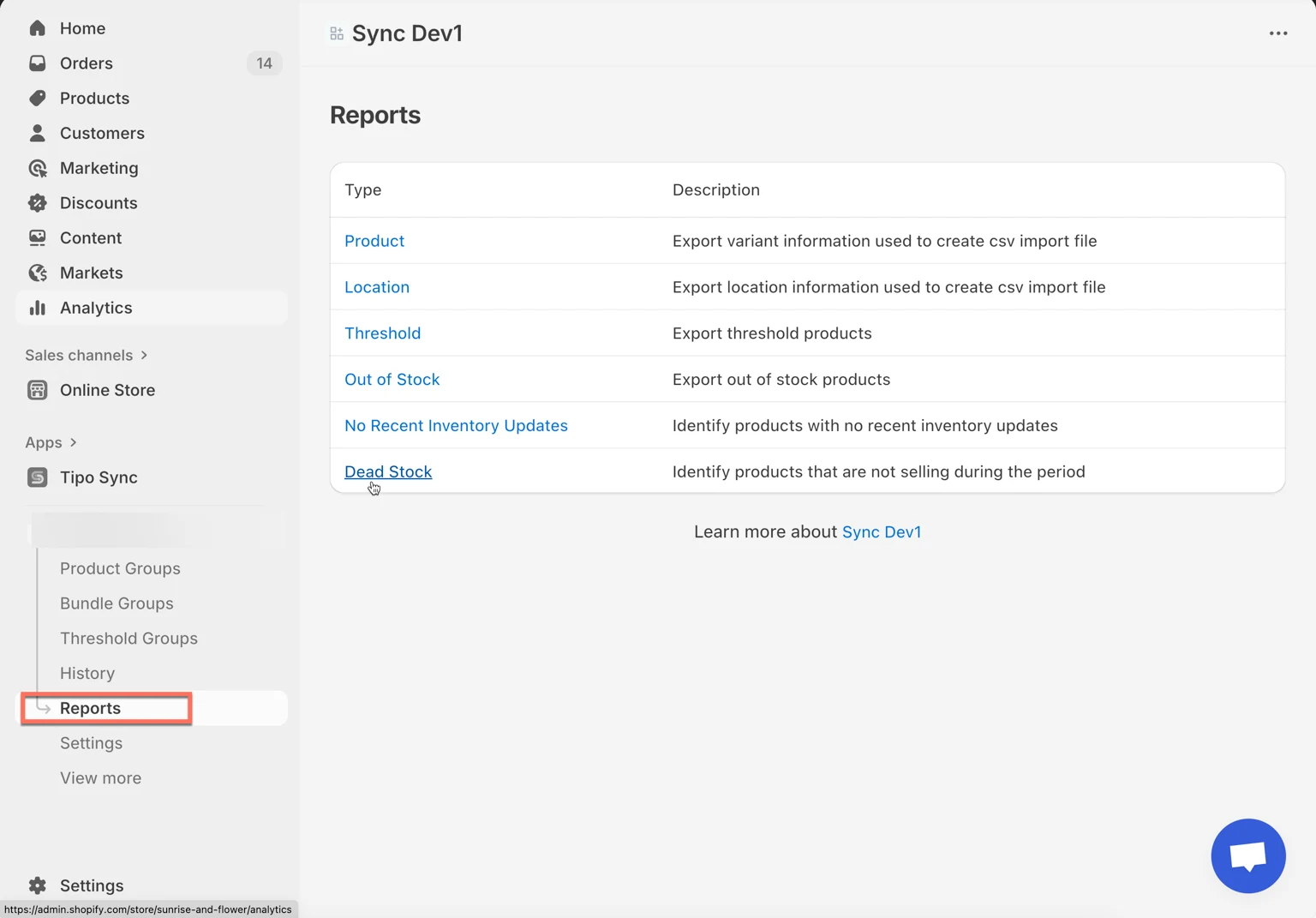
- Select one of the report types:
- Product: exports product + variant information (useful for CSV imports)
- Location: exports your Shopify locations (useful for inventory mapping/import)
- Threshold: exports products that are below a defined stock threshold
- Out of Stock: exports products with 0 inventory
- No Recent Inventory Updates: finds products that haven’t had inventory updates recently
- Dead Stock: identifies products that are not selling during a selected period
- Select the data you want to export
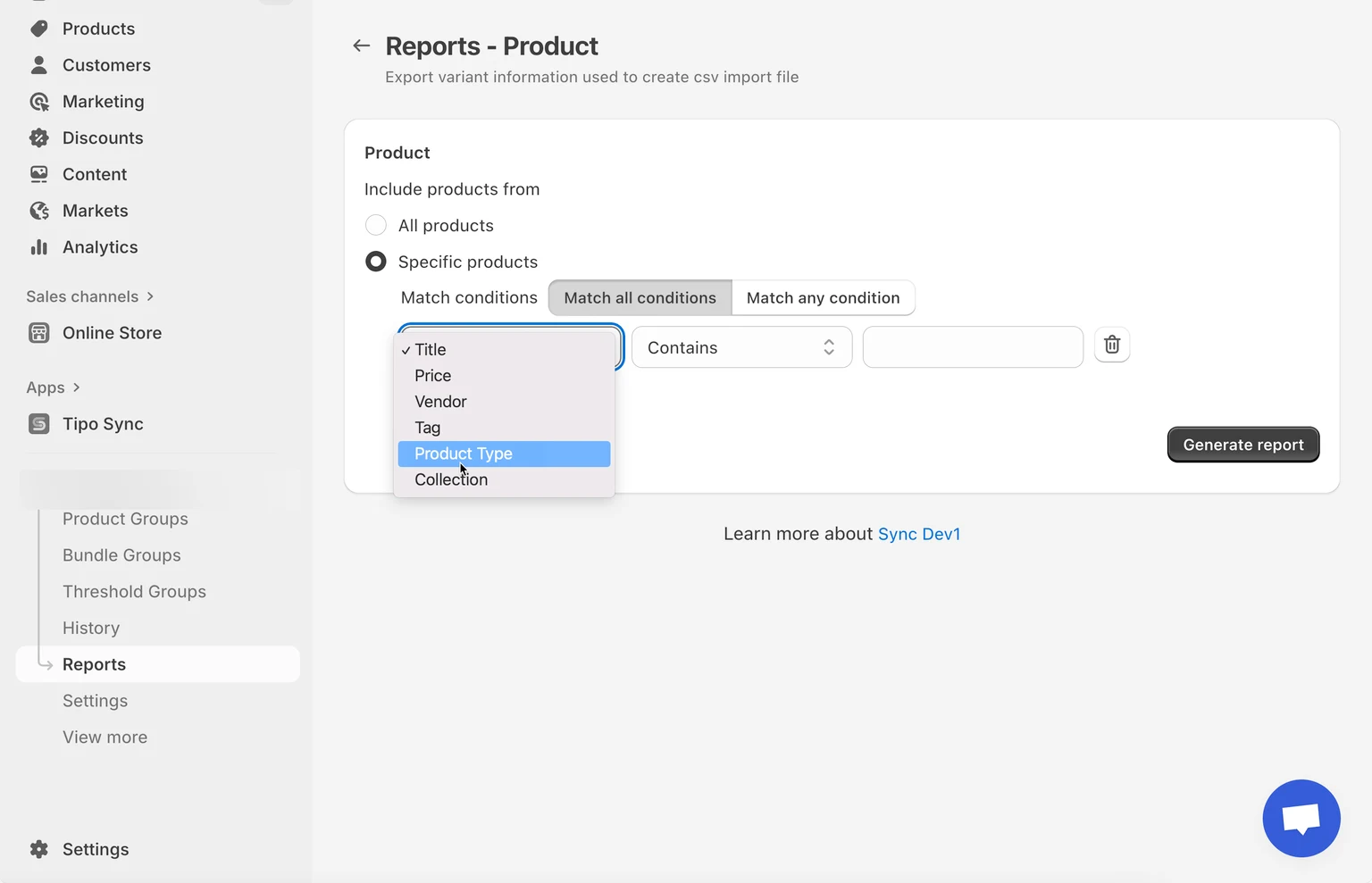
- Click Generate report
✅ After export
Section titled “✅ After export ”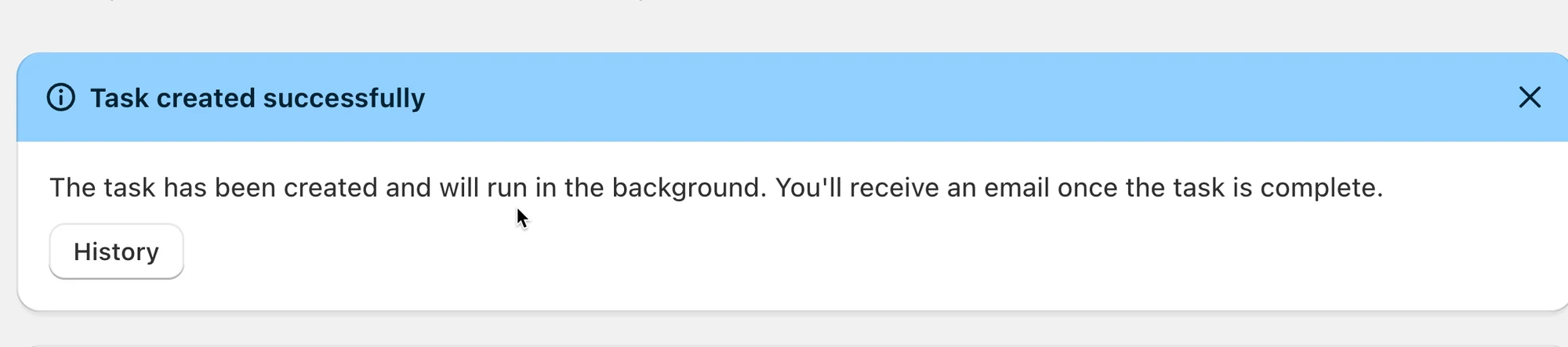
All reports are exported in CSV format, which can be opened in Excel or Google Sheets.
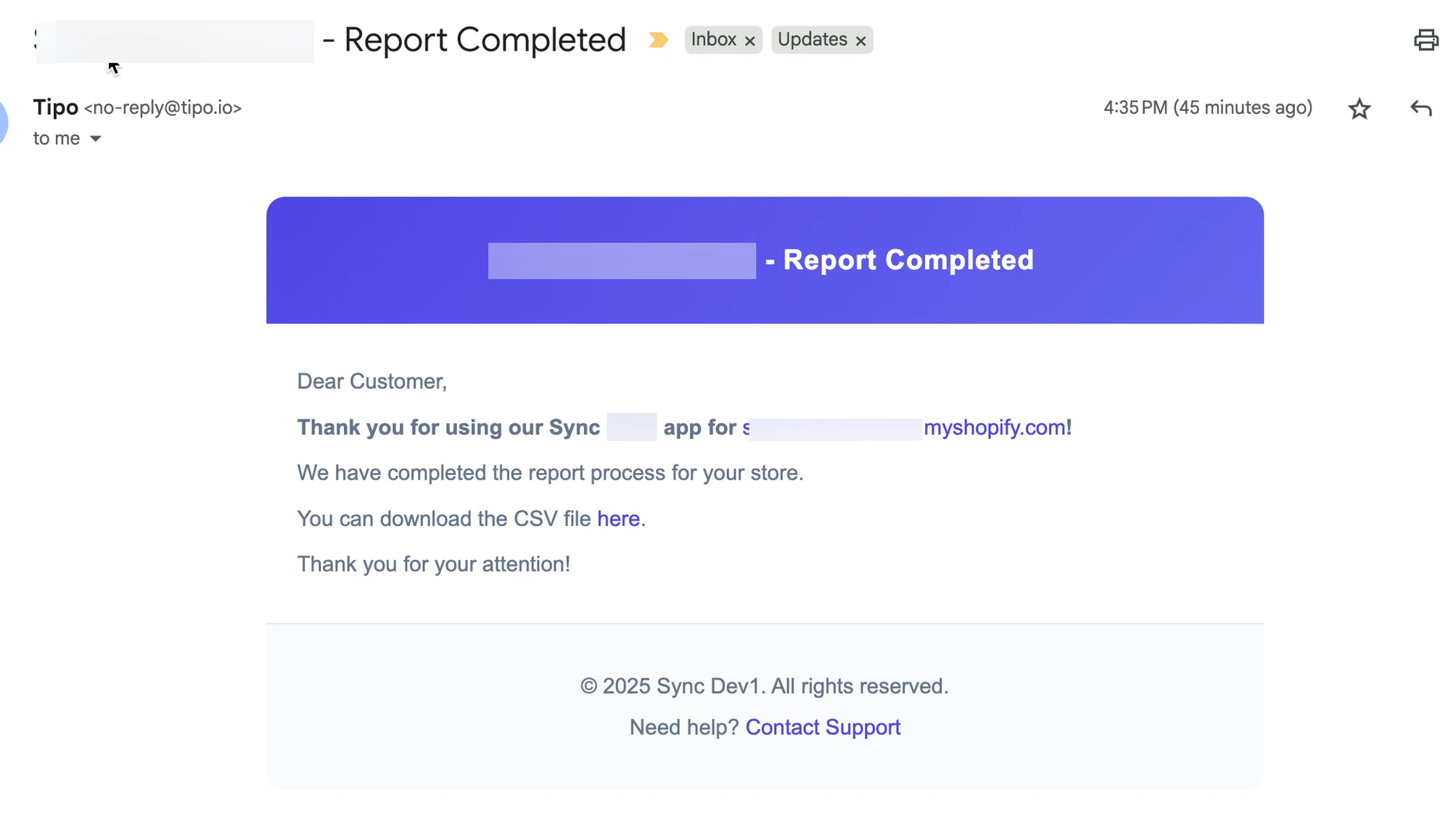
When you export data from Tipo Sync, the system will automatically send an email to your Shopify account once the export process is complete.
The email will include a download link for the exported CSV file.
Example email:
🧾 Example: Product report
Section titled “🧾 Example: Product report”Steps
- In Reports, click Product
- Choose what to include:
- All products (fastest option)
- Specific products (use this if you only want a few items)
- Click Generate report
You’ll see a message like “Task created successfully”.
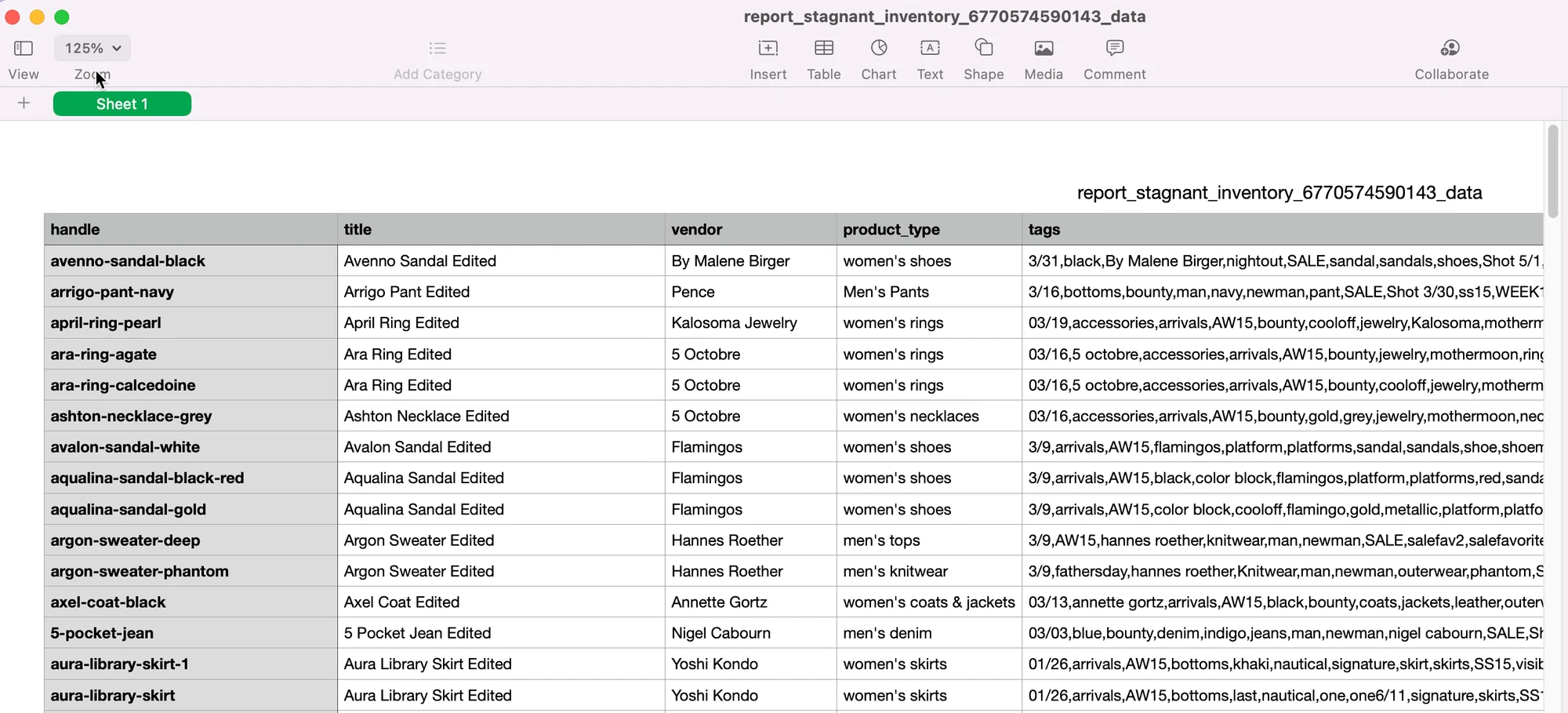
The Product report exports a spreadsheet-style table like this:
Common columns you’ll see:
- handle — the product handle (used to match/update products in Shopify)
- title — product title
- vendor — brand/vendor name
- product_type — product category/type
- tags — tags assigned to the product
🙋 Still need support?
If you still need help, please feel free to contact us at hi@tipo.io. We’ll be happy to assist you further.