
Set up inventory and order sync
AI Overview
Explains where to enable and manage Inventory Sync and Order Sync in the Source store settings of the Tipo app. You choose one strategy: one-way, two-way, draft order, or order sync. It also outlines how products and locations are matched and how orders are imported.
View moreView less
- In the Source store, open Settings, enable Sync Inventory and Orders and select one strategy, then click Save.
- Options are One-Way, Two-Way, Draft Order Sync + One-Way, or Order Sync + One-Way Inventory Sync.
- Products are matched by the identifier you selected, such as Handle, SKU or Barcode, which must be the same in every store.
- Inventory follows your location setup; use the same location names or map locations.
- Order sync usually happens only at creation; later fulfillment or payment updates are not synced.
Summary generated by AI. It can make mistakes, so check the full guide below.
- Inventory syncing rules
- Order syncing behavior (Destination → Source)
Use these settings when you want the Source store to control:
This guide explains where to enable and manage Inventory Sync and Order Sync from the Source store settings.
🛠️ Set up inventory & order sync in Source store
Section titled “🛠️ Set up inventory & order sync in Source store ”- Open the app in Source store > click Settings
- In Sync Inventory and Orders, enable the section and select one strategy
- ➡️ One-Way Inventory Sync
Sync inventory from Source → Destination store(s) only. - 🔁 Two-Way Inventory Sync
Sync inventory both ways. Changes in either store update the other store. - 🧾 Draft Order Sync + One-Way Inventory Sync
If an order is created in a Destination store (for synced products), the app will create a draft order in the Source store.
Inventory still syncs Source → Destination. - 🛒 Order Sync + One-Way Inventory Sync
If an order is created in a Destination store (for synced products), the app will create a real order in the Source store.
Inventory still syncs Source → Destination.
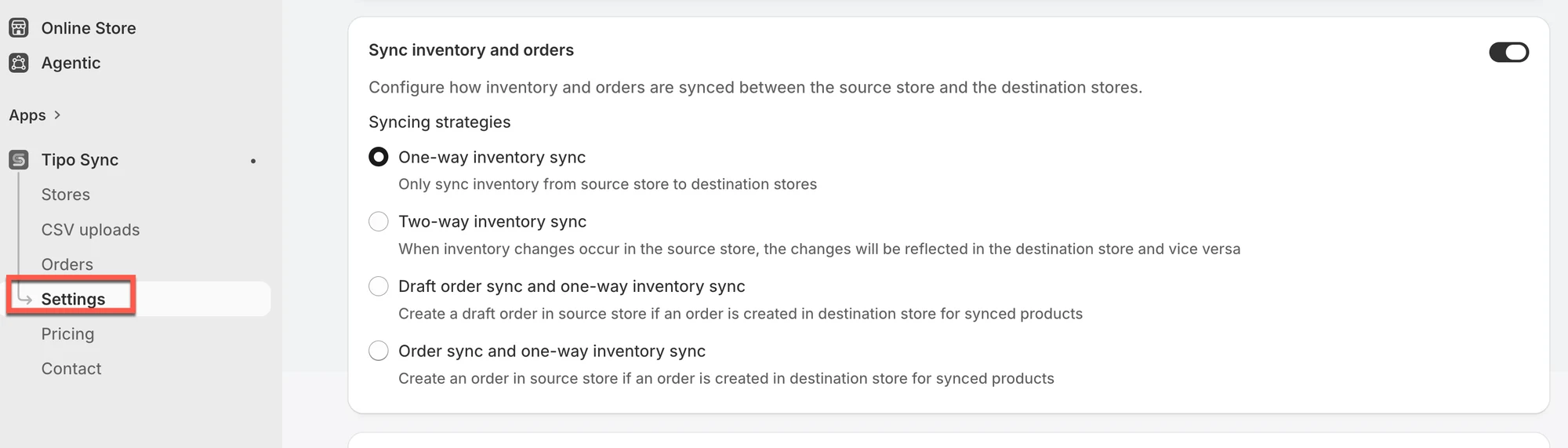
- Click Save
🔄 How synchronization works
Section titled “🔄 How synchronization works”Inventory synchronization
Section titled “Inventory synchronization”- Product matching: The app matches products using the identifier you selected (for example: Handle, SKU, or Barcode).
Make sure that identifier is the same in every store. - Location sync: Inventory is updated based on your location setup.
Best practice: use the same location names in Source and Destination, or map locations if your setup supports it. - Sync direction:
- ➡️ One-way: Source → Destination only
- 🔁 Two-way: Source ↔ Destination (updates from either side)
Order synchronization
Section titled “Order synchronization”- Order importing: Orders placed in Destination store(s) can be imported into the Source store (as a draft order or a real order, depending on the option you choose).
- Important: Order sync usually happens only when the order is created. Later status changes (fulfillment/payment updates) is not sync.
Reference:
Section titled “Reference: ”🙋 Still need support?
If you still need help, please feel free to contact us at hi@tipo.io. We’ll be happy to assist you further.