
Find a backed-up item
AI Overview
Open a data type's list in Backup & Restore Tipo to search, sort and read everything that has been backed up, including items you deleted from your store. Lists only include items from finished backups, so a newly created item appears after the next backup. You can also tick items to start a restore.
View moreView less
- Select a data type in the Store data card on Home. Lists show 25 items per page.
- Search by title, handle or numeric Shopify ID, and sort by Last backup, Last edited, Title or Handle.
- A red Deleted badge marks items no longer in your store, which you can still compare and restore.
- Blogs, metaobject definitions and themes hold child lists: articles, entries and theme files.
- Tick items to show Restore and, for deleted items, Restore deleted. Selection clears when you change page, search, sort or filter.
Summary generated by AI. It can make mistakes, so check the full guide below.
Open a data type’s list, search and sort it, and spot items that were deleted from your store.
Use the list for a data type to search everything the app has backed up, including items that no longer exist in your store.
Open a list
Section titled “Open a list”Open the app
Section titled “Open the app”In your Shopify admin, open Apps and select Backup & Restore Tipo. You land on Home.
Select a row in Store data
Section titled “Select a row in Store data”In the Store data card, select the data type you want, for example Products. The list for that type opens.
Each list shows every distinct item that appears in at least one backup. Lists show 25 items per page. Use the previous and next arrows at the top of the list to move between pages.
Read the list
Section titled “Read the list”| Column | What it shows |
|---|---|
| Item | The title as a link, with the handle in grey underneath. Items without a title show “Untitled”. Files and theme files don’t show a handle. |
| Last backup | The date and time of the backup that last captured a change to the item. This is not always your most recent backup, because unchanged items are not captured again. |
| Last edited | When the item was last edited in Shopify. Shows ”—” if unknown. Not shown for Metafield definitions, Metaobjects, Menus, Policies, Saved searches, Shipping zones and Locations, because Shopify does not record an edit date for them. |
Products, Collections, Files and Articles also show a small thumbnail. Deleted items keep the thumbnail from their last backed-up copy. Files that are not images show a generic icon.
A red Deleted badge means the item no longer exists in your store. You can still open it, compare its last backed-up copy and restore it. See Restore deleted items.
On the Themes list, a green Current badge marks the theme that is published in your store.
Search
Section titled “Search”Type in Search by title or handle. The search matches any part of the title or handle. You can also paste a numeric Shopify ID to find that item. Results update a moment after you stop typing.
Your search appears as a chip above the list. Select Clear all filters to remove it.
Select the sort icon (its tooltip is Sort) to open the sort menu.
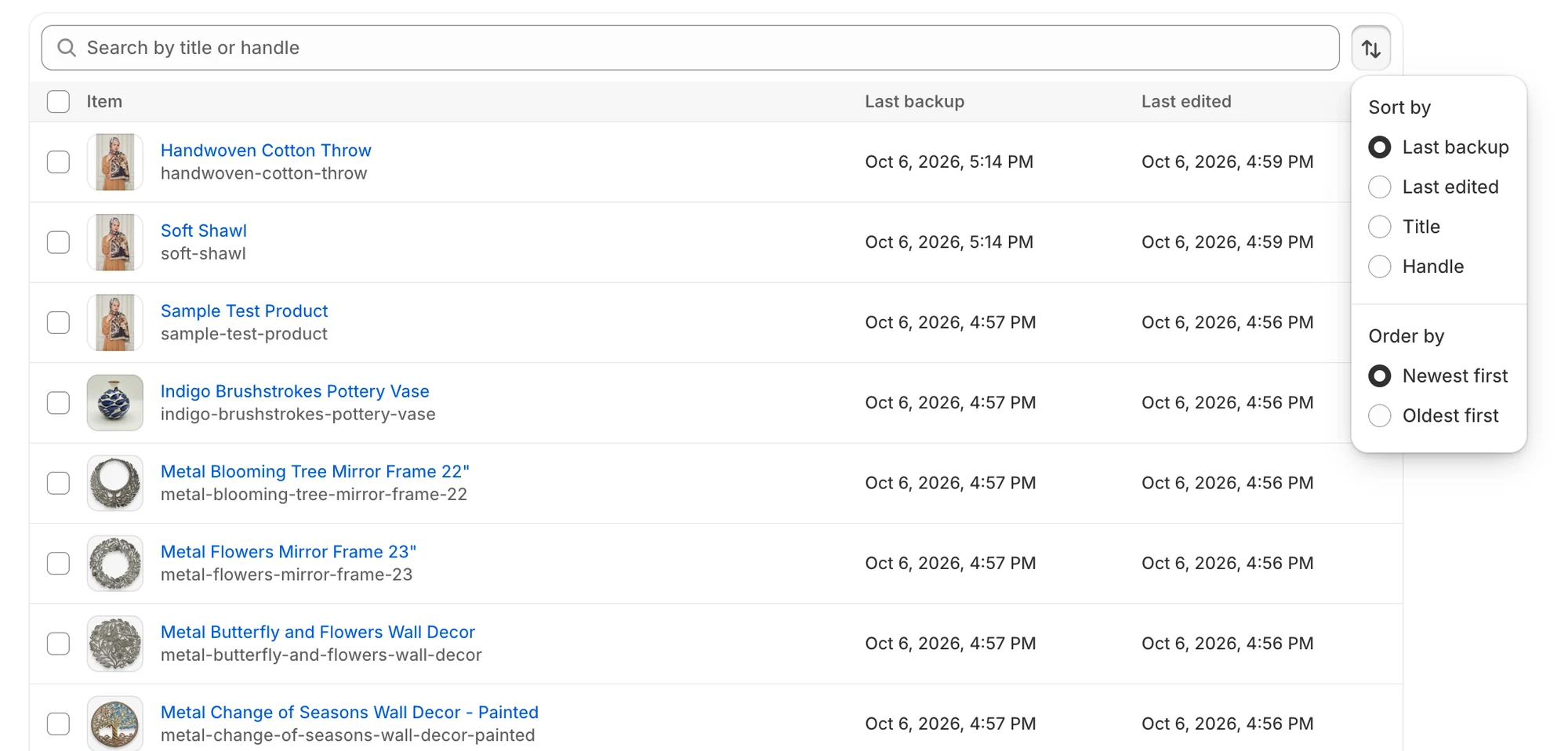
The sort menu lets you choose the column and the direction.
| Option | Choices | Default |
|---|---|---|
| Sort by | Last backup, Last edited, Title, Handle. Last edited is only offered on lists that show that column. | Last backup |
| Order by | Newest first, Oldest first | Newest first |
Filter saved searches
Section titled “Filter saved searches”The Saved searches list has an extra Filter by view menu. Choose All views (the default) or one view type, such as Customers, Products, Orders, Collections, Draft orders, Files, URL redirects, Automatic discounts, Discount codes or Discount redeem codes.
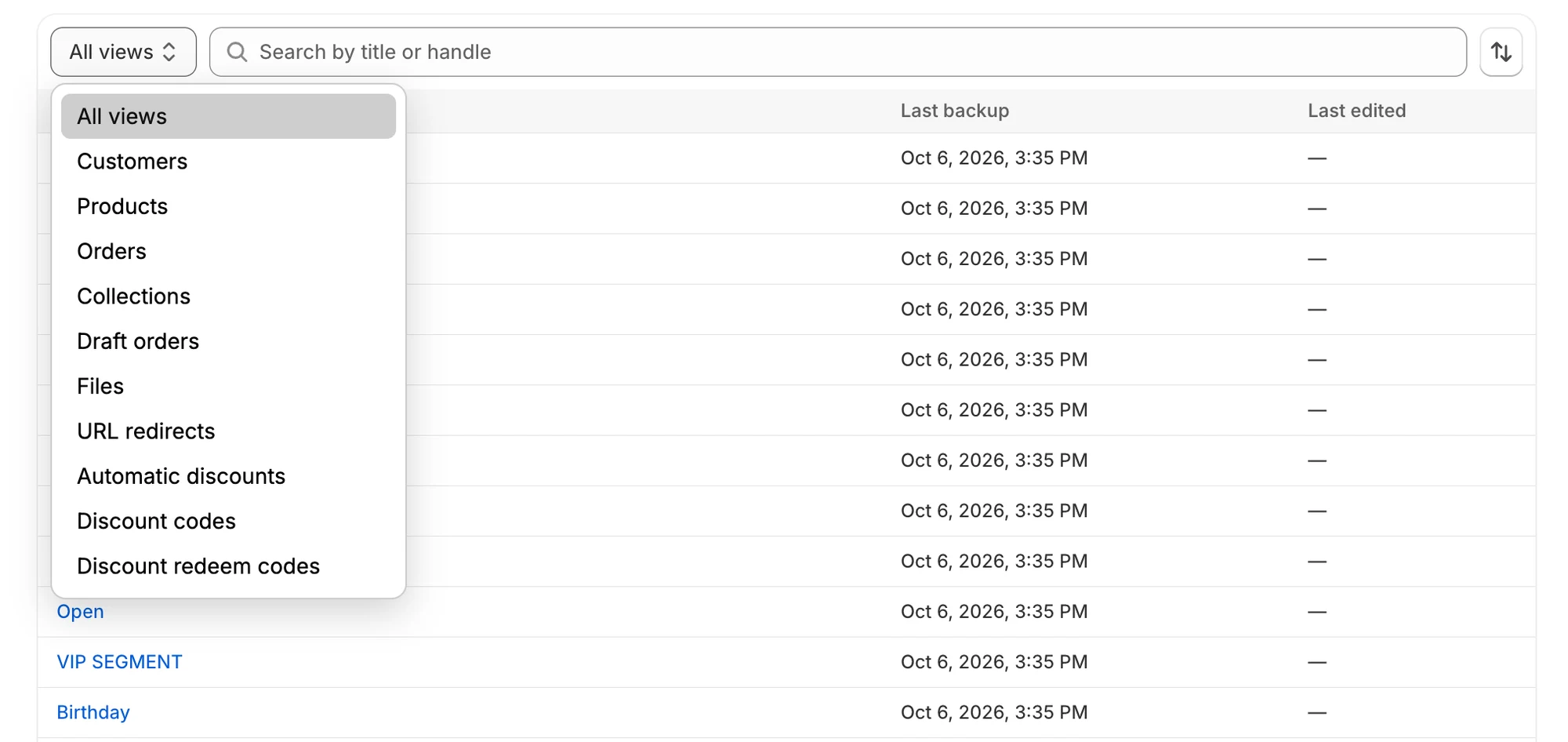
Use Filter by view to show only one kind of saved search.
Items inside items
Section titled “Items inside items”Some items contain other items. Open the parent to see its list of children.
| Parent | Child list | How to get to the child |
|---|---|---|
| A blog in Blogs & articles | Articles | Open the blog, then scroll to the Articles list. |
| A metaobject definition in Metaobjects | Metaobject entries | Open the definition, then scroll to the Metaobject entries list. |
| A theme in Themes | Theme files | Open the theme, then scroll to the Theme files list. |
On a child item’s page, the breadcrumb at the top is named after its parent and takes you back to it. For example, an article’s breadcrumb shows its blog’s name, and a theme file’s breadcrumb shows its theme’s name.
Select items to restore
Section titled “Select items to restore”On lists for data types you can restore, each row has a checkbox, and the header checkbox selects every item on the current page. When you select items, the search bar is replaced by a bar that reads, for example, “2 of 25 selected”, with a Restore button. A Restore deleted button also appears when your selection includes at least one item with a Deleted badge. It is not shown on the Themes list.
Selection is per page. Changing the page, search, sort or filter clears it. To continue, follow Restore selected items from a list.
Inside a theme, blog or metaobject definition, you can tick rows in the child list but the restore starts from the Restore button at the top of the page. See Restore a theme and Restore a blog or metaobject definition.
If something goes wrong
Section titled “If something goes wrong”| What you see | What it means | What to do |
|---|---|---|
| No backed-up items yet | No finished backup has captured this data type. | Run Back up now and check that the type is on in Choose what to back up. |
| No items match | Your search or filter found nothing. | Try a different search or select Clear all filters. |
| Couldn’t load items | The list did not load. | Select Try again. |
| An item you just created is missing | Lists only include items from finished backups. | Wait for the next backup, or run one now. |