
Import and Export Inventory Sync Groups
AI Overview
Import and export let you move Inventory Sync Groups through a CSV file, which helps you set up many groups quickly, copy settings to another store, or edit groups in bulk in a spreadsheet. Download the sample CSV template first so your file matches the required format.
View moreView less
- Download the sample CSV template before importing to match the format; avoid empty columns and duplicate headers.
- To import, click Import, upload your CSV with Add file, and choose an Import Type: create new, overwrite existing, or both.
- Click Import to finish.
- To export, click Export, choose Current page or All pages, then click Export to download the CSV.
- Export regularly to back up your sync data.
Summary generated by AI. It can make mistakes, so check the full guide below.
This guide explains how to export your Inventory Sync Groups to a CSV file and import them back when you want to set up groups faster, copy settings to another store, or make bulk edits in a spreadsheet.
✅ What this feature does
Section titled “✅ What this feature does”- Export your existing Inventory Sync Groups to a CSV file
- Edit groups in bulk using Excel/Google Sheets
- Import the CSV to create or update groups in the app
- Set up many groups quickly (instead of creating groups one by one)
📥 How to import
Section titled “📥 How to import”- Open the app > click Inventory Groups > click Import
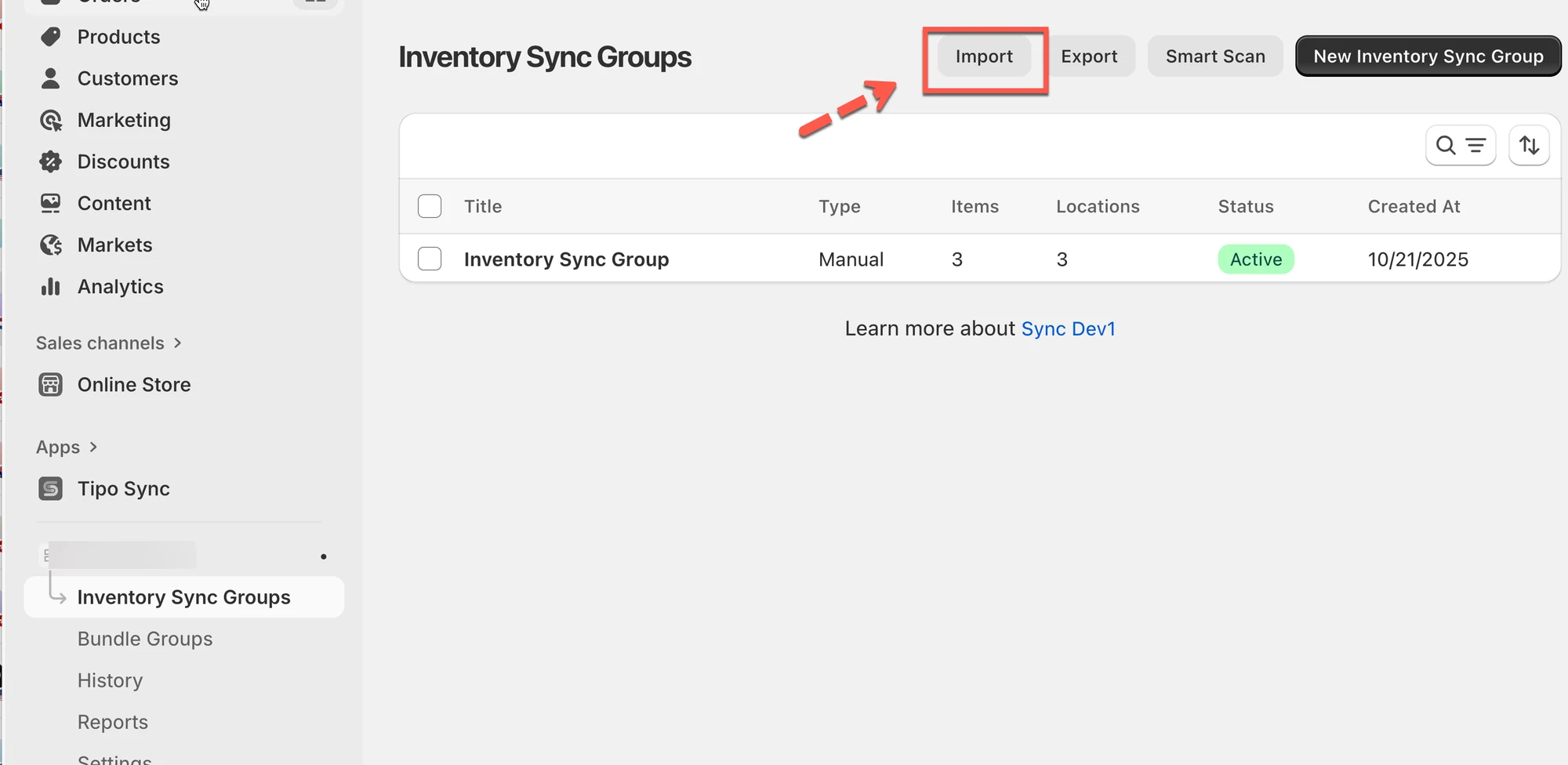
- Download the sample CSV template to understand the correct format
- Click Add file and upload your CSV file
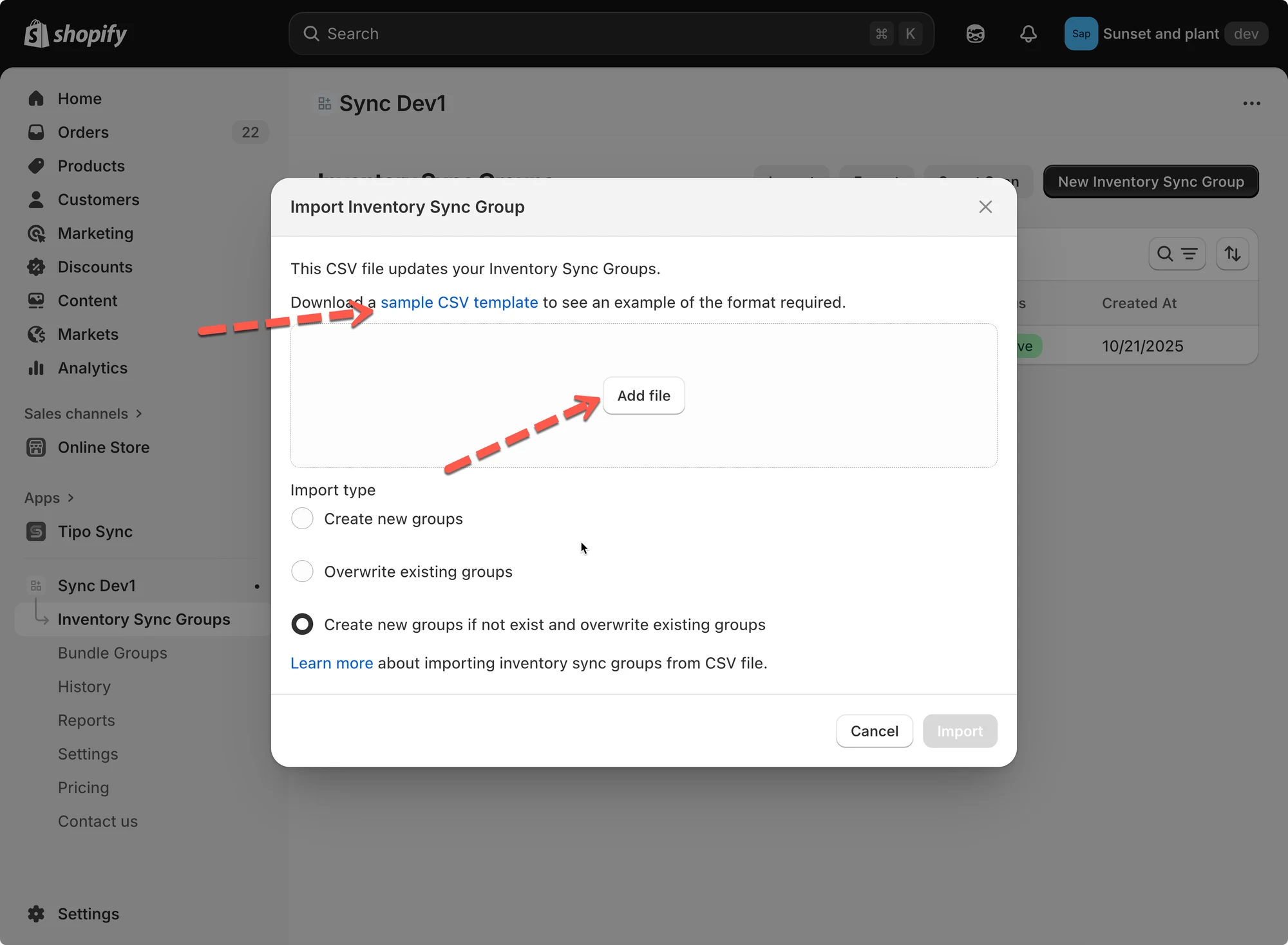
- Choose an Import Type:
- Create new groups: Add new inventory groups only.
- Overwrite existing groups: Replace existing groups with the same name.
- Create new groups if not exist and overwrite existing groups: Combine both actions.
- Click Import to finish.
Example
If your CSV contains:
| id | title | status | location_id | location_name | quantity | variant_id | variant_title |
|---|---|---|---|---|---|---|---|
| 1 | Inventory Sync Group 1 | active | 81987633427 | My Custom Location | 54 | 44866231861523 | The Minimal Snowboard - Default Title |
| 1 | 81987600659 | Shop location | 21 | ||||
| 1 | 81987666195 | Snow City Warehouse | 40 | ||||
| 2 | Inventory Sync Group 2 | active | 81987633427 | My Custom Location | 32 | 44866231894291 | The Hidden Snowboard - Default Title |
| 2 | 81987600659 | Shop location | 45 | ||||
| 2 | 81987666195 | Snow City Warehouse | 43 |
After importing this CSV: The app will create two groups:
- Inventory Sync Group 1 → includes The Minimal Snowboard synced across three locations.
- Inventory Sync Group 2 → includes The Hidden Snowboard synced across three locations.
📤 Export Inventory Groups
Section titled “📤 Export Inventory Groups”Exporting allows you to download your inventory sync data into a CSV file. It is ideal for backups or editing offline.
- Open the app > click Inventory Groups > click Export
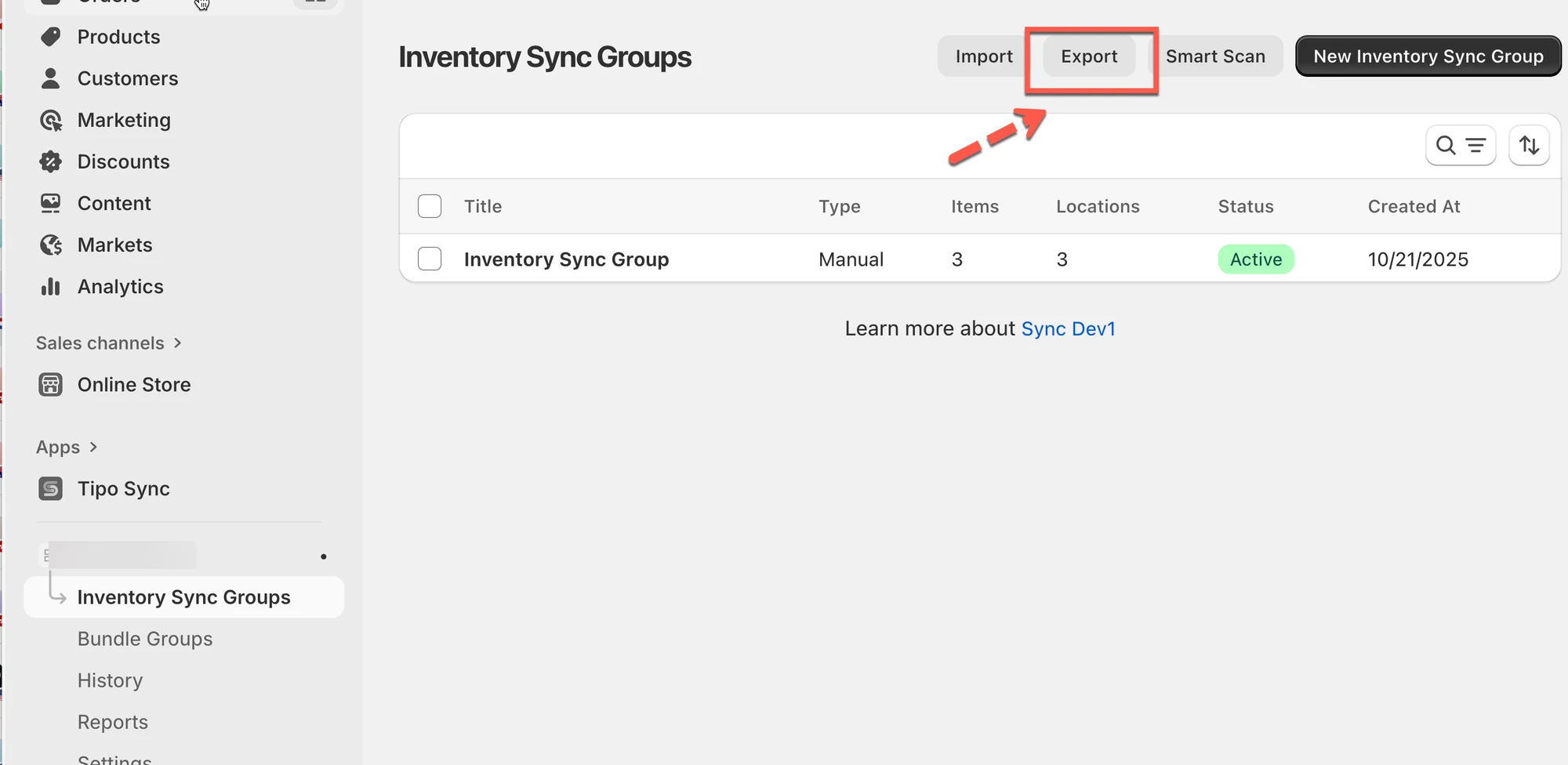
- Choose an option:
- Current page: Export only the groups you see on the screen.
- All pages: Export all inventory sync groups.
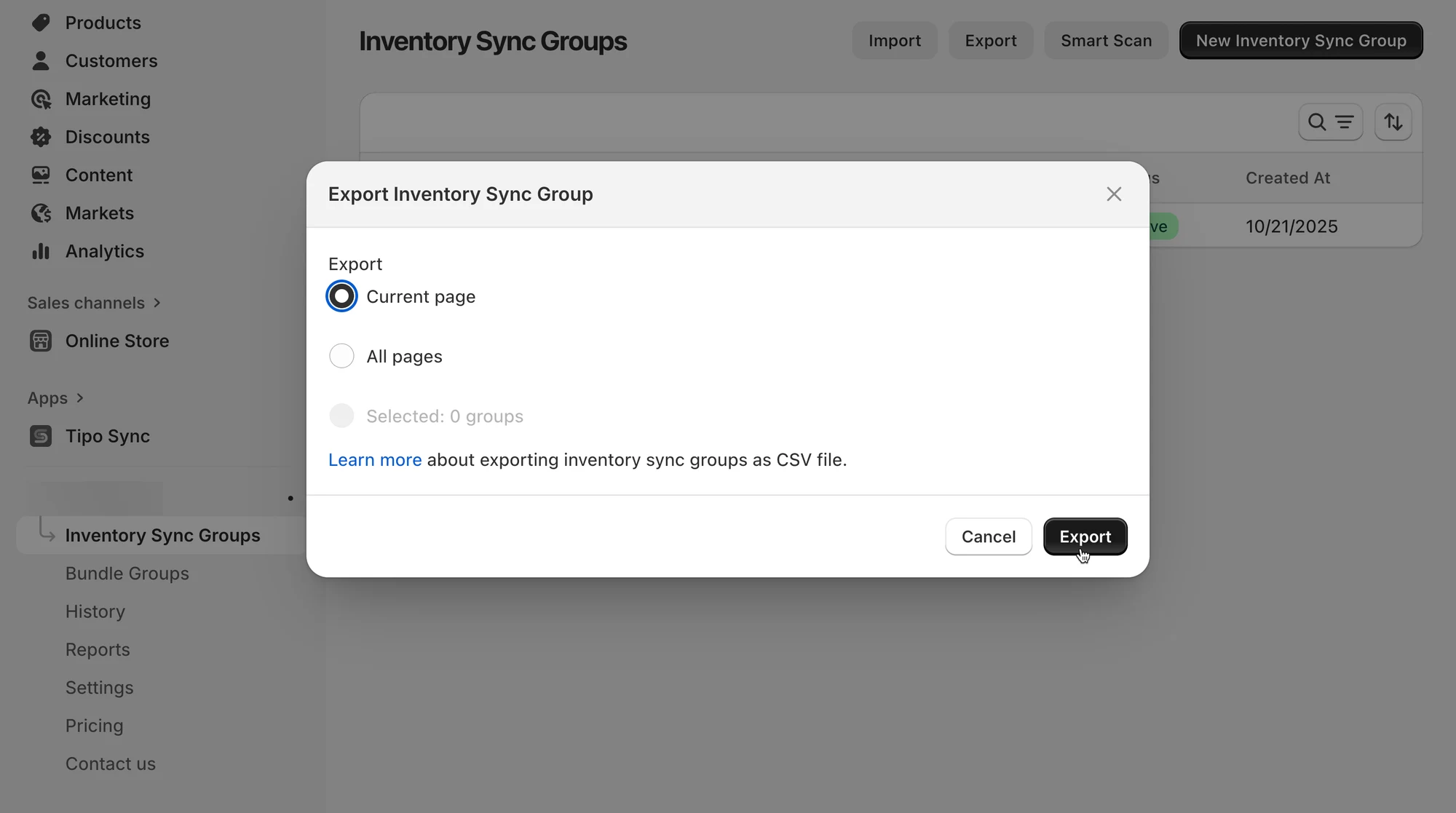
- Click Export and the CSV file will download automatically.
🛠️ Manage Inventory Groups
Section titled “🛠️ Manage Inventory Groups”After importing, you can manage and review details in each group:
- Group Name: Used to identify the sync group.
- Locations & Initial Inventory: Set synced stock levels for each location.
- Add Variants: Add products manually or by condition (e.g., based on tags or collections).
- Preview Variants: See all products included in the group and their current inventory levels.
Example
You imported a group named “T-Shirts”.
It syncs stock across 3 locations:
- Main Warehouse (50 units)
- Storefront (20 units)
- Online Warehouse (30 units)
When one sells 2 items, the app automatically updates all locations to keep stock consistent.
Notes:
- Always download the sample CSV before importing to ensure your file matches the format.
- Use Export regularly to back up your sync data.
- If importing large files, make sure your CSV is clean, no empty columns or duplicate headers.
🙋 Still need support?
If you still need help, please feel free to contact us at hi@tipo.io. We’ll be happy to assist you further.