
Create a new Bundle Group
AI Overview
Learn how to create a Bundle Group that links a Bundle (Master) product with its Components, so Tipo updates component inventory when the bundle sells. The Master and components must already exist in Shopify, and components need Track quantity enabled. Bundle availability follows the lowest component stock.
View moreView less
- Before starting, have Master and Component products in Shopify, Track quantity on for components, and know units per bundle.
- Open Bundle Groups, click New Bundle Group, enter a Title, and set Status to Active.
- Add variants with Manual select or Smart select filters.
- Assign a Master Variant and set the Bundle Quantity for each, then save.
- Availability equals the minimum of component stock divided by quantity required; sales deduct each component.
Summary generated by AI. It can make mistakes, so check the full guide below.
You can create bundle groups to link multiple product variants and manage their inventory together.
Bundle Groups help you keep bundle inventory accurate by linking a Bundle product (Master) with the items inside it (Components). When the bundle sells, Tipo updates the component inventory automatically.
✅ Before you start
Section titled “✅ Before you start”Make sure:
- Your Bundle (Master) product already exists in Shopify
- Your Component products exist and have Track quantity enabled
- You know how many units of each component are required for 1 bundle
🛠️ Steps to manage
Section titled “🛠️ Steps to manage ”- Open the app > click Bundle Groups > click New Bundle Group button
- Enter a Title and select Status as Active
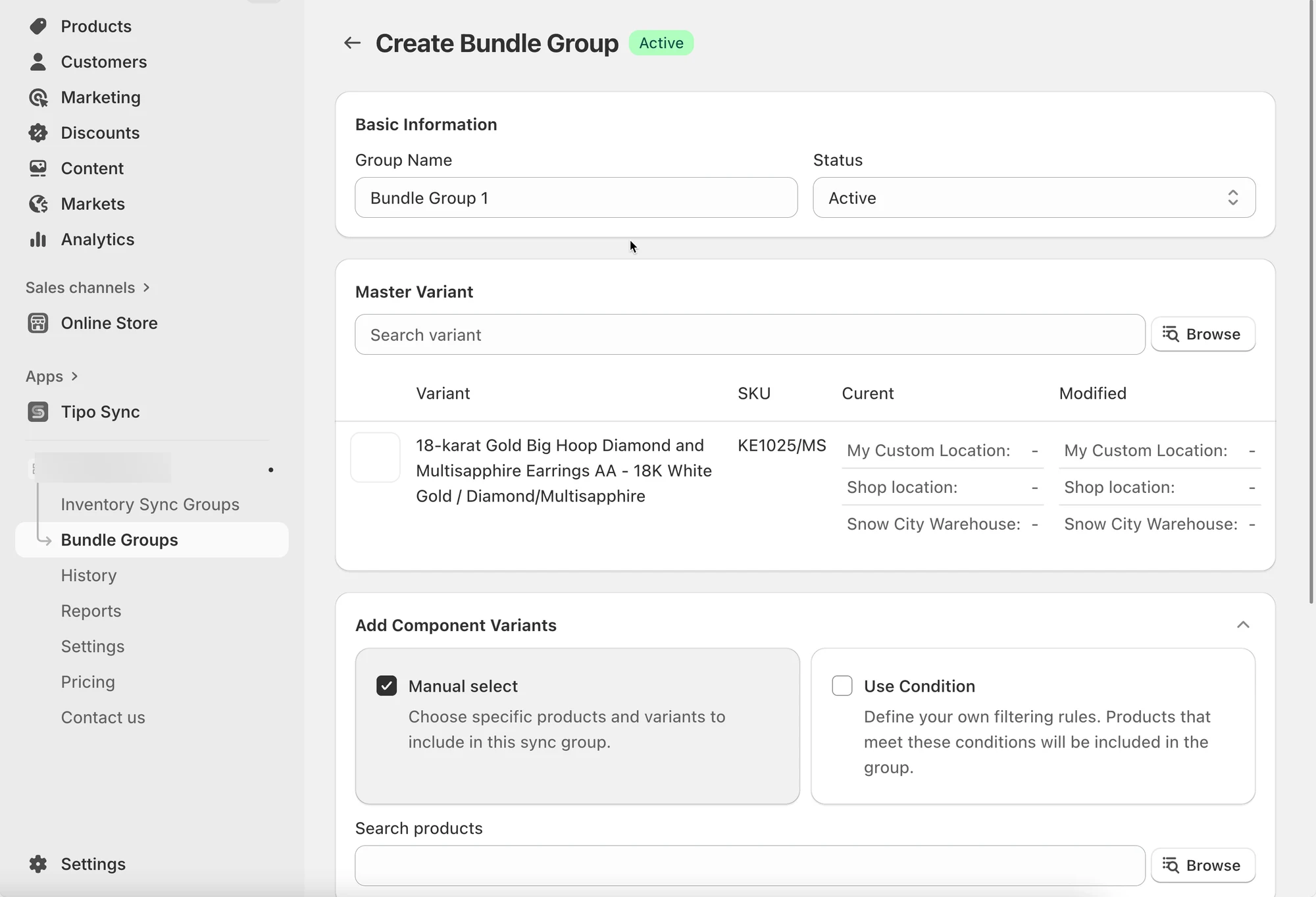
- Add Variants to the Group. There are 2 ways to add variants:
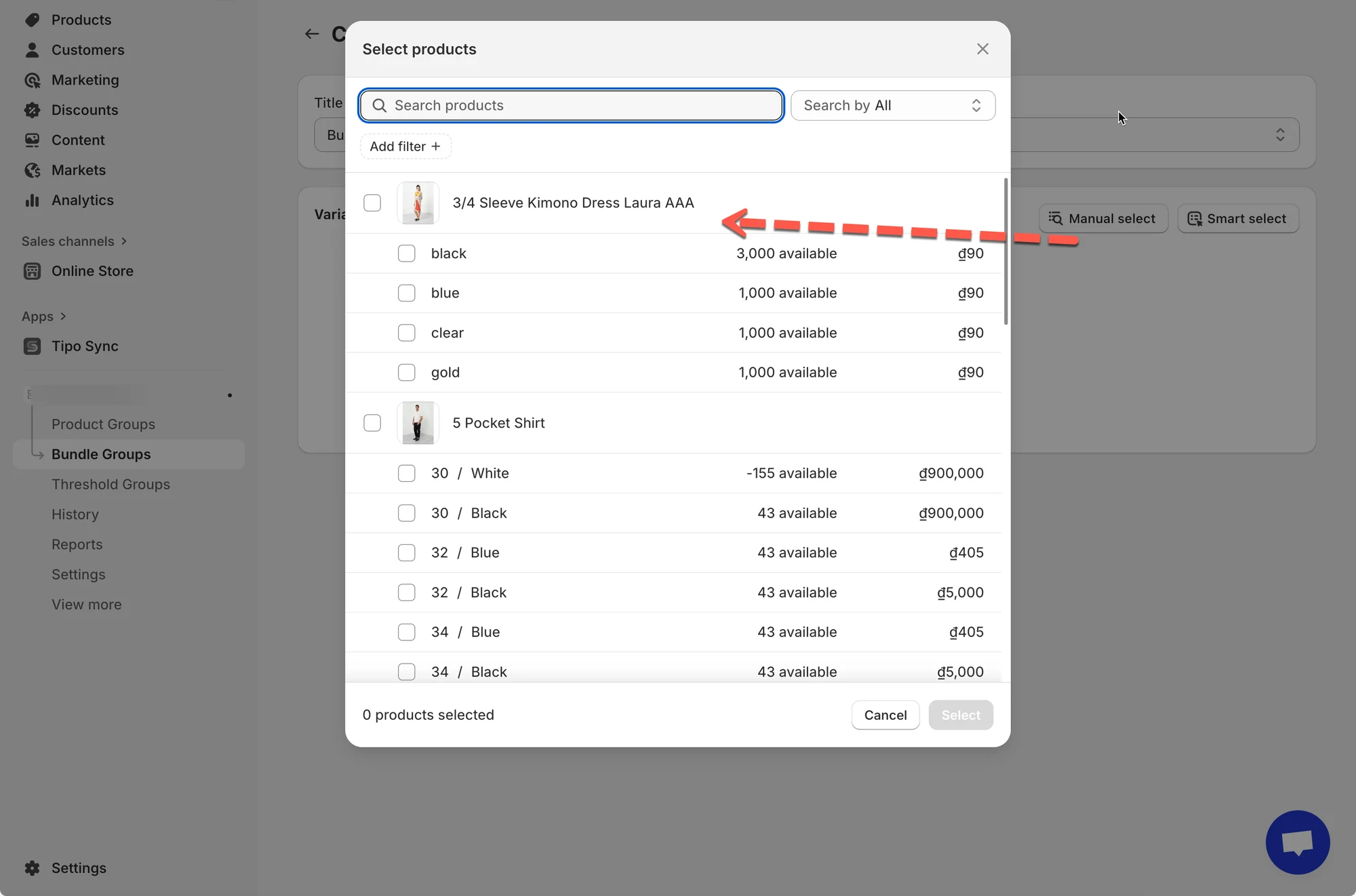
You can add variants using two methods:
- Manual select: Choose specific product variants from your catalog.
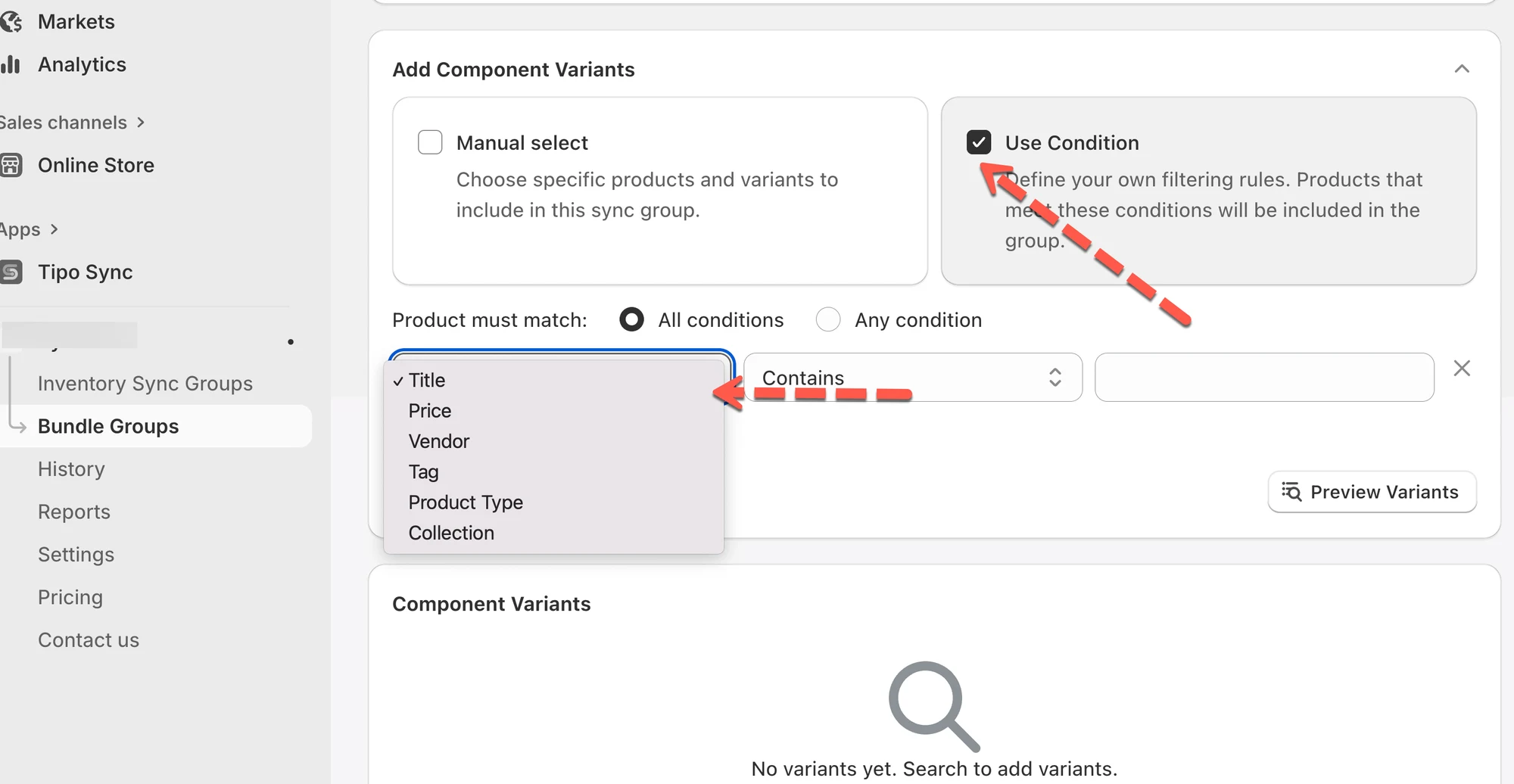
- Smart select: Use filters (e.g., Title, Price, Vendor, Tag, Product Type, or Collection) to find and select multiple variants at once.
Example: Filter by Tag contains “g90” to quickly select all related variants.
- Set Bundle quantities: assign a Master Variant (main item controlling inventory sync) and set the Bundle Quantity for each.
This determines how many units of each variant are linked in the bundle.
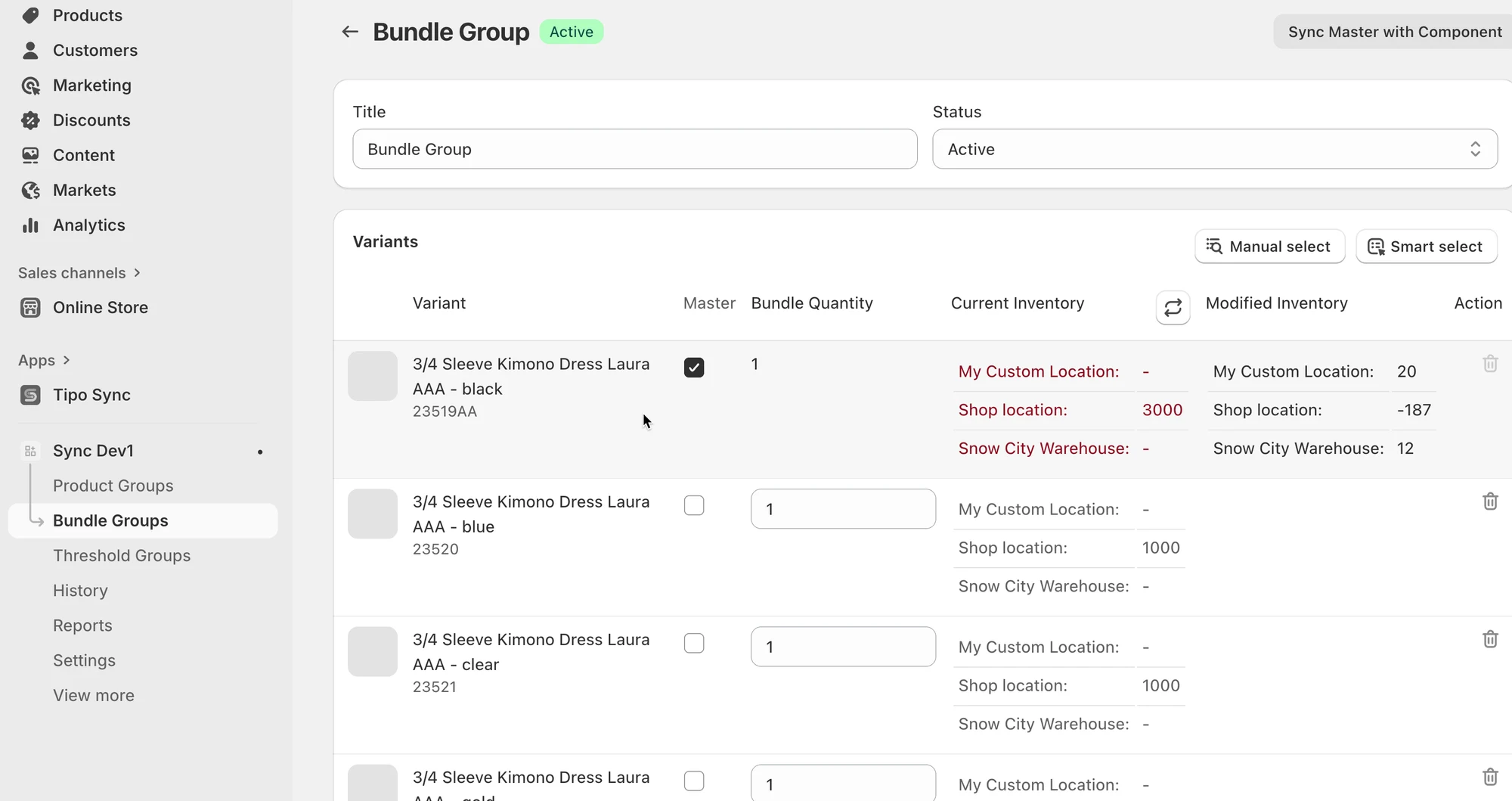
- Save the bundle group.
🔄 How Bundle Groups work
Section titled “🔄 How Bundle Groups work”How the app calculates bundle availability
Section titled “How the app calculates bundle availability”A bundle’s available quantity is based on the lowest available component stock, considering the quantity required.
Formula (simple):
Bundle available = min( Component stock ÷ Quantity required )
What happens when a bundle is sold?
Section titled “What happens when a bundle is sold?”When an order is created for the Master product:
- Tipo app deducts inventory from each component based on its required quantity
- The bundle availability updates automatically after component stock changes
Example
Section titled “Example”Bundle setup
Master (Bundle): Gift Box Set
Components:
- Candle × 1
- Gift Box × 1
Inventory before sale
- Candle: 20
- Gift Box: 12
✅ Bundle availability = 12 (Gift Box is the lowest)
Customer buys 2 bundles
Section titled “Customer buys 2 bundles”Tipo Sync updates components:
- Candle: 20 → 18
- Gift Box: 12 → 10
✅ Bundle availability becomes 10
🙋 Still need support?
If you still need help, please feel free to contact us at hi@tipo.io. We’ll be happy to assist you further.