
Compare an item with your live store
AI Overview
Open a backed-up item in Backup & Restore Tipo to see your live store and a backup side by side, with differences highlighted, before you restore. You can pick an older backup version, refresh live data and open the item in Shopify. Deleted items are kept for 90 days.
View moreView less
- From a data type list, select the item's title to see Live store on the left and Backup on the right.
- Differing rows are highlighted red on the live side and green on the backup side.
- Use the Backup version menu to compare an older backup, and Refresh live data after changing the item in Shopify.
- Select Restore at the top to restore the item to the chosen version, for data types that can be restored.
- Restoring a deleted item recreates it with a new ID, so old links and apps will not find it.
Summary generated by AI. It can make mistakes, so check the full guide below.
Use the Live store and Backup columns to see exactly what changed, pick an older backup version and open the item in Shopify.
Open an item to see what it looks like in your store today next to what it looked like in a backup. Differences are highlighted, so you can check before you restore.
Open the comparison
Section titled “Open the comparison”Open a list
Section titled “Open a list”From Home, select a row in the Store data card. See Find a backed-up item if you need help finding the item.
Select the item
Section titled “Select the item”Select the item’s title. Its page opens with the item name as the heading. The breadcrumb at the top takes you back to where the item is listed: the data type’s list for most items, the blog for an article, the theme for a theme file, the metaobject definition for a metaobject entry, and the owner type list for a metafield definition.
How the page is laid out
Section titled “How the page is laid out”The page has two columns. Live store is on the left and Backup is on the right. Each row shows the same field on both sides.
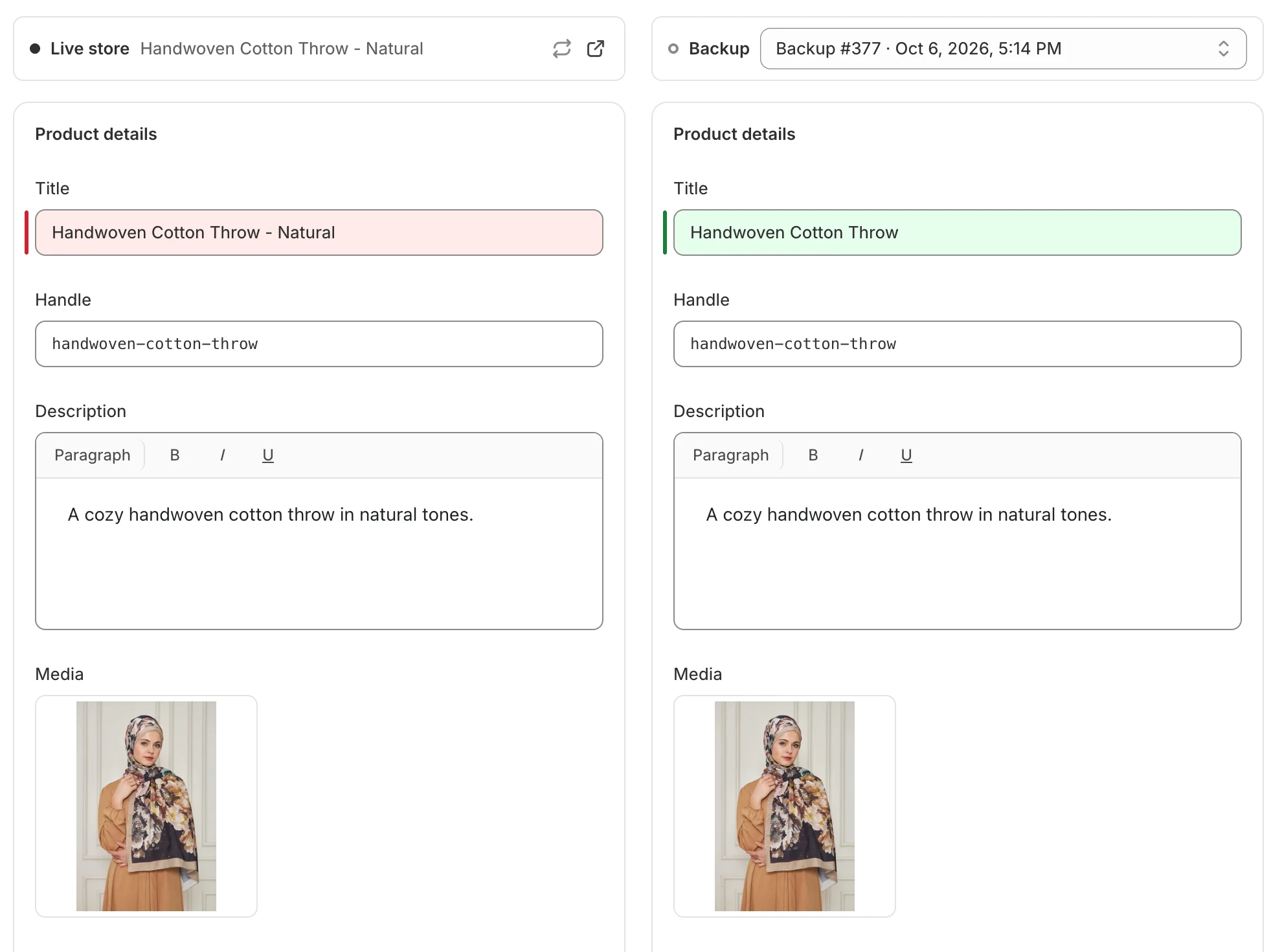
A row that differs is highlighted red on the live side and green on the backup side.
- Rows that differ are highlighted: red on the live side, green on the backup side.
- Lists such as tags, collections and sales channels appear as pills. Pills that differ are highlighted.
- Long descriptions show a text diff inside the row.
- Empty values show “None” or ”—”.
If a product has no highlighted rows, your live product matches the backup.
Choose a backup version
Section titled “Choose a backup version”The Backup version menu on the right lists every backup that captured this item, newest first. Each option shows the backup name (or “Backup #N”) and its date and time. The newest is selected by default.
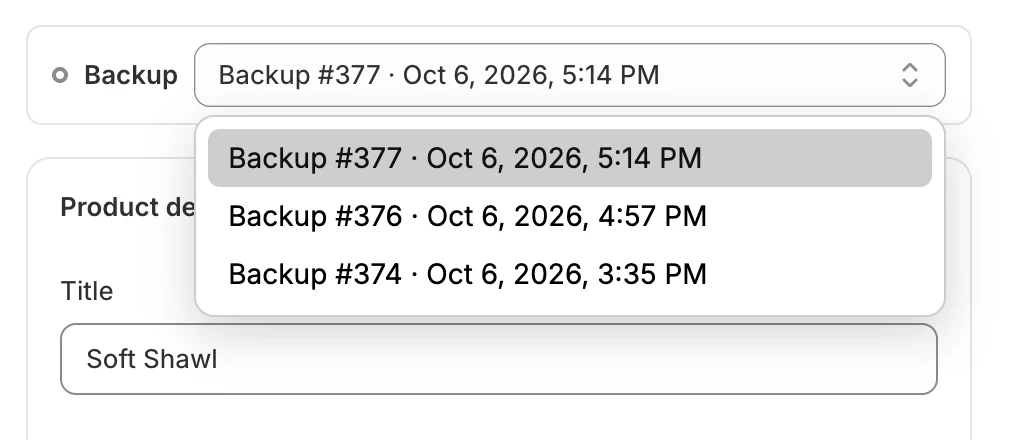
Pick an older version to compare against an earlier state of the item.
Choose an older version and the right column reloads. If the item was never captured, the menu shows No backups available.
Refresh live data and open in Shopify
Section titled “Refresh live data and open in Shopify”The Live store bar has two icon buttons.

Refresh the live column or open the item in Shopify from the Live store bar.
- Refresh live data loads the item from your store again. A Refreshing… badge shows while it reloads. Use it after you change the item in Shopify.
- Open in Shopify opens the item in your Shopify admin in a new tab. It is available for products, pages, collections, customers, orders, blogs, articles, themes, metafield definitions, metaobject entries, metaobject definitions, menus, policies and locations. It is not shown for files, saved searches or shipping zones, or when the item no longer exists.
What each data type shows
Section titled “What each data type shows”| Data type | Sections on the page |
|---|---|
| Products | Product details, Variants, Metafields, Search engine listing, Status, Product organization, Theme template |
| Collections | Collection details, Sources, Theme template, Metafields, Search engine listing |
| Customers | Contact information, Default address, Other addresses, Account, Tags, Notes, Metafields |
| Orders | Order details, Status, Line items, Totals, Customer, Shipping address, Billing address, Tags, Notes, Metafields |
| Pages | Page details, Visibility, Theme template |
| Blogs | Blog details, Metafields, Theme template, then an Articles list |
| Articles | Article details, Featured image, Metafields, Visibility, Organization, Theme template |
| Menus | Menu details, Menu items |
| Files | File details |
| Policies | Policy details, Policy |
| Saved searches | Saved search, Search query |
| Shipping zones | Shipping profile, Zones and countries |
| Locations | Location details, Address, Fulfillment, then Inventory export |
| Metafield definitions | Definition, Validation, Options, Access permissions |
| Metaobject definitions | Definition, Fields, Access, Capabilities, then a Metaobject entries list |
| Metaobject entries | Entry, Fields, Capabilities |
| Themes | Theme details, then a Theme files list |
Products, Collections, Pages, Blogs, Articles, Menus and Policies also have a Translations section at the bottom when the item has translations. It shows a Key and Value table for each language.
The Search engine listing preview on products and collections uses your store’s primary domain. The Address section on a location shows the address as one block, and the lines that differ are highlighted.
On an order, the Customer section has Open in Shopify admin and View customer backup links. The second one opens that customer’s backed-up page.
Banners you may see
Section titled “Banners you may see”| Banner | What it means |
|---|---|
| This item no longer exists in your store | The item was deleted. The live column is empty and the backup shows the last copy captured. |
| This item wasn’t found in your store (with a Not found badge) | Your store returned nothing for it. It was most likely deleted since the last backup. The next backup confirms it. |
For deleted items, the banner adds a line such as Restorable at least until a date. After that date the item is removed: deleted items are kept for 90 days. See Storage and retention.
Restoring a deleted item recreates it in your store. Shopify gives it a new ID, so links and apps that used the old ID will not find it automatically.
Restore from this page
Section titled “Restore from this page”On data types you can restore, a Restore button appears at the top. It restores the item to the version selected in Backup version. The button is disabled when the item has no backup version. Follow Restore a single item.
If something goes wrong
Section titled “If something goes wrong”| What you see | What to do |
|---|---|
| Couldn’t load this item | Select Try again. |
| Couldn’t load live data | Select Try again or use Refresh live data. |
| Couldn’t load this version | Choose another backup version, or select Try again. |