
Import and Export Bundle Groups
AI Overview
Import and Export lets you create, update, and back up many Bundle Groups through a CSV file instead of setting up bundles one by one. You can edit Masters, components, and quantities in bulk. The recommended workflow is to export, edit the file, then import it, rather than building a file from scratch.
View moreView less
- Before importing, match the exported column format, make sure all Masters and Components exist in Shopify, and check identifiers match exactly.
- To import, click Import, upload your CSV with Add file, and choose create new, overwrite existing, or both.
- Click Import to start.
- To export, click Export, choose Current page or All pages, then click Export to download the CSV.
Summary generated by AI. It can make mistakes, so check the full guide below.
Import & Export helps you create or update many Bundle Groups quickly using a CSV files, no need to set up bundles one by one.
✅ What this feature can do
Section titled “✅ What this feature can do”With Import & Export, you can:
- Export your current Bundle Groups to a CSV file
- Edit bundle setups in bulk (Master, components, quantities)
- Import the CSV to create or update Bundle Groups
- Set up dozens/hundreds of bundles faster
- Keep a backup of your bundle configuration
📥 Importing Bundle Groups
Section titled “📥 Importing Bundle Groups”You can import bundle groups using a CSV file. This is perfect for bulk creation or updates.
Steps:
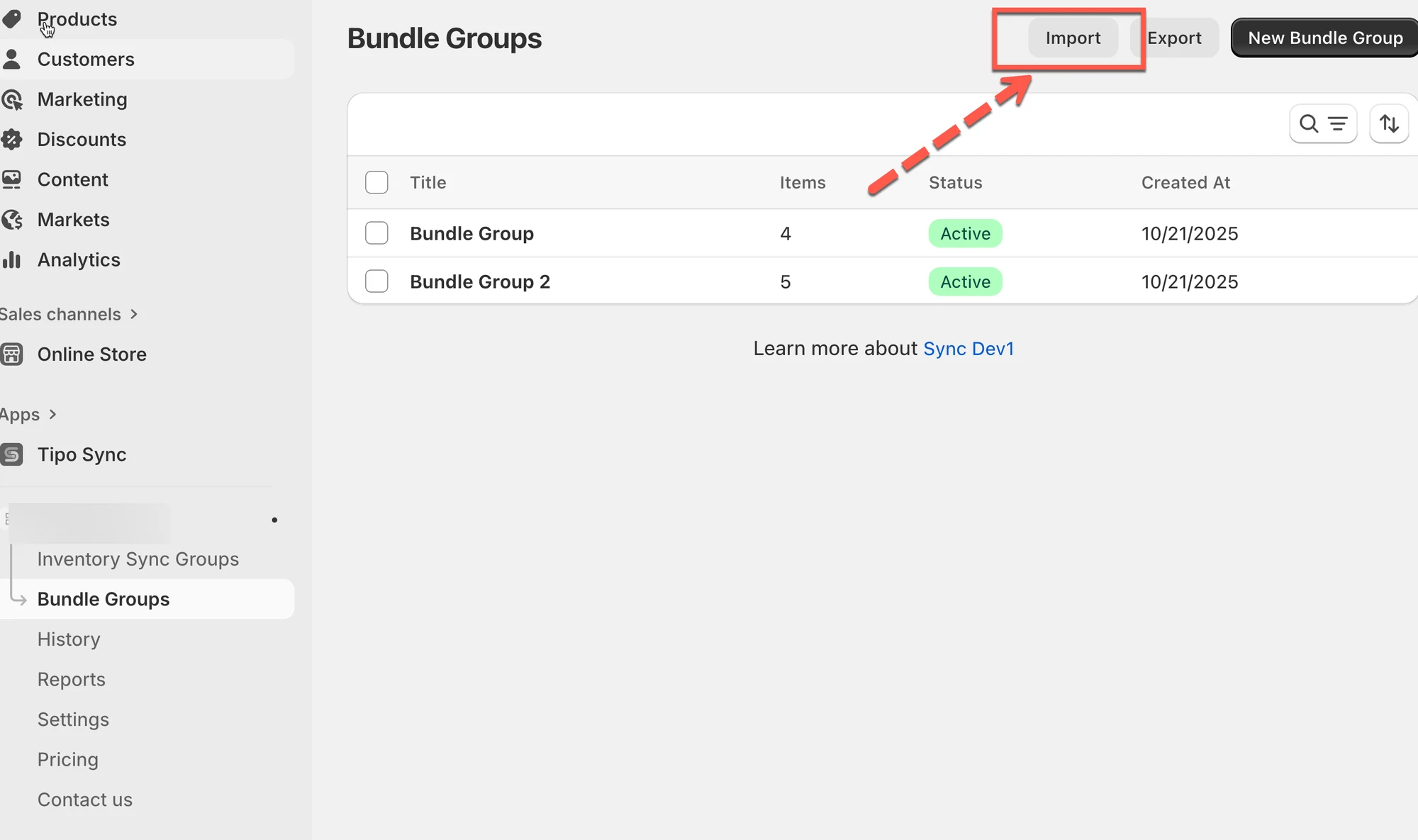
- Go to the app > click Bundle Groups > click Import
- In the modal:
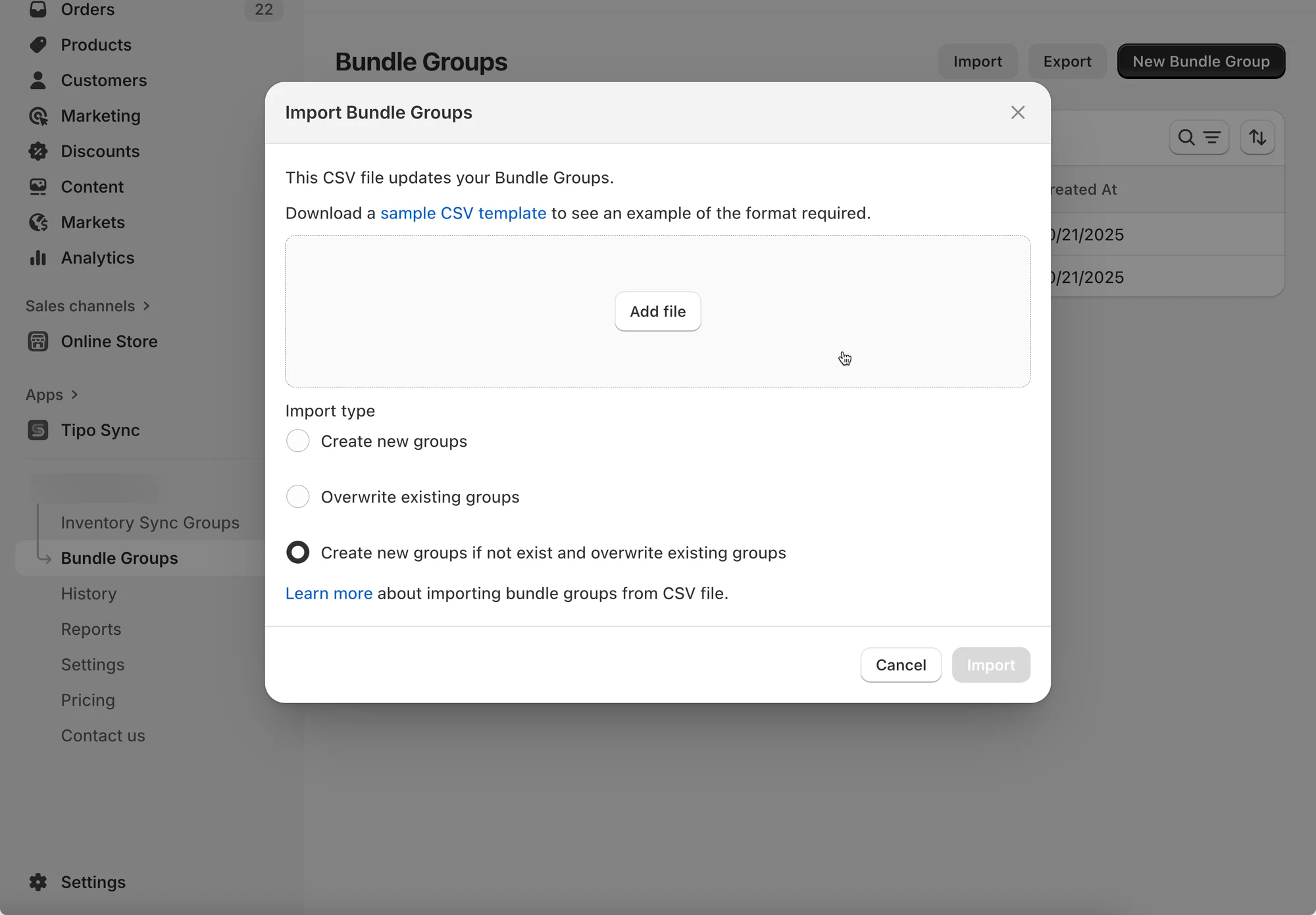
- Use the link to download a sample CSV template (optional)
- Click Add file to upload your CSV
- Choose your import type:
- Create new groups – Adds only new bundle groups.
- Overwrite existing groups – Updates existing groups based on the CSV.
- Create new groups if not exist and overwrite existing groups – Combines both actions.
- Click Import to start the process.
Note: Make sure your CSV matches the template format to avoid errors.
📤 Exporting Bundle Groups
Section titled “📤 Exporting Bundle Groups”Exporting lets you back up your data or prepare it for analysis or migration.
✅ Before importing
To prevent import errors:
- Use the same column format as the exported file
- Ensure all Masters and Components exist in Shopify
- Confirm identifiers (SKU/handle/variant info) match exactly (no extra spaces)
💡 Best practice: Export → Edit → Import (don’t build the file from scratch).
Steps:
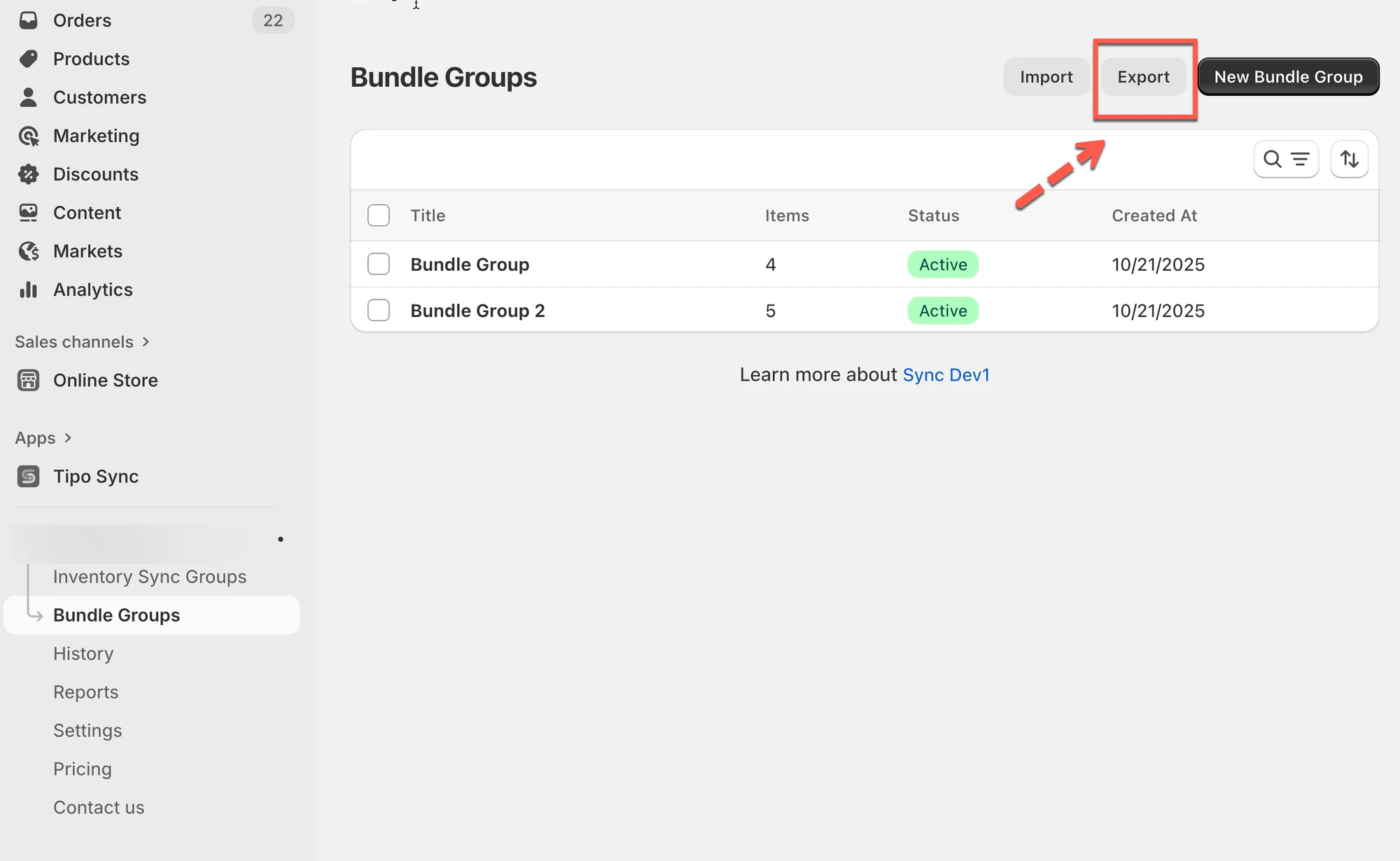
- Open the app > click Bundle Groups > click Export
- In the modal:
- Choose Current page to export only what’s visible.
- Choose All pages to export all bundle groups.
- Click Export to download the CSV file.
🙋 Still need support?
If you still need help, please feel free to contact us at hi@tipo.io. We’ll be happy to assist you further.