# Import and Export Bundle Groups
Import & Export helps you create or update many Bundle Groups quickly using a CSV files, no need to set up bundles one by one.
### ✅ What this feature can do
With Import & Export, you can:
* **Export** your current Bundle Groups to a CSV file
* Edit bundle setups in bulk (Master, components, quantities)
* **Import** the CSV to create or update Bundle Groups
* Set up dozens/hundreds of bundles faster
* Keep a backup of your bundle configuration
***
### 📥 Importing Bundle Groups
You can import bundle groups using a CSV file. This is perfect for bulk creation or updates.
**Steps:**
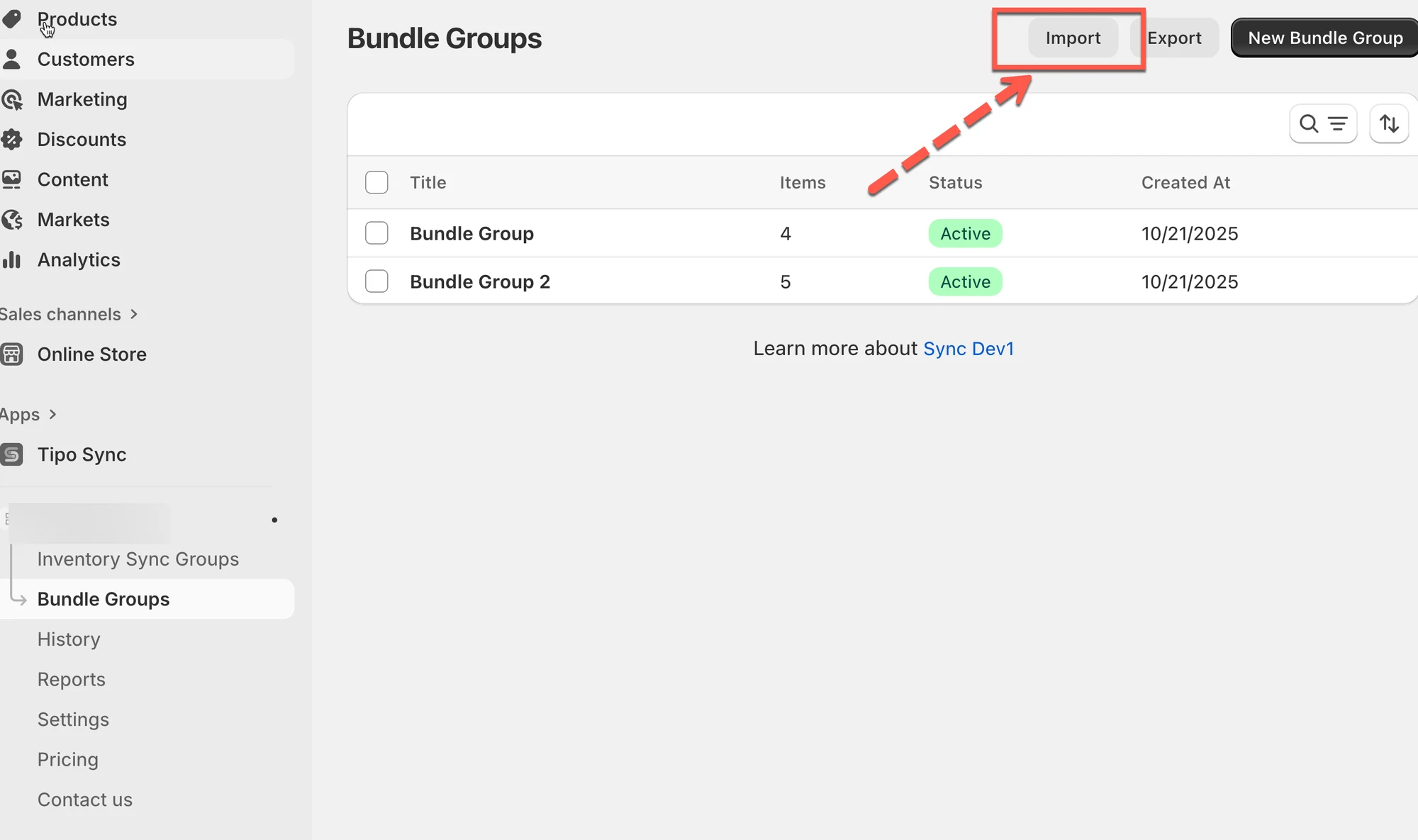
1. Go to the app > click **Bundle Groups** > click **Import**
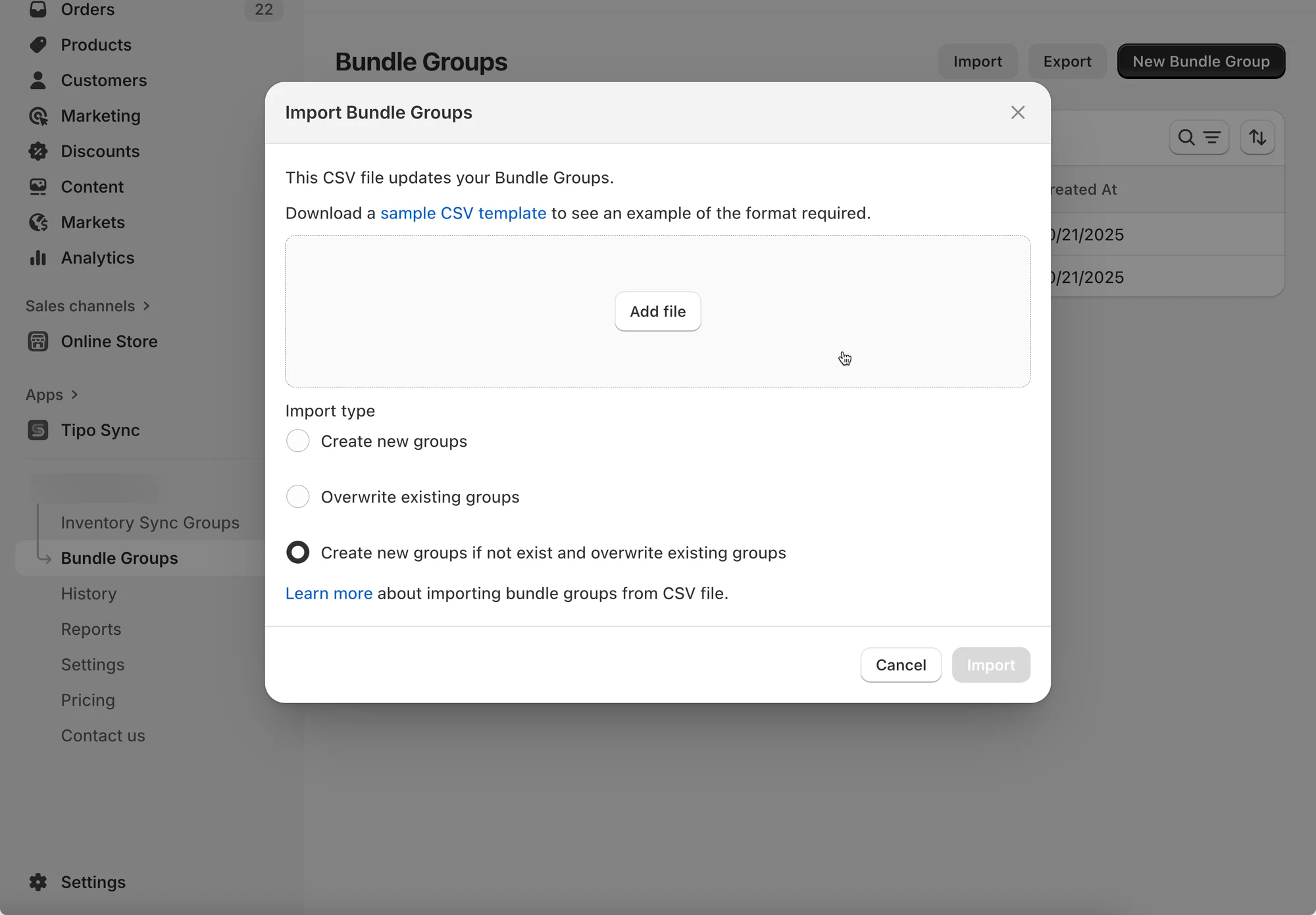
2. In the modal:
* Use the link to **download a sample CSV template** (optional)
* Click **Add file** to upload your CSV
3. Choose your import type:
* **Create new groups** – Adds only new bundle groups.
* **Overwrite existing groups** – Updates existing groups based on the CSV.
* **Create new groups if not exist and overwrite existing groups** – Combines both actions.
4. Click **Import** to start the process.
**Note**: Make sure your CSV matches the template format to avoid errors.
***
### 📤 Exporting Bundle Groups
Exporting lets you back up your data or prepare it for analysis or migration.
**✅ Before importing**
To prevent import errors:
* Use the same column format as the exported file
* Ensure all **Masters** and **Components** exist in Shopify
* Confirm identifiers (SKU/handle/variant info) match exactly (no extra spaces)
> 💡 Best practice: **Export → Edit → Import** (don’t build the file from scratch).
**Steps:**
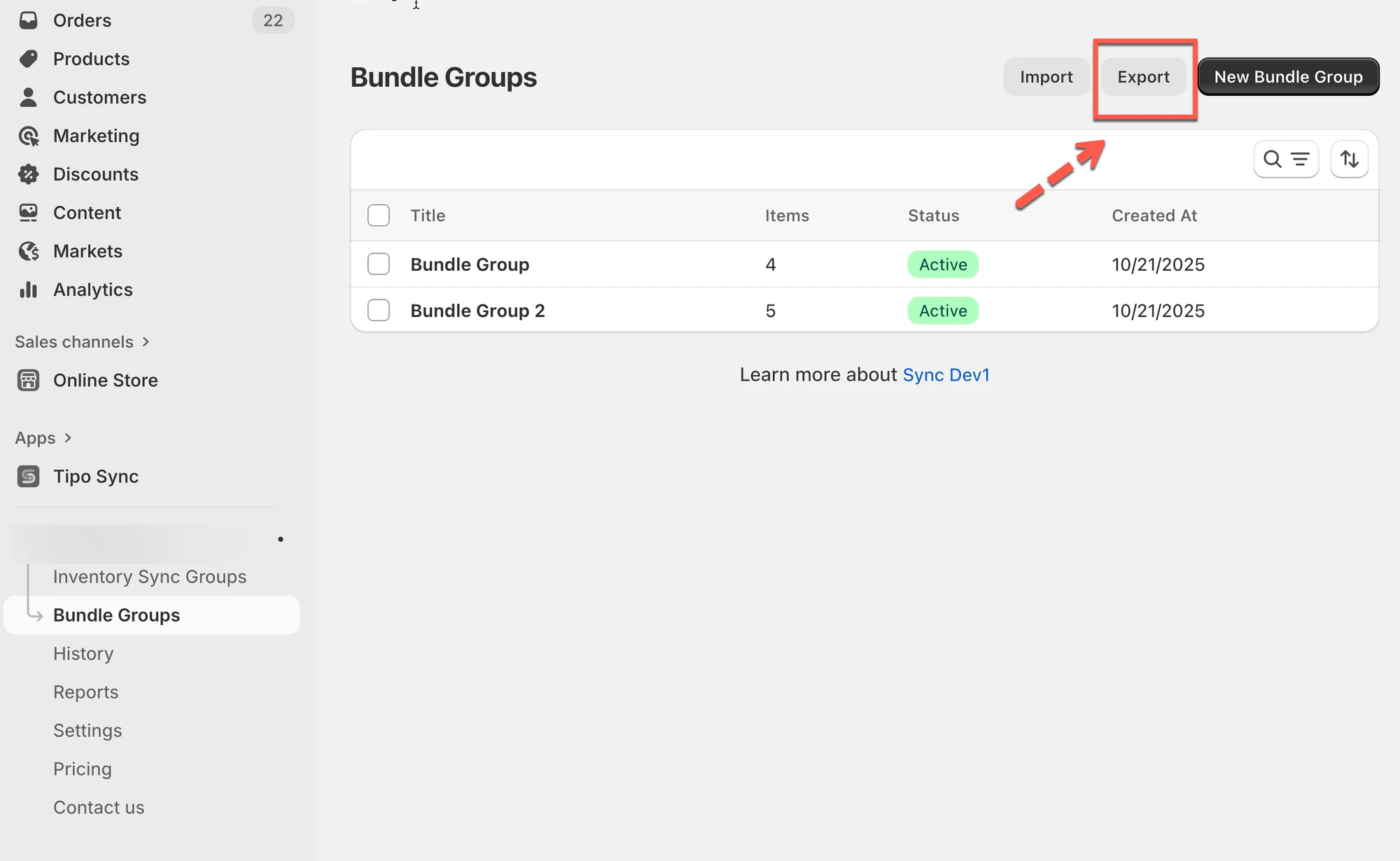
1. Open the app > click **Bundle Groups** > click **Export**
2. In the modal:
* Choose **Current page** to export only what's visible.
* Choose **All pages** to export all bundle groups.
3. Click **Export** to download the CSV file.
**🙋 Still need support?**
If you still need help, please feel free to contact us at . We’ll be happy to assist you further.