
Manually approve Destination store
AI Overview
Explains how to review and approve a Destination store connection when your Source store uses Moderation mode. In that mode, connection requests are not accepted automatically and stay pending until you approve them. Syncing does not start until you do.
View moreView less
- Applies when the Source store connection status is set to Moderation in app Settings and a request is Pending.
- If the Source store is set to Auto-accept, you do not need this step.
- Open the Tipo app in the Source store and go to Stores to find new pending requests.
- Approve each request in the Source store before syncing starts.
Summary generated by AI. It can make mistakes, so check the full guide below.
If your Source store uses Moderation mode, connection requests from Destination stores will not be accepted automatically. This guide shows how to review and approve a Destination store connection manually.
🔎 When do I need to approve a request?
Section titled “🔎 When do I need to approve a request?”You need to approve a connection when:
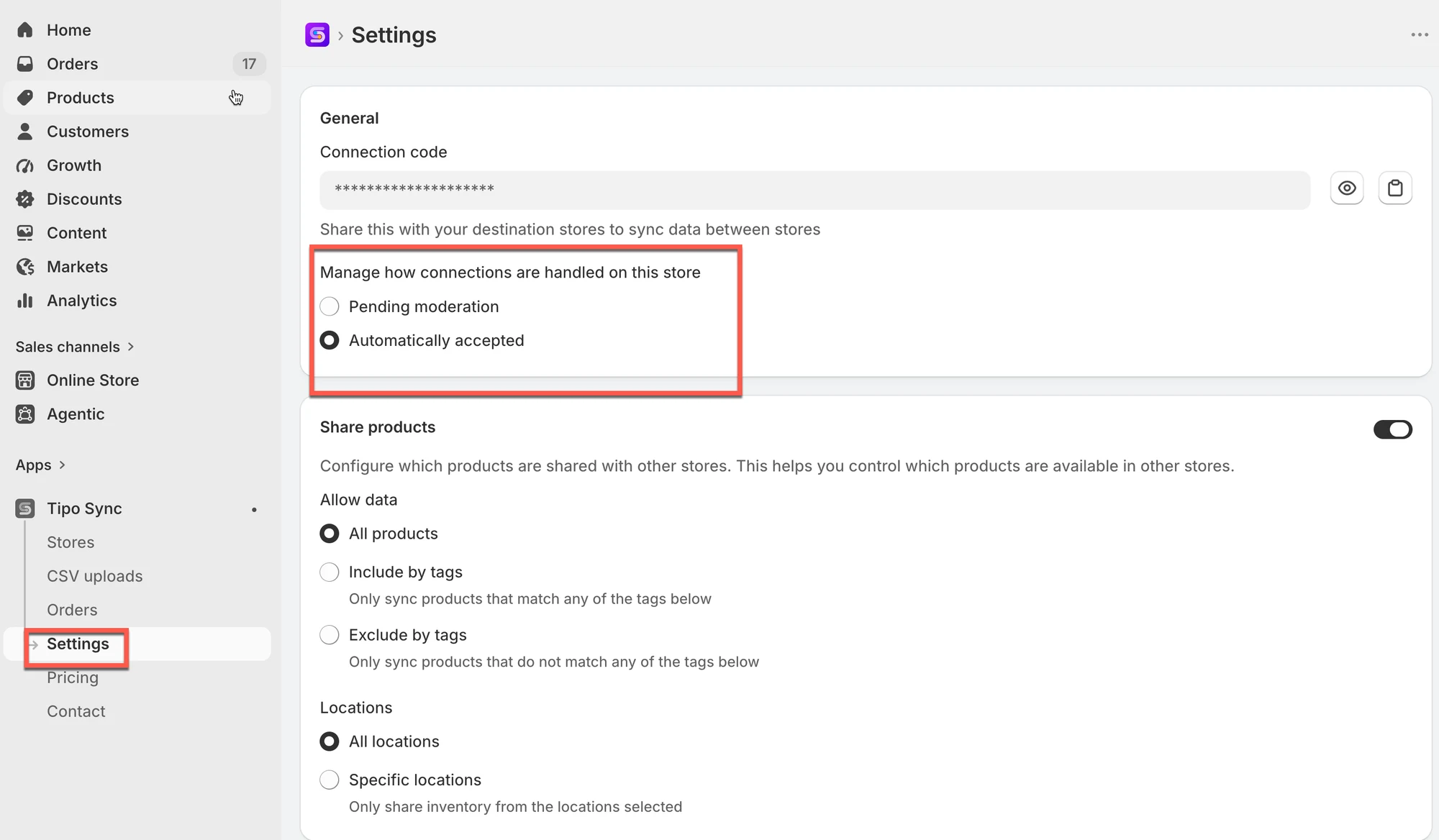
- the Source store connection status is set to Moderation. Go to Source store > open the app > go to app Settings
- a Destination store has sent a connection request
- the request is waiting in Pending state
✅ If your Source store is set to Auto-accept, you do not need this step.
📍 Where to find and approve the connection requests
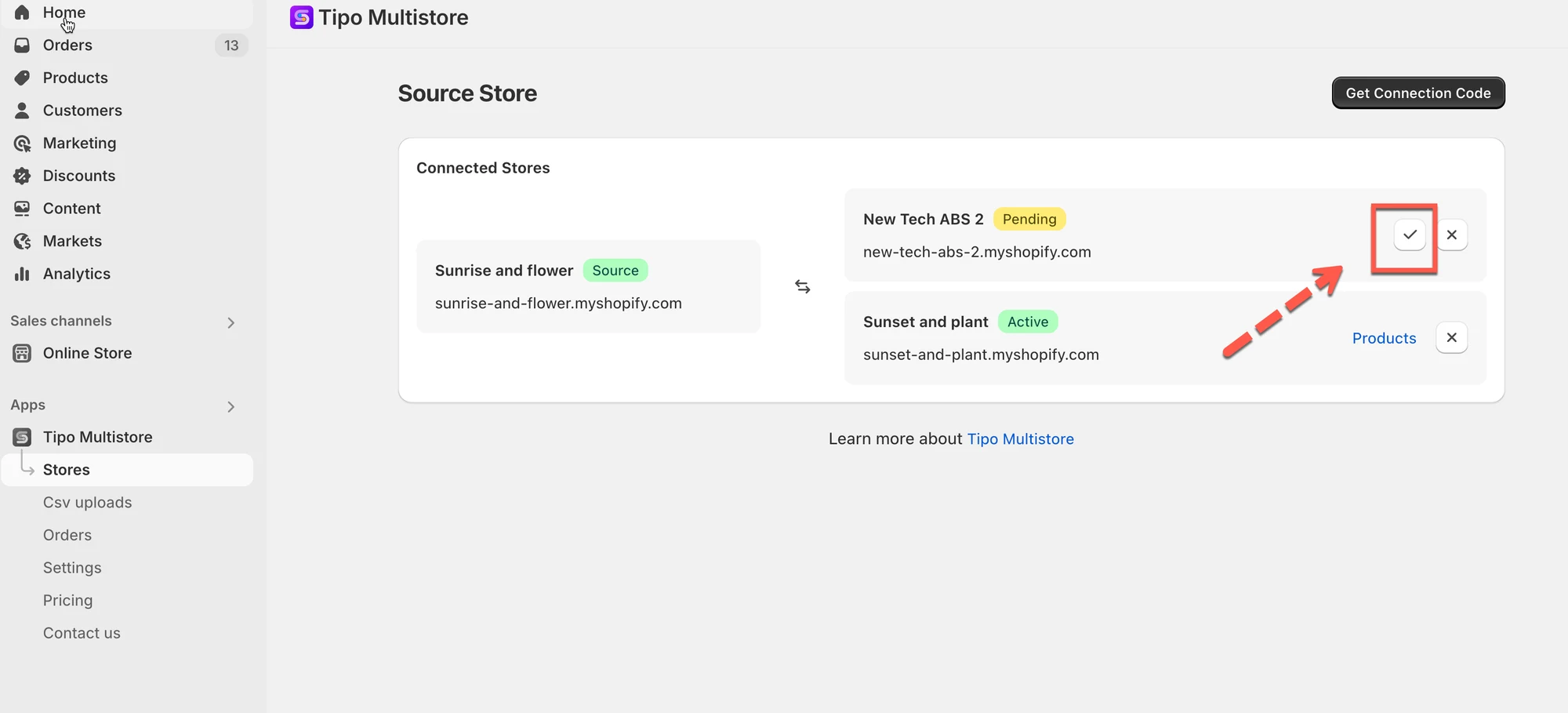
Section titled “📍 Where to find and approve the connection requests”- Open Shopify Admin in the Source store > open the Tipo app
- Go to Stores section of the app > new connection requests stay in “pending”
- You must approve them in the Source store before syncing starts
🙋 Still need support?
If you still need help, please feel free to contact us at hi@tipo.io. We’ll be happy to assist you further.