# Manually approve Destination store
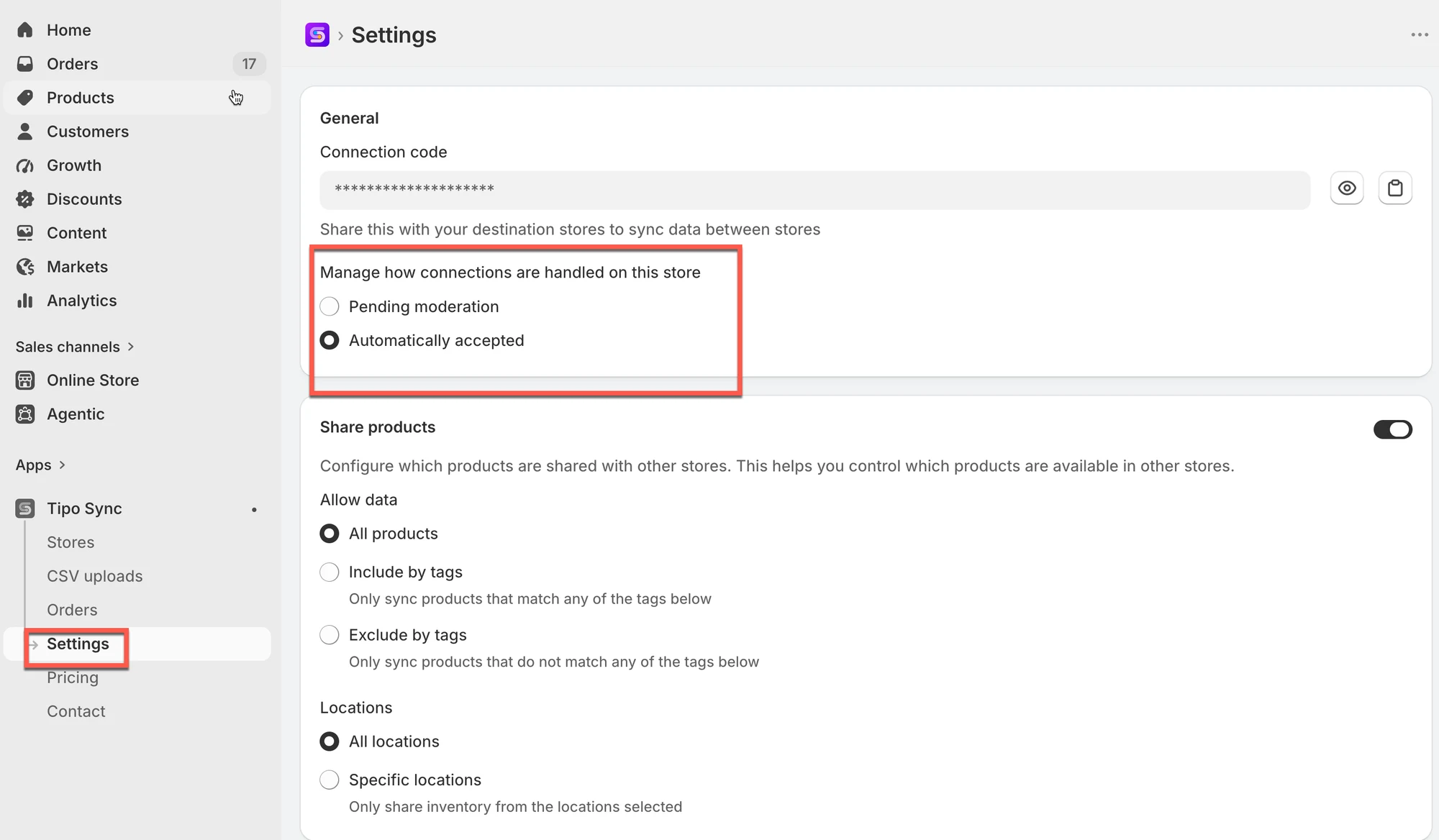
If your Source store uses **Moderation mode**, connection requests from Destination stores will not be accepted automatically. This guide shows how to review and approve a Destination store connection manually.
### 🔎 When do I need to approve a request?
You need to approve a connection when:
* the Source store connection status is set to **Moderation.** Go to **Source** store > open the app > go to app **Settings**
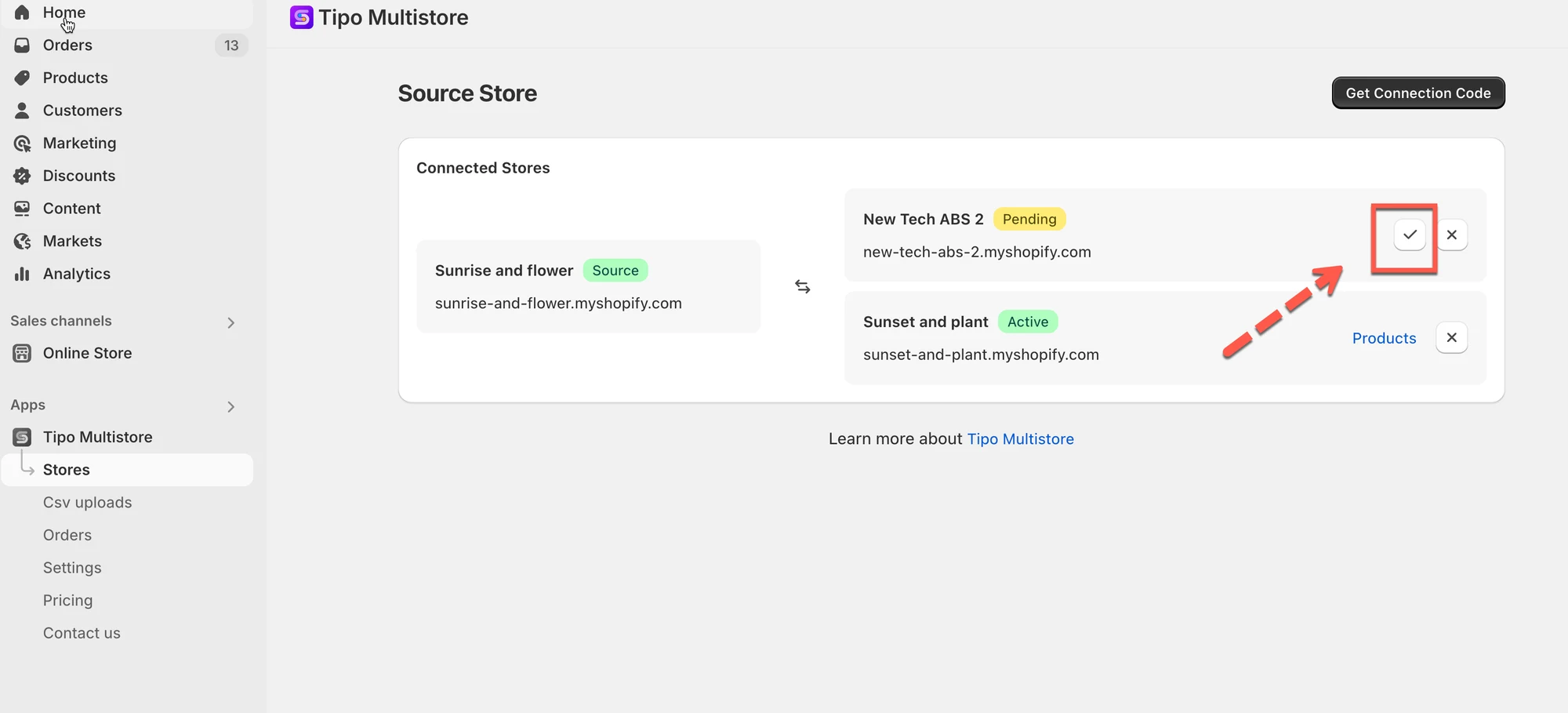
* a Destination store has sent a connection request
* the request is waiting in **Pending** state
✅ If your Source store is set to **Auto-accept**, you do not need this step.
This screenshot is unavailable in the original documentation.
***
### 📍 Where to find and approve the connection requests
1. Open Shopify Admin in the **Source store** > open the Tipo app
2. Go to **Stores** section of the app > new connection requests stay in “pending”
3. You must approve them in the Source store before syncing starts
***
**🙋 Still need support?**
If you still need help, please feel free to contact us at . We’ll be happy to assist you further.