
History (Sync Activity Log)
AI Overview
The History page shows what Tipo app has done in your store, so you can confirm a sync ran, see the result, and debug problems. Each row is one sync action, or job, for an Inventory Sync Group or Bundle Group. You can open any row to see what changed.
View moreView less
- Each row shows Type, Group ID, Title, Order / Action, Status, and Created At.
- Open the app in Shopify Admin and click History in the left menu.
- Click the eye icon on a row to open a History Detail popup.
- The popup shows the group name and action type, the status, and an inventory results table of what changed.
Summary generated by AI. It can make mistakes, so check the full guide below.
The History page helps you track what Tipo app has done in your store so you can quickly confirm a sync ran, see the result, and debug issues if something looks off.
✅ What you can see in History
Section titled “✅ What you can see in History”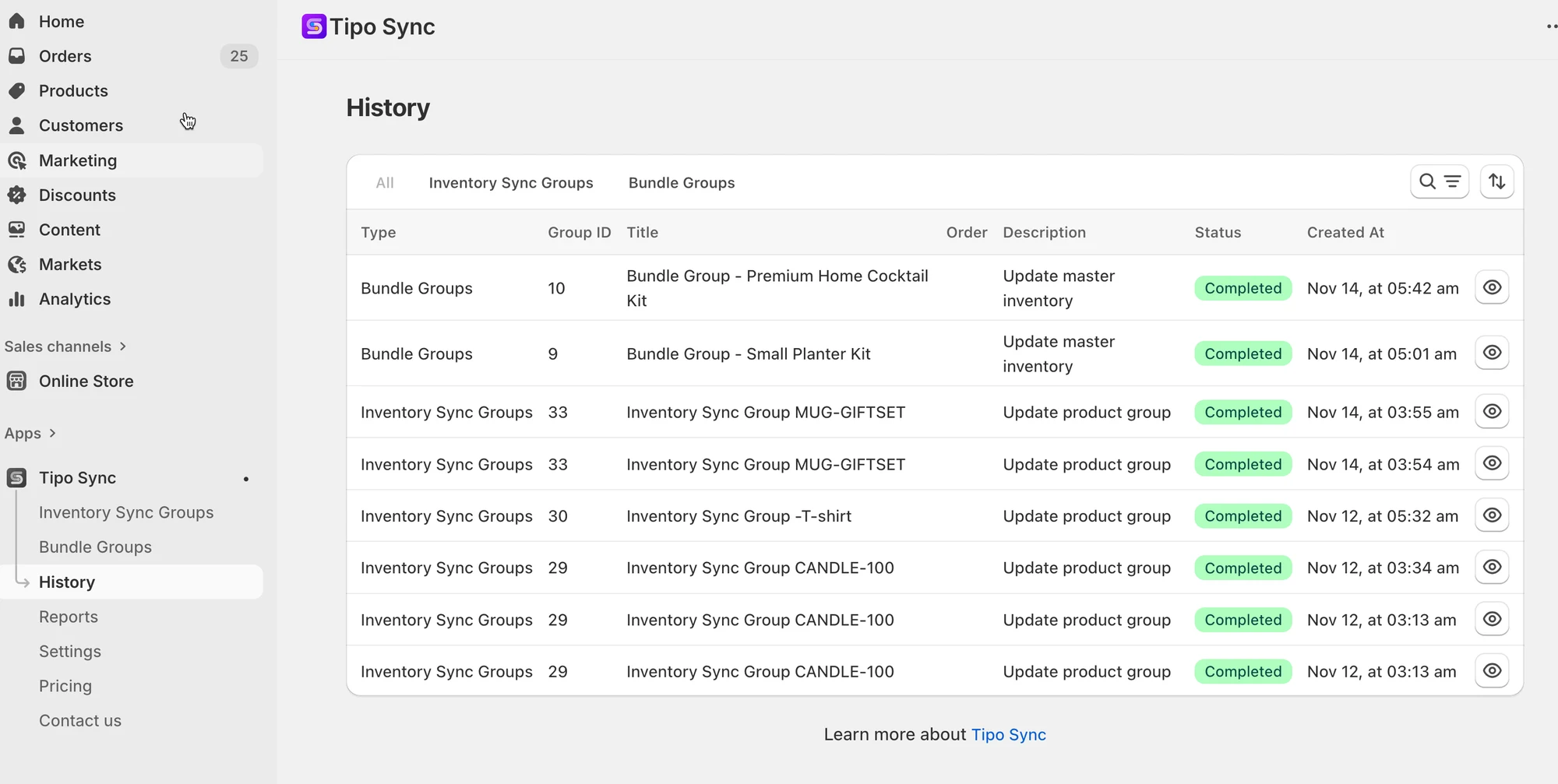
✅ What you can see in History
Section titled “✅ What you can see in History”On the History table, each row shows one sync action (a “job”), including:
- Type: Inventory Sync Group or Bundle Group
- Group ID: The group that triggered the update
- Title: Group name
- Order / Action: What the system did (example: Update master inventory, Update product group)
- Status: Completed / Unchanged / (other statuses if shown)
- Created At: When the action happened
- View: Open details for that job
📍 Where to find History
Section titled “📍 Where to find History”- Open Shopify Admin > open the app
- Click History in the left menu
- Find the row you want to check > click the 👁️ eye icon > a History Detail popup opens, showing:
- Group name + action type
- Status (example: Completed)
- Inventory results table (what changed)
🙋 Still need support?
If you still need help, please feel free to contact us at hi@tipo.io. We’ll be happy to assist you further.