
Check current sync status
AI Overview
See where to check whether products are syncing from the Source store to the Destination store in Tipo Sync. The synced product list is available in the app in both stores, and you can search and sort it. In the Destination store you can also open a product's mapping detail.
View moreView less
- In the Source store, open the Dashboard, click Stores, then click the Products icon.
- In the Destination store, open the Dashboard and click Products.
- Search by product title, vendor or type, and sort by newest or oldest created or updated.
- In the Destination store, click the eye icon to see a product's mapping detail, including title and inventory.
Summary generated by AI. It can make mistakes, so check the full guide below.
This guide shows how to check whether sync is running correctly and what each sync status means so you can quickly confirm if products are syncing from Source → Destination.
The sync product list shows in the app in both Source store and Destination store.
In Source store
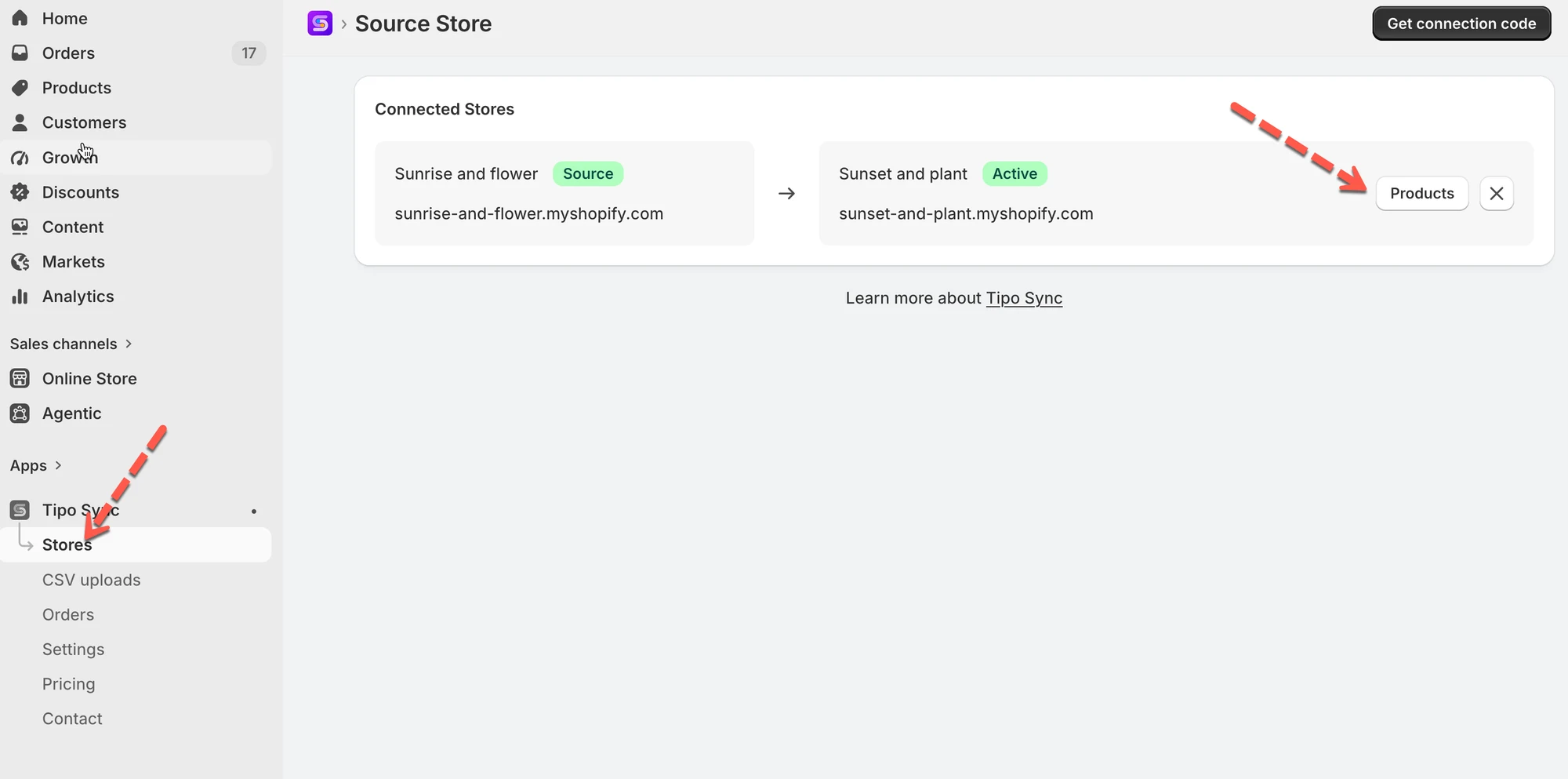
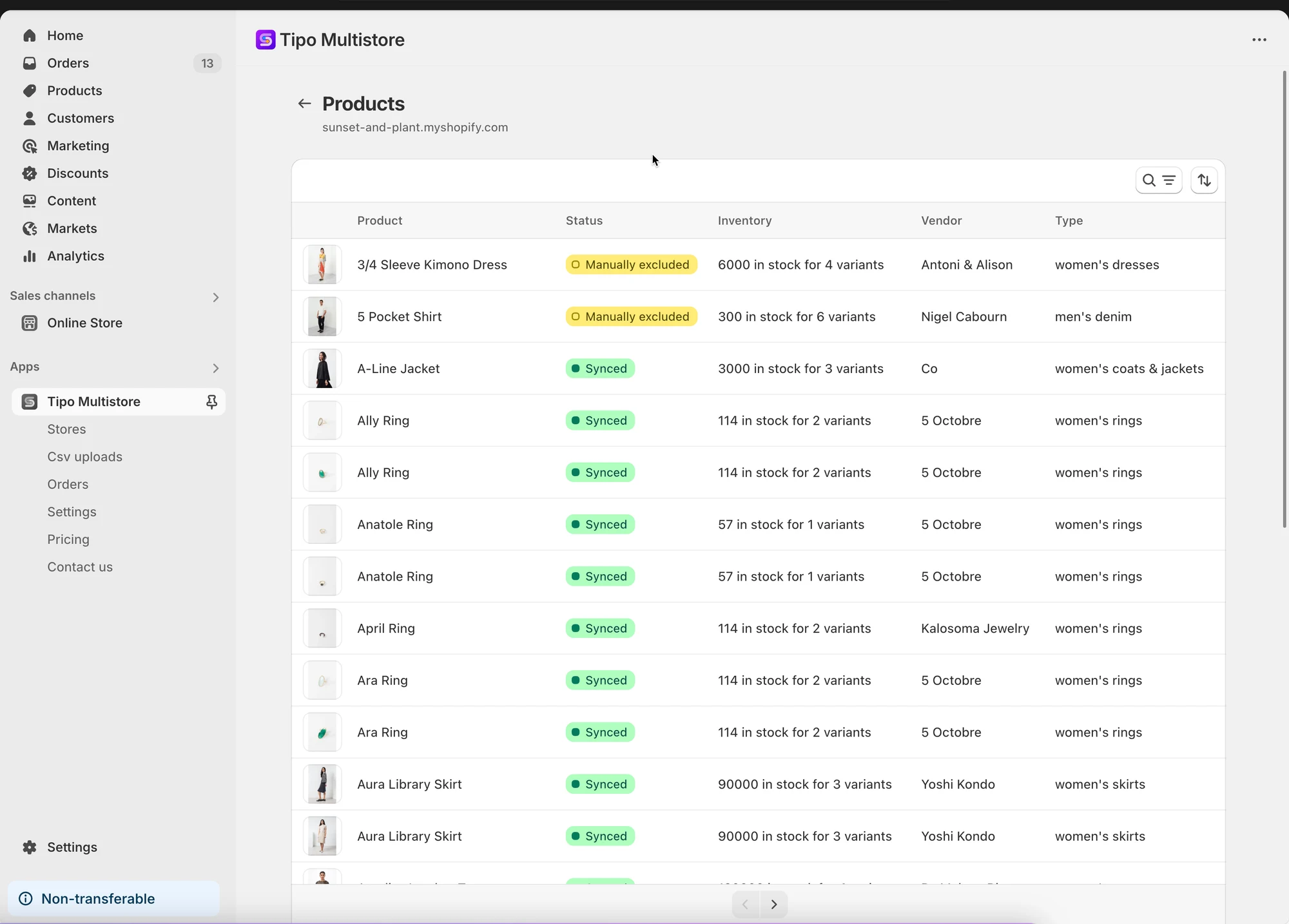
Section titled “In Source store”Open the app Dashboard > click Stores > Click Products icon to see the synced product list of the connection.
You can search products based on the product title, vendor or type. Filter by the newest or oldest created/update.
In Destination store
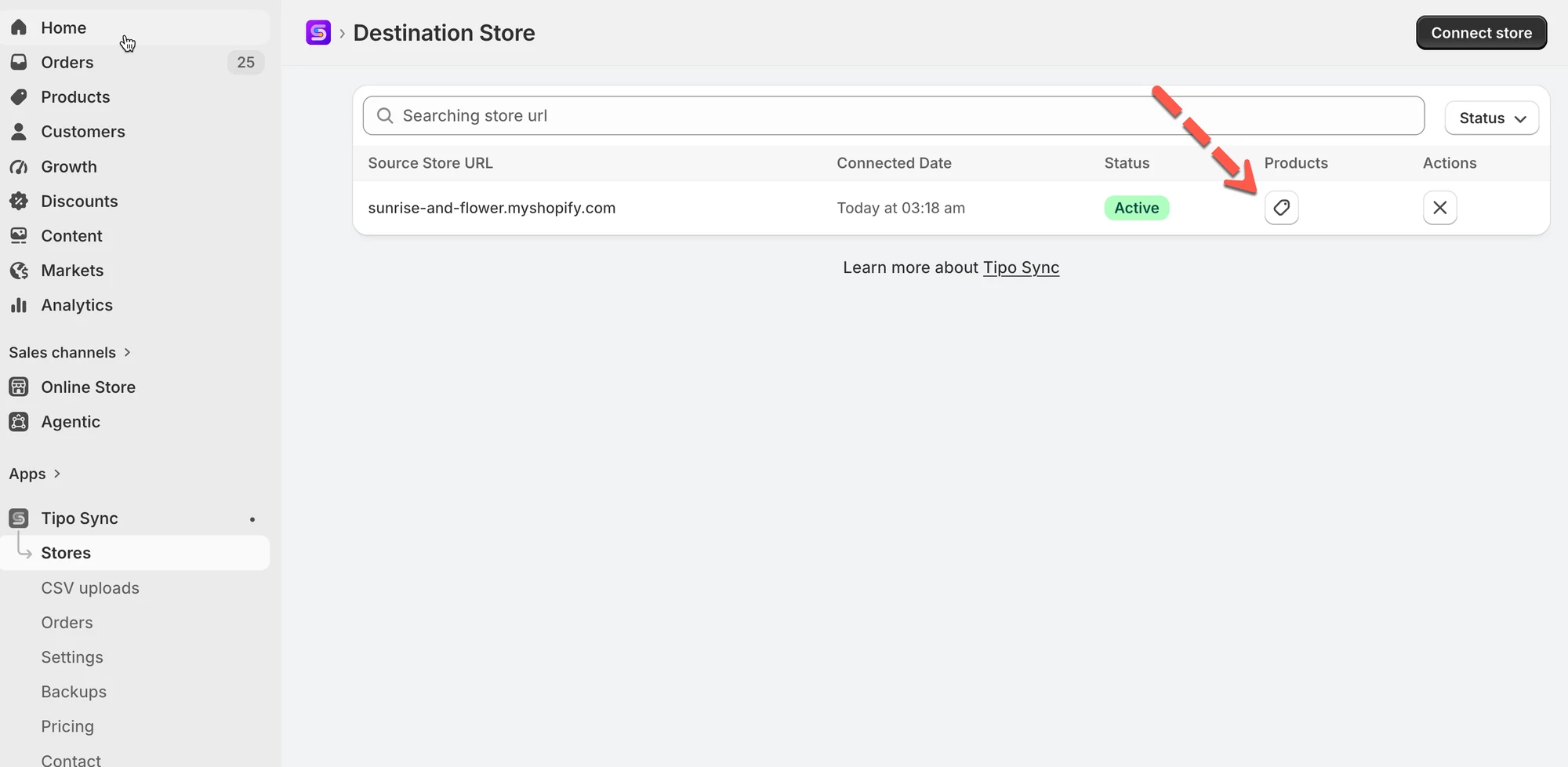
Section titled “In Destination store”Open the app Dashboard > click Products to see the synced product list of the connection.
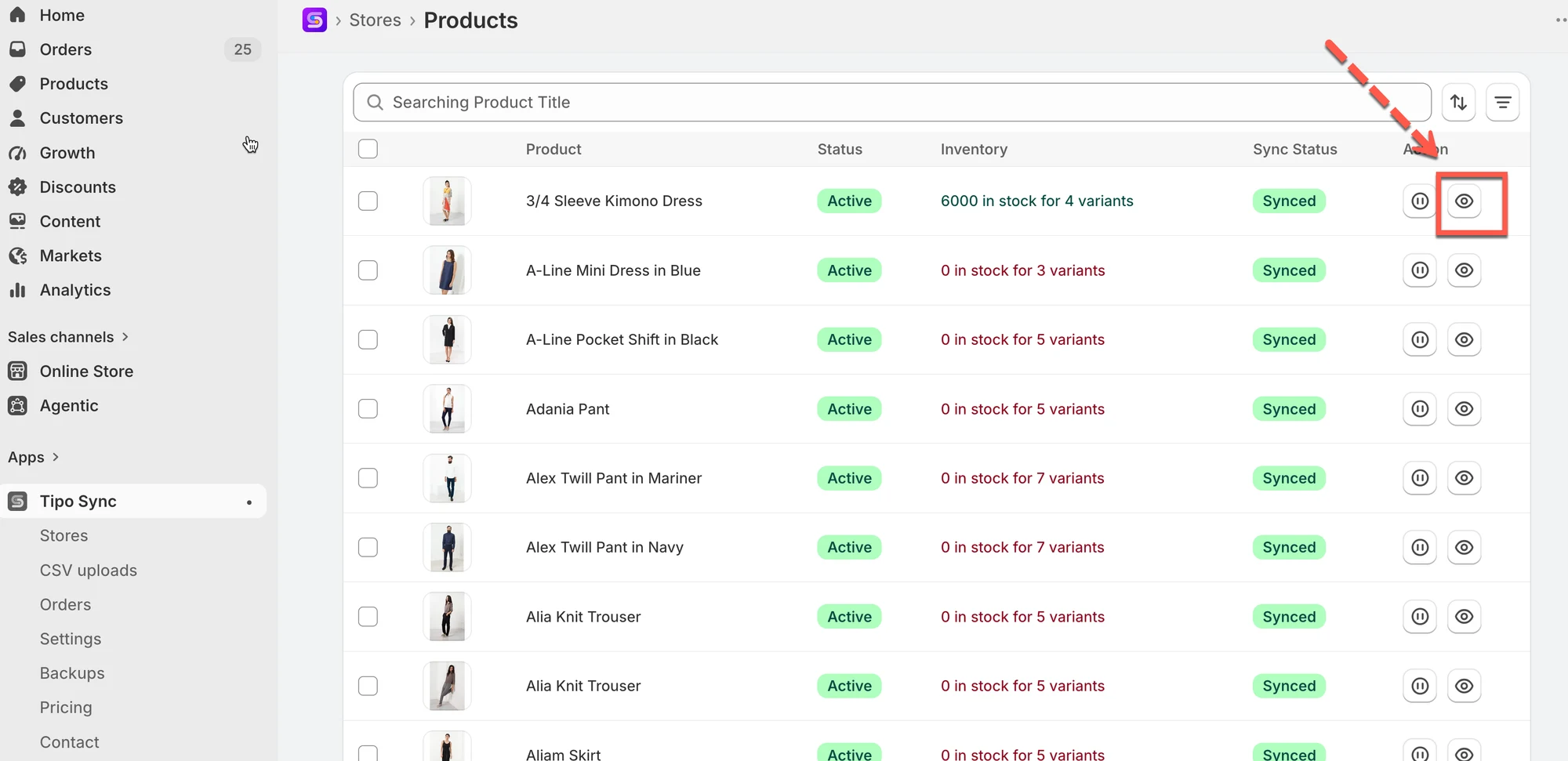
In Destinations store, you can view the mapping detail by clicking the eye icon. The product title and inventory are available here
🙋 Still need support?
If you still need help, please feel free to contact us at hi@tipo.io. We’ll be happy to assist you further.